
1. Introduction
The KINMRIS G11 Pro Game Box 4K is a compact video game console designed for retro gaming enthusiasts. It comes pre-loaded with a vast library of classic games and supports multiple emulators, offering a plug-and-play experience. This manual provides essential information for setting up, operating, and maintaining your game console.
2. Package Contents
Please verify that all items listed below are included in your package:
- 1 x G11 Pro Game Box Host
- 1 x 128GB TF Card (pre-installed)
- 2 x 2.4G Wireless Gamepads
- 1 x HDMI Cable
- 1 x Charging Cable (USB Power Cable)
- 1 x USB Receiver for Wireless Gamepads
- 1 x Remote Control (for Android system)
- 1 x User Manual (this document)

Figure 2.1: Included components in the KINMRIS G11 Pro Game Box 4K package.
3. Setup Instructions
Follow these steps to connect and power on your G11 Pro Game Box 4K:
- Connect to TV: Connect the provided HDMI cable from the HDMI port on the G11 Pro Game Box to an available HDMI input on your television or display.
- Connect Power: Connect the charging cable (USB power cable) to the DC IN port on the game box and plug the other end into a suitable USB power source (e.g., a USB wall adapter, not included, or a TV USB port).
- Insert USB Receiver: Plug the USB receiver for the wireless gamepads into one of the USB ports on the game box.
- Power On: Press the ON/OFF button on the game box to power it on.
- Select TV Input: On your television, use the remote control to select the corresponding HDMI input channel to which the game box is connected. The game interface should appear on your screen.
- Prepare Controllers: Insert 2 AAA batteries (not included) into each wireless gamepad. The controllers should automatically pair with the console via the USB receiver.

Figure 3.1: Connecting the G11 Pro Game Box to a display via HDMI for 4K Ultra HD output.
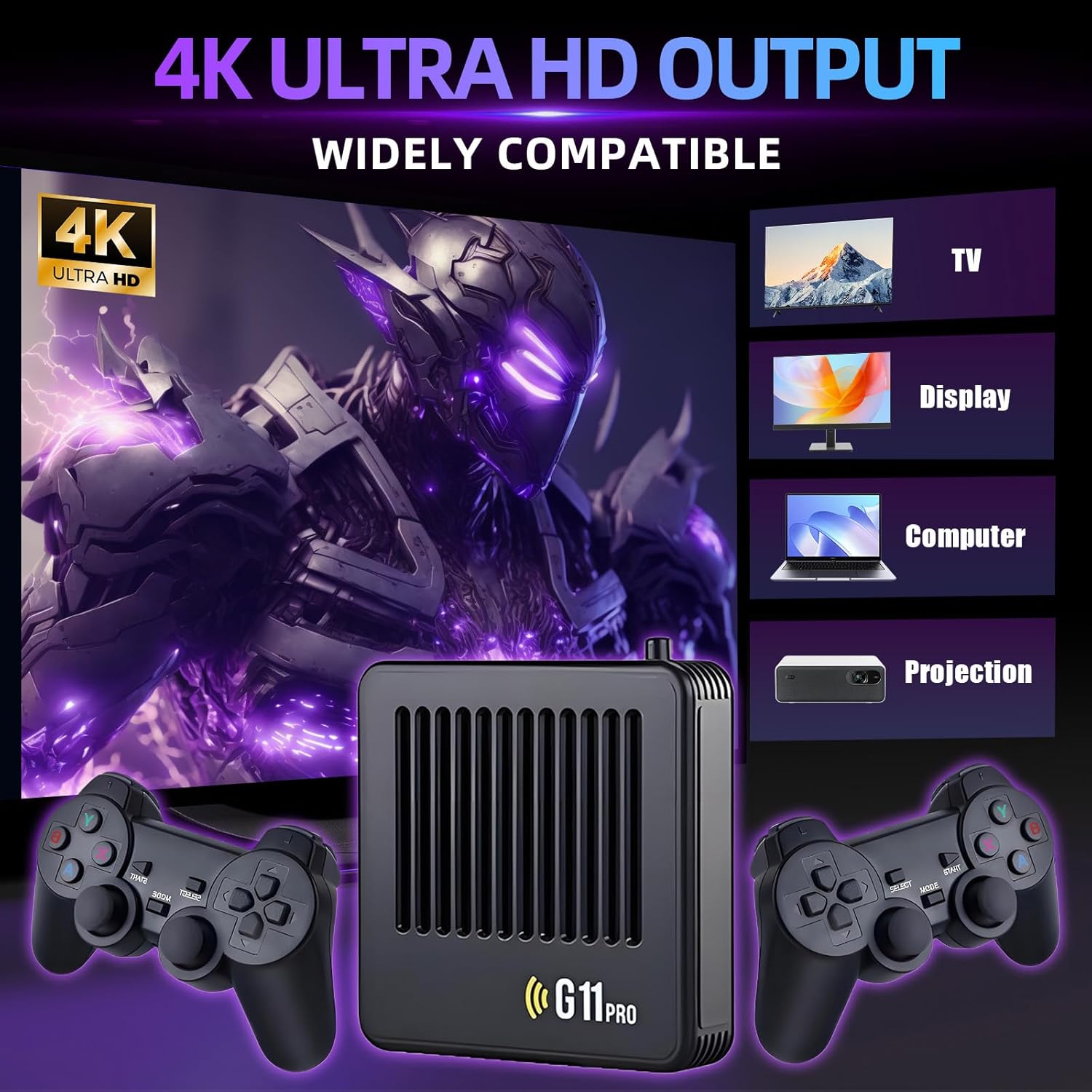
Figure 3.2: Overview of ports on the G11 Pro Game Box, including HDMI, USB, and power input.
4. Operating Instructions
4.1 Navigating the System
Once powered on, the console will boot into the game selection interface. Use the wireless gamepads to navigate through the menus:
- Use the directional pad (D-pad) or left joystick to move between game titles and menu options.
- Press the A button (or equivalent action button) to select a game or confirm an option.
- Press the B button (or equivalent back button) to return to the previous menu.
- The system supports smart collection and game progress save functions. You can save your game progress at any time during gameplay.
- To manage favorite games, use the collection feature to mark and quickly access them.

Figure 4.1: Overview of the system interface and features, including game archiving and search functions.
4.2 Using the Remote Control
The included remote control is primarily for use when the console is booted into the Android system. To access the Android system, you must remove the TF card before powering on the device. The remote control will not function in the game emulation environment.
4.3 TF Card Expansion
The console supports TF card expansion up to 256GB. This allows for additional storage of games and media. To expand, power off the console, insert a compatible TF card into the SD Card slot, and then power on the device.
5. Features
The KINMRIS G11 Pro Game Box 4K offers a range of features for an enhanced gaming experience:
- Extensive Game Library: Pre-loaded with over 40,000 retro games and support for 50+ emulators on the 128GB TF card.
- S905L Gaming Chip: Equipped with an S905L gaming chip for smooth performance and effortless multitasking.
- 4K UHD Output: Supports 4K Ultra HD resolution at 60fps for stable and fluid output on compatible displays.
- 2.4G Wireless Controllers: Includes two wireless controllers with 3D dual joysticks for comfortable and responsive gameplay.
- Multi-language Support: The system supports 26 languages, including English, Italian, German, French, and Dutch.
- Game Save Functionality: Allows users to save game progress at any time and manage favorite games.

Figure 5.1: The S905L chip provides high performance for the console.

Figure 5.2: The G11 Pro Game Box is designed for utility, convenience, and safety.
6. Specifications
| Feature | Specification |
|---|---|
| Model | G11 Pro Game Box 4K |
| Processor | S905L Gaming Chip |
| Internal Storage | 128GB TF Card (pre-installed) |
| Emulators | 50+ supported |
| Game Count | 40,000+ (on 128GB TF card) |
| Output | HDMI, 4K Ultra HD @ 60fps |
| Controllers | 2 x 2.4G Wireless Gamepads |
| Material | ABS |
| Product Dimensions | 6.69 x 4.72 x 5.12 inches |
| Supported Languages | 26 languages (including English) |
| Manufacturer | KINMRIS |
7. Maintenance
To ensure the longevity and optimal performance of your G11 Pro Game Box 4K, follow these maintenance guidelines:
- Cleaning: Use a soft, dry cloth to clean the console and controllers. Avoid using liquid cleaners or abrasive materials.
- Storage: Store the console in a cool, dry place away from direct sunlight and extreme temperatures.
- Handling: Handle the console and its components with care. Avoid dropping or subjecting them to strong impacts.
- Firmware: Do not attempt to modify the system or device firmware. Unauthorized modifications can lead to system instability and security issues, potentially voiding any support.
8. Troubleshooting
If you encounter issues with your G11 Pro Game Box 4K, refer to the following common solutions:
- No Display on TV:
- Ensure the HDMI cable is securely connected to both the console and the TV.
- Verify that your TV is set to the correct HDMI input channel.
- Check if the console is powered on (the power indicator light should be active).
- Wireless Controllers Not Responding:
- Ensure fresh batteries are correctly inserted into the controllers.
- Verify that the USB receiver is securely plugged into a USB port on the console.
- Try re-pairing the controllers by pressing the connect button on the controller and the receiver (if available, refer to controller specific instructions).
- Remote Control Not Working:
- The remote control only functions when the console is booted into the Android system. Ensure the TF card is removed before powering on to access Android.
- Check batteries in the remote control.
- System Instability or Freezing:
- Power off the console, wait 10 seconds, and then power it back on.
- Avoid modifying the system firmware, as this can cause instability.
9. Important Safety Information
Please read and follow these safety precautions to prevent damage to the device or injury to yourself:
- Do not expose the console to water, moisture, or extreme temperatures.
- Do not attempt to open or repair the console yourself. Refer all servicing to qualified personnel.
- Use only the provided charging cable or a compatible power source.
- Keep the console and accessories out of reach of small children.
- Avoid prolonged gaming sessions. Take regular breaks to prevent eye strain and fatigue.
10. Support
For further assistance or inquiries not covered in this manual, please contact KINMRIS customer support through your retailer's platform or the official brand channels. Please have your product model and purchase information ready when contacting support.