
Introduction
This manual provides detailed instructions for setting up, operating, and maintaining your WDZP Backlight Remote Control, model P265v5. This remote is designed as a replacement for Verizon FiOS VZ P265v4 and P265v5 RC TV STB remote controls.
Compatibility
The WDZP Backlight Remote Control is compatible with Verizon FiOS SD, HD, and DVR boxes, specifically designed for 2-Device, TV STB box, and RC1445302/00B Verizon FiOS remote systems.
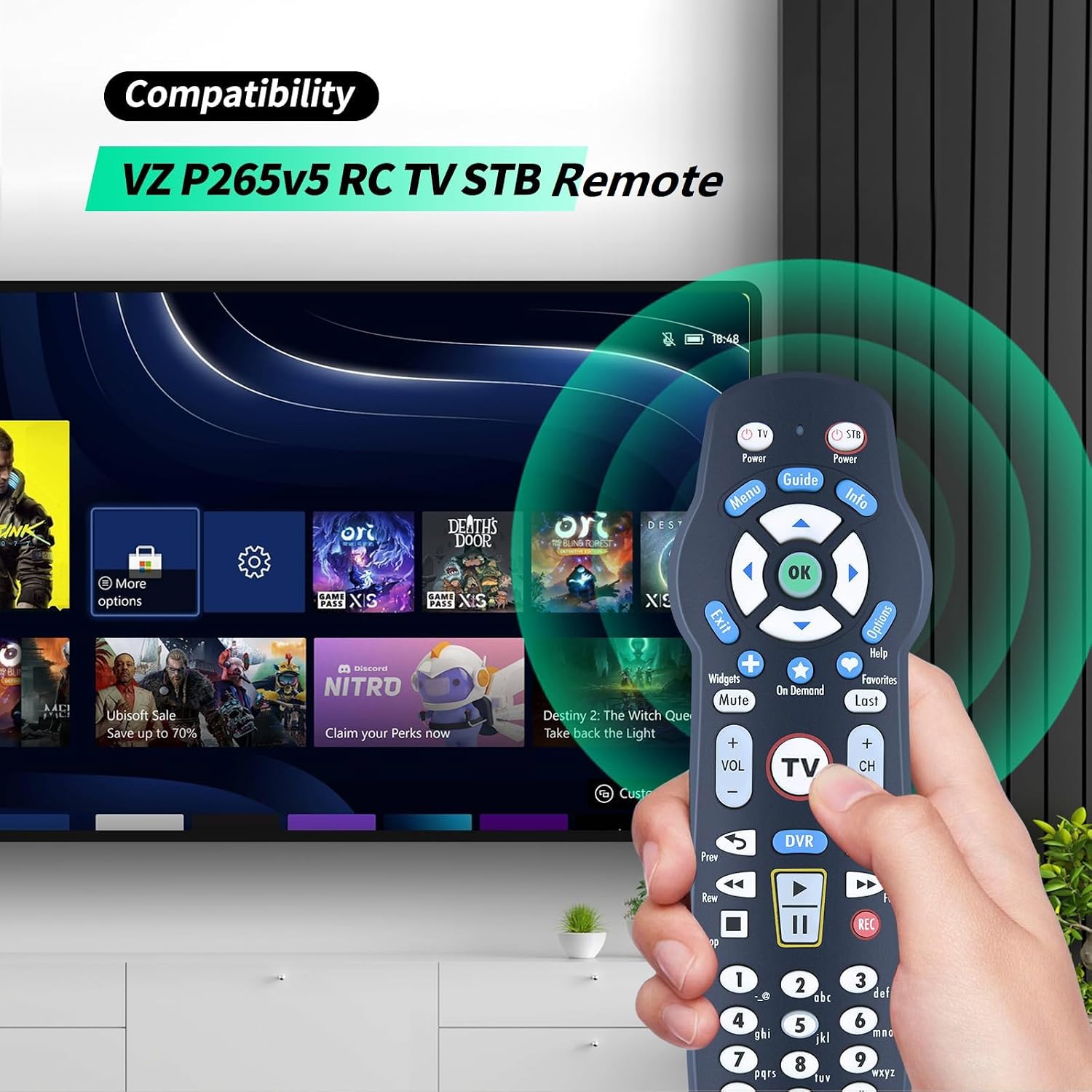
Image: The WDZP P265v5 remote control being used with a television, illustrating its compatibility with Verizon FiOS systems.

Image: A visual comparison of three remote control models, emphasizing the importance of matching your specific model and button layout for correct functionality.
Please ensure your original remote control model matches the P265v5 for optimal performance. Refer to the comparison image above to verify your model.
Setup Instructions
1. Battery Installation
The remote control requires two 1.5V AAA batteries (not included). To install:
- Open the battery compartment cover on the back of the remote.
- Insert two AAA batteries, ensuring correct polarity (+/-).
- Close the battery compartment cover.
Note: If you need to replace the batteries, wait until the red LED flashes 5 times quickly before replacing them.

Image: The remote control shown alongside an 'X' over batteries, indicating that batteries are not included and highlighting the easy setup process.
2. Pairing Methods
The remote control offers multiple pairing methods to connect with your TV and STB box.
Method 1: Using the FiOS TV Button
- Turn on your TV.
- Press and hold the OK button.
- While holding OK, press the FiOS TV button and then release both buttons.
- Press and hold the PLAY button until your TV turns off.
- Press OK to save the settings.

Image: Visual guide for pairing the remote control, highlighting the 'OK' and 'FiOS TV' buttons and outlining the steps for initial setup.
Method 2: Using a 3-Digit TV Code
- Turn on your TV and Frontier STB. Ensure live TV is visible.
- Locate the 3-digit code for your TV brand (refer to the code list provided with your original equipment or online resources).
- Press and hold the OK and 0 keys together. The red LED on the remote will blink twice, then stay on.
- Enter the 3-digit TV code using the number pad. The red LED will blink twice and stay on.
- Press and release CH+ repeatedly until the TV turns off. You can also press CH- to go back.
- Test the remote to ensure all keys function correctly. If successful, press OK to save. The red LED will blink 3 times and turn off.
3. Code Search Method
This method is useful if you cannot find your TV's 3-digit code.
- Turn on your TV and the Frontier STB. Ensure live television is visible.
- Press OK and FiOS TV together, then release both. The red LED will blink twice and then stay on.
- Press down the PLAY/PAUSE button.
- The remote will attempt a new TV code every second, and the red LED will blink with each code sent.
- When the TV turns off, immediately stop pressing PLAY/PAUSE.
- You can press CH+ or CH- to cycle forward or backward through TV codes one at a time.
- Test the remote to confirm it is programmed. If all keys work, press OK to save. The red LED will blink 3 times and then turn off.
Operating Instructions
Once paired, your WDZP remote control functions similarly to your original Verizon FiOS remote. It features a backlight for improved visibility in low-light conditions.
- Power Button: Turns your TV and STB box on or off.
- Channel Buttons (CH+/CH-): Changes channels.
- Volume Buttons (VOL+/VOL-): Adjusts the volume.
- Navigation Pad (Arrows & OK): Navigates menus and confirms selections.
- Menu/Guide/Info: Accesses TV menus, program guides, and information.
- DVR Controls: Play, Pause, Stop, Rewind, Fast Forward, Record.
- Backlight Feature: The buttons illuminate for easy use in dark environments.

Image: The WDZP P265v5 remote control being held and used, demonstrating its ergonomic design and backlit buttons for enhanced usability.
Maintenance
To ensure the longevity and optimal performance of your remote control:
- Keep the remote clean by wiping it with a soft, dry cloth.
- Avoid exposing the remote to extreme temperatures, humidity, or direct sunlight.
- Replace batteries promptly when the remote's performance degrades or the low battery indicator (if present) activates.
- Do not mix old and new batteries, or different types of batteries.
Troubleshooting
- Remote not responding:
- Check battery installation and replace if necessary.
- Ensure there are no obstructions between the remote and the device.
- Re-attempt the pairing process (Method 1 or 2).
- Specific buttons not working:
- This may indicate an incomplete pairing. Try the pairing or code search method again.
- Ensure the remote is pointed directly at the device's IR receiver.
- Backlight not working:
- Check battery levels. Low batteries can affect backlight functionality.
Specifications
| Brand | WDZP |
| Model Name | P265v5 |
| Special Feature | Backlit buttons |
| Color | Black |
| Max Number of Supported Devices | 1 (TV/STB) |
| Compatible Devices | Television, STB Box (Verizon FiOS) |
| Connectivity Technology | Infrared |
| Controller Type | Button Control |
| Maximum Range | 40 Feet |
| Battery Type | 2 x 1.5V AAA Batteries (not included) |

Image: The remote control emphasizing its technical specifications including a 40-foot control distance, 180-degree control angle, and 38kHz+ reaction rate, along with its durable ABS material construction.
Warranty and Support
This WDZP remote control comes with a 6-month warranty. For any quality issues or if the product does not match your equipment, please contact customer support for a free exchange or refund.
For further assistance, please refer to the contact information provided with your purchase or visit the official WDZP store page.