
Introduction
This manual provides comprehensive instructions for the XEME Key Finder Bluetooth Tracker, Model XM-TAG. This device is designed to help you locate your personal items such as keys, luggage, or wallets by integrating with the Apple Find My network. Please read this manual thoroughly before using the product to ensure proper setup and operation.
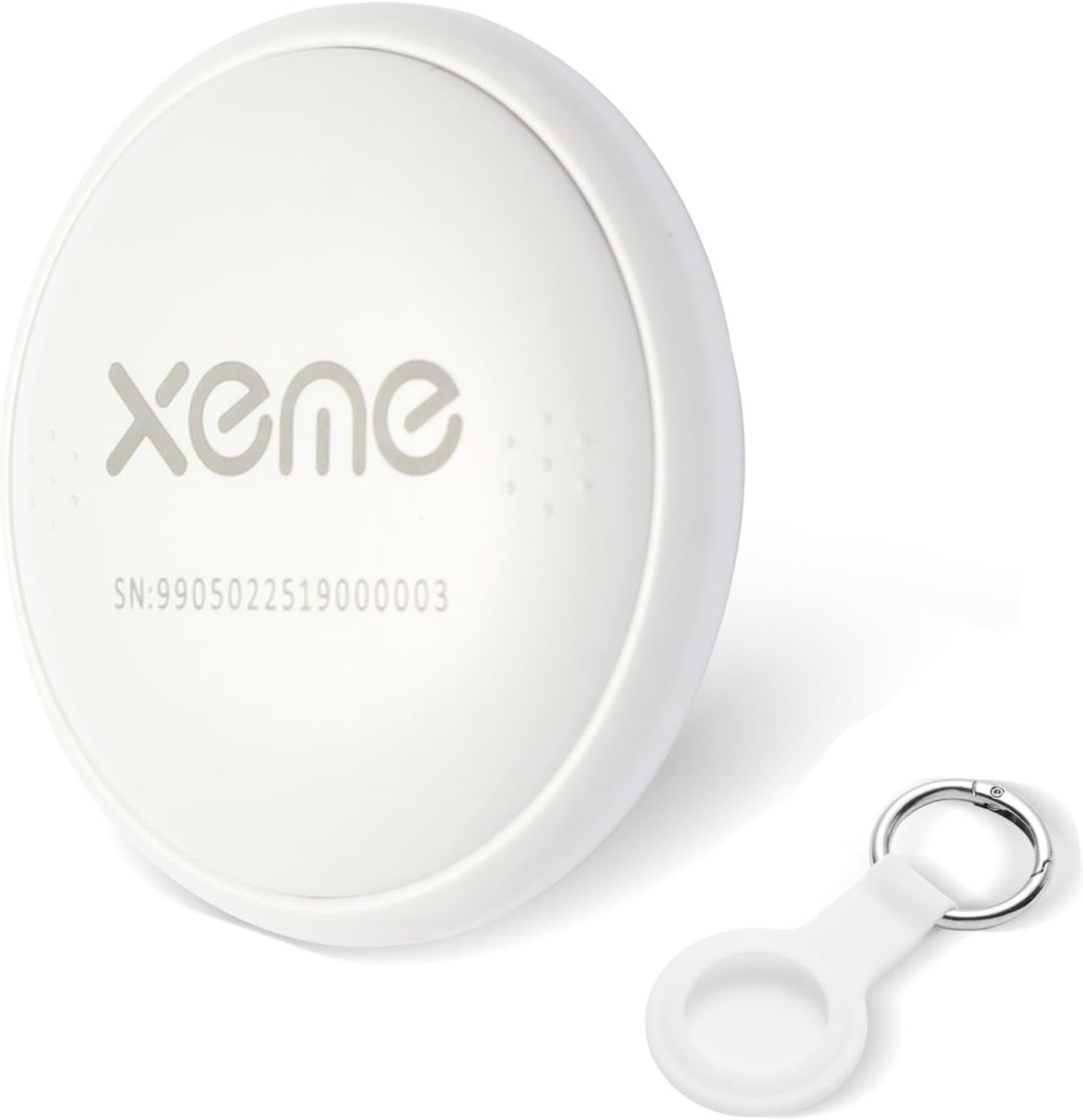
Image: The XEME Key Finder Bluetooth Tracker, a white circular device, shown with its included white silicone holder and metal keyring.
Key Features
- Apple Find My Network Integration: Seamlessly connects with the Apple Find My app on iOS devices for item location.
- Audible Alert: Emits a loud sound to help locate items nearby.
- Lost Mode & Left-Behind Alerts: Receive notifications if you leave your item behind and mark it as lost in the Find My app.
- IP67 Water Resistance: Resistant to splashes, rain, and brief immersion in water.
- Replaceable Battery: Powered by a CR2032 battery with up to two years of life.

Image: A banner highlighting the XEME Key Finder's official Apple MFi certification and compatibility with Apple Find My and Siri.
Setup Guide
Follow these steps to set up your XEME Key Finder with your Apple device:
- Ensure your iPhone or iPad has Bluetooth enabled and the Apple Find My app is installed.
- Open the Find My app on your iOS device.
- Navigate to the Items tab.
- Tap the "+" icon, then select "Add Other Supported Item".
- Briefly press the button on your XEME Key Finder and bring it close to your iPhone.
- Your iPhone should detect "Xeme Find". Tap to connect and follow the on-screen prompts to name your item and assign an emoji.

Image: A visual guide showing the three steps to connect the XEME Key Finder to the Apple Find My app: opening the app, adding an item, and connecting to "Xeme Find".
Note: The XEME Key Finder is designed for use with Apple iOS devices and the Apple Find My network. Android devices are not supported.
Operating Instructions
Locating Nearby Items
If your XEME Key Finder is within Bluetooth range, you can make it play a sound to help you locate it.
- Open the Find My app on your iPhone or iPad.
- Go to the Items tab and select your XEME Key Finder.
- Tap "Play Sound". The tracker will emit a loud sound (up to 80-100 dB) to guide you to its location.

Image: A person using the Find My app on their phone to locate keys with a XEME Key Finder, which is emitting a sound. The map shows the item's location within a home setting.
Locating Far Away Items
When your XEME Key Finder is outside of Bluetooth range, you can still view its last known location.
- Open the Find My app.
- Select your XEME Key Finder from the Items tab.
- The app will display the tracker's most recent location on a map.

Image: An iPhone screen showing the Apple Find My app interface with a map displaying the location of a XEME Key Finder. The tracker itself is shown next to the phone on a wooden desk.
Left-Behind Alerts
Receive notifications if you accidentally leave your tracked item behind.
- In the Find My app, select your XEME Key Finder.
- Under Notifications, enable "Notify When Left Behind".
- You can customize locations where you don't want to be notified (e.g., your home).

Image: An iPhone displaying a "Key left behind" notification, indicating that the XEME Key Finder has been separated from the user. The image also shows a person walking away from a set of keys.
Lost Mode
If your item is truly lost, you can enable Lost Mode.
- In the Find My app, select your XEME Key Finder.
- Scroll down to "Lost Mode" and tap "Enable".
- Follow the instructions to enter a contact phone number or email address. If someone finds your item, they can use an NFC-enabled smartphone to view your contact information.
Sharing Items
You can share the location of your XEME Key Finder with family and friends (requires iOS 17 or above).
- In the Find My app, select your XEME Key Finder.
- Tap "Share Item" and follow the prompts to select contacts to share with.

Image: A collage demonstrating the versatility of the XEME Key Finder for tracking various items like keys, bags, luggage, pets, wallets, and backpacks. It also highlights the "Share Your Items" feature within the Find My app.
Maintenance
Battery Replacement
The XEME Key Finder uses a replaceable CR2032 coin cell battery, which typically lasts up to two years. You can check the battery status directly within the Apple Find My app.
- To replace the battery, gently twist the back cover of the XEME Key Finder counter-clockwise to open it.
- Remove the old CR2032 battery.
- Insert a new CR2032 battery with the positive (+) side facing up.
- Align the back cover and twist clockwise to secure it.
Water Resistance
The device has an IP67 water resistance rating, meaning it is resistant to splashes, rain, and brief immersion in water. However, it is not designed for prolonged submersion or high-pressure water exposure. Ensure the battery compartment is securely closed to maintain water resistance.
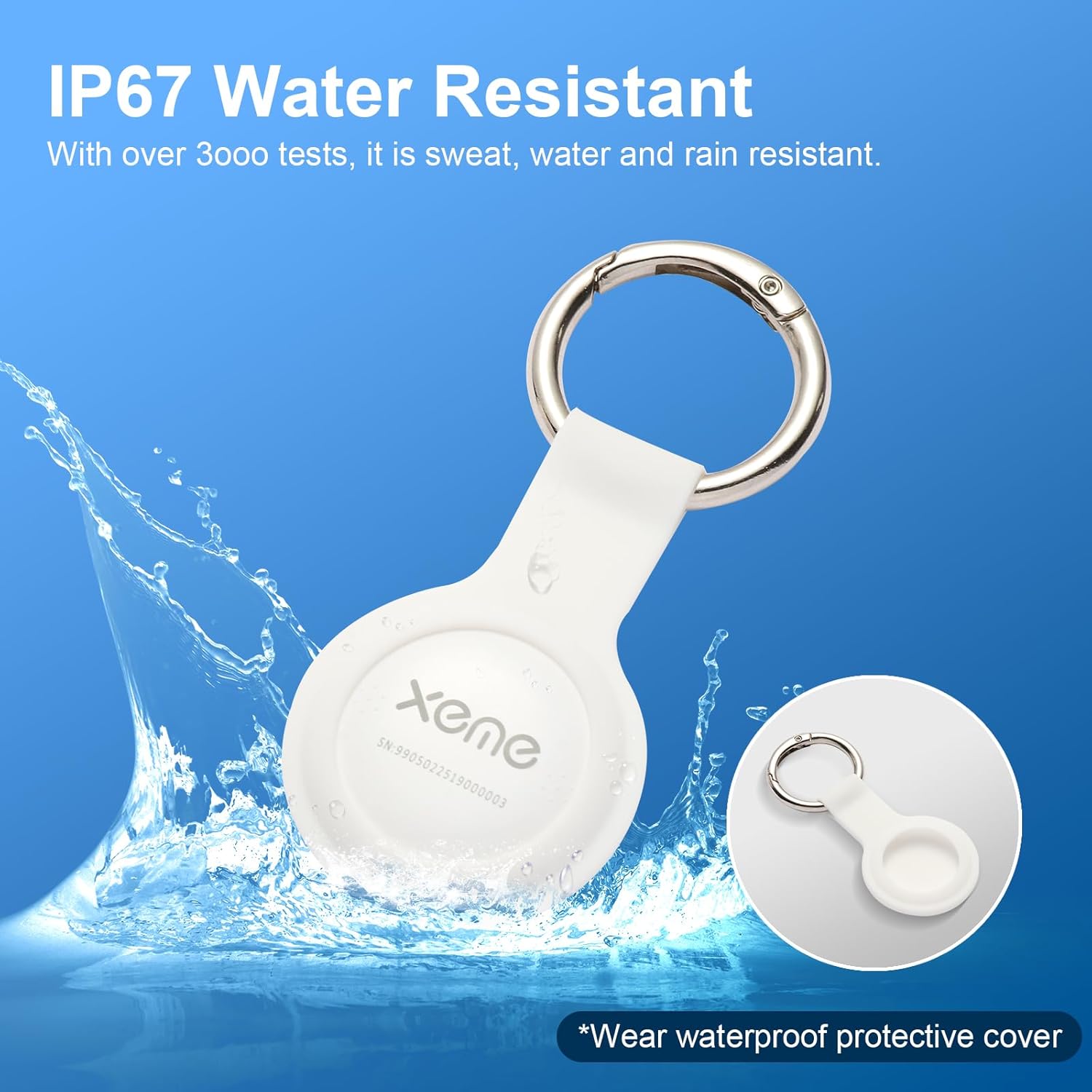
Image: The XEME Key Finder, attached to a keyring, shown with water splashing around it, illustrating its IP67 water-resistant capability.
Troubleshooting
Device Not Connecting or Showing Incorrect Location
- Check Bluetooth: Ensure Bluetooth is enabled on your iOS device.
- Battery Level: Verify the battery status in the Find My app. Replace the CR2032 battery if it is low or depleted.
- Restart Device/App: Try restarting your iPhone/iPad and closing/reopening the Find My app.
- Reset Key Finder: If issues persist, you may need to reset the Key Finder and re-pair it. Refer to the setup guide for re-pairing instructions.
- Network Coverage: For location updates outside of Bluetooth range, the Find My network relies on other Apple devices. In areas with sparse Apple device population, location updates might be less frequent.
No Sound When Playing Alert
- Check Battery: A low battery can affect the sound output. Replace the battery if necessary.
- Within Range: Ensure the Key Finder is within Bluetooth range of your iOS device to play a sound.
No Proximity Tracking
The XEME Key Finder does not feature ultra-wideband (UWB) precision finding for proximity tracking. Location is determined via Bluetooth and the Apple Find My network, providing the last known location on a map and an audible alert when nearby.
Specifications
| Model Number | XM-TAG |
| Connectivity | Bluetooth |
| Compatibility | iPhone, iPad with Apple Find My App (iOS only) |
| Battery Type | 1 x CR2032 (included) |
| Battery Life | Up to 2 years |
| Water Resistance | IP67 |
| Material | Acrylonitrile Butadiene Styrene (ABS) |
| Item Weight | 0.25 ounces |
| Package Dimensions | 4.72 x 3.78 x 0.67 inches |
Warranty Information
Specific warranty details for the XEME Key Finder (Model XM-TAG) are not provided in this manual. Please refer to the product packaging or the official XEME website for the most current warranty information.
Support
For further assistance, technical support, or inquiries regarding your XEME Key Finder, please visit the official XEME Store on Amazon or their dedicated support channels.
XEME Store: https://www.amazon.com/stores/XEME/page/87A3E3EE-42F8-453B-B17A-78DE2B112B90


