
Introduction
This manual provides detailed instructions for the installation, operation, and maintenance of your iSpchen Android 14 Double Din Car Radio. This unit is designed for compatibility with Fiat Ducato, Citroen Jumper, and Peugeot Boxer models manufactured between 2011 and 2023. It features a 9-inch HD touchscreen, Android 14 operating system, 4GB RAM + 64GB ROM, and supports a wide range of multimedia and connectivity options including wireless CarPlay, Android Auto, Bluetooth, GPS, WiFi, FM/RDS radio, and rear camera input.
Please read this manual thoroughly before installation and use to ensure proper operation and to maximize your experience with the device.
Setup and Installation
The iSpchen Android 14 Car Radio is designed for a straightforward installation process, often referred to as 'plug and play' for compatible vehicles. No additional frame or complex cable modifications are typically required.
Compatibility Check
Before proceeding with installation, it is crucial to verify the compatibility of this unit with your specific vehicle model and year. Ensure your vehicle is a Fiat Ducato, Citroen Jumper, or Peugeot Boxer manufactured between 2011 and 2023.
If uncertain, compare the connectors on the back of your vehicle's existing center console and head unit with the provided wiring diagrams or consult a professional installer.
Installation Steps (General Guide)
- Preparation: Turn off your vehicle's engine and disconnect the negative terminal of the car battery to prevent electrical shorts.
- Remove Old Unit: Carefully remove your existing car radio or head unit from the dashboard. This may require specific tools for trim panel removal.
- Connect Wiring: Connect the provided wiring harness from the new iSpchen unit to your vehicle's existing wiring. Ensure all connections are secure. Connect the GPS antenna, WiFi antenna, and any other external accessories like the rear camera cable.
- Test Functionality: Before fully reassembling the dashboard, temporarily reconnect the car battery and power on the unit. Test basic functions such as power, audio, and touchscreen response.
- Secure Unit: Once tested, carefully slide the new iSpchen car radio into the dashboard opening and secure it using the appropriate mounting brackets or screws.
- Reassemble: Reattach any removed trim panels and reconnect the car battery.
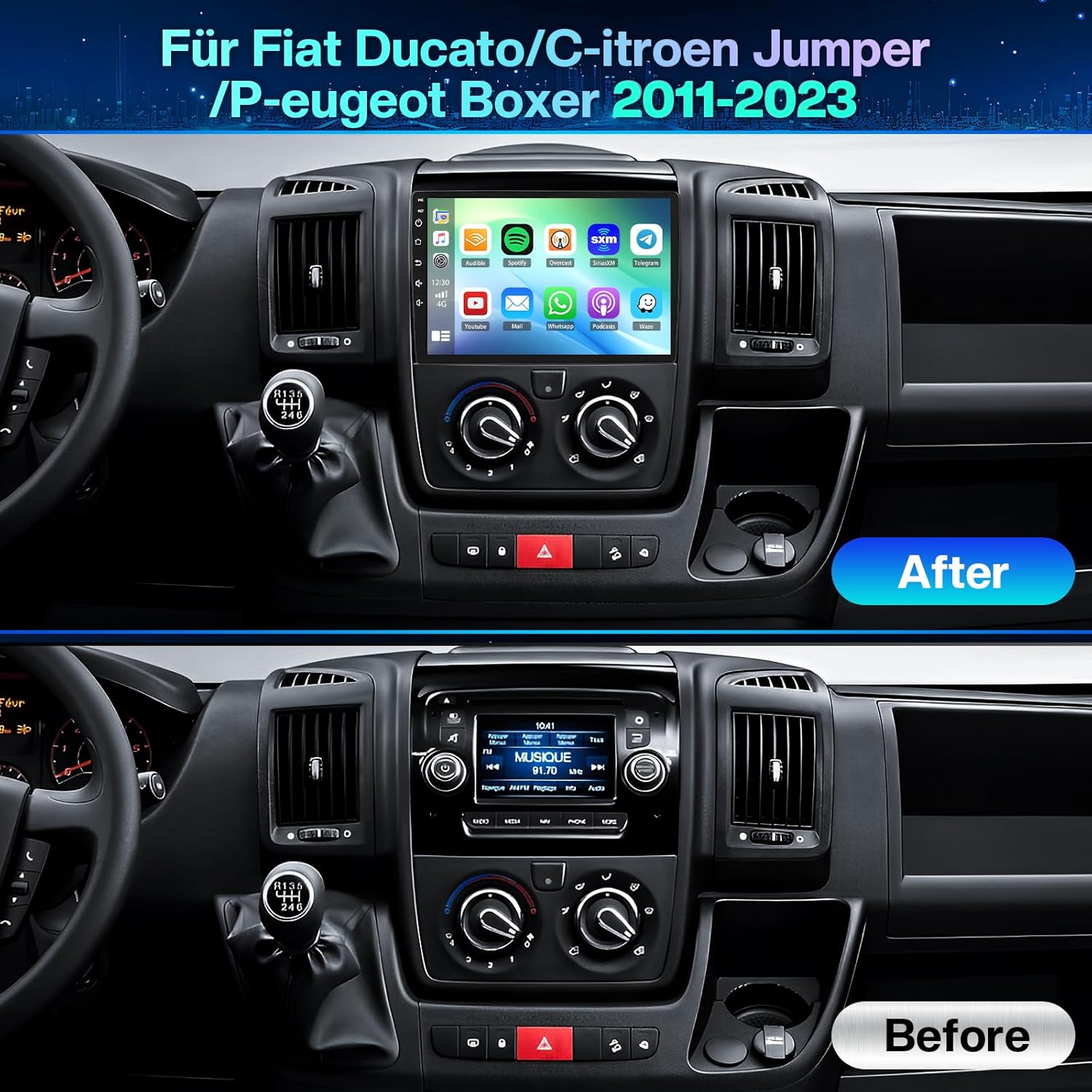
Image: Comparison of the vehicle dashboard before and after the installation of the iSpchen Android 14 Car Radio. The 'Before' image shows a standard car radio, while the 'After' image displays the new 9-inch touchscreen unit seamlessly integrated into the dashboard.
Operating Instructions
Power On/Off
Press and hold the power button (usually located on the front panel or a soft button on the screen) to turn the unit on or off. A short press typically mutes the audio or returns to the home screen.
Wireless CarPlay & Android Auto
The unit supports both wireless Apple CarPlay and Android Auto, allowing seamless integration with your smartphone for navigation, music, calls, and messages.
- Connection: Connect your smartphone via Bluetooth for wireless connection or use a USB cable for a wired connection.
- Activation: Once connected, the CarPlay or Android Auto interface will automatically launch on the car radio's screen.
- Features: Access your phone's apps, make hands-free calls, send messages, play music, and use navigation apps directly from the car radio display.

Image: Visual representation of wireless CarPlay and Android Auto functionality. It illustrates how iOS and Android devices connect via USB or Bluetooth to display smartphone applications like Waze, Spotify, and YouTube on the car radio screen.
Bluetooth Functionality
The built-in Bluetooth module enables hands-free calling and wireless audio streaming.
- Pairing: Go to the Bluetooth settings on the car radio and your smartphone. Search for available devices and select the car radio's name to pair.
- Hands-Free Calls: Once paired, you can make and receive calls directly through the car radio, utilizing the built-in microphone and car speakers. The phonebook can be automatically synchronized.
- Bluetooth Music: Stream audio from your smartphone to the car radio for playback.
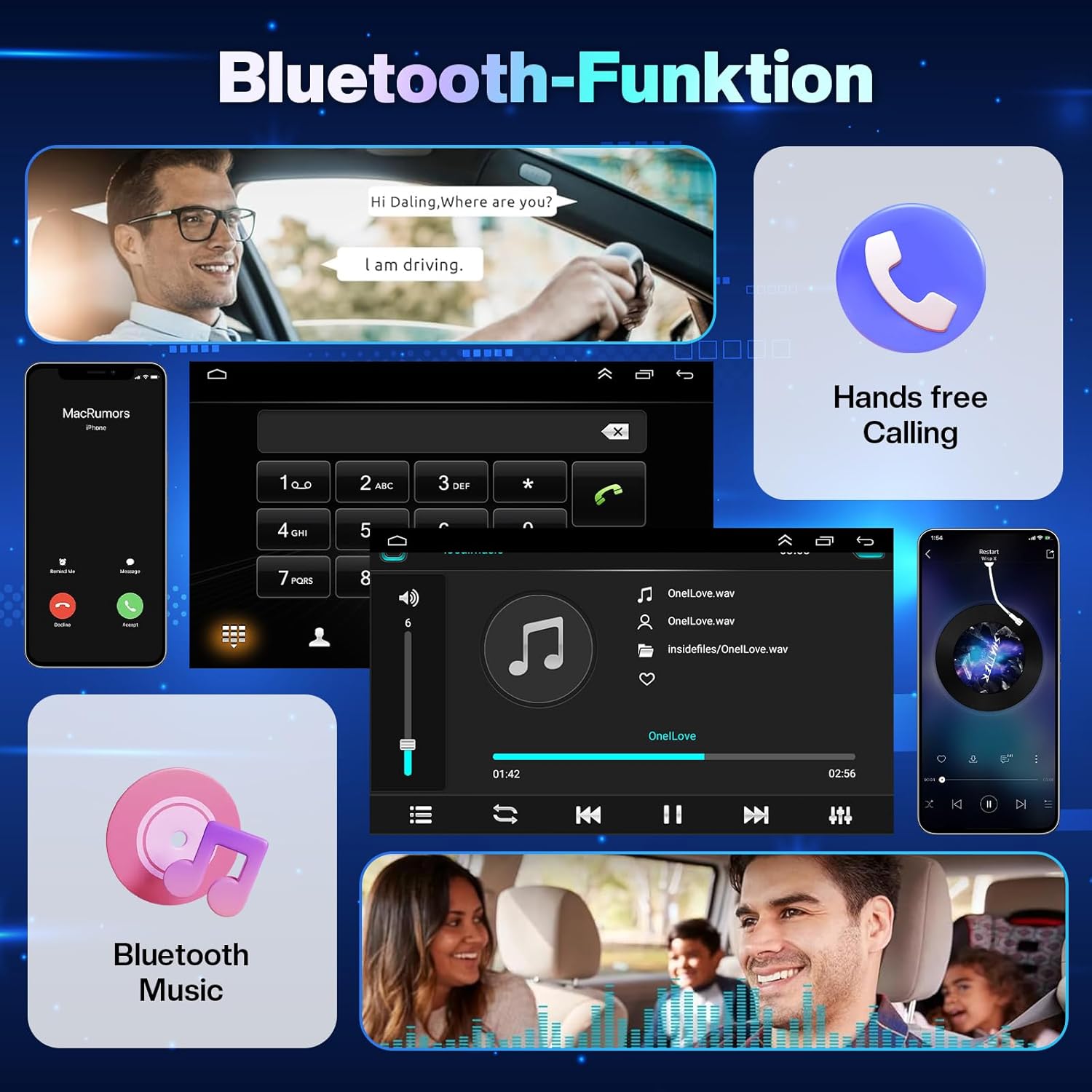
Image: Screenshots illustrating the Bluetooth functionality, including hands-free calling with a dial pad and contact display, and Bluetooth music playback with track information and controls.
FM/RDS Radio
Tune into your favorite radio stations with the integrated FM/RDS tuner.
- Scanning: Use the touchscreen controls to scan for available stations.
- RDS: Radio Data System (RDS) provides additional information such as station name, program type, and real-time traffic updates where available.

Image: The car radio interface displaying the FM/RDS radio tuner with frequency selection and preset options. Also shown is the split-screen feature, allowing simultaneous display of navigation and another application.
GPS Navigation & WiFi
The unit features built-in GPS and WiFi for navigation and internet connectivity.
- GPS: Supports both online and offline navigation. You can download offline maps from the Play Store for use without an internet connection.
- WiFi: Connect to a WiFi hotspot (e.g., from your smartphone) to access online maps, browse the internet, and download apps from the Google Play Store.

Image: Displays the GPS navigation interface with online and offline map capabilities, showing routes and points of interest. Also highlights WiFi connectivity for accessing online content and applications.
Rear Camera Support
The unit is compatible with AHD rear cameras, providing a clear view for safer parking and reversing.
- Automatic Display: When the vehicle is put into reverse gear, the car radio automatically switches to the rear camera view.
- Features: AHD cameras offer high-definition video, excellent night vision, and are typically waterproof for reliable performance.
Steering Wheel Control
Control essential functions of the car radio directly from your vehicle's steering wheel buttons.
- Configuration: Access the 'Steering Learn' or 'Steering Wheel Control' settings in the unit's menu to map your vehicle's steering wheel buttons to specific functions (e.g., volume up/down, track skip, answer call).
- Benefits: Enhances driving safety by allowing control without taking your hands off the steering wheel.

Image: Demonstrates the features of an AHD rear camera, including 170-degree viewing angle, HD definition, waterproofing, and night vision. Also shows the car radio's interface for configuring steering wheel controls.
Split Screen Functionality
The split-screen feature allows you to run two applications simultaneously on the 9-inch display.
- Usage: For example, you can have navigation running on one side of the screen while controlling music playback or viewing another app on the other side.
- Activation: Typically activated by long-pressing the recent apps button or dragging an app to one side of the screen.
Maintenance
Proper maintenance ensures the longevity and optimal performance of your iSpchen car radio.
- Screen Cleaning: Use a soft, lint-free cloth, slightly dampened with water or a screen cleaner, to gently wipe the touchscreen. Avoid abrasive materials or harsh chemicals.
- Software Updates: Periodically check for available software updates to ensure the system runs efficiently and has the latest features and security patches. Updates can usually be performed via WiFi.
- Environmental Conditions: Avoid exposing the unit to extreme temperatures, direct sunlight for prolonged periods, or excessive moisture.
- Cable Connections: Ensure all cables are securely connected and free from damage. Loose connections can lead to intermittent issues.
Troubleshooting
If you encounter issues with your iSpchen car radio, refer to the following common troubleshooting steps:
| Problem | Possible Cause | Solution |
|---|---|---|
| Unit does not power on. | Loose power connection, blown fuse, vehicle battery issue. | Check power cable connections. Inspect vehicle's fuse box for blown fuses. Ensure car battery is charged. |
| No sound from speakers. | Volume muted, incorrect audio source, loose speaker wires. | Check volume level and mute status. Verify correct audio source is selected. Inspect speaker wire connections. |
| Touchscreen unresponsive. | Temporary software glitch, screen dirty. | Restart the unit. Clean the screen with a soft cloth. If issue persists, perform a factory reset (data will be lost). |
| GPS signal weak or inaccurate. | GPS antenna obstructed or improperly installed. | Ensure GPS antenna has a clear view of the sky and is securely connected. Avoid placing it under metal objects. |
| Bluetooth connection issues. | Device not paired, Bluetooth off, interference. | Ensure Bluetooth is enabled on both devices. Re-pair the devices. Move away from other wireless devices. |
| CarPlay/Android Auto not connecting. | Incorrect USB cable, phone settings, app issues. | Use a high-quality USB data cable. Check phone settings for CarPlay/Android Auto permissions. Restart phone and car radio. |
If these steps do not resolve the issue, please contact customer support.
Specifications
| Feature | Detail |
|---|---|
| Brand | iSpchen |
| Model Number | iSpchen_AV_RECEIVER_4+64G |
| Operating System | Android 14 |
| Screen Size | 9 Inches |
| Display Resolution | 1024 x 600 |
| Memory (RAM + ROM) | 4 GB (RAM) + 64 GB (ROM) |
| Device Size | 2 Din |
| Audio Output Power | 4 x 45 Watts |
| Audio Channel Configuration | 4.0 |
| Connectivity Technology | Bluetooth, USB, Wi-Fi |
| Control Type | Touch Screen, Android, iOS |
| Special Features | RDS, Touchscreen, GPS, WiFi, CarPlay, Android Auto, Rear Camera Support |
| Compatible Devices | Smartphone |
| Supported Playback Formats | JPEG, MP3, MP4, MP5 |
| Internet Applications | YouTube, Browser, Netflix (requires internet connection) |
| Item Weight | 2200 Grams |
Warranty Information
This iSpchen car radio comes with a standard manufacturer's warranty. Please refer to the warranty card included in your product packaging for specific terms, conditions, and duration of coverage. The warranty typically covers defects in materials and workmanship under normal use.
Keep your proof of purchase (receipt or invoice) as it will be required for any warranty claims.
Customer Support
For technical assistance, troubleshooting beyond this manual, or warranty inquiries, please contact iSpchen customer support. Contact details can typically be found on the product packaging, the official iSpchen website, or through your point of purchase.
When contacting support, please have your product model number (iSpchen_AV_RECEIVER_4+64G) and proof of purchase ready to expedite the process.