
1. Introduction
This manual provides detailed instructions for the installation, operation, and maintenance of your moseiny HU-NOWPALS 7-inch Car Stereo. Please read this manual thoroughly before use to ensure proper functionality and safety.
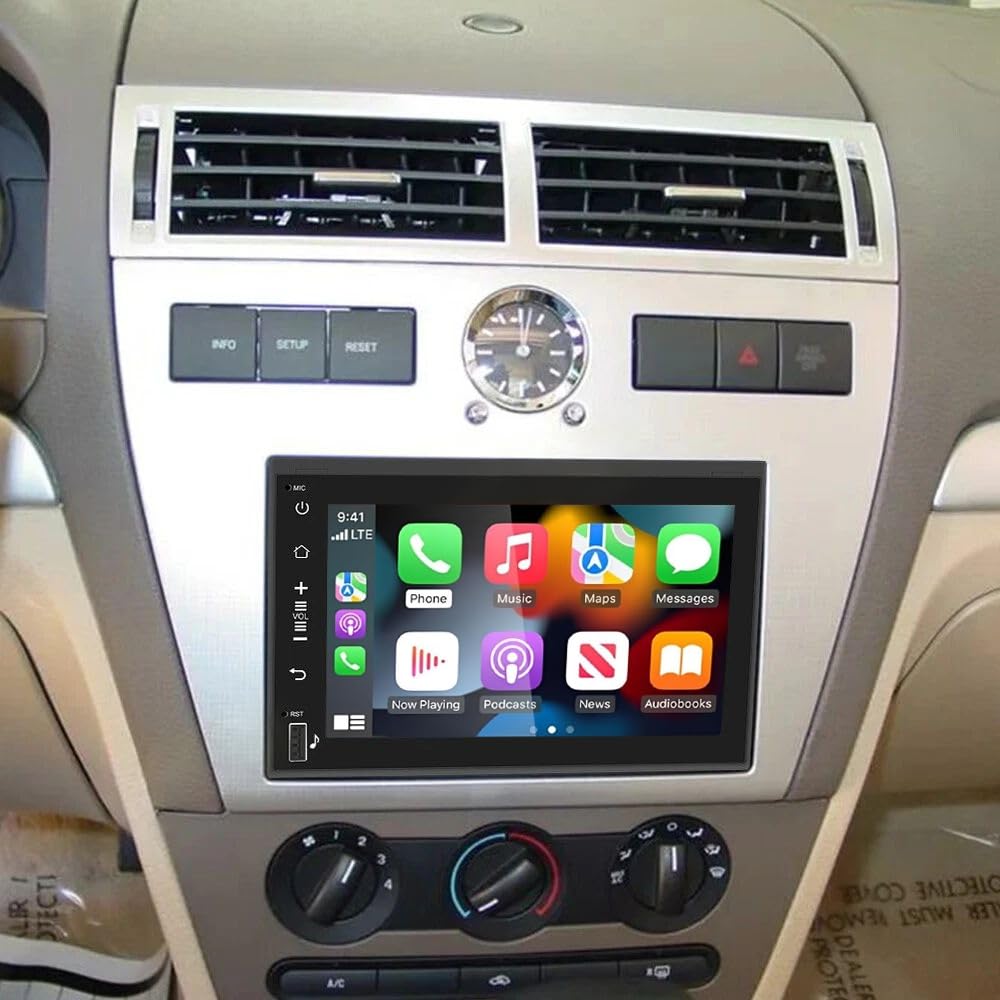
Image: The moseiny HU-NOWPALS 7-inch Car Stereo main unit with a display showing various app icons.
2. Package Contents
Verify that all items are present in the package:
- 1 x Car MP5 Player
- 1 x Power Cable
- 1 x GPS Antenna
- 1 x AHD Backup Camera
- 1 x RCA Input and Output Cable
- 1 x External Microphone
- 2 x USB Cables
- 1 x Instruction Manual

Image: An overview of the package contents, showing the main unit, power cable, GPS antenna, AHD backup camera, RCA cables, external microphone, and USB cables.
3. Compatibility
This 7-inch Android 13 Car Stereo is compatible with the following Ford and Mercury models:
- Ford Fusion: 2006-2009
- Ford Explorer: 2006-2009
- Ford F150: 2004-2008
- Ford F250/F350: 2006-2014
- Ford E250/E350: 2009-2014
- Ford Focus: 2004-2006
- Ford Edge: 2007-2009
- Ford Expedition: 2007-2009
- Ford Mustang: 2007-2009
- Ford Escape: 2008-2009
- Ford Freestyle: 2005-2009
- Ford 500: 2005-2007
- Mercury Montego: 2005-2006
- Mercury Mountaineer: 2007-2009
Note: This unit is not compatible with original cars that have factory navigation systems.

Image: A graphic illustrating the applicable car models and a diagram showing the required stereo panel size (188*120mm) and connector types for installation.
4. Setup and Installation
4.1 Pre-Installation Check
Before installation, confirm your original car stereo panel size is 188mm x 120mm and that the connectors match those shown in the wiring diagram. If the dimensions or connectors do not match, the stereo may not fit your vehicle.
4.2 Wiring Diagram
Refer to the diagram below for proper wiring connections. Ensure all cables are securely connected.
- 1. Power Cord: Connects to the vehicle's power supply.
- 2. RCA Input/Output: For audio and video connections.
- 3. USB: Primary USB port.
- 4. USB2: Secondary USB port.
- 5. Radio Adaptor: Connects to the vehicle's radio antenna.
- 6. GPS Device: Connects to the GPS antenna.
Installation Notes:
- If your original car stereo does not support a subwoofer, the smallest connector (for subwoofer) is not required.
- Always connect the CANBUS to the power cable.
- If two connectors are correctly connected but the stereo does not power on, you may need to bypass the CANBUS and manually wire some connections.
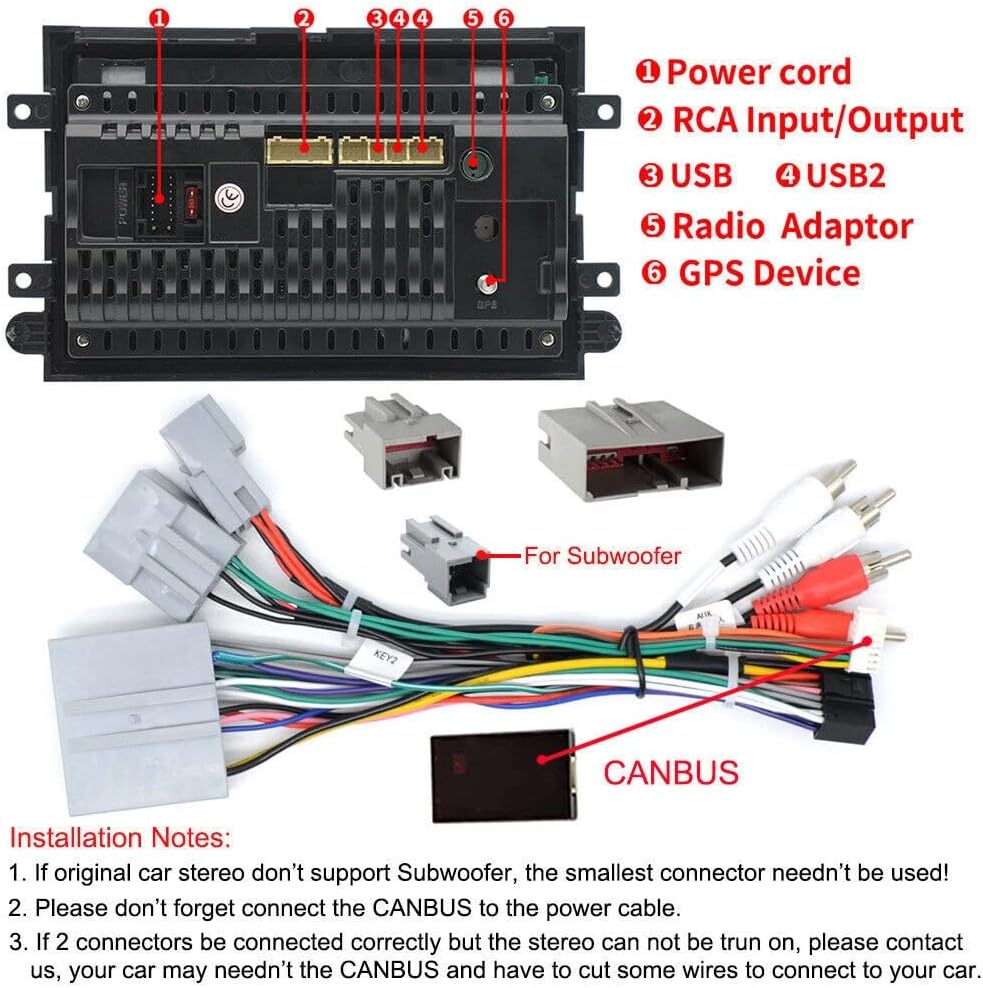
Image: A detailed wiring diagram of the car stereo's rear panel, labeling the power cord, RCA, USB, radio adaptor, and GPS device ports. It also shows various connectors and provides installation notes.
4.3 Physical Dimensions
The main unit has dimensions of approximately 225mm (width) x 130mm (height) x 50mm (depth).

Image: A collage of 'Before Installation' and 'After Installation' photos, demonstrating how the car stereo integrates into different Ford vehicle dashboards.
5. Operating Instructions
5.1 Wireless CarPlay & Android Auto
The unit supports both wireless CarPlay for iOS devices and wireless Android Auto for Android phones. This allows for seamless integration of your smartphone's features, including navigation, calls, messages, and music, directly onto the car stereo display.
You can choose between wired or wireless connection. For wireless connection, ensure Bluetooth is paired and then connect via the ZLINK application or manually connect to the vehicle's WiFi hotspot if ZLINK connection is not successful.

Image: A visual representation of the Apple CarPlay and Android Auto interfaces displayed on the car stereo, highlighting their wireless and wired connection capabilities.

Image: The car stereo display showing the Apple CarPlay and Android Auto interfaces, with various applications like Phone, Music, Maps, and Messages visible.
5.2 Bluetooth Hands-free and Music
Connect your phone via Bluetooth for hands-free calling and audio streaming. Access your phone's address book, make calls, and play music directly through the car stereo. Ensure phone authorization and contact information syncing are enabled in your phone settings.

Image: The car stereo display showing Bluetooth connection options, including a dial pad for hands-free calls and an interface for Bluetooth music playback.

Image: A graphic highlighting the Bluetooth functionality for calls and music, alongside the FM/RDS Radio interface.
5.3 GPS Navigation & WiFi Connectivity
Connect to WiFi to access online maps and other internet-based services. The built-in GPS navigation allows for offline navigation by purchasing maps from the Play Store.

Image: A graphic illustrating 5G WiFi connectivity with various app icons, suggesting internet access for streaming and online services.

Image: A graphic showcasing GPS navigation with a map display and WiFi connectivity, indicating access to online content like YouTube.
5.4 Wireless Mirror Link
MirrorLink allows you to synchronize your phone's content (images, videos) to the 1024*600 HD IPS touch screen. It supports Airplay for iPhone and MirrorCast for Android phones, providing a larger display for your mobile content without wires. The system offers instant startup.

Image: A graphic demonstrating the Phone Mirror Link feature, showing a smartphone screen mirrored wirelessly to the car stereo display.
5.5 Split Screen Function
The split-screen function allows you to run two applications simultaneously on the display, such as navigation and music playback, enhancing multitasking capabilities.

Image: A graphic illustrating the Split Screen Function, with examples of a video player and a navigation map running concurrently on the car stereo display.
5.6 FM/RDS Radio with 32-Band EQ
Enjoy FM radio with RDS (Radio Data System) for station information. The unit includes a 32-band equalizer for customized audio settings, allowing you to fine-tune the sound to your preference.

Image: A graphic detailing the 32-band EQ settings, FM RDS radio interface, and music playback screen, emphasizing audio customization and radio features.
5.7 Steering Wheel Control (SWC)
Utilize your vehicle's steering wheel buttons to control the car audio system. This feature provides convenient and safe operation, allowing you to adjust music, manage calls, and navigate without taking your hands off the wheel.

Image: A graphic illustrating the Steering Wheel Control (SWC) feature, showing a steering wheel with control buttons and the corresponding on-screen interface for audio and call management.
5.8 Video Instructions: How to Connect Your Car Radio
Video: This video demonstrates the process of connecting the car radio to your vehicle, covering Bluetooth connection, ZLINK connection, and manual WiFi connection steps for successful operation.
6. Specifications
| Feature | Description |
|---|---|
| Brand | moseiny |
| Model Name | HU-NOWPALS |
| Screen Size | 7 Inches |
| Operating System | Android 14 |
| Memory Storage Capacity | 32 GB |
| Connectivity Technology | Bluetooth, USB, Wi-Fi |
| Special Features | Wireless Carplay & Android Auto & Mirror Link, Touchscreen & Microphone, Bluetooth FM RDS Radio EQ, GPS navigation & WiFi, AHD Backup Camera, SWC, Split Screen Function, Double USB Port |
| Display Type | LCD, Capacitive Touch Screen |
| Audio Output Mode | Stereo |
| Supported Satellite Navigation System | GPS |
| Item Weight | 1278 Grams |
7. Troubleshooting
If you encounter any issues with your moseiny HU-NOWPALS car stereo, please refer to the following general troubleshooting steps:
- No Power: Ensure all power cables are securely connected and the vehicle's ignition is on. Check the CANBUS connection as per installation notes.
- Bluetooth Connection Issues: Verify Bluetooth is enabled on both the stereo and your phone. Ensure the correct device is selected for pairing. If issues persist, restart the Bluetooth function on both devices.
- CarPlay/Android Auto Not Connecting: Confirm Bluetooth is connected. If using ZLINK, ensure the app is open. If manual WiFi connection is required, delete previous history records on the vehicle's WiFi settings before attempting to reconnect.
- No Sound: Check volume levels on both the stereo and your connected device. Ensure speaker wires are correctly connected.
- GPS Signal Loss: Ensure the GPS antenna is properly installed and has a clear view of the sky.
For persistent problems, please contact customer support.
8. Maintenance
To ensure the longevity and optimal performance of your car stereo, follow these maintenance guidelines:
- Cleaning: Use a soft, dry cloth to clean the screen and exterior. Avoid abrasive cleaners or solvents.
- Software Updates: Periodically check for software updates to ensure you have the latest features and bug fixes.
- Environmental Conditions: Avoid exposing the unit to extreme temperatures, direct sunlight for prolonged periods, or excessive moisture.
9. Warranty and Support
For warranty information and technical support, please refer to the documentation provided with your purchase or contact moseiny customer service. Keep your proof of purchase for warranty claims.