
MAMBASNAKE M5 Ultra
MAMBASNAKE M5 Ultra Carbon Fiber 8KHz Wireless Gaming Mouse
Instruction Manual
Model: M5 Ultra
Introduction
This manual provides detailed instructions for the setup, operation, and maintenance of your MAMBASNAKE M5 Ultra Carbon Fiber 8KHz Wireless Gaming Mouse. Designed for high-performance gaming, the M5 Ultra features an ultra-lightweight carbon fiber build, a high-precision PAW3950MAX sensor, and versatile tri-mode connectivity. Please read this manual thoroughly to ensure optimal performance and longevity of your device.
Product Overview
The MAMBASNAKE M5 Ultra is engineered for competitive gaming, offering a blend of lightweight design and advanced technology. Familiarize yourself with the mouse components:

Figure 1: MAMBASNAKE M5 Ultra Gaming Mouse and Receiver

Figure 2: Ultra-Lightweight Carbon Fiber Design (39g)

Figure 3: Product Details and Components
- Left Button: Primary click function.
- Right Button: Secondary click function.
- Middle Button/Scroll Wheel: Scroll and middle-click function.
- DPI Adjustment Button: Cycles through preset DPI settings.
- 2.4G/Wired/BT Switch: Selects connectivity mode.
- PTFE Feet: Low-friction glides for smooth movement.
Setup
1. Unboxing and Initial Inspection
Carefully remove all components from the packaging. The box should contain the MAMBASNAKE M5 Ultra mouse, a dedicated 2.4GHz wireless receiver, a USB-C charging/data cable, grip tape, and replacement PTFE feet. Inspect all items for any visible damage.
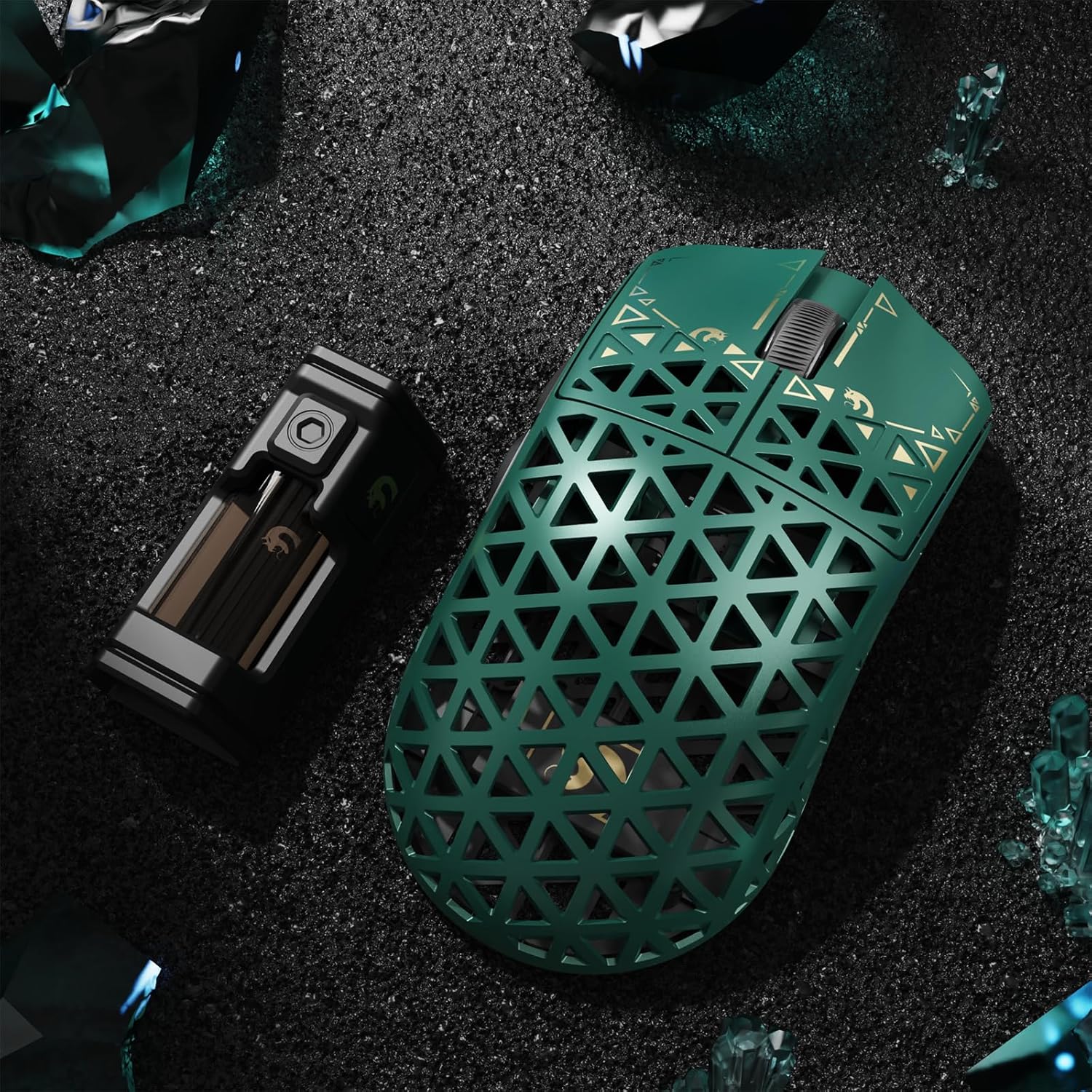
Figure 4: Included Accessories
2. Charging the Mouse
Before first use, it is recommended to fully charge the mouse. Connect the USB-C cable to the mouse and the other end to a USB port on your computer or a USB wall adapter. The mouse's indicator light will show charging status.
3. Connectivity Options
The M5 Ultra supports three connectivity modes: 2.4GHz Wireless, Bluetooth, and Wired USB-C. Use the switch on the bottom of the mouse to select your desired mode.

Figure 5: Tri-Mode Connections Overview
3.1. 2.4GHz Wireless Mode
- Plug the dedicated 2.4GHz wireless receiver into an available USB port on your computer.
- Set the switch on the bottom of the mouse to the "2.4G" position.
- The mouse should automatically connect. If not, press the pairing button (if available, refer to specific mouse diagram) or restart the mouse.
3.2. Bluetooth Mode
- Set the switch on the bottom of the mouse to the "BT" position.
- On your computer, open Bluetooth settings and search for new devices.
- Select "MAMBASNAKE M5 Ultra" from the list of available devices to pair.
3.3. Wired USB-C Mode
- Connect the USB-C cable directly from the mouse to a USB port on your computer.
- The mouse will function in wired mode and charge simultaneously. This mode is generally plug-and-play.
Operating Instructions
1. DPI Adjustment
The DPI (Dots Per Inch) button on the bottom of the mouse allows you to cycle through preset sensitivity levels. Each press will change the DPI, indicated by a specific LED color or pattern (refer to the software for exact indications). The PAW3950MAX sensor supports up to 42,000 DPI.
2. Polling Rate
The M5 Ultra supports an 8000Hz polling rate in 2.4GHz wireless mode, providing ultra-low latency for competitive gaming. Lower polling rates are available for other modes or preferences. The polling rate can be adjusted via the customization software.

Figure 6: 8000Hz Wireless Polling Rate Performance
3. Customization Software
The M5 Ultra offers flexible customization options:
- Web-Based Driver: Access customization settings directly from your web browser without needing to install any software. This allows for quick adjustments to DPI, lighting, and basic macros.
- Downloadable Software: For advanced settings, including detailed macro programming, lighting effects, and precise DPI tuning, download the full software from the official MAMBASNAKE website.

Figure 7: Customization Software Interface
4. Advanced Features
- PAW3950MAX Sensor: Provides up to 42,000 DPI, 750 IPS, and 50G acceleration for precise tracking.
- Nordic 52840 Chip: Ensures stable wireless performance and efficient power management.
- Omron Microswitches: Rated for over 100 million clicks, offering crisp and durable button feedback.
- F-Switch E10 Encoder: Provides smooth and tactile scroll wheel operation.
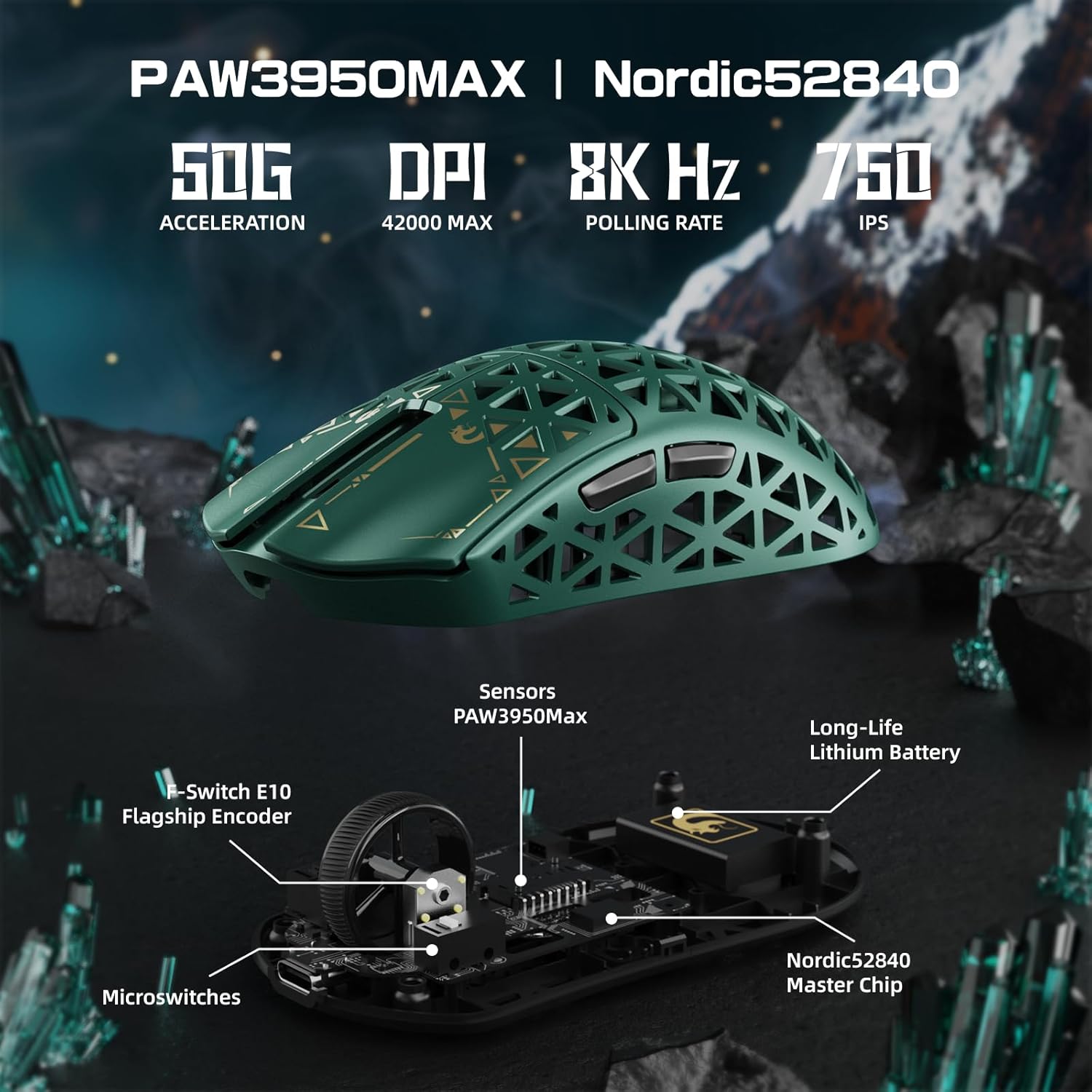
Figure 8: Internal Components and Technology
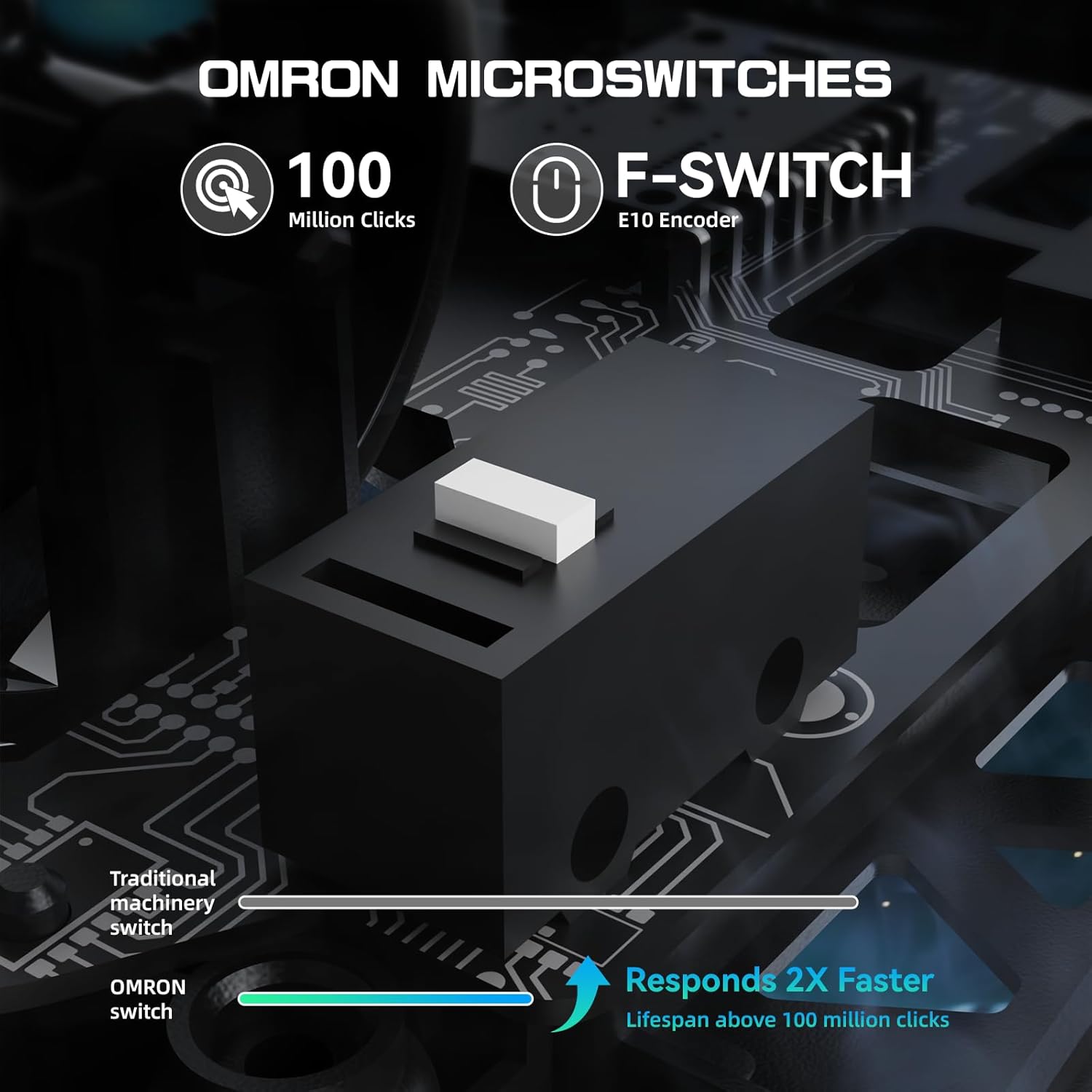
Figure 9: Omron Microswitches Durability
Maintenance
1. Cleaning
To maintain optimal performance, regularly clean your mouse. Use a soft, dry cloth to wipe the surface. For hard-to-reach areas or dust accumulation in the carbon fiber shell, use compressed air. Avoid using harsh chemicals or abrasive materials.
2. Battery Care
To prolong battery life, avoid fully discharging the mouse frequently. Charge the mouse when the battery indicator is low. Store the mouse in a cool, dry place when not in use for extended periods.
3. PTFE Feet Replacement
The M5 Ultra comes with replacement PTFE feet. If the existing feet show signs of wear, carefully peel them off and apply the new ones, ensuring they are properly aligned for smooth gliding.
Troubleshooting
| Issue | Possible Solution |
|---|---|
| Mouse not responding in 2.4GHz wireless mode. | Ensure the receiver is securely plugged in and the mouse switch is set to "2.4G". Try plugging the receiver into a different USB port. Re-pair the mouse if necessary (refer to pairing instructions in the setup section). |
| Mouse not connecting via Bluetooth. | Ensure the mouse switch is set to "BT" and your computer's Bluetooth is enabled. Remove any previous pairings and attempt to pair again. Ensure the mouse is sufficiently charged. |
| Cursor movement is erratic or imprecise. | Clean the mouse sensor with a soft cloth. Ensure the mousepad surface is clean and uniform. Adjust DPI settings via the mouse button or software. Check for firmware updates. |
| Buttons or scroll wheel not functioning. | Ensure the mouse is charged and properly connected. Try restarting the mouse and your computer. If using customization software, check button assignments. |
| Short battery life. | Ensure the mouse is fully charged before use. Reduce polling rate or disable RGB lighting (if applicable) through the software to conserve battery. |
Specifications
- Model: M5 Ultra
- Brand: MAMBASNAKE
- Connectivity: Tri-Mode (2.4GHz Wireless, Bluetooth, USB-C Wired)
- Sensor: PixArt PAW3950MAX
- Processor: Nordic 52840
- DPI: Up to 42,000
- IPS: 750
- Acceleration: 50G
- Polling Rate: Up to 8000Hz (2.4GHz Wireless)
- Weight: Approximately 39g
- Switches: Omron Microswitches (100M+ clicks)
- Encoder: F-Switch E10
- Dimensions: 61 x 119.5 x 36.3 mm (2.40 x 4.70 x 1.43 inches)
Warranty and Support
MAMBASNAKE products are covered by a limited warranty. For detailed warranty information, technical support, or to download the latest software/firmware, please visit the official MAMBASNAKE website or contact customer service. Keep your proof of purchase for warranty claims.
Official MAMBASNAKE Website: www.mambasnake.com
Official Product Videos
Video 1: Overview of the M5 Ultra Carbon Fiber 8KHz Wireless Gaming Mouse, highlighting its features and design.
Video 2: Demonstrating the M5 Ultra Carbon Fiber 8KHz PAW3950MAX Wireless Gaming Mouse in action, showcasing its responsiveness.
Ask a question about this manual
Ask about setup, troubleshooting, compatibility, parts, safety, or missing instructions. Manuals+ will review the question and use this page’s manual context to help answer it.