
BreezyLife S8 PRO
BreezyLife 14" Triple Laptop Screen Extender (Model S8 PRO) User Manual
Comprehensive instructions for setup, operation, and maintenance.
1. Introduction
This manual provides detailed instructions for the BreezyLife 14" Triple Laptop Screen Extender, Model S8 PRO. It covers product features, setup procedures, operational guidelines, and troubleshooting tips to ensure optimal performance and user experience. Please read this manual thoroughly before using the device.
2. What's in the Box
Verify that all items listed below are included in your package:
- Aluminum alloy Triple Monitor (x1)
- Travel Bag (x1)
- USB-A to USB-C Cable (x1)
- USB-C to USB-C Cable (x1)
- HD to TYPE-C Cable (x1)
- User Manual (x1)

Image: Package contents including the triple monitor, travel bag, and connection cables.
3. Setup Instructions
Follow these steps to set up your BreezyLife Triple Laptop Screen Extender:
3.1 Unfolding and Attaching to Laptop
- Open the Monitor: Gently unfold the triple monitor unit.
- Extend Outriggers: Extend the outriggers from the central unit. These will secure the extender to your laptop screen.
- Attach to Laptop: Carefully place the central unit onto the top edge of your laptop screen, ensuring the silicone padding makes secure contact. Adjust the outriggers to fit your laptop's width (compatible with 13-17 inch laptops).

Image: Step-by-step guide for attaching the screen extender to a laptop.
3.2 Connecting Cables
The extender supports various connection methods. Choose the one that best suits your laptop's ports:
- Two Full-Featured Type-C Connections: If your laptop has two full-featured USB-C ports (supporting video and charging), use two USB-C to USB-C cables to connect both screens. This provides both power and video signal.
- One Full-Featured Type-C and One HDMI Connection: If your laptop has one full-featured USB-C port and an HDMI port, use one USB-C to USB-C cable for one screen and one HDMI cable for the other. An additional power source (5V/2A adapter, not included) may be required for the HDMI-connected screen if it does not receive sufficient power from the laptop.
- No Full-Featured Type-C Connection: If your laptop only has USB-A and HDMI ports, use a USB-A to USB-C cable and an HDMI cable. An external 5V/2A power adapter (not included) will be required to power the screens.

Image: Connection method using two full-featured USB-C cables.

Image: Connection method using one USB-C and one HDMI cable, highlighting the need for external power if necessary.

Image: Connection method for laptops without full-featured USB-C ports, requiring external power.
Important Note: The device operates without an integrated battery and must be powered via your laptop's USB port or an external power adapter source (5V/2A or higher, not included) if your laptop's ports do not provide sufficient power.
4. Operating Instructions
4.1 Display Modes
The BreezyLife Triple Laptop Screen Extender supports multiple display modes to enhance productivity:
- Extended Mode: Each screen displays independent content, expanding your workspace.
- Mirror Mode: All screens display the same content as your primary laptop screen.
- Duplicate Mode: Similar to mirror mode, duplicating content across screens.
- Portrait Mode: Screens can be rotated for vertical viewing, useful for documents or coding.
- Landscape Mode: Standard horizontal viewing.
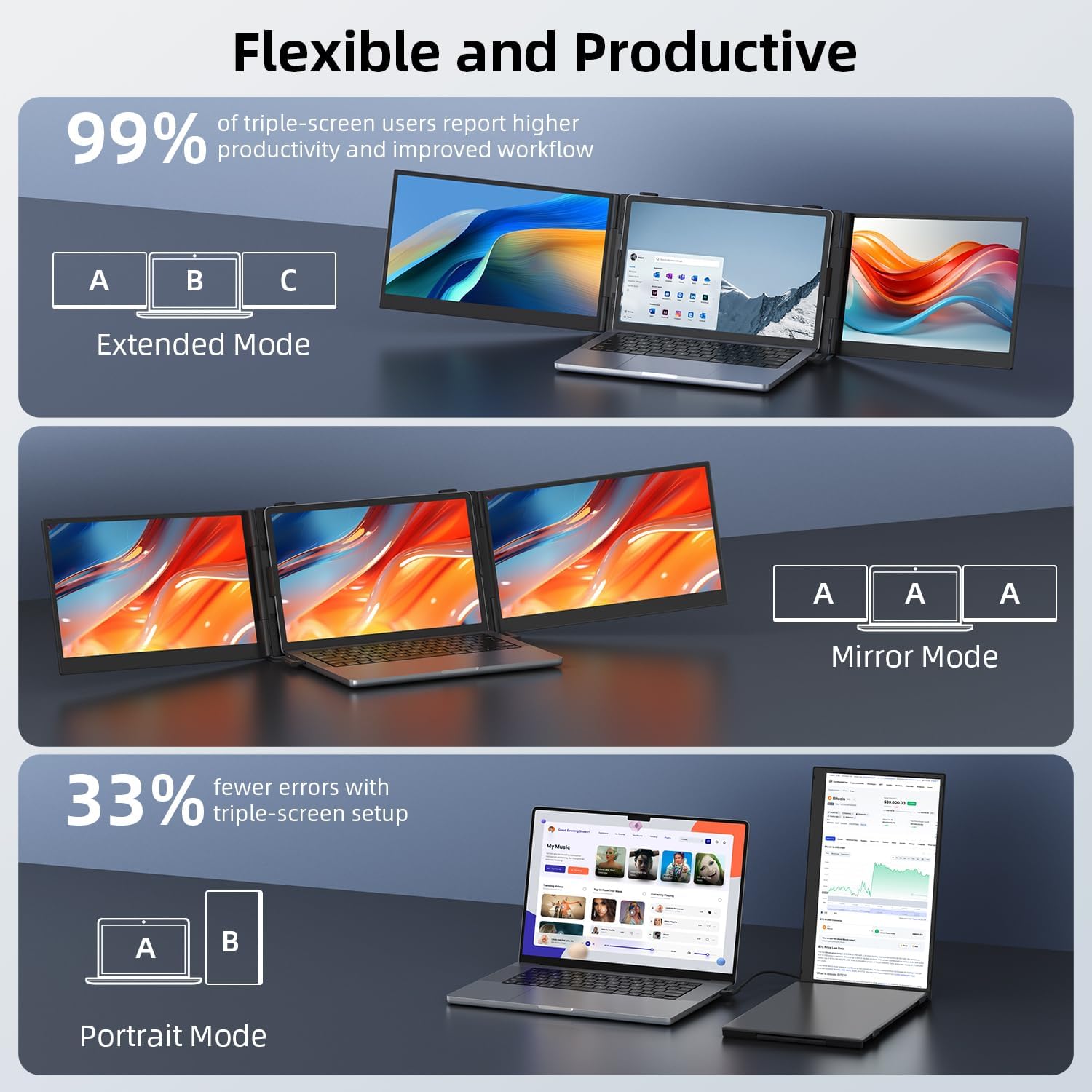
Image: Visual representation of different display modes: Extended, Mirror, and Portrait.
4.2 Adjusting Screen Angle
The screens can rotate up to 180° horizontally to achieve the optimal viewing angle for individual users or for sharing content during meetings.

Image: The screens can be rotated up to 180 degrees for flexible viewing.
4.3 Brightness and Volume Control
Use the multi-function button on the device to adjust brightness, contrast, and built-in speaker volume (0-100 levels). This allows for customization based on ambient lighting conditions and personal preference.

Image: Adjustable brightness and volume settings for optimal viewing and audio experience.
5. Maintenance
To ensure the longevity and optimal performance of your BreezyLife Triple Laptop Screen Extender, follow these maintenance guidelines:
- Cleaning: Use a soft, lint-free cloth to gently wipe the screen and exterior surfaces. For stubborn smudges, slightly dampen the cloth with water or a screen-safe cleaning solution. Avoid harsh chemicals or abrasive materials.
- Storage: When not in use, store the monitor in its provided travel bag to protect it from dust, scratches, and impacts.
- Handling: Always handle the device with care. Avoid dropping it or applying excessive force to the screens or hinges.
- Temperature: Operate and store the device within recommended temperature ranges to prevent damage. Avoid extreme heat or cold.
6. Troubleshooting
If you encounter issues with your screen extender, refer to the following common problems and solutions:
- "No Signal" or Black Screen:
- Ensure all cables are securely connected to both the extender and your laptop.
- Provide extra power to activate the screen. Connect an external 5V/2A power adapter (not included) to the monitor's power interface, especially if using HDMI or if your laptop's USB-C ports do not provide sufficient power.
- Check your laptop's display settings to ensure the external monitors are detected and configured correctly (e.g., extended or mirrored).
- Screen Flickering or Unstable Display:
- Ensure sufficient power supply. If using a single USB-C cable for power and video, try connecting an external power source.
- Check cable integrity. Try using different cables if available.
- Update your laptop's graphics drivers.
- No Audio from Built-in Speakers:
- Check the volume settings on the monitor using the multi-function button.
- Verify that the audio output on your laptop is set to the external monitor.

Image: Troubleshooting guide for 'No Signal' or black screen, showing the connection of an external power source.
7. Specifications
| Product Dimensions | 8 x 13.58 x 0.78 inches |
| Item Weight | 2.2 pounds |
| Model Number | S8 PRO |
| Screen Size | 14 Inches |
| Resolution | FHD 1080p (1920 Pixels) |
| Aspect Ratio | 16:9 |
| Image Brightness | 250.0 - 300 nit |
| Voltage | 12 Volts |
| Total USB Ports | 4 (Type-C*2, USB-C to USB-A, HDMI) |
| Screen Surface Description | Aircraft Grade Aluminum Matte Frosted screen, Thin Light, clearer, Anti-glare |
| Compatibility | 13"-17" laptops, smartphones, gaming consoles (Switch/PS4/PS5), Windows/MacOS/Android/Linux/Chrome/Dex |
8. Warranty and Support
The BreezyLife Triple Laptop Screen Extender comes with a 1-year after-sales service. For any inquiries regarding connectivity, operation, or other product-related questions, please contact "JCYP Collection" (the seller) via the Amazon platform. We aim to respond within 24 hours.
For the most up-to-date support information, please refer to the product listing on Amazon or the official BreezyLife website.
Ask a question about this manual
Ask about setup, troubleshooting, compatibility, parts, safety, or missing instructions. Manuals+ will review the question and use this page’s manual context to help answer it.