
Introduction
This manual provides comprehensive instructions for the Cooidea 3.5mm Audio Switcher, Model A07. It covers product features, setup, operation, and troubleshooting to ensure optimal performance and user experience. This device allows for flexible management of audio signals between multiple sources and output devices.

Image: The Cooidea 3.5mm Audio Switcher, a compact black device with two 3.5mm audio cables connected, illustrating its primary function.
Key Features
- Full Compatibility: Supports TS, TRS, and TRRS 3.5mm audio interfaces, including CTIA and OMTP standards for microphones and balanced headphones.
- Bi-Directional Functionality: Operates as either 1 input to 2 outputs or 2 inputs to 1 output, providing versatile audio management.
- No Ground Loop Noise: Designed with full-signal switching and low-impedance circuitry to prevent ground loop interference and ensure clear audio.
- Easy Manual Switching: Features a simple toggle switch for instant audio path changes without requiring external power, drivers, or software.
- Compact Design: Small and portable (40 x 38 x 10 mm) for convenient use on desktops or while traveling.
Package Contents

Image: The product packaging showing the included items: the audio switcher, one audio cable, and the user manual.
- 1 x Cooidea 3.5mm Audio Switcher (Model A07)
- 1 x 3.5mm Audio Cable (approximately 1 meter / 3.2 feet)
- 1 x User Manual
Product Overview
The Cooidea 3.5mm Audio Switcher is a compact device designed for managing audio connections. It features a central toggle switch and multiple 3.5mm ports.

Image: A detailed view of the audio switcher highlighting its compact dimensions (4.0cm x 3.8cm x 1.0cm) and the central toggle switch for input/output selection. It also shows the CTIA/OMTP switch.
- Common Port (Arrow Indicator): This port serves as the single input or single output depending on the operational mode.
- Audio Channels 1 & 2: These ports serve as either two inputs or two outputs.
- Toggle Switch (1/2): Used to select between Audio Channel 1 and Audio Channel 2.
- CTIA/OMTP Switch: A small switch to select between CTIA and OMTP wiring standards for TRRS connections.
Setup
The Cooidea 3.5mm Audio Switcher is a plug-and-play device that does not require external power or software installation.
- Identify Your Configuration: Determine if you need to switch between two audio sources to one output (2-in-1-out) or one audio source to two outputs (1-in-2-out).
- Connect Audio Cables: Use standard 3.5mm audio cables (one is included) to connect your devices to the switcher.
- For 1-in-2-out: Connect your single audio source (e.g., PC, phone) to the Common Port (indicated by an arrow). Connect your two output devices (e.g., headphones, speakers) to Audio Channels 1 and 2.
- For 2-in-1-out: Connect your two audio sources (e.g., PC, phone) to Audio Channels 1 and 2. Connect your single output device (e.g., headphones, speakers) to the Common Port (indicated by an arrow).
- Select CTIA or OMTP (if applicable): If using a TRRS device (e.g., headset with microphone), ensure the small CTIA/OMTP switch on the side of the unit is set correctly for your device's standard. If unsure, try CTIA first, as it is more common.

Image: The audio switcher connected between a laptop and headphones, demonstrating its passive operation without the need for an external power source.
Operation
Operating the Cooidea 3.5mm Audio Switcher is straightforward.

Image: A diagram showing two common configurations: 1-in-2-out (one audio source to two output devices) and 2-in-1-out (two audio sources to one output device), with the switcher in the center.
- Switching Audio Paths: To switch between the connected devices on Audio Channels 1 and 2, simply press the central toggle switch. The switch will physically move to indicate the currently active channel.
- No Power Required: The switcher operates passively, meaning it does not require any external power supply.
- Instant Switching: Audio will switch instantly when the toggle is pressed, without any delay or software interaction.
Compatibility
The Cooidea 3.5mm Audio Switcher offers broad compatibility with various audio devices and connector types.
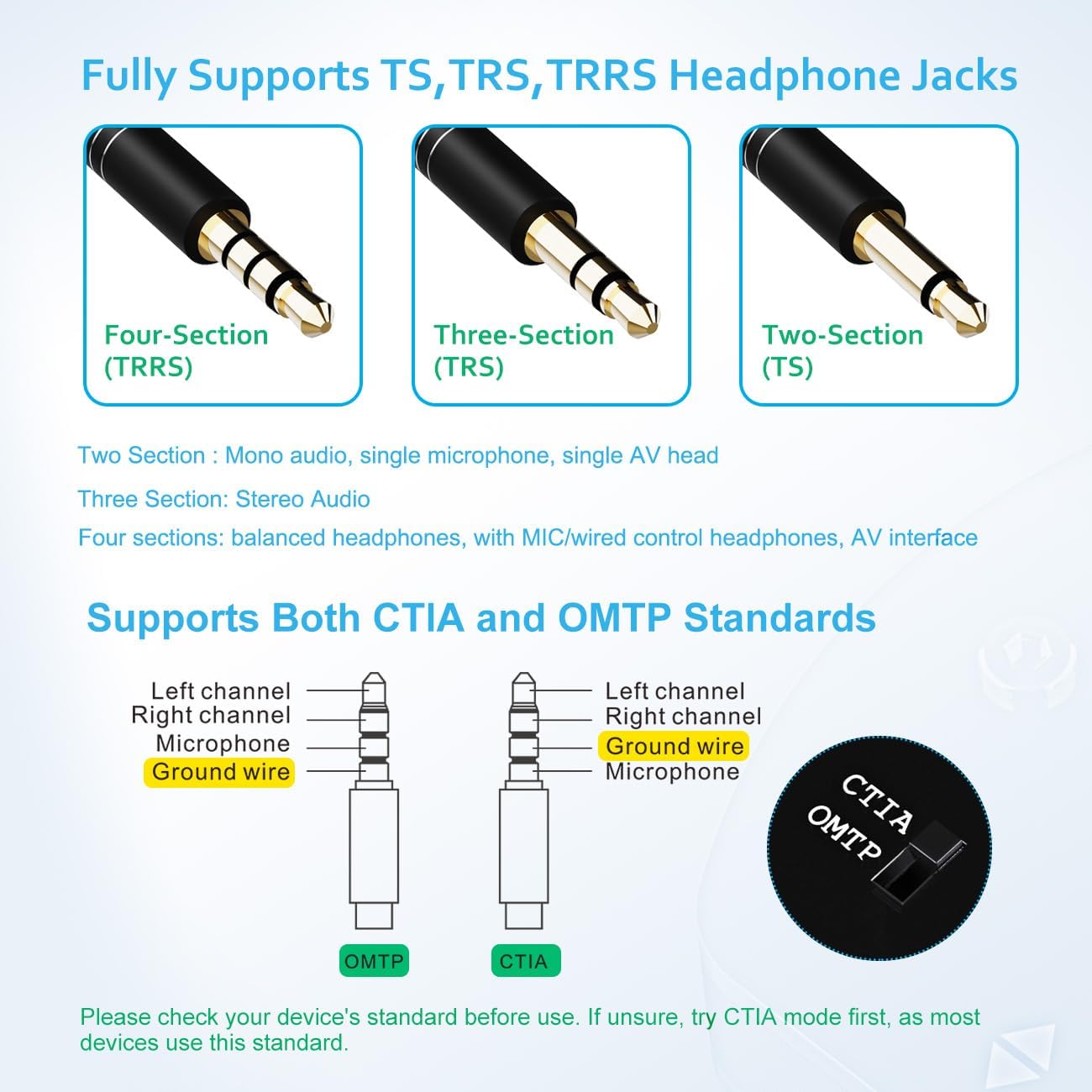
Image: An illustration detailing the different types of 3.5mm jacks (TS, TRS, TRRS) and their pin configurations, along with the CTIA and OMTP wiring standards for TRRS connectors.
Supported Connector Types:
- TS (Two-Pole): Mono audio, single microphone, single AV head.
- TRS (Three-Pole): Stereo audio.
- TRRS (Four-Pole): Balanced headphones, headphones with mic/wired control, AV interface.
Supported Standards:
- CTIA Standard
- OMTP Standard
Note: If you are using a TRRS device and experience issues with microphone or remote control functions, try switching the CTIA/OMTP selector on the device.
Compatible Devices:

Image: An illustration of common input devices (Laptop, Phone, Gaming Console, TV, Projector) and output devices (Audio Amplifier, Speakers, Headphones, Earphones) compatible with the switcher.
- Audio Sources: Computers, Laptops, Mobile Phones, Audio Players, Gaming Consoles (e.g., PS, Xbox, Nintendo Switch), Blu-Ray Players, Projectors, TVs.
- Playback Devices: Headphones, Earphones, Speakers, Audio Amplifiers.
Troubleshooting
If you encounter issues with your Cooidea 3.5mm Audio Switcher, please refer to the following common solutions:
- No Audio Output:
- Ensure all 3.5mm cables are securely connected to both the switcher and your audio devices.
- Verify that the toggle switch on the switcher is set to the correct active channel (1 or 2).
- Check the volume levels on your audio source and output devices.
- Test with different audio cables to rule out cable malfunction.
- Static or Buzzing Noise (Ground Loop Noise):
- The switcher is designed to minimize ground loop noise. If you experience it, ensure all devices are properly grounded.
- Try connecting devices one by one to isolate the source of the noise.
- Ensure the audio cables used are of good quality and fully inserted.

Image: A visual representation of how the switcher's design helps eliminate ground loop noise and maintain high-fidelity sound quality.
- Microphone or Remote Control Not Working (TRRS devices):
- Check the CTIA/OMTP switch on the side of the audio switcher. Toggle it to the alternative setting. Different devices use different standards.
- Ensure your TRRS cable is fully inserted into all ports.
- Audio Quality Issues (Distortion, Low Volume):
- Verify that the audio source is providing a clean signal.
- Ensure the audio cables are not damaged.
- The switcher is passive; it does not amplify the signal. Ensure your output device has sufficient amplification.
Specifications
| Feature | Detail |
|---|---|
| Model Number | A07 |
| Brand | Cooidea |
| Connector Type | 3.5mm Jack |
| Compatibility | TS, TRS, TRRS (CTIA & OMTP standards) |
| Functionality | Bi-directional (1-in-2-out or 2-in-1-out) |
| Power Requirement | No external power needed (Passive) |
| Product Dimensions | 1.57 x 1.5 x 0.39 inches (40 x 38 x 10 mm) |
| Item Weight | 1.41 ounces |
| Color | Black |
Maintenance
To ensure the longevity and optimal performance of your audio switcher, follow these maintenance guidelines:
- Cleaning: Use a soft, dry cloth to clean the exterior of the device. Avoid using liquid cleaners or abrasive materials.
- Storage: Store the switcher in a cool, dry place away from direct sunlight and extreme temperatures.
- Handling: Handle the device gently. Avoid dropping it or subjecting it to strong impacts.
- Cable Care: Ensure audio cables are not bent sharply or tangled, as this can damage the internal wiring.
Warranty and Support
For warranty information or technical support, please refer to the contact details provided with your purchase documentation or visit the official Cooidea website. Keep your purchase receipt as proof of purchase for warranty claims.