
1. Introduction
This manual provides detailed instructions for the installation, operation, and maintenance of your Hikity 8 Core 4+64G Android Car Stereo. Designed specifically for Hyundai I10 models from 2007 to 2013, this unit features a 9-inch IPS touch screen, 8-core processor, 4GB RAM, and 64GB ROM, offering advanced functionalities like wireless CarPlay, Android Auto, GPS navigation, Bluetooth 5.0, DSP sound processing, FM/RDS radio, and support for a backup camera.

Figure 1.1: Hikity 8 Core 4+64G Android Car Stereo unit, including the main display, a backup camera, and an external microphone.
2. Setup and Installation
2.1 Package Contents
Before beginning installation, verify that all components are present in the package:
- 1 x Android Car Stereo Unit
- 1 x Power Cable
- 1 x GPS Antenna
- 1 x Rear Camera Power Cable
- 1 x RCA Cable
- 2 x USB Cables
- 1 x Microphone
- 1 x Installation Tools Set
- 1 x Backup Camera
- 1 x Reverse Line
- Accessories (specific to vehicle model)

Figure 2.1: Diagram showing the product dimensions and a visual representation of all included components in the packing list.

Figure 2.2: Detailed package contents and a wiring diagram illustrating the connections for power, RCA, USB, GPS antenna, camera input, and radio antenna.
2.2 Vehicle Compatibility
This car stereo is designed for direct plug-and-play installation in Hyundai I10 models manufactured between 2007 and 2013. No modification of existing vehicle wiring is typically required due to the included adapter cable.

Figure 2.3: Visual comparison of the Hyundai I10 dashboard before and after the installation of the Hikity car stereo, demonstrating a seamless fit.

Figure 2.4: Another view showing the original Hyundai I10 dashboard and the integrated Hikity car stereo after installation.
2.3 Wiring Connections
Refer to the provided wiring diagram (Figure 2.2) for all connections. Ensure all cables are securely connected to their corresponding ports.
- Power Cable: Connect the main power harness to the vehicle's power supply.
- GPS Antenna: Connect the GPS antenna and place it in a location with a clear view of the sky for optimal signal reception.
- USB Cables: Connect the USB cables for external device connectivity.
- RCA Cables: Use for audio/video input/output connections.
- Microphone: Connect the external microphone for hands-free calling and voice commands.
2.4 Backup Camera Installation
The included waterproof backup camera provides a clear view when reversing. Follow these steps for wiring:
- Connect the red cable (1) from the camera to the positive (+) terminal of your vehicle's reverse light.
- Connect the black cable (2) from the camera to the "GND" (ground) connection.
- Connect the video signal cable from the camera to the "Reversing Camera Input" port on the car stereo unit.
To activate or adjust guidelines, navigate to "Car Info > About > Custom Set" in the stereo settings and enable "show dynamic trackline" and "show static trackline".

Figure 2.5: Wiring instructions for the AHD backup camera, showing connections to the reverse light and ground, along with examples of parking guidelines.
2.5 Steering Wheel Control (SWC) Setup
If your vehicle does not have a CANBUS decoder, you will need to manually configure the steering wheel controls:
- Connect the SWC wires (KEY1/KEY2) from the power cable to the corresponding wires in your original car's wiring harness.
- Go to "Setting > Factory Set Up" (password may be required, consult your dealer if unknown).
- Navigate to "Party Control learning" or "Steering wheel learning" to activate and map the buttons.

Figure 2.6: Interface for learning steering wheel controls, showing options to map functions like previous, next, hang up, answer, and volume.
3. Operating Instructions
3.1 User Interface and Display
The unit features a 9-inch IPS touch screen with a resolution of 1280x720 pixels, providing clear visuals and a wide viewing angle of 178 degrees. You can customize the interface with 19 wallpaper options and 59 UI desktop themes.
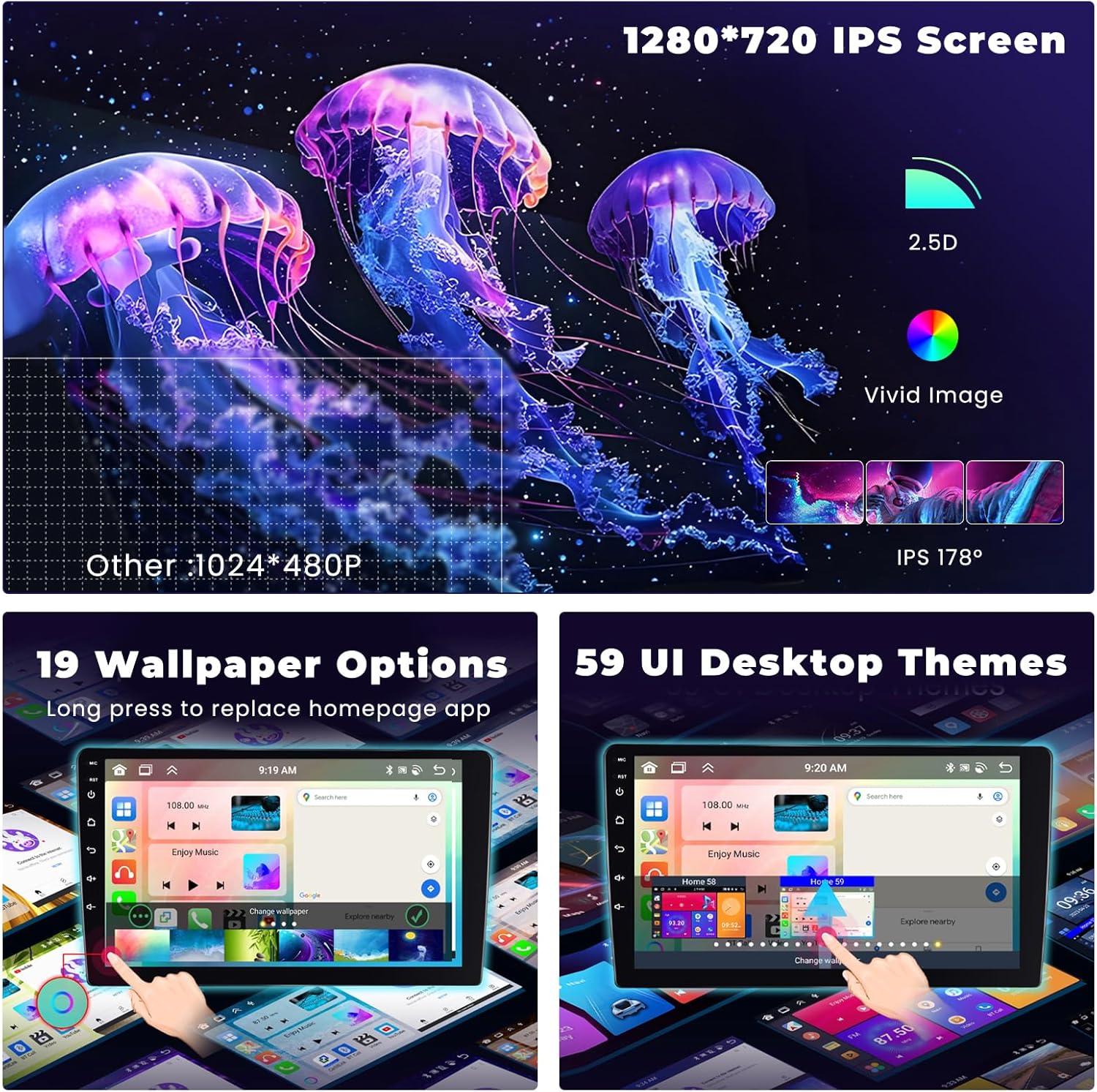
Figure 3.1: Display features including 1280x720 IPS screen, 2.5D vivid image, and options for customizing wallpapers and user interface themes.
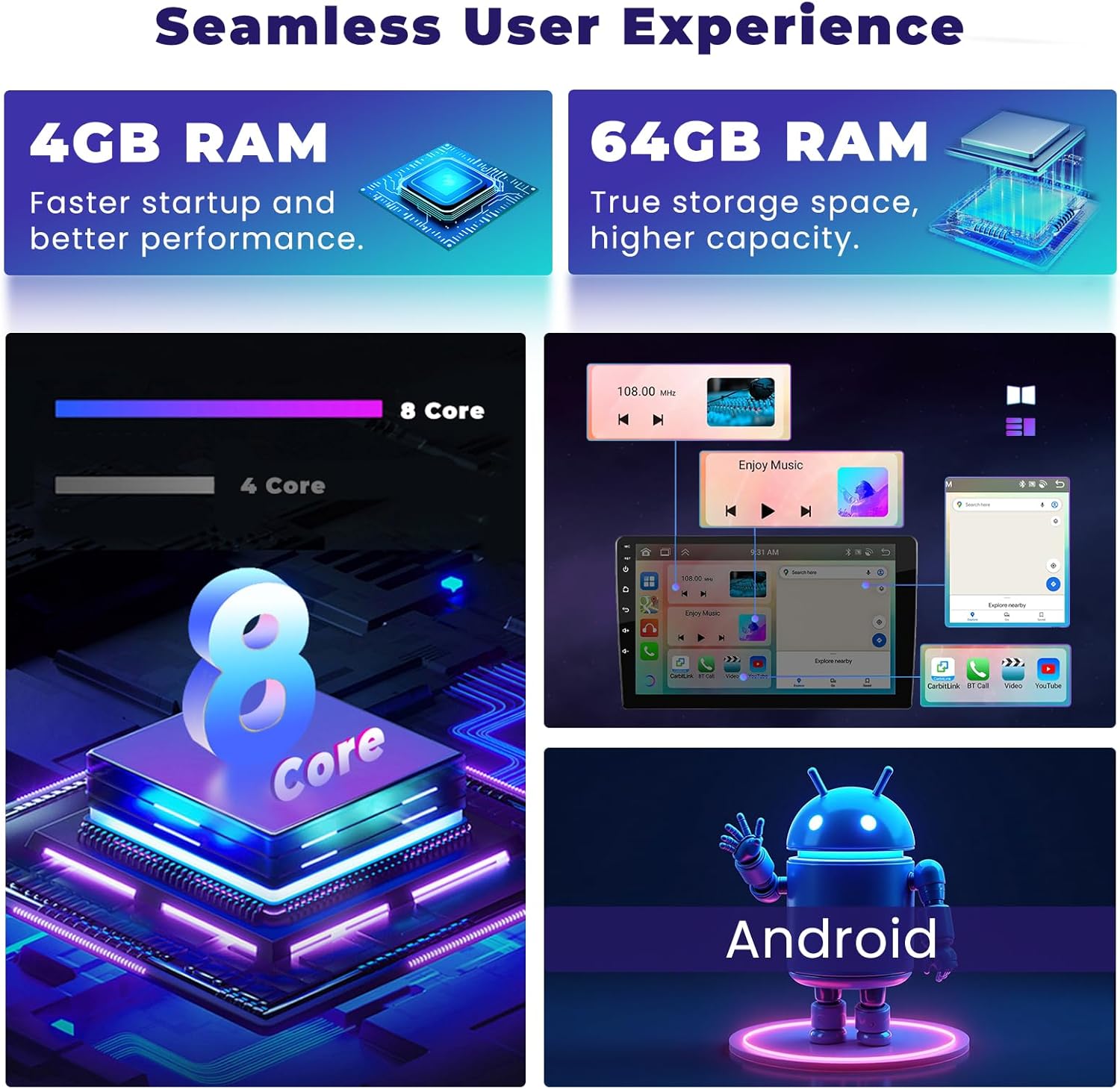
Figure 3.2: Overview of the system's performance capabilities, highlighting 4GB RAM for faster startup, 64GB ROM for storage, and an 8-core processor for smooth operation.
3.2 Wireless CarPlay and Android Auto
Connect your smartphone wirelessly via CarPlay (for iOS) or Android Auto (for Android) to access navigation, make calls, play music, and use other compatible apps directly from the car stereo screen. Activate Siri or Google Assistant for voice control.
- Connection: Establish connection via Bluetooth or USB.
- Features: Carplay Map, Hands-free Calling, Online Music, and access to various compatible applications.

Figure 3.3: Screenshots demonstrating the CarPlay and Android Auto interfaces, including navigation, calling, music playback, and app access.
3.3 GPS Navigation and Wi-Fi
The unit includes a built-in GPS receiver supporting both online and offline maps. You can download global offline maps for free. Connect to Wi-Fi to access online maps, download apps from the Play Store, and browse the internet.

Figure 3.4: Features such as accurate GPS positioning with online/offline maps, voice control for hands-free operation, a three-split screen for multitasking, and WiFi connectivity for online content.
3.4 Bluetooth 5.0 and Audio Features
Bluetooth 5.0 allows for hands-free calling, phonebook synchronization, and wireless music streaming. The integrated DSP (Digital Sound Processor) with a 32-band equalizer enables precise audio tuning to match your preferences. The unit also features an FM/RDS radio receiver.

Figure 3.5: Displays the 32-band DSP equalizer for sound customization, Bluetooth 5.0 interface for calls and music, and the FM/RDS radio tuner.
4. Maintenance
4.1 Cleaning the Unit
To clean the touch screen and unit exterior, use a soft, dry cloth. For stubborn smudges, lightly dampen the cloth with water or a screen-safe cleaning solution. Avoid abrasive cleaners, solvents, or harsh chemicals, as these can damage the screen and finish.
4.2 Software Updates
Periodically check for software updates to ensure optimal performance and access to new features. Updates can typically be found on the manufacturer's website or through the unit's system settings when connected to Wi-Fi.
5. Troubleshooting
5.1 Common Issues and Solutions
- No Power:
- Check all power cable connections to ensure they are secure.
- Verify the vehicle's fuse for the car stereo is not blown.
- No Sound:
- Check speaker wire connections.
- Ensure volume is not muted or set too low.
- Verify audio settings in the DSP equalizer.
- GPS Signal Loss:
- Ensure the GPS antenna is properly connected and has a clear view of the sky.
- Move the vehicle to an open area away from tall buildings or dense foliage.
- CarPlay/Android Auto Not Connecting:
- Ensure Bluetooth and Wi-Fi are enabled on both the stereo and your smartphone.
- Restart both the stereo and your smartphone.
- Check for any software updates for the stereo or your phone's operating system.
- Backup Camera Not Displaying:
- Check the camera's power and video signal connections.
- Ensure the reverse light is functioning correctly.
- Verify camera settings in the stereo's menu.
- Steering Wheel Controls Not Working:
- Confirm SWC wires are correctly connected.
- Re-perform the "Steering wheel learning" process in the settings.
6. Specifications
| Feature | Specification |
|---|---|
| Brand | Hikity |
| Model | A7415A3453H1MI2-EU20 |
| Compatible Vehicles | Hyundai I10 (2007-2013) |
| Operating System | Android |
| Processor | 8 Core |
| RAM | 4GB |
| ROM | 64GB |
| Screen Size | 9 Inches |
| Screen Type | IPS Touch Screen |
| Resolution | 1280 x 720 |
| Connectivity | Bluetooth 5.0, Wi-Fi, FM/RDS, RCA |
| Special Features | Wireless CarPlay, Wireless Android Auto, Built-in DSP (32-band EQ), GPS Navigation, Rear Camera Support, Steering Wheel Control |
| Audio Output Mode | Stereo |
| Surround Configuration | 5.1 |
| Output Power | 45 Watts (RMS), 180 Watts (Peak) |
| Compatible Peripherals | Smartphone, Tablet, PC |
| Total USB Ports | 2 |
| Product Dimensions | 19.5 x 7.5 x 33.5 cm |
| Item Weight | 1.53 Kilograms |
7. Warranty Information
Hikity products typically come with a manufacturer's warranty. Please refer to the warranty card included in your product packaging or visit the official Hikity website for detailed warranty terms and conditions. Keep your proof of purchase for warranty claims.
8. Customer Support
For technical assistance, troubleshooting, or any inquiries regarding your Hikity car stereo, please contact our customer support team:
- Email: hikityservices@163.com
- Online Support: Visit the official Hikity website for FAQs and support resources.
Our support team aims to provide online replies within 24 hours.

Figure 8.1: Image indicating 24-hour customer support available via email at hikityservices@163.com.