

1. Product Overview
The TODAAIR AC1200 Outdoor WiFi Extender is designed to expand your existing wireless network coverage, providing stable and fast internet access in outdoor areas and hard-to-reach indoor locations. This device supports dual-band operation (2.4GHz and 5.8GHz) and functions as both an Access Point (AP) and a Repeater, accommodating up to 65 devices simultaneously. Its robust design ensures reliable performance in various environmental conditions.

Image: The TODAAIR AC1200 Outdoor WiFi Extender, a cylindrical white device, extending WiFi coverage to a distant building.
2. Key Features
- Dual-Band Connectivity: Operates on both 2.4GHz and 5.8GHz frequencies, providing flexible and high-speed connections.
- Quick Pairing: Features a simple, app-free setup process with a quick pairing button for easy network allocation.
- Wide Coverage: Extends WiFi range up to 85 meters (280 feet), eliminating dead zones in basements, garages, and backyards.
- High Device Capacity: Supports connectivity for over 65 devices simultaneously without significant speed degradation.
- Weatherproof Design: IP44 protection ensures durability against outdoor elements like rain, wind, and snow.
- Multiple Operating Modes: Functions as both a WiFi Repeater and an Access Point (AP).
- One Ethernet Port (RJ45): Provides a wired connection option for devices.
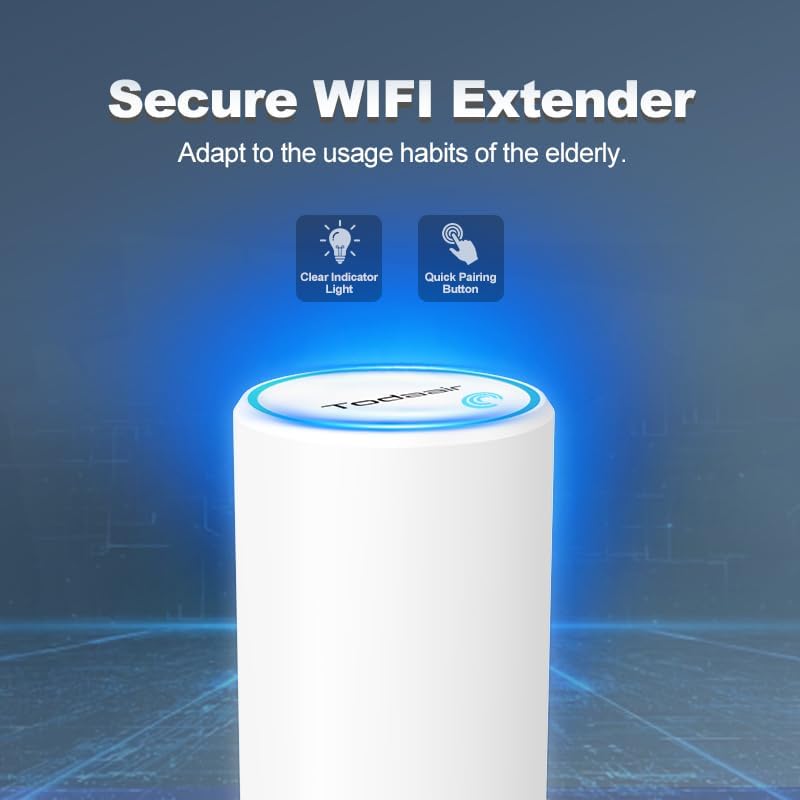
Image: Close-up of the extender's top, highlighting a clear indicator light and a quick pairing button for user-friendly setup.

Image: The extender shown outdoors with icons representing IP44 protection against sun, rain, static, wind, and snow, indicating its weather resistance.

Image: The extender positioned between users working on computers, illustrating its dual-band 2.4G and 5.8G signal distribution.

Image: A diagram showing the extender providing 360-degree WiFi coverage around a house, emphasizing its high-power antenna.
3. Package Contents
Verify that all items are present in your package:
- TODAAIR AC1200 Outdoor WiFi Extender
- Power Adapter (may vary by region)
- Mounting Accessories (e.g., pole strap, screws)
- Quick Installation Guide
4. Setup Guide
The TODAAIR AC1200 Outdoor WiFi Extender is designed for quick and easy setup without the need for a dedicated application.
4.1. Initial Setup (Repeater Mode)
- Power On: Connect the extender to a power source using the provided adapter. Wait for the indicator light to stabilize.
- Connect to Extender: On your computer or mobile device, connect to the extender's default WiFi network (SSID typically starts with "TDair" or similar, as indicated in the Quick Installation Guide).
- Access Setup Page: Open a web browser and enter the default IP address (e.g., 192.168.10.1) or the setup URL provided in the guide. You will be prompted to enter an administrator password.
- Scan for Networks: Once logged in, the extender will scan for available WiFi networks. Select your main router's network (SSID).
- Enter Router Password: Input the password for your main router's WiFi network.
- Configure Extender SSID: Set a new SSID and password for your extended network, or choose to keep it the same as your main network.
- Confirm Settings: Click 'Confirm' or 'Apply' to save your settings. The extender will restart.
- Connect to Extended Network: After the extender restarts, connect your devices to the newly configured extended WiFi network.

Image: A visual guide demonstrating the three-step process for connecting the extender to your router, including connecting to the extender's network, finding the router, and setting the extended network's SSID and password.
4.2. AP Mode Setup
In Access Point (AP) mode, the extender connects to your router via an Ethernet cable and broadcasts a new wireless network.
- Connect Ethernet: Connect an Ethernet cable from your main router to the RJ45 port on the extender.
- Power On: Connect the extender to a power source.
- Access Setup Page: Connect a device to the extender's default WiFi network or via an Ethernet cable directly to the extender (if applicable). Open a web browser and navigate to the setup page.
- Select AP Mode: In the setup interface, choose 'AP Mode'.
- Configure Wireless Settings: Set the desired SSID and password for the new wireless network broadcast by the extender.
- Save and Restart: Apply the settings. The extender will restart and operate in AP mode.

Image: A two-step visual guide for configuring AP mode, showing the login screen and the wireless settings page where SSID and password can be set.
5. Installation Best Practices
Proper placement is crucial for optimal performance of your WiFi extender.
- Optimal Distance: Place the extender within the strong signal range of your main router, but not too close. An ideal location is halfway between your router and the WiFi dead zone.
- Line of Sight: Minimize obstructions like thick walls, metal objects, and large appliances between the extender and your router, and between the extender and your devices.
- Height: For outdoor use, mounting the extender at a higher elevation can improve signal propagation.
- Avoid Interference: Keep the extender away from other electronic devices that might cause interference, such as microwaves, cordless phones, or Bluetooth devices.

Image: A diagram illustrating correct and incorrect placement of the WiFi extender relative to the main router and coverage areas, showing how proper placement ensures a strong signal.
6. Operating the Extender
Once set up, the extender operates automatically. The indicator lights on the device provide status information:
- Solid Blue/Green: Indicates a strong connection to the main router and active WiFi signal.
- Solid Red/Orange: Indicates a weak signal from the main router or no connection. Consider repositioning the extender.
- Flashing: May indicate booting up, connecting, or data transmission. Refer to the Quick Installation Guide for specific light patterns.
7. Maintenance
To ensure the longevity and optimal performance of your TODAAIR AC1200 Outdoor WiFi Extender:
- Regular Cleaning: Periodically wipe the exterior with a soft, dry cloth to remove dust and dirt. Do not use liquid cleaners or abrasive materials.
- Firmware Updates: Check the manufacturer's website for any available firmware updates. Updating firmware can improve performance, add features, and fix bugs.
- Environmental Protection: While designed for outdoor use, ensure it is securely mounted and protected from extreme weather conditions if possible.
- Power Cycle: If you experience connectivity issues, try power cycling the extender (unplug it, wait 10 seconds, then plug it back in).
8. Troubleshooting
If you encounter issues with your WiFi extender, refer to the following common problems and solutions:
- No Internet Access:
- Ensure your main router has internet access.
- Verify the extender is receiving a strong signal from the router (check indicator lights). Reposition if necessary.
- Confirm the correct WiFi password for your main router was entered during setup.
- Weak Signal from Extender:
- Move the extender closer to your main router.
- Ensure there are no major obstructions between the extender and your devices.
- Cannot Access Setup Page:
- Ensure your device is connected to the extender's WiFi network.
- Try a different web browser or clear your browser's cache.
- Verify the correct IP address or URL is being used.
- Connection Drops Frequently:
- Check for sources of interference (e.g., microwaves, other wireless devices).
- Ensure the extender is not overheating.
- Consider updating the extender's firmware.
- Resetting the Extender: If issues persist, you may need to perform a factory reset. Locate the reset button (usually a small pinhole) on the device, press and hold it for 5-10 seconds until the lights flash, then release. This will revert all settings to factory defaults, and you will need to set up the extender again.
If you require further assistance, please contact TODAAIR customer support.
9. Technical Specifications
| Feature | Specification |
|---|---|
| Model Number | No APP Need |
| Brand | TODAAIR |
| Wireless Standard | AC1200 (Dual-Band) |
| Frequency Bands | 2.4GHz & 5.8GHz |
| Max Coverage Range | Up to 85 meters (280 feet) |
| Max Connected Devices | 65+ |
| Ethernet Port | 1 x RJ45 |
| Weather Protection | IP44 |
| Item Weight | 1.32 pounds |
| Package Dimensions | 8.19 x 7.87 x 3.15 inches |
| UPC | 716035168577 |
10. Warranty and Support
TODAAIR products are designed for reliability and performance. This product comes with a standard manufacturer's warranty. Please refer to the warranty card included in your package or visit the official TODAAIR website for detailed warranty terms and conditions.
For technical support, troubleshooting assistance, or warranty claims, please contact TODAAIR customer service through the contact information provided in your product documentation or on the official TODAAIR website. Your satisfaction is our top priority.
You can also visit the TODAAIR Brand Store on Amazon for more information and product updates.
11. Official Product Videos
No official seller videos were found in the provided product data for embedding in this manual. Please refer to the product page on Amazon for any available video content.
