
1. Introduction
This manual provides essential information for setting up, operating, and maintaining your MXZ Gaming PC Desktop Computer. Please read this manual thoroughly before using the product to ensure proper functionality and safety.
2. Safety Information
- Ensure the PC is placed on a stable, flat surface with adequate ventilation.
- Do not block ventilation openings.
- Keep the PC away from direct sunlight, heat sources, and liquids.
- Use only the power supply provided or a compatible replacement.
- Disconnect the power cable before cleaning or performing any maintenance.
- Avoid opening the PC case unless instructed by technical support. Internal components can be sensitive to electrostatic discharge.
3. Package Contents
Verify that all items are present in the package:
- MXZ Gaming PC Desktop Computer
- Power Cable
- Documentation (Quick Start Guide, Warranty Card)
- Additional accessories (e.g., Wi-Fi antenna, extra cables) may be included depending on your specific configuration.
4. Physical Overview
4.1 Front and Top Panel

Front View: The front panel features a mesh design for optimal airflow, showcasing three RGB fans. The MXZ logo is prominently displayed.

Top Panel Ports: Located on the top-front edge, these ports provide convenient access for peripherals. They typically include:
- 1x USB 3.0 Port
- 2x USB 2.0 Ports
- 1x Headphone Jack
- 1x Microphone Jack
- Power Button
- Reset Button (if applicable)
4.2 Rear Panel
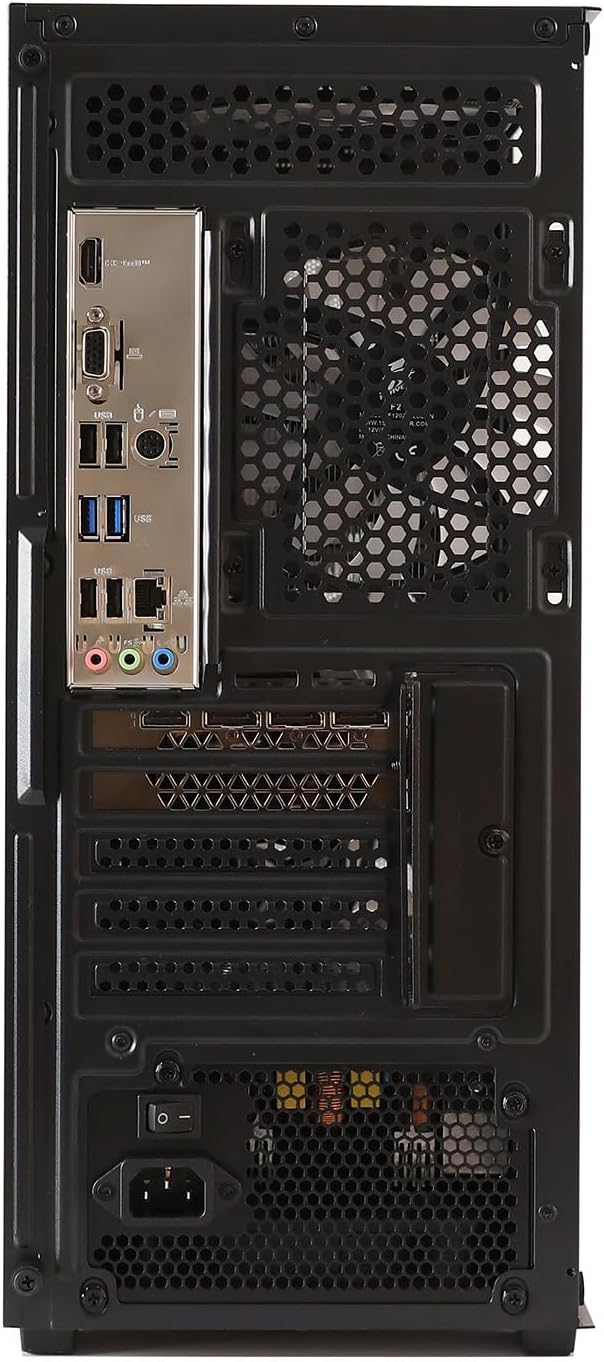
Rear I/O Ports: The rear panel houses the main connectivity options for your PC:
- USB Ports (various types, e.g., USB 3.0, USB 2.0)
- Ethernet Port (RJ-45)
- Audio Jacks (Line-in, Line-out, Microphone)
- Video Output Ports (from Graphics Card): HDMI, DisplayPort (Note: Connect your monitor to the graphics card ports, not the motherboard ports, for optimal performance.)
- Power Supply Unit (PSU) Input
4.3 Internal Components

Internal View: The side panel provides a view of the internal components, including the motherboard, CPU cooler, RAM modules, and the dedicated graphics card. RGB fans are strategically placed for cooling and aesthetics.
5. Setup Instructions
5.1 Connecting Peripherals
- Connect Monitor: Plug your monitor's video cable (HDMI or DisplayPort) into the corresponding port on the graphics card at the rear of the PC.
- Connect Keyboard and Mouse: Plug your keyboard and mouse into any available USB ports on the rear or top panel.
- Connect Network: For a wired connection, plug an Ethernet cable into the RJ-45 port on the rear panel. If using Wi-Fi, ensure any provided antennas are attached.
- Connect Audio: If using external speakers or a headset, plug them into the appropriate audio jacks on the rear or top panel.
5.2 Powering On
- Connect Power: Plug the power cable into the power supply unit (PSU) input at the rear of the PC, then plug the other end into a wall outlet or surge protector.
- Power On: Press the power button located on the top panel of the PC. The RGB fans and internal lighting should illuminate, and your monitor should display the boot sequence.
5.3 Initial Windows Setup
Your MXZ Gaming PC comes with Windows 11 Pro pre-installed. Upon first boot, you will be guided through the initial Windows setup process. Follow the on-screen instructions to:
- Select your region and keyboard layout.
- Connect to a network.
- Create or sign in with a Microsoft account.
- Set up privacy settings.
5.4 Setup Video Guide
For a visual guide on setting up your MXZ Gaming PC, please refer to the video below:
This video provides a general overview of the MXZ Gaming PC Desktop Computer, showcasing its features and internal components. It can assist with initial setup and visual identification of parts.
6. Operating Instructions
6.1 Basic Operation
- Power On/Off: Press the power button to turn the PC on. To turn off, use the Windows Shut Down option (Start > Power > Shut down) or press and hold the power button for 5 seconds for a forced shutdown (not recommended for regular use).
- Restart: Use the Windows Restart option (Start > Power > Restart).
- Sleep Mode: Use the Windows Sleep option (Start > Power > Sleep).
6.2 RGB Lighting Control
Your MXZ Gaming PC features customizable RGB lighting for its fans and internal components. Control methods may vary:
- Software Control: Many RGB systems are controlled via dedicated software installed on the PC. Check your desktop for pre-installed RGB control applications (e.g., motherboard utility, fan controller software).
- Physical Button: Some cases include a physical button on the top or front panel to cycle through lighting modes and colors.
Refer to the specific software or case documentation for detailed instructions on customizing your RGB lighting.
7. Maintenance
Regular maintenance helps ensure the longevity and performance of your PC.
- Dust Cleaning: Periodically clean dust from the PC's exterior and ventilation openings using compressed air or a soft brush. Ensure the PC is powered off and unplugged before cleaning.
- Software Updates: Regularly update Windows, graphics drivers (NVIDIA), and other software to ensure optimal performance, security, and compatibility.
- Antivirus Protection: Maintain up-to-date antivirus software to protect against malware and viruses.
- Cable Management: Ensure internal and external cables are neatly organized to improve airflow and prevent damage.
8. Troubleshooting
If you encounter issues with your MXZ Gaming PC, refer to the following common troubleshooting steps:
| Problem | Possible Solution |
|---|---|
| PC does not power on |
|
| No display on monitor |
|
| PC is running slow or freezing |
|
| No sound |
|
If these steps do not resolve your issue, please contact MXZ customer support for further assistance.
9. Specifications
| Component | Detail |
|---|---|
| Processor | Intel Core i5-13400F (13th Gen, 6-Core, 12-Thread, 2.9GHz-4.4GHz) |
| Graphics Card | NVIDIA RTX 5060 (Dedicated, GDDR6) |
| RAM | 16GB DDR4 3200MHz |
| Storage | 1TB NVME M.2 Solid State Drive |
| Operating System | Windows 11 Pro (Pre-installed) |
| Motherboard | H610M S2 |
| Power Supply | 650W 80+ |
| Cooling | 6 RGB Fans |
| Connectivity | Ethernet, HDMI, DisplayPort, USB 3.0, USB 2.0, Audio Jacks |
| Weight | 8 Kilograms |
| Model Number | MXZ-131 |
10. Warranty and Support
Your MXZ Gaming PC Desktop Computer is covered by a 1-year parts and labor warranty. MXZ also provides free lifetime technical support for this product.
For technical assistance, warranty claims, or any product-related inquiries, please contact MXZ customer support through the following channels:
- Website: Visit the official MXZ website for support resources and contact information.
- Email: Refer to your warranty card or product packaging for the support email address.
- Phone: Refer to your warranty card or product packaging for the support phone number.
Please have your product model number (MXZ-131) and purchase details ready when contacting support.