
UNVO YYK-A90 PRO
UNVO A90 Bluetooth Earphones User Manual
Model: YYK-A90 PRO
1. Introduction
Thank you for choosing the UNVO A90 Bluetooth Earphones. These earphones are designed to provide a superior audio experience with advanced features such as an intelligent color touch screen, Active Noise Cancellation (ANC), and Environmental Noise Cancellation (ENC). This manual will guide you through the setup, operation, and maintenance of your new earphones.

Image: The UNVO A90 Bluetooth Earphones, black, resting in their open charging case, displaying the digital battery indicator.
2. Safety Information
Please read all safety instructions carefully before using this product. Keep this manual for future reference.
- Do not expose the earphones or charging case to extreme temperatures, humidity, or liquids.
- Avoid dropping, impacting, or disassembling the device.
- Do not use abrasive cleaners or harsh chemicals to clean the earphones.
- Prolonged exposure to high volume levels may cause hearing damage. Adjust volume to a moderate level.
- Dispose of the product and its battery responsibly according to local regulations.
3. Package Contents
Ensure all items are present in your package:
- UNVO A90 Bluetooth Earphones (Left and Right)
- Charging Case
- USB Charging Cable (Type-C)
- User Manual (this document)
- Eartips (various sizes) - (Assumed, common for earbuds)
4. Product Overview
Familiarize yourself with the components of your UNVO A90 earphones.
Earbuds
- Touch Control Area: For managing playback, calls, and noise cancellation modes.
- Microphone: For calls and environmental noise cancellation.
- Charging Contacts: Connects with the charging case.
- Speaker: Audio output.
Charging Case
- Intelligent Color Touch Screen: Displays battery status, charging indicators, and potentially other information.
- Charging Port: USB Type-C port for charging the case.
- Earbud Slots: Securely holds and charges the earbuds.
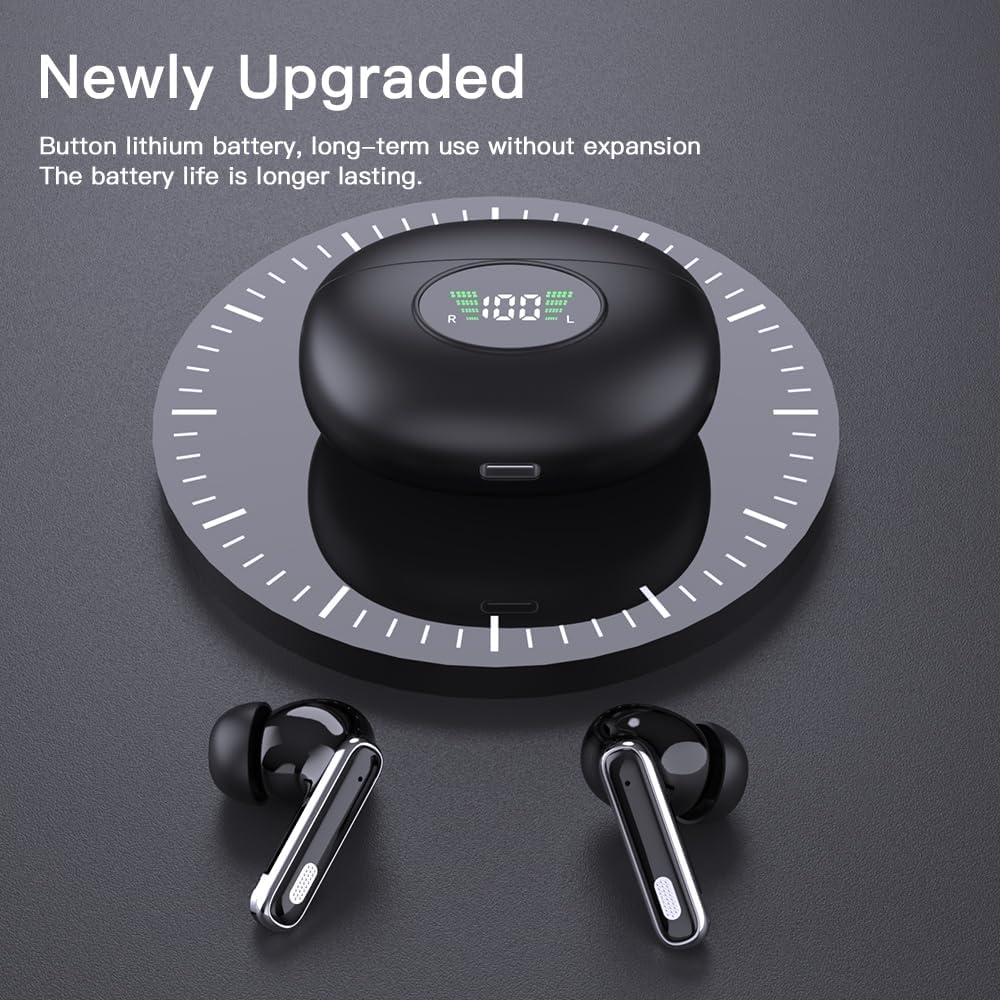
Image: The UNVO A90 Earbuds and their charging case, showing the digital display on the case.
5. Setup
5.1 Charging the Earphones and Case
Before first use, fully charge the earphones and the charging case.
- Place the earphones into the charging case, ensuring the charging contacts align.
- Connect the USB Type-C cable to the charging port on the case and the other end to a USB power adapter (not included) or a computer's USB port.
- The intelligent color touch screen on the case will display the charging status. A full charge takes approximately 2 hours.
- Once fully charged, disconnect the charging cable.
Image: The UNVO A90 Earbuds and their charging case, illustrating the charging setup.
5.2 Bluetooth Pairing
The earphones will automatically enter pairing mode when taken out of the charging case.
- Open the charging case and remove both earphones. They will automatically power on and enter pairing mode.
- On your device (smartphone, tablet, etc.), enable Bluetooth.
- Search for "YYK-A90 PRO" or "UNVO A90" in the list of available Bluetooth devices.
- Select the earphones to connect. Once connected, a voice prompt will confirm the successful pairing.
- The earphones will automatically reconnect to the last paired device when taken out of the case, provided Bluetooth is enabled on the device.

Image: The UNVO A90 Earbuds and charging case, demonstrating the automatic connection feature when the lid is opened, with a smartphone in the background.
5.3 Wearing the Earbuds
For optimal sound quality and comfort, ensure a proper fit.
- Identify the left (L) and right (R) earbuds.
- Gently insert each earbud into your ear canal.
- Rotate the earbud slightly until it feels secure and comfortable.
- If necessary, try different sizes of eartips (if included) to find the best seal for your ears.

Image: A person wearing a white UNVO A90 earbud, demonstrating the in-ear fit.
6. Operating Instructions
The UNVO A90 earphones feature intuitive touch controls on each earbud.
6.1 Music Playback
- Play/Pause: Single tap on either earbud.
- Next Track: Double tap on the right earbud.
- Previous Track: Double tap on the left earbud.
- Volume Up: Triple tap on the right earbud.
- Volume Down: Triple tap on the left earbud.
6.2 Call Management
- Answer/End Call: Single tap on either earbud.
- Reject Call: Press and hold either earbud for 2 seconds.
6.3 Noise Cancellation Modes (ANC/ENC)
The UNVO A90 supports Active Noise Cancellation (ANC) and Environmental Noise Cancellation (ENC) for calls.
- Switch ANC/Transparency Mode: Press and hold the touch control area on either earbud for 2 seconds. Cycle through ANC On, Transparency Mode, and ANC Off.
- ENC: Environmental Noise Cancellation is automatically active during phone calls to reduce background noise for clearer communication.

Image: Diagram illustrating the internal "Whale Cavity Structure" of the earbud, which contributes to acoustic performance and clarity.

Image: Exploded view diagram of the 13mm large dynamic coil within the earbud, highlighting its components for rich music details.
6.4 Voice Assistant
- Activate Voice Assistant: Quadruple tap on either earbud.
7. Maintenance
Proper maintenance ensures the longevity and performance of your earphones.
- Cleaning: Use a soft, dry, lint-free cloth to clean the earphones and charging case. Do not use liquids or aerosols. For earwax buildup, gently clean the speaker mesh with a small, dry brush or cotton swab.
- Storage: When not in use, always store the earphones in their charging case to protect them and keep them charged. Store in a cool, dry place away from direct sunlight.
- Battery Care: To preserve battery life, avoid fully discharging the earphones and case frequently. Charge them regularly, even if not in constant use.
8. Troubleshooting
If you encounter issues with your UNVO A90 earphones, try the following solutions:
| Problem | Solution |
|---|---|
| Earphones not pairing/connecting. |
|
| Only one earbud is working. |
|
| Low volume or poor sound quality. |
|
| Charging case display not working. |
|
9. Specifications
| Feature | Detail |
|---|---|
| Model Name | YYK-A90 PRO |
| Connectivity Technology | Wireless (Bluetooth) |
| Noise Control | Hybrid Noise Cancellation (ANC & ENC) |
| Charging Time | Approximately 2 Hours |
| Ear Placement | In Ear |
| Form Factor | True Wireless |
| Impedance | 32 Ohm |
| Color | BLACK |
| Manufacturer | UNVO |
| UPC | 884613750183 |
10. Warranty and Support
UNVO products are designed and manufactured to the highest quality standards. For warranty information and technical support, please refer to the warranty card included in your package or visit the official UNVO website.
For further assistance, you may contact UNVO customer support through the following channels:
- Online Support: Visit the UNVO Store on Amazon for FAQs and contact options.
- Email Support: Refer to your product packaging or the official website for the support email address.
Please have your model number (YYK-A90 PRO) and purchase details ready when contacting support.
Ask a question about this manual
Ask about setup, troubleshooting, compatibility, parts, safety, or missing instructions. Manuals+ will review the question and use this page’s manual context to help answer it.