1. Introduction
This manual provides detailed instructions for the ATK VXE Dragonfly R1 Pro Wireless Gaming Mouse. It covers product features, setup procedures, operational guidelines, maintenance tips, troubleshooting, and technical specifications. Please read this manual thoroughly to ensure proper use and optimal performance of your device.

Image 1.1: Top-down view of the ATK VXE Dragonfly R1 Pro Wireless Gaming Mouse in white. This image displays the ergonomic shape, scroll wheel, and primary buttons.
2. Key Features
The ATK VXE Dragonfly R1 Pro is designed for high-performance gaming, incorporating advanced technology for precision and comfort.
- Lightweight Design: Weighing approximately 48 grams, the mouse offers effortless movement and reduced fatigue during extended use.
- Advanced MCU: Features a Nordic /BEKEN(compx)/Hisilicon Nearlink flagship-level chip for powerful performance, low power consumption, and enhanced interference resistance.
- Smart Speed X Latency: Utilizes VXE's proprietary transmission technology, optimized for low latency and extended endurance, crucial for competitive gaming.
- PAW3395/SE Sensor: Equipped with an esports flagship sensor, providing powerful optical tracking performance for precise and accurate movements.
- Smooth Ice-Feeling Coating: A dirt-resistant and easy-to-clean surface that provides a smooth glide and comfortable grip.
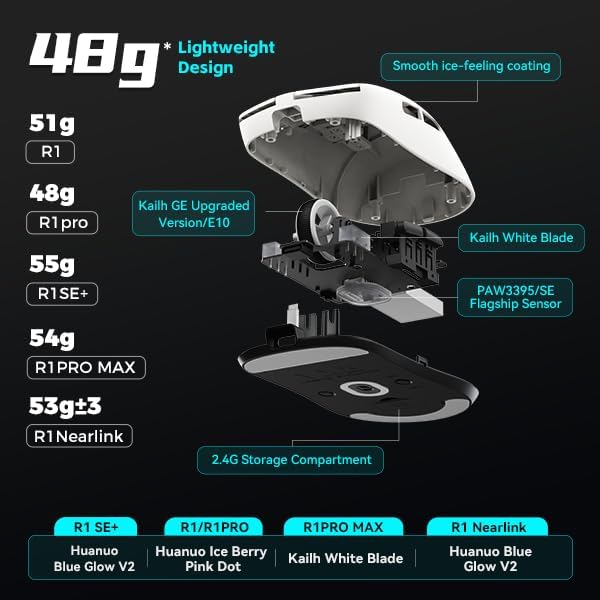
Image 2.1: Internal view highlighting the lightweight design and key components like the Kailh White Blade switches and PAW3395/SE sensor. Different R1 series models and their weights are also shown.

Image 2.2: Illustration of the advanced MCU and its support for up to 4K polling rate, indicating high efficiency for both office and gaming use.

Image 2.3: Visual representation of the Smart Speed X wireless transmission technology, emphasizing its low latency and smooth operation even in environments with strong signal interference.
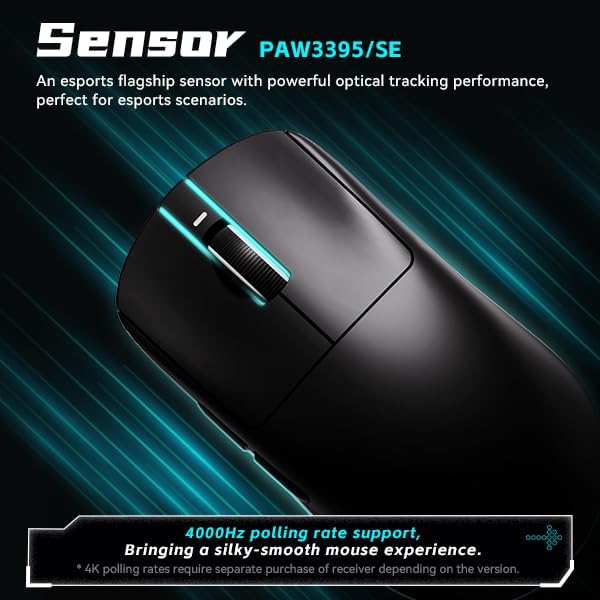
Image 2.4: Focus on the PAW3395/SE esports flagship sensor, capable of 4000Hz polling rate for a silky-smooth mouse experience. Note that 4K polling rates may require a separate receiver depending on the version.

Image 2.5: Depiction of the 'Smooth Ice-Feeling' coating, highlighting its dirt-resistant and easy-to-clean properties. It also shows the distinction between smooth texture (R1 Pro / R1 Pro Max) and matte texture (R1 / R1 SE+ / R1 Nearlink) models.

Image 2.6: Comparison of Kailh White Blade (100 Million Click Lifespan, balanced feel) and Ice Berry Pink Dot (90 Million Click Lifespan, soft bounce feel) micro switches, emphasizing their suitability for prolonged use.

Image 2.7: Illustration of the Tri-Mode connectivity, supporting Bluetooth 5.4, 2.4GHz wireless (Nearlink), and wired USB-C. It notes that R1 Pro and R1 Pro Max models support Dual-Mode, while R1 SE+, R1, and R1 Nearlink support Tri-Mode.
3. Package Contents
Verify that all items are present in the package:
- ATK VXE Dragonfly R1 Pro Wireless Gaming Mouse
- USB 2.4GHz Wireless Receiver
- USB-C to USB-A Charging/Data Cable
- User Manual (this document)
4. Setup Guide
4.1. Wireless 2.4GHz Connection
- Locate the USB 2.4GHz wireless receiver, typically stored in a compartment on the underside of the mouse.
- Plug the USB receiver into an available USB port on your computer.
- Turn on the mouse using the power switch located on the underside.
- The mouse should automatically connect to the receiver. If not, press the pairing button (if available) on the mouse and ensure the receiver is properly inserted.
4.2. Bluetooth Connection (for Tri-Mode models)
- Ensure your mouse is a Tri-Mode model (R1 SE+, R1, R1 Nearlink).
- Turn on the mouse and switch it to Bluetooth mode using the mode switch on the underside.
- On your computer, navigate to Bluetooth settings and enable Bluetooth.
- Search for new devices and select "ATK VXE Dragonfly R1 Pro" (or similar name) from the list.
- Follow any on-screen prompts to complete the pairing process.
4.3. Wired Connection
- Connect the USB-C end of the provided cable to the mouse.
- Connect the USB-A end of the cable to an available USB port on your computer.
- The mouse will function as a wired device and will charge simultaneously.
5. Operating Instructions
5.1. DPI Adjustment
The mouse features adjustable DPI (Dots Per Inch) settings to control cursor sensitivity. Typically, a dedicated DPI button is located on the top or underside of the mouse. Press this button to cycle through preset DPI levels. The current DPI level may be indicated by an LED color or pattern.
5.2. Button Functions
- Left Click: Primary action.
- Right Click: Secondary action/context menu.
- Scroll Wheel: Scrolls content vertically. Can also be clicked for a middle-mouse button function.
- Side Buttons: Often configured for forward/back navigation in web browsers or customizable functions in gaming software.
5.3. Charging
To charge the mouse, connect it to your computer using the provided USB-C cable. An indicator light on the mouse will typically show charging status (e.g., solid light for charging, off or different color for fully charged).
5.4. Software Customization
For advanced customization, including programmable macro keys, DPI settings, polling rate adjustments, and lighting effects, download the official ATK VXE software from the manufacturer's website. Refer to the software's help documentation for detailed instructions.
6. Maintenance
6.1. Cleaning
- Disconnect the mouse from your computer before cleaning.
- Use a soft, lint-free cloth lightly dampened with water or a mild cleaning solution to wipe the surface.
- Avoid using harsh chemicals, abrasive materials, or excessive moisture.
- Use compressed air to clear dust and debris from crevices and around buttons.
6.2. Battery Care
- Avoid fully discharging the battery frequently to prolong its lifespan.
- Store the mouse in a cool, dry place when not in use for extended periods.
- Use only the provided charging cable or a certified equivalent.
7. Troubleshooting
- Mouse not responding: Ensure the mouse is powered on and fully charged. Check the connection (USB receiver, Bluetooth pairing, or wired cable). Try a different USB port.
- Lag or intermittent connection: Ensure the USB receiver is not obstructed and is close to the mouse. Avoid placing the receiver near other wireless devices that may cause interference. For Bluetooth, ensure no other devices are interfering.
- Inaccurate tracking: Clean the optical sensor on the underside of the mouse. Ensure you are using the mouse on a suitable surface (a mouse pad is recommended).
- Buttons not working: Check for any physical obstructions. If using customization software, ensure buttons are not unbound or assigned to conflicting functions.
- Battery not charging: Ensure the USB-C cable is securely connected to both the mouse and the computer/charger. Try a different USB port or cable.
8. Technical Specifications
| Feature | Specification |
|---|---|
| Model | R1 Pro |
| Item Weight | 7 ounces (approx. 48g for R1 Pro) |
| Package Dimensions | 6.3 x 4.72 x 2.36 inches |
| Sensor | PAW3395/SE Optical |
| Connectivity Technology | Bluetooth, USB (Wired), 2.4GHz Wireless (Wi-Fi) |
| Polling Rate | 125-4000Hz (R1 Pro) |
| Microswitch | Kailh White Blade (100 Million Clicks) |
| Battery | Nonstandard Battery (included) |
| Continuous Operating Battery Life | 75h (1000Hz) for R1 Pro |
| Coating | Smooth Ice-Feeling |
| Special Feature | Ergonomic Design |

Image 8.1: Comprehensive table outlining the specifications for various models within the VXE Dragonfly R1 series, including dimensions, coating, sensor, chip, polling rate, battery life, weight, microswitch, scroll wheel, and connection methods.
9. Warranty and Support
This product comes with a standard manufacturer's warranty. For specific warranty terms, duration, and conditions, please refer to the warranty card included in your product packaging or visit the official ATKGEAR website. For technical support, troubleshooting assistance, or service inquiries, please contact ATKGEAR customer support through their official channels.