
FIERCE X
ATK Fierce X Lightweight Wireless Gaming Mouse User Manual
Model: FIERCE X
Introduction
The ATK Fierce X is an ultra-lightweight wireless gaming mouse designed for competitive performance. Featuring a magnesium alloy shell, a high-precision PAW3950 Ultra sensor, and an 8KHz polling rate, it offers exceptional speed, accuracy, and durability. This manual provides comprehensive instructions for setting up, operating, maintaining, and troubleshooting your ATK Fierce X gaming mouse.

Image: The ATK Fierce X mouse, highlighting its lightweight magnesium alloy design.
Safety Information
- Do not expose the mouse to extreme temperatures or humidity.
- Avoid dropping or subjecting the mouse to strong impacts.
- Do not attempt to disassemble or modify the mouse, as this will void the warranty.
- Keep the mouse away from liquids and dust.
- Use only the provided charging cable and accessories.
Package Contents
Please check the package contents to ensure all items are present:
- ATK Fierce X Wireless Gaming Mouse
- USB-C to USB-A Charging/Data Cable
- 2.4GHz Wireless Dongle (8KHz compatible)
- User Manual
- Additional Mouse Feet (Teflon)
Product Overview
The ATK Fierce X mouse features a unique magnesium alloy exoskeleton design, contributing to its ultra-lightweight profile while maintaining structural integrity.

Image: Top-down view of the ATK Fierce X mouse, showcasing its magnesium alloy shell and symmetrical design.

Image: A robotic hand holding the ATK Fierce X mouse, illustrating its extremely light 42-gram weight.
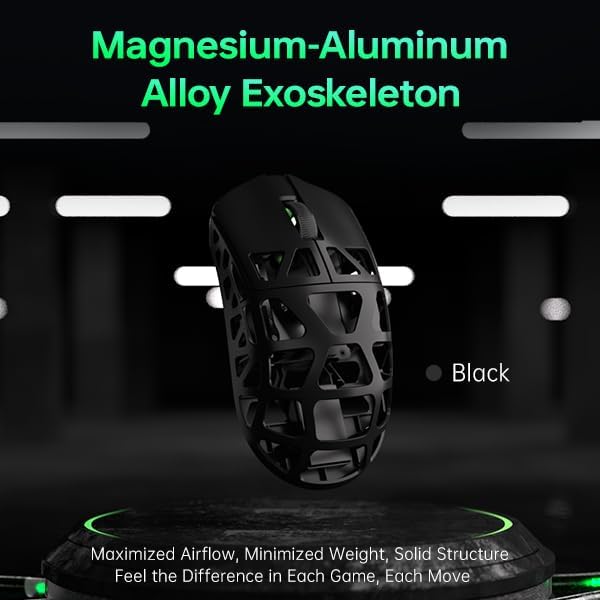
Image: Close-up of the magnesium-aluminum alloy exoskeleton of the ATK Fierce X mouse, highlighting its hollowed-out structure for weight reduction and airflow.
Setup
1. Charging the Mouse
Before first use, it is recommended to fully charge the ATK Fierce X mouse. Connect the provided USB-C cable to the mouse's front port and the USB-A end to your computer's USB port or a USB wall adapter. The LED indicator on the mouse will show charging status.
2. Connecting Wirelessly (2.4GHz)
- Insert the 2.4GHz wireless dongle into an available USB port on your computer.
- Turn on the mouse using the power switch located on the bottom.
- The mouse should automatically connect to the dongle. If not, press the pairing button (if available, refer to the diagram in the full manual) or reconnect the dongle.
3. Connecting Wired (USB)
To use the mouse in wired mode, simply connect the USB-C cable from the mouse to your computer's USB port. The mouse will function immediately and charge simultaneously.
Operating the Mouse
DPI Adjustment
The ATK Fierce X features a PAW3950 Ultra sensor with adjustable DPI settings up to 30,000 DPI. Use the DPI button (typically located on the top or bottom of the mouse) to cycle through preset DPI stages. For fine-tuning, use the ATK software.

Image: Diagram illustrating the PAW3950 Ultra Sensor, highlighting its high DPI, IPS, and acceleration capabilities.
Polling Rate Adjustment (8KHz)
The mouse supports an adjustable polling rate from 125Hz to 8000Hz. This can be configured via the ATK software. A higher polling rate provides more responsive tracking but requires more system resources. Ensure your computer meets the recommended specifications for 8KHz polling:
- CPU: Intel Core i7 9700K or higher, AMD Ryzen 7 3700X or higher
- Monitor: 240Hz refresh rate or above
- Graphics Card: NVIDIA GTX 1080 or higher, AMD RX 5700 or higher
- Memory: 16GB or more

Image: Visual representation of 8000 Hz polling rate, with a reminder of system requirements for optimal performance.
Customization with ATK Software
Download the official ATK software from the ATKGEAR website to customize button assignments, macros, DPI stages, polling rate, lift-off distance (LOD), and more. The mouse also supports a web configurator for advanced settings.

Image: Diagram of the Nordic 52840 Flagship Chip, which powers the mouse's wireless technology and low latency.
Optical Micro Switches
The ATK Fierce X utilizes ATK Optical Micro Switches for crisp, instantaneous clicks and extended durability, with a lifespan of over 70 million clicks.

Image: Diagram illustrating the internal mechanism of an Omron Optical Micro Switch, emphasizing its instantaneous response.
Maintenance
Cleaning
To clean your mouse, use a soft, dry, lint-free cloth. For stubborn dirt, slightly dampen the cloth with water or a mild cleaning solution. Do not spray cleaners directly onto the mouse. Avoid using abrasive materials or harsh chemicals.
Storage
When not in use for extended periods, store the mouse in a cool, dry place away from direct sunlight and extreme temperatures.
Troubleshooting
- Mouse not responding:
- Ensure the mouse is charged.
- Check if the power switch on the bottom of the mouse is ON.
- For wireless mode, ensure the dongle is securely plugged into a working USB port. Try a different USB port.
- For wired mode, ensure the USB-C cable is securely connected to both the mouse and the computer.
- Restart your computer.
- Lag or erratic movement:
- Ensure there are no obstructions between the mouse and the wireless dongle.
- Move the dongle closer to the mouse, or use a USB extension cable if necessary.
- Check for other wireless interference (e.g., Wi-Fi routers, other 2.4GHz devices).
- Clean the mouse sensor with a soft cloth.
- Update mouse drivers or ATK software.
- If using 8KHz polling rate, ensure your system meets the recommended specifications.
- Buttons not working:
- Check button assignments in the ATK software.
- Ensure no software conflicts are present.
Specifications
| Feature | Detail |
|---|---|
| Weight | 42 ± 2g (Magnesium Alloy Body) |
| Dimensions (L×W×H) | 119.6 × 61.0 × 36.3mm |
| Sensor | PAW3950 Ultra (30,000 DPI, 750 IPS, 50G Accel.) |
| MCU | Nordic 52840 |
| Polling Rate | Adjustable from 125Hz to 8000Hz |
| Switch Type | ATK Optical Micro Switches |
| Connectivity | 2.4GHz Wireless + USB Wired |
| Software Support | Yes (Windows App + Web Configurator) |
| Battery Life | 70 Hours (at 1000Hz polling rate) |
| Included Dongle | 8KHz compatible dongle |

Image: A detailed table summarizing the technical specifications of the ATK Fierce X Lightweight Gaming Mouse.
Warranty and Support
Warranty Information
The ATK Fierce X Lightweight Wireless Gaming Mouse comes with a standard manufacturer's warranty. Please refer to the warranty card included in your package or visit the official ATKGEAR website for detailed warranty terms and conditions. Keep your proof of purchase for warranty claims.
Customer Support
For technical assistance, troubleshooting, or warranty inquiries, please contact ATKGEAR customer support through their official website. You can typically find contact information, FAQs, and driver downloads at ATKGEAR Official Store.
Related Documents - FIERCE X
 |
Delux M800mini Ultra Wireless Gaming Mouse User Manual - Specifications and Guide Official user manual for the Delux M800mini Ultra wireless gaming mouse. Learn about its advanced features, including the PAW3950 sensor, 30000 DPI, 8KHz polling rate, and lightweight 46g design. |
 |
GravaStar Mercury X Pro (8KHz) Gaming Mouse - Ultra-Lightweight, High-Performance Detailed overview of the GravaStar Mercury X Pro (8KHz) gaming mouse, featuring an ultra-lightweight magnesium alloy design, PixArt PAW3950 sensor, 8KHz polling rate, and versatile tri-mode connectivity for competitive esports. |
 |
Glorious Model D 2 PRO 4k/8kHz EDITION Quick Start Guide Quick start guide for the Glorious Model D 2 PRO 4k/8kHz EDITION gaming mouse, covering setup, connectivity, specifications, maintenance, warranty, and compliance information. |
 |
Keychron M3 8K Wireless Mouse User Manual User manual for the Keychron M3 8K Wireless Mouse, detailing connection modes (Wired, 2.4GHz, Bluetooth), indicator lights for status, DPI, and report rate, auto-sleep function, driver software, factory reset procedure, charging information, and detailed specifications. |
 |
Pulsar Link 8K Receiver Guide This guide provides detailed instructions for the Pulsar Link 8K Receiver, covering wireless setup, configuration of function buttons (Profile, Polling Rate, LOD, Debounce Time, Motion Sync, Turbo Mode), DPI adjustments, and LED indicator functions using the Bibimbap Web Driver. |
Ask a question about this manual
Ask about setup, troubleshooting, compatibility, parts, safety, or missing instructions. Manuals+ will review the question and use this page’s manual context to help answer it.