
YATINEY DN12UDBB
YATINEY 47.2" Computer Desk DN12UDBB User Manual
Model: DN12UDBB
Introduction
Thank you for choosing the YATINEY 47.2" Computer Desk DN12UDBB. This manual provides essential information for the safe assembly, operation, and maintenance of your new desk. Please read these instructions carefully before beginning assembly and retain this manual for future reference.

Image: The YATINEY 47.2 inch Computer Desk, showcasing its two-tier design, integrated LED lighting, and charging station.
Important Safety Information
- Always assemble the desk on a soft, clean surface to prevent scratches.
- Ensure all screws and fasteners are securely tightened before use. Periodically check and re-tighten as necessary.
- Do not overload the desk or monitor stand. Refer to specifications for weight limits.
- Keep electrical components (charging station, LED lights) away from liquids.
- Use only the provided power adapter and cables for the charging station and LED lights.
- Keep small parts out of reach of children during assembly.
Package Contents
Before assembly, verify that all components listed below are present and undamaged. If any parts are missing or damaged, please contact customer support.
- 1 x Computer Desk (components for frame and panels)
- 1 x Power Outlet (with 2 AC, 1 USB, 1 Type-C ports)
- 1 x Light Strip (LED lighting system)
- 1 x Assembly Manual (this document)
- 1 x Accessory Package (screws, tools, side hooks, adjustable feet)
Setup & Assembly
Follow these steps carefully for proper assembly. All components are labeled for easy identification.
- Unpack and Identify Parts: Lay out all desk components and hardware on a clean, soft surface. Refer to the included parts list to ensure everything is present.
- Assemble the Frame: Connect the metal frame components according to the diagrams in the separate assembly guide. Ensure all screws are finger-tightened initially.
- Attach Desk Panels: Secure the main desktop and the monitor stand panel to the assembled frame using the provided hardware.
- Install Power Outlet: The multi-function power strip can be installed on either the left or right side of the desk for personalized use. Secure it using the designated screws.
- Attach LED Light Strip: Carefully adhere the LED light strip to the designated area under the monitor stand. Ensure the strip is clean and dry before application.
- Install Side Hooks: Attach the four side hooks to the pre-drilled holes on the desk frame. These are ideal for headphones or cables.
- Adjust Feet: Once the desk is fully assembled, place it in its desired location. Adjust the 4 leveling feet at the bottom of the desk legs to ensure stability on uneven floors. Rotate clockwise to raise, counter-clockwise to lower.
- Final Tightening: Once the desk is stable, go back and securely tighten all screws. Do not overtighten.

Image: Illustration showing the flexible installation of the power strip on either side of the desk.
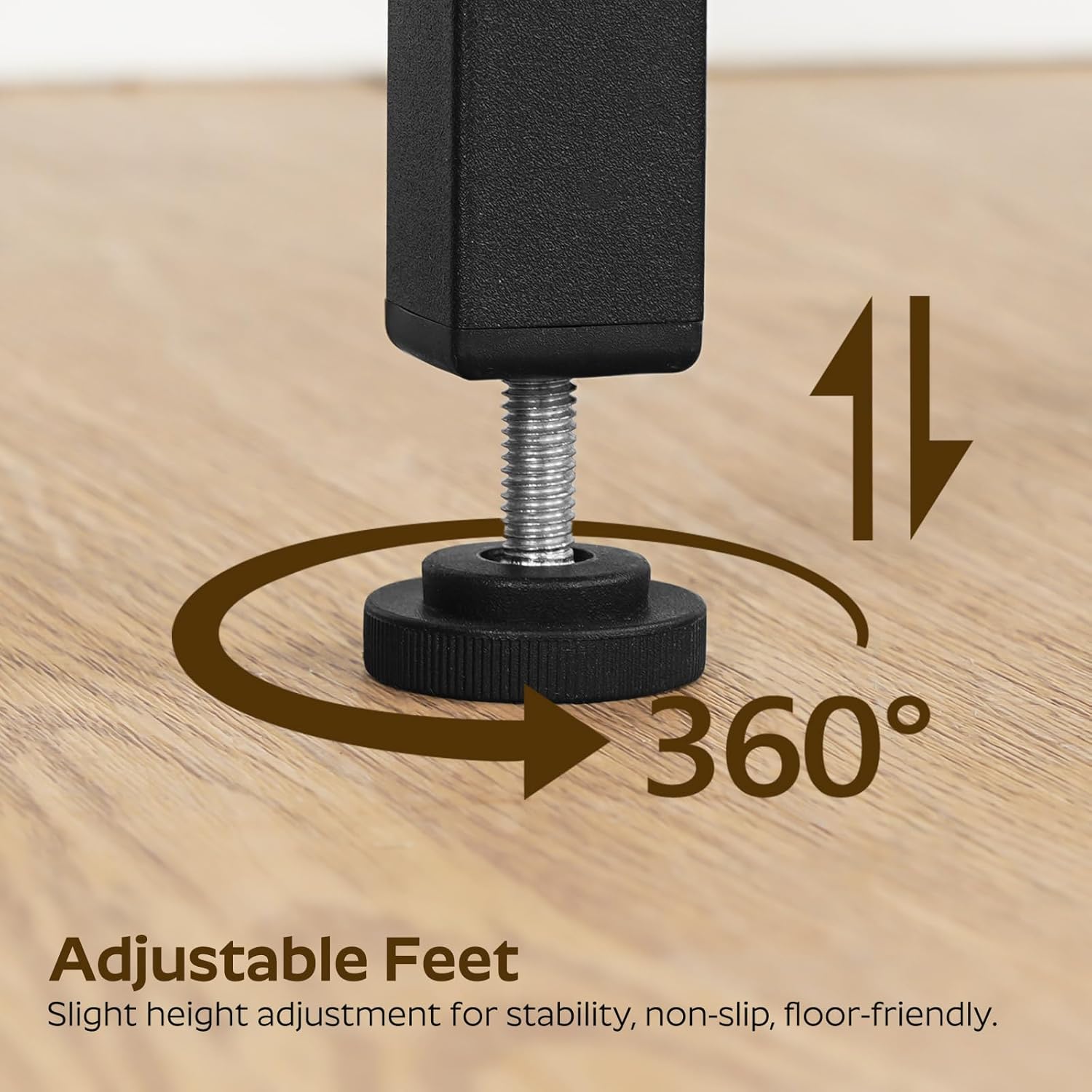
Image: Detail view of the side hooks, designed for hanging headphones or managing cables.

Image: Close-up of an adjustable foot, demonstrating its 360-degree rotation for leveling the desk.
Operating Instructions
Power Outlet & Charging Station
The integrated power strip provides convenient access to power for your devices.
- AC Outlets: Two 125V/12A AC outlets are available for standard electronics.
- USB Port: One 5V/2A USB-A port for charging compatible devices.
- Type-C Port: One 5V/2A USB-C port for charging compatible devices.
- Power Cord: The power strip is equipped with a 4.9-foot power cord. Ensure it is plugged into a grounded wall outlet.
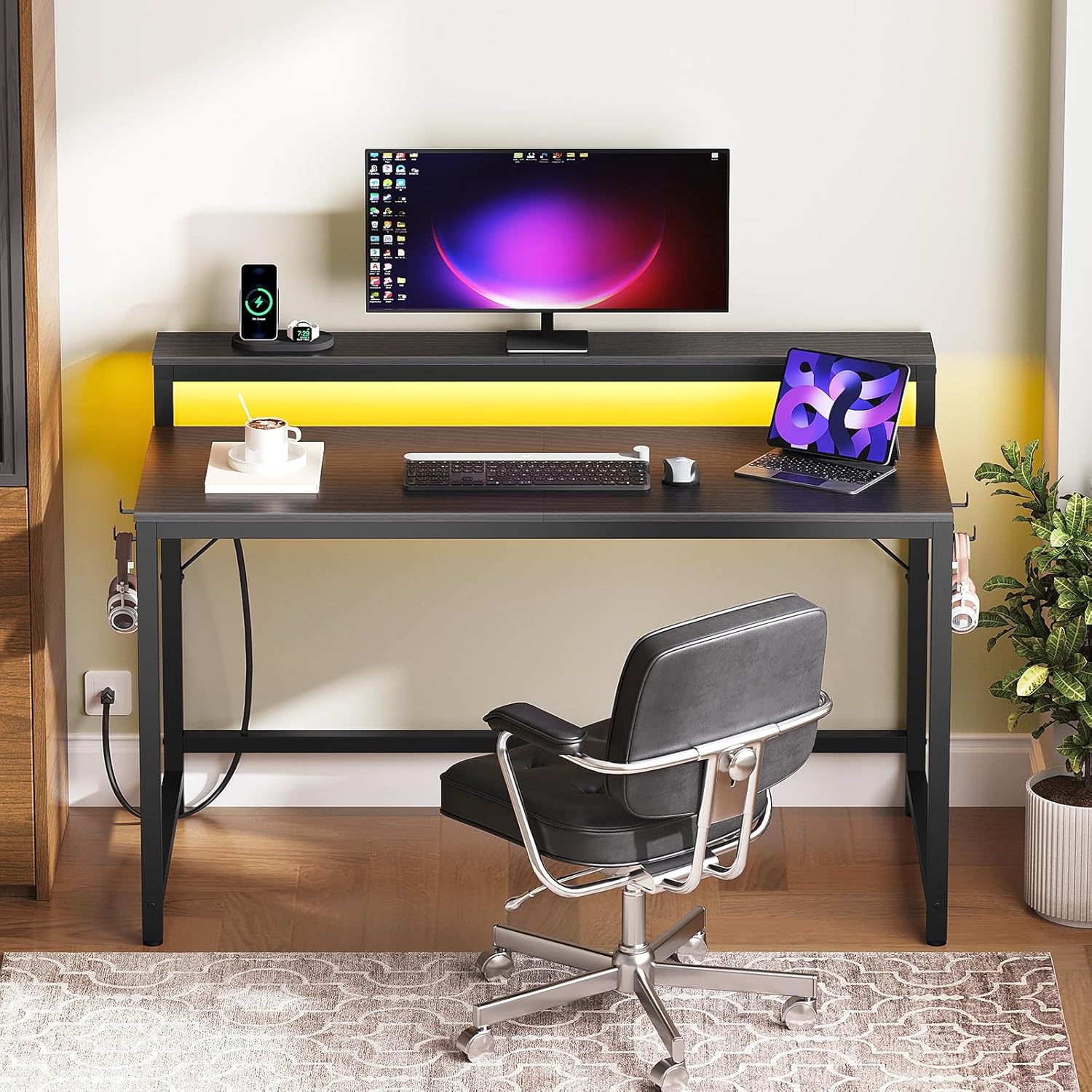
Image: Detailed view of the multi-function power outlet, highlighting its various ports for charging multiple devices.
LED Lights & Bluetooth Connection
The desk features an LED light strip with smart control options to enhance your workspace ambiance.
- Powering On/Off: Connect the LED light strip to the power outlet. Use the remote control or app to turn the lights on or off.
- Color and Mode Adjustment: Use the provided remote control or a compatible mobile application (via Bluetooth) to change colors, adjust brightness, and select various lighting modes.
- Bluetooth Connection: To connect via Bluetooth, ensure the LED lights are powered on. Open your mobile device's Bluetooth settings and pair with the device named 'LED Light' or similar. Once connected, you can control the lights through the dedicated app.
- Music Sync: The LED lights can synchronize with music played through your mobile device, changing colors according to the rhythm. This feature is typically controlled via the mobile application.

Image: The desk's LED lighting system, illustrating control via a remote and Bluetooth connectivity for mobile app control.
Monitor Stand & Side Hooks
- Monitor Stand: The elevated upper tier is designed to hold a monitor, promoting better ergonomics by raising the screen to eye level.
- Side Hooks: Utilize the four side hooks for convenient storage of headphones, VR headsets, or to manage cables, keeping your workspace tidy.
Maintenance
- Cleaning: Wipe the desk surfaces with a soft, damp cloth. Avoid harsh chemicals or abrasive cleaners that may damage the finish.
- Dusting: Regularly dust the LED light strip and power outlet to ensure optimal performance and prevent dust buildup.
- Fastener Check: Periodically check all screws and bolts to ensure they remain tight. Re-tighten if necessary to maintain desk stability.
- Cable Management: Ensure all cables are neatly organized and not pinched or strained to prevent damage.
Troubleshooting
| Problem | Possible Cause | Solution |
|---|---|---|
| Desk is wobbly/unstable. | Uneven floor; loose fasteners. | Adjust the leveling feet; tighten all assembly screws. |
| LED lights not turning on. | Not plugged in; remote battery dead; light strip damaged. | Ensure power cord is connected; replace remote battery; contact support if damaged. |
| Charging station not working. | Power cord not plugged in; device not compatible; power surge. | Verify power connection; check device compatibility; try a different outlet. |
| Bluetooth connection issues. | Lights not powered on; device too far; interference. | Ensure lights are on; move device closer; restart Bluetooth on your phone. |
Specifications

Image: Diagram illustrating the key dimensions of the YATINEY 47.2 inch Computer Desk.
| Feature | Detail |
|---|---|
| Brand | YATINEY |
| Model Number | DN12UDBB |
| Product Dimensions (D x W x H) | 16.5"D x 47.2"W x 32.7"H |
| Color | Black |
| Top Material Type | Engineered Wood |
| Base Material | Metal |
| Finish Type | Laminated |
| Special Features | Built-In USB Outlet, LED Lights |
| Power Outlet | 2 AC Outlets (125V/12A), 1 USB-A Port (5V/2A), 1 Type-C Port (5V/2A) |
| Power Cord Length | 4.9 feet |
| LED Lights | Bluetooth controlled, color and mode adjustable, music sync |
| Storage Options | Two-tier shelf (monitor stand), 4 side hooks |
| Assembly Required | Yes (Tools included) |
Warranty Information
For specific warranty details, please refer to the product packaging or contact the seller directly. Typically, products are covered against manufacturing defects for a limited period from the date of purchase. Keep your proof of purchase for any warranty claims.
Customer Support
If you have any questions, require assistance with assembly, or encounter any issues not covered in this manual, please contact YATINEY customer support through the retailer's platform or the official YATINEY website. Please have your model number (DN12UDBB) and purchase information ready when contacting support.
Ask a question about this manual
Ask about setup, troubleshooting, compatibility, parts, safety, or missing instructions. Manuals+ will review the question and use this page’s manual context to help answer it.