
1. Introduction
This manual provides essential information for the safe and efficient use of your Samsung QN55Q8FAAFXZA 55 inch QLED Q8F 4K Vision AI Smart TV. Please read these instructions thoroughly before operating the device and retain them for future reference.

Image 1.1: Front view of the Samsung QN55Q8FAAFXZA 55 inch QLED Q8F 4K Vision AI Smart TV with bundle items.
2. Safety Information
Always follow basic safety precautions when using this television to reduce the risk of fire, electric shock, and injury.
- Do not expose the TV to rain or moisture.
- Do not block ventilation openings.
- Ensure proper grounding for the power cord.
- Avoid placing the TV on unstable surfaces.
- Unplug the TV during lightning storms or when unused for long periods.
3. What's in the Box
Verify that all components are present:
- Samsung Q8F 4K HDR Smart QLED TV
- SolarCell Remote Control
- Power Cable
- Limited 1-Year Manufacturer Protection documentation

Image 3.1: Samsung QN55Q8FAAFXZA TV with included SolarCell Remote, power cable, and documentation.
4. Setup
4.1 Physical Installation
Place the TV on a stable, level surface or mount it on a wall using a compatible VESA mount (sold separately). Ensure adequate ventilation around the TV.

Image 4.1: Front view of the TV, illustrating its design for placement.
4.2 Connecting Devices
Connect external devices such as Blu-ray players, game consoles, or sound systems to the TV's HDMI ports. Use the provided power cable to connect the TV to an electrical outlet.

Image 4.2: Rear view of the TV displaying USB, HDMI (eARC), LAN, and Antenna ports.
4.3 Initial Power-On and Network Connection
After connecting power, press the power button on the remote control. Follow the on-screen instructions to complete the initial setup, including language selection, channel scanning, and connecting to your Wi-Fi network. The TV supports both Wi-Fi and wired LAN connections.
5. Operating Instructions
5.1 SolarCell Remote Control
The included SolarCell Remote Control can be charged via solar energy or USB-C. Familiarize yourself with its buttons for navigation, volume, channel control, and smart features access.
5.2 Smart TV Features
Your Samsung QLED Q8F TV features Vision AI and the Tizen operating system, providing access to various smart functions and content. Explore thousands of free live TV channels, movies, and shows without a subscription.
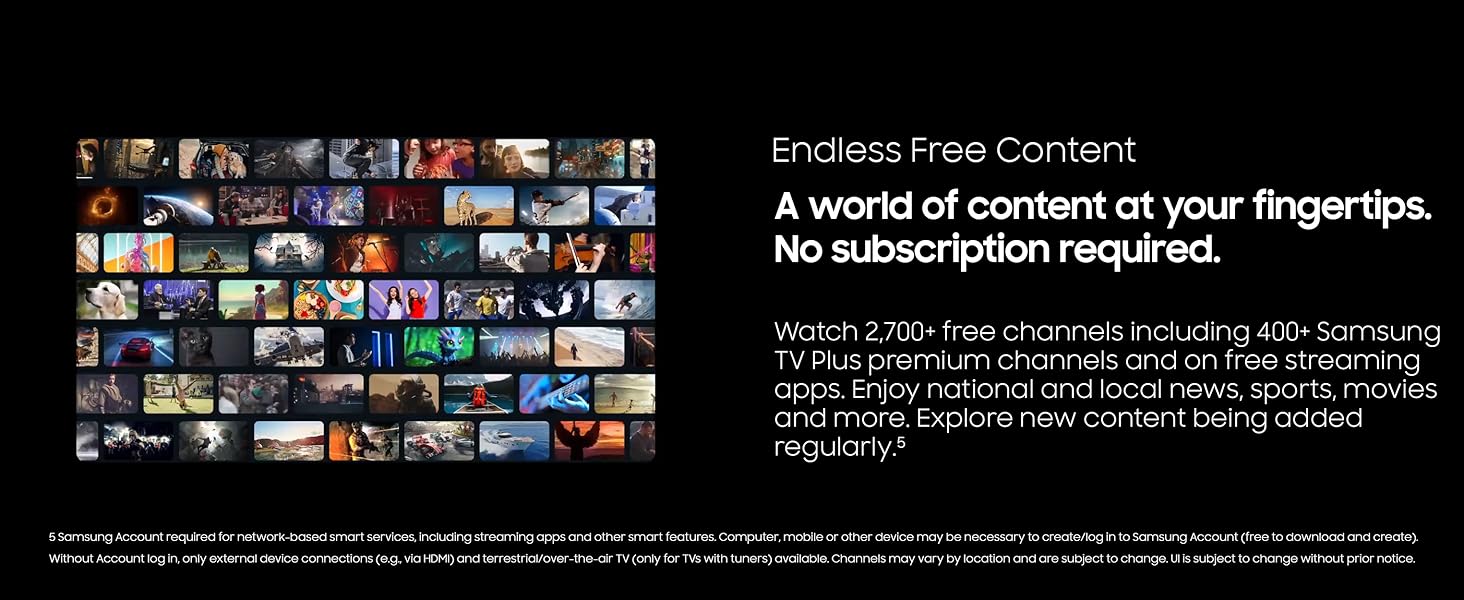
Image 5.1: Illustration of the 'Endless Free Content' feature available on the Smart TV.
5.3 Picture Settings
- QLED Technology: Experience over one billion shades of color with 100% Color Volume, ensuring vibrant and precise visuals in any scene.
- Q4 AI Processor: This processor enhances content to stunning 4K quality, optimizing picture and audio based on content type.
- Quantum HDR+: Delivers a wide range of contrast for detailed, cinematic experiences by dynamically analyzing each scene.
- AI Customization Mode: The AI processor automatically detects content and optimizes picture settings to your preferences, set during initial setup.

Image 5.2: Visual representation of 100% Color Volume with Quantum Dot technology.
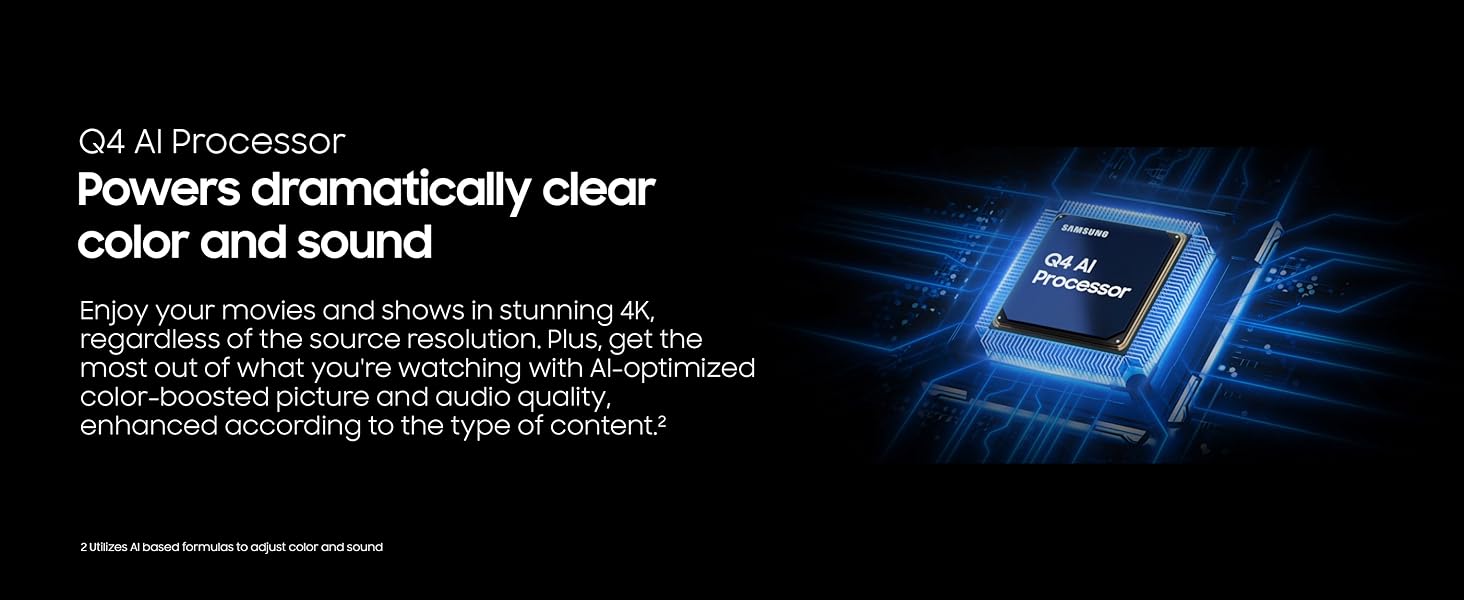
Image 5.3: Diagram illustrating the Q4 AI Processor's function.
5.4 Sound Settings
- Adaptive Sound: Optimizes audio scene-by-scene for powerful, balanced sound.
- Active Voice Amplifier: Boosts dialogue for clear speech, even in noisy environments.

Image 5.4: Visual explanation of Active Voice Amplifier and Adaptive Sound.
5.5 Gaming Features
Motion Xcelerator 144Hz: Provides smooth visuals and high speeds for VRR gaming up to 4K 144Hz, minimizing lag and blur for sports and gaming content.

Image 5.5: Illustration of Motion Xcelerator 144Hz in action during gaming.
6. Maintenance
6.1 Cleaning the TV
To clean the screen, gently wipe it with a soft, lint-free cloth. For the TV frame, use a soft, dry cloth. Do not use harsh chemicals or abrasive materials.
6.2 Software Updates
Periodically check for software updates through the TV's settings menu to ensure optimal performance and access to the latest features and security enhancements.
7. Troubleshooting
If you encounter issues with your TV, refer to the following common problems and solutions:
- No Power: Ensure the power cable is securely connected to both the TV and a working electrical outlet. Test the outlet with another device.
- No Picture/Sound: Verify that the correct input source is selected. Check all cable connections (HDMI, audio). Restart connected devices.
- Remote Control Not Working: Ensure the SolarCell Remote is charged. Point the remote directly at the TV.
- Network Connection Issues: Check your router and modem. Restart network devices. Re-enter Wi-Fi password in TV settings.
For more complex issues, consult the full digital manual available on the Samsung support website or contact Samsung customer support.
8. Specifications
| Feature | Specification |
|---|---|
| Model Number | E1SAMQN55Q8F |
| Screen Size | 54.6 Inches (Standing screen display size) |
| Display Technology | QLED |
| Resolution | 4K |
| Refresh Rate | 120 Hz (Motion Xcelerator 144Hz for VRR gaming) |
| Connectivity Technology | Bluetooth, Wi-Fi |
| Product Dimensions (D x W x H) | 9.4 x 48.5 x 30.2 inches |
| Item Weight | 31.5 Pounds |
| Special Features | 100% Color Volume with Quantum Dot, Endless Free Content, Eye Comfort Mode, Q4 AI Processor, Samsung Knox Security |
9. Warranty and Support
Your Samsung QN55Q8FAAFXZA TV comes with a Limited 1-Year Manufacturer Protection. For detailed warranty terms and conditions, please refer to the documentation included with your product or visit the official Samsung support website. For technical assistance or service requests, contact Samsung customer support.
Online Support: samsung.com/us/support/


