
1. Introduction
This manual provides comprehensive instructions for the setup, operation, maintenance, and troubleshooting of your Sitrunda P1 Laptop Screen Extender Portable Monitor. Please read this manual thoroughly before using the device to ensure proper functionality and to maximize your user experience. Keep this manual for future reference.
2. Product Overview
The Sitrunda P1 is a portable monitor designed to extend your laptop's display, providing additional screen real estate for enhanced productivity. It features a 12.1-inch FHD 1080p display and connects via USB-C, offering a plug-and-play experience.
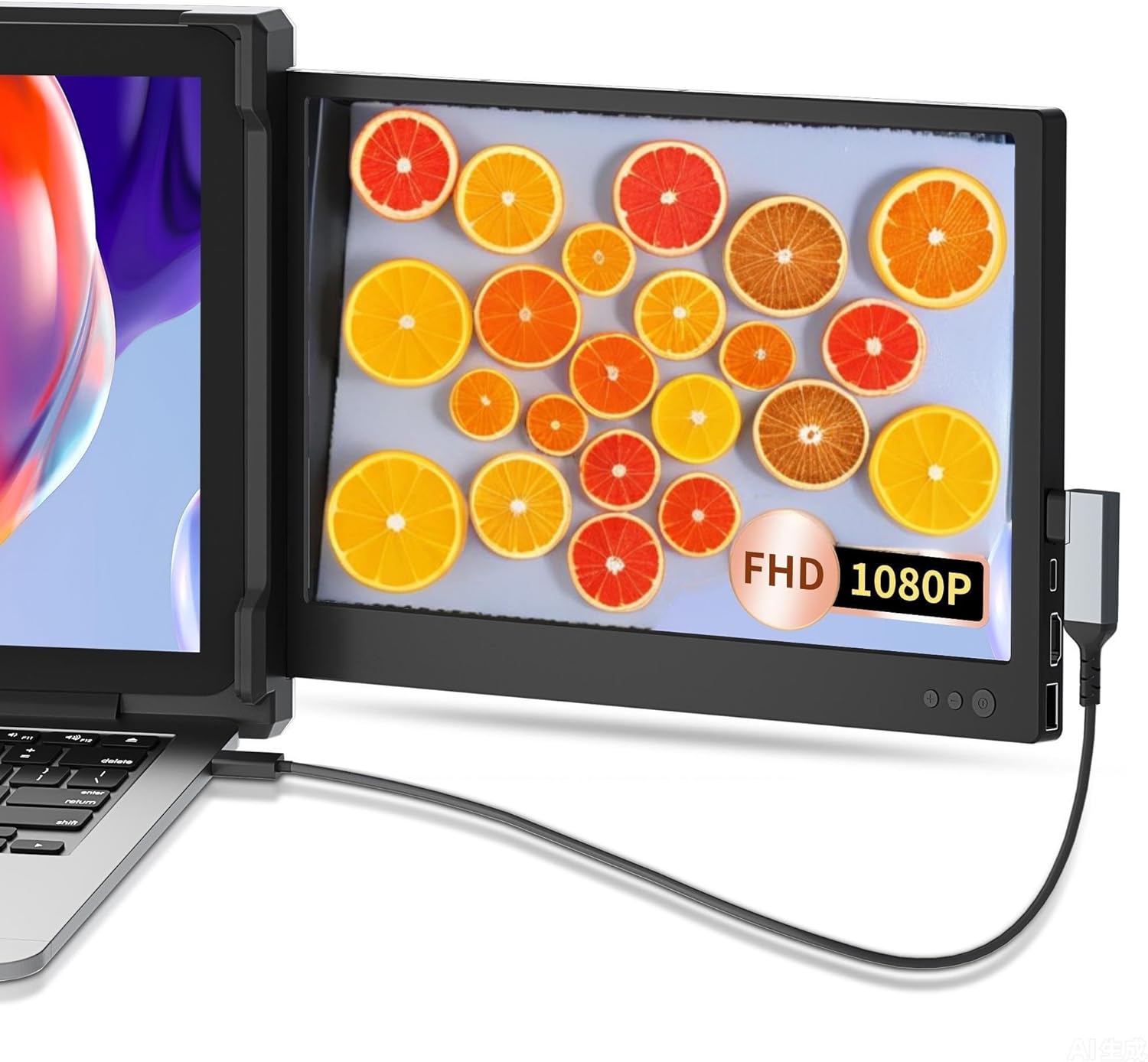
Figure 2.1: The Sitrunda P1 Portable Monitor connected to a laptop via a USB-C cable. The monitor displays a vibrant image of sliced citrus fruits, indicating its Full HD 1080p resolution. The monitor is positioned to the right of the laptop, extending the workspace.
3. Setup Instructions
- Unpack the Device: Carefully remove the Sitrunda P1 monitor and all accessories from its packaging.
- Position the Monitor: Place the monitor next to your laptop on a stable surface. The integrated stand can be adjusted to achieve the desired viewing angle.
- Connect to Laptop:
- For laptops with a full-featured USB-C port (supporting video output and power delivery), connect the provided USB-C to USB-C cable from the monitor to your laptop's USB-C port.
- If your laptop does not have a full-featured USB-C port, you may need to use an HDMI cable for video and a separate USB cable for power, depending on the monitor's specific port configuration (refer to product specifications for available ports).
- Power On: The monitor should automatically power on and detect the signal from your laptop. If not, press the power button on the monitor.
- Configure Display Settings:
- Windows: Right-click on your desktop, select "Display settings." You can then arrange the displays, choose between "Extend these displays" or "Duplicate these displays," and adjust resolution.
- macOS: Go to "System Settings" (or "System Preferences"), then "Displays." You can arrange displays, select "Use as separate display" (extend) or "Mirror displays" (duplicate), and adjust resolution.
4. Operating Instructions
Once connected and configured, the Sitrunda P1 operates as a secondary display for your laptop. You can use the physical buttons on the monitor to adjust settings such as brightness, contrast, and color temperature.
- Power Button: Press to turn the monitor on or off.
- Menu Button: Accesses the On-Screen Display (OSD) menu for advanced settings.
- Navigation Buttons (+/-): Used to navigate through the OSD menu and adjust values.
- Brightness Adjustment: Some models may have dedicated buttons or quick access via navigation buttons to adjust screen brightness directly.
Refer to the OSD menu for a complete list of adjustable settings.
5. Maintenance
- Cleaning the Screen: Use a soft, lint-free cloth slightly dampened with water or a non-abrasive screen cleaner. Do not spray liquid directly onto the screen.
- Cleaning the Casing: Wipe the monitor casing with a soft, dry cloth. Avoid harsh chemicals or abrasive materials.
- Storage: When not in use, store the monitor in a cool, dry place, preferably in its original packaging or a protective sleeve to prevent scratches and damage.
- Handling: Handle the monitor with care. Avoid dropping it or subjecting it to strong impacts.
6. Troubleshooting
- No Signal / Black Screen:
- Ensure the USB-C cable is securely connected to both the monitor and your laptop.
- Verify that your laptop's USB-C port supports video output.
- Check your laptop's display settings to ensure the external monitor is detected and configured to extend or duplicate the display.
- Try restarting your laptop.
- Screen Too Dark:
- Adjust the brightness setting using the monitor's physical buttons or through the OSD menu.
- Ensure the monitor is receiving sufficient power.
- Incorrect Resolution:
- Adjust the display resolution through your laptop's operating system display settings. The optimal resolution for this monitor is 1920 x 1080 pixels.
- Flickering Screen:
- Check the connection cable for damage or loose connections.
- Ensure your laptop's graphics drivers are up to date.
7. Specifications
| Feature | Detail |
|---|---|
| Brand | Sitrunda |
| Model Number | P1 |
| Screen Size | 12.1 Inches |
| Resolution | 1920 x 1080 Pixels (FHD 1080p) |
| Aspect Ratio | 16:9 |
| Screen Surface Description | Glossy |
| Product Dimensions | 3.4 x 15.4 x 9.5 inches |
| Item Weight | 2.1 pounds |
| Connectivity | USB-C (full-featured, for video and power) |
8. Warranty and Support
The Sitrunda P1 Laptop Screen Extender Portable Monitor comes with a standard manufacturer's warranty. For specific warranty details, including duration and coverage, please refer to the warranty card included with your product or visit the official Sitrunda website.
For technical support, troubleshooting assistance beyond this manual, or to inquire about warranty claims, please contact Sitrunda customer service through their official support channels. Contact information can typically be found on the product packaging or the manufacturer's website.