
WEIAV W212 Carplay Screen
WEIAV 12.3" Carplay Screen for Benz E Class W212 (2009-2012) with NTG4.0 System User Manual
Model: W212 Carplay Screen
Introduction
This manual provides detailed instructions for the installation, operation, and maintenance of your WEIAV 12.3-inch Carplay Screen. This device is designed to upgrade the infotainment system in specific Mercedes-Benz E-Class W212 models, integrating modern features like wireless Apple CarPlay and Android Auto while retaining original vehicle functionalities.
Compatibility
This Carplay screen is specifically designed for:
- Mercedes-Benz E-Class W212 / S212
- Model Years: 2009-2012
- Original System: NTG 4.0
Important: This unit is not compatible with NTG 4.5, NTG 4.7, or NTG 5.0 systems. Please verify your vehicle's original system before installation.

Image: Visual guide for identifying compatible NTG 4.0 system based on radio display and card slot type.
Package Contents
Please ensure all the following items are included in your package:
- 1 x WEIAV 12.3" Carplay Screen
- 1 x Power Cable
- 1 x USB Cable
- 1 x GPS Antenna
- 1 x AUX Cable
- 1 x LVDS Adapter Cable
- 1 x AMI Adapter Cable (if applicable)
- 1 x 4G Antenna (if applicable)

Image: Overview of the Carplay screen's rear ports and included accessories.
Setup and Installation
Installation of the Carplay screen requires careful attention to wiring and dashboard disassembly. It is recommended that installation be performed by a qualified professional.
General Steps:
- Preparation: Ensure the vehicle's ignition is off and the battery is disconnected before starting.
- Dashboard Disassembly: Carefully remove the necessary trim panels and the original head unit from the dashboard to access wiring.
- Wiring Connections:
- Connect the provided power cable to the vehicle's wiring harness.
- Connect the LVDS adapter cable to the original head unit and the new Carplay screen.
- Connect the USB and AUX cables as required.
- Install the GPS antenna in a location with a clear view of the sky.
- Connect the 4G antenna if included and desired.
- Screen Installation: Mount the new 12.3-inch Carplay screen securely into the dashboard opening.
- Testing: Reconnect the battery and power on the vehicle to test all functions before reassembling the dashboard.
- Reassembly: Carefully reassemble all removed dashboard components.
Note: Most installation issues arise from incorrect cable connections or settings. If you encounter difficulties, please refer to the troubleshooting section or contact customer support.
Features Overview
High-Definition Display and Performance
- Screen Size: 12.3 inches
- Resolution: 1920 x 720 HD
- Operating System: Android 13
- Processor: MTK 8-core
- Memory/Storage: 4-8GB RAM; 32-128GB ROM SSD
- User Interface: Supports 3 customizable UI themes.
Seamless Connectivity
- Wireless Apple CarPlay & Android Auto: Connect your smartphone wirelessly for navigation, music, calls, and more.
- Bluetooth 5.0: For hands-free calling and audio streaming.
- Dual-Band Wi-Fi: Built-in 2.4GHz and 5GHz Wi-Fi for internet access and app downloads.
- USB Connectivity: Play media from USB devices.

Image: Wireless Apple CarPlay and Android Auto functionality demonstration.
Integrated Navigation
- GPS Navigation: Built-in GPS module with support for various navigation applications.
- Online Maps: Real-time traffic conditions and accurate positioning when connected to Wi-Fi.
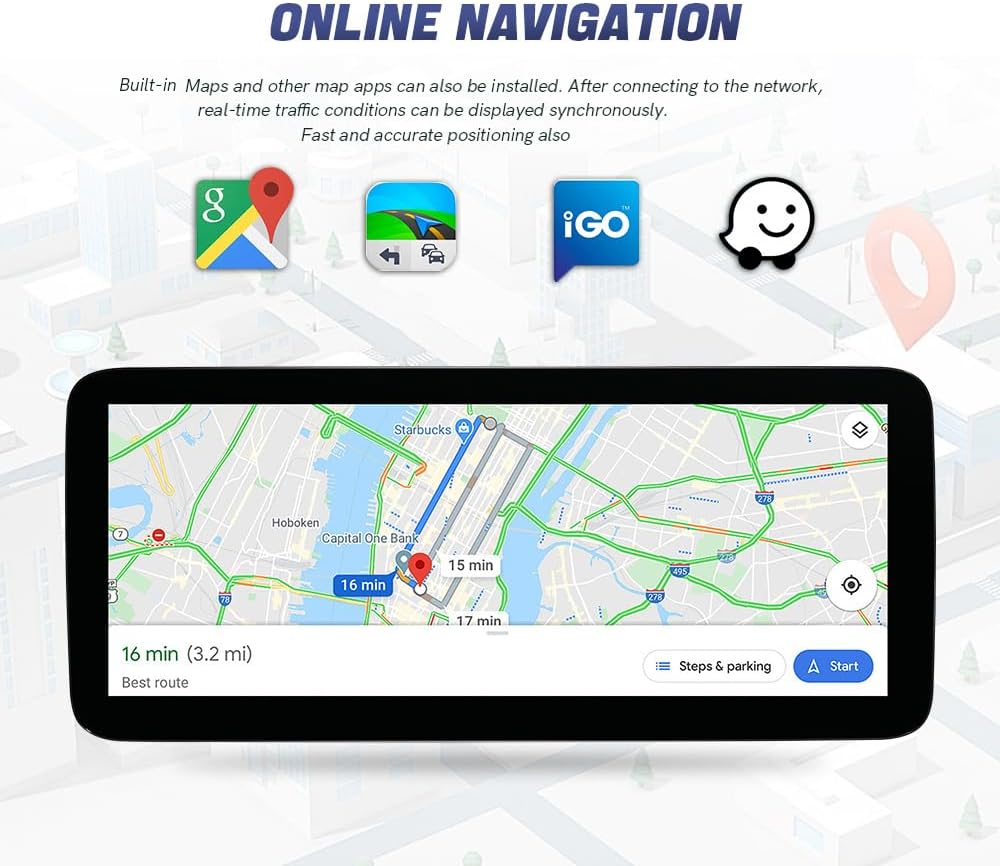
Image: Online navigation display on the Carplay screen.
Original Car System Integration
- CAN Original Bus Protocol: Retains all original car functions, including the factory radio, CD player, Bluetooth, amplifier system, and backup camera display.
- Original Controls: Continues to support the factory joystick control, steering wheel keys, and original car audio system.
- Camera Support: Compatible with original or aftermarket rearview cameras and DVR systems.

Image: Demonstration of retained original car functions and controls.
Operating Instructions
Basic Operation
- Power On/Off: The unit powers on automatically with the vehicle ignition.
- Switching Systems: Easily switch between the Android system and the original NTG system using the designated button or touch control.
- Touchscreen Control: Navigate the Android interface using the capacitive touchscreen.
- UI Themes: Customize the appearance by selecting from the 3 available UI themes in the settings menu.
Apple CarPlay / Android Auto
- Ensure Bluetooth and Wi-Fi are enabled on your smartphone.
- On the Carplay screen, select the "CarPlay" or "Android Auto" icon.
- Follow the on-screen prompts to pair your phone via Bluetooth.
- Once paired, the system will automatically connect for wireless CarPlay or Android Auto.
- Use the screen to access compatible apps for navigation, music, messaging, and calls.
GPS Navigation
- Access pre-installed navigation apps from the main menu.
- Connect to Wi-Fi to download additional map data or receive real-time traffic updates.
- Enter your destination using the touchscreen keyboard or voice input (if supported by the app).
Bluetooth Functions
- Pairing: Go to Bluetooth settings on the Carplay screen, enable Bluetooth, and search for your phone. Select your phone from the list and confirm pairing.
- Hands-Free Calling: Once paired, you can make and receive calls directly from the screen.
- Audio Streaming: Play music from your phone through the car's speakers via Bluetooth audio.
Maintenance
- Screen Cleaning: Use a soft, lint-free cloth to gently wipe the screen. For stubborn marks, slightly dampen the cloth with water or a screen-safe cleaner. Avoid harsh chemicals.
- Software Updates: Periodically check for software updates to ensure optimal performance and access to new features. Updates can typically be found in the system settings or on the manufacturer's website.
- Environmental Conditions: Avoid exposing the unit to extreme temperatures, direct sunlight for prolonged periods, or excessive moisture.
Troubleshooting
| Problem | Possible Cause | Solution |
|---|---|---|
| Screen does not power on. | Incorrect power cable connection; Blown fuse. | Verify all power connections are secure. Check vehicle's fuse box for blown fuses. |
| No audio from the unit. | Incorrect AUX cable connection; Volume too low; Incorrect audio source selected. | Ensure AUX cable is properly connected. Check volume levels on both the unit and the original car system. Select the correct audio input on the original car system. |
| CarPlay/Android Auto not connecting. | Bluetooth/Wi-Fi off on phone; Incorrect pairing; Software glitch. | Ensure phone's Bluetooth and Wi-Fi are on. Re-pair the phone. Restart both the phone and the Carplay unit. |
| Original car functions (e.g., radio, camera) not working. | Incorrect LVDS or CAN bus wiring. | Double-check all connections to the original head unit and CAN bus. Ensure the system is switched to the original NTG interface. |
| GPS signal is weak or inaccurate. | GPS antenna improperly installed or obstructed. | Relocate the GPS antenna to a position with a clear view of the sky, away from metal obstructions. |
If you continue to experience issues after attempting these solutions, please contact WEIAV customer support for further assistance.
Specifications
| Feature | Detail |
|---|---|
| Display Size | 12.3 Inches |
| Resolution | 1920*720 HD |
| Operating System | Android 13 |
| Processor | MTK 8-core |
| RAM | 4-8GB |
| ROM (SSD) | 32-128GB |
| Bluetooth | Version 5.0 |
| Wi-Fi | Built-in Dual Band (2.4GHz/5GHz) |
| Connectivity Technology | Bluetooth, Wireless |
| Special Feature | Touchscreen |
| Audio Output Mode | Stereo |
| Map Type | Worldwide (via GPS) |
Support
For any installation issues, technical support, or warranty inquiries, please contact WEIAV customer service. Providing your product model number and a detailed description of the issue will help expedite support.
Contact Information: Refer to your purchase documentation or the WEIAV official website for the most current support contact details.