
Introduction
This manual provides detailed instructions for the installation, operation, and maintenance of your UMIK UMIKSMART 3D Face Recognition Smart Door Lock. This advanced keyless entry system offers multiple unlocking methods, including 3D Face ID, fingerprint, Tuya app, password, IC card, and physical key, providing enhanced security and convenience for your home. Please read this manual thoroughly before installation and use to ensure proper function and safety.
Safety Information
- Do not attempt to disassemble or repair the lock yourself. Refer to qualified service personnel.
- Use only the specified power source and batteries.
- Keep the lock away from water and direct sunlight to prevent damage.
- Ensure all components are securely fastened during installation to prevent accidental detachment.
- Regularly check the lock for any signs of wear or damage.
Package Contents
Before beginning installation, please verify that all components are present:
- Front Panel Assembly (with 3D Face ID, Keypad, Camera)
- Rear Panel Assembly (with Display Screen, Battery Compartment)
- Mortise Lock Body
- Strike Plate and Strike Box
- Mounting Screws and Hardware
- IC Cards (2 provided)
- Physical Keys (2 provided)
- Installation Template
- User Manual (this document)
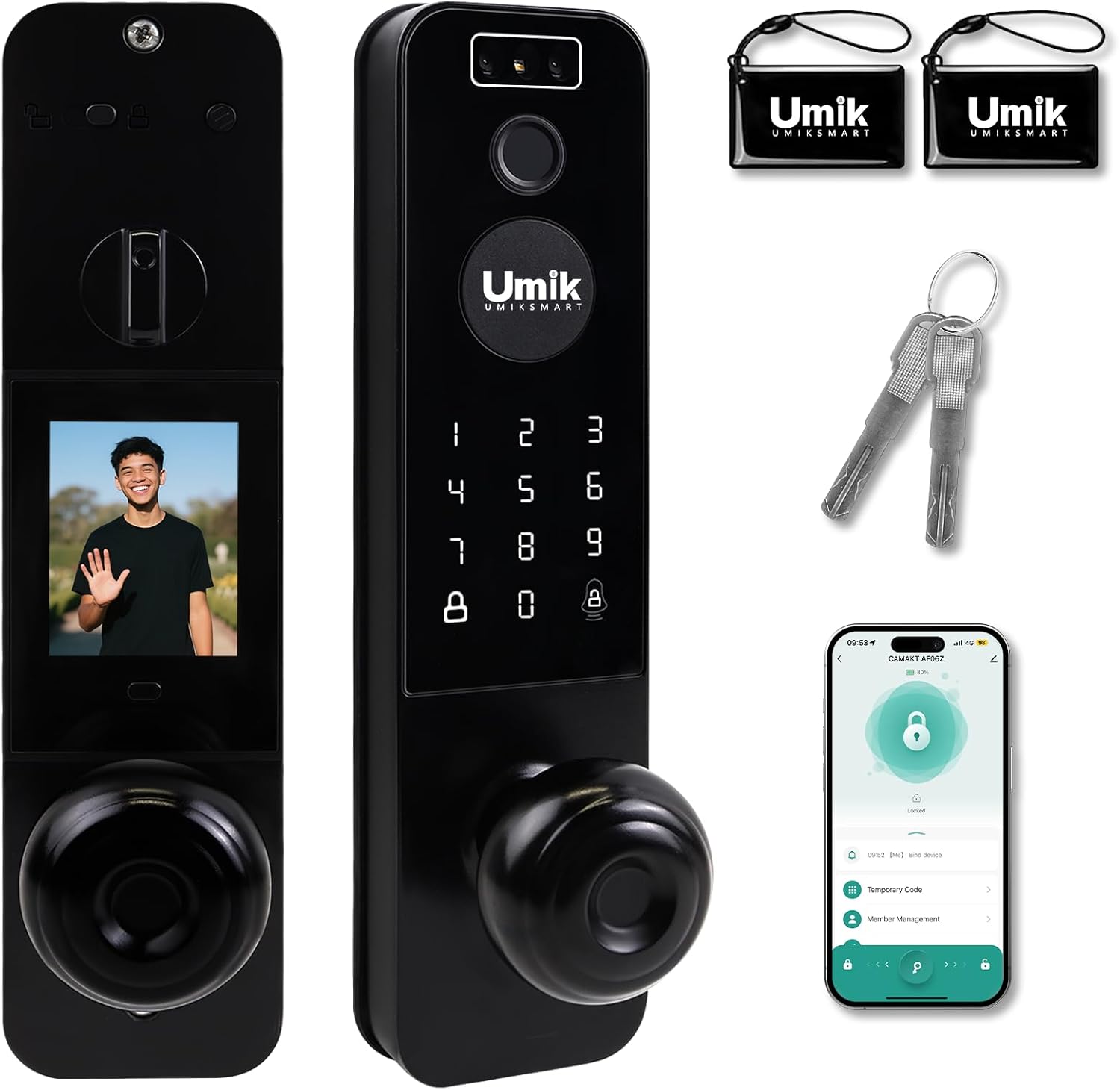
Image: Overview of the UMIK UMIKSMART Smart Door Lock components, including the main lock unit, physical keys, and IC cards.
Product Overview
Familiarize yourself with the main parts of your smart door lock:
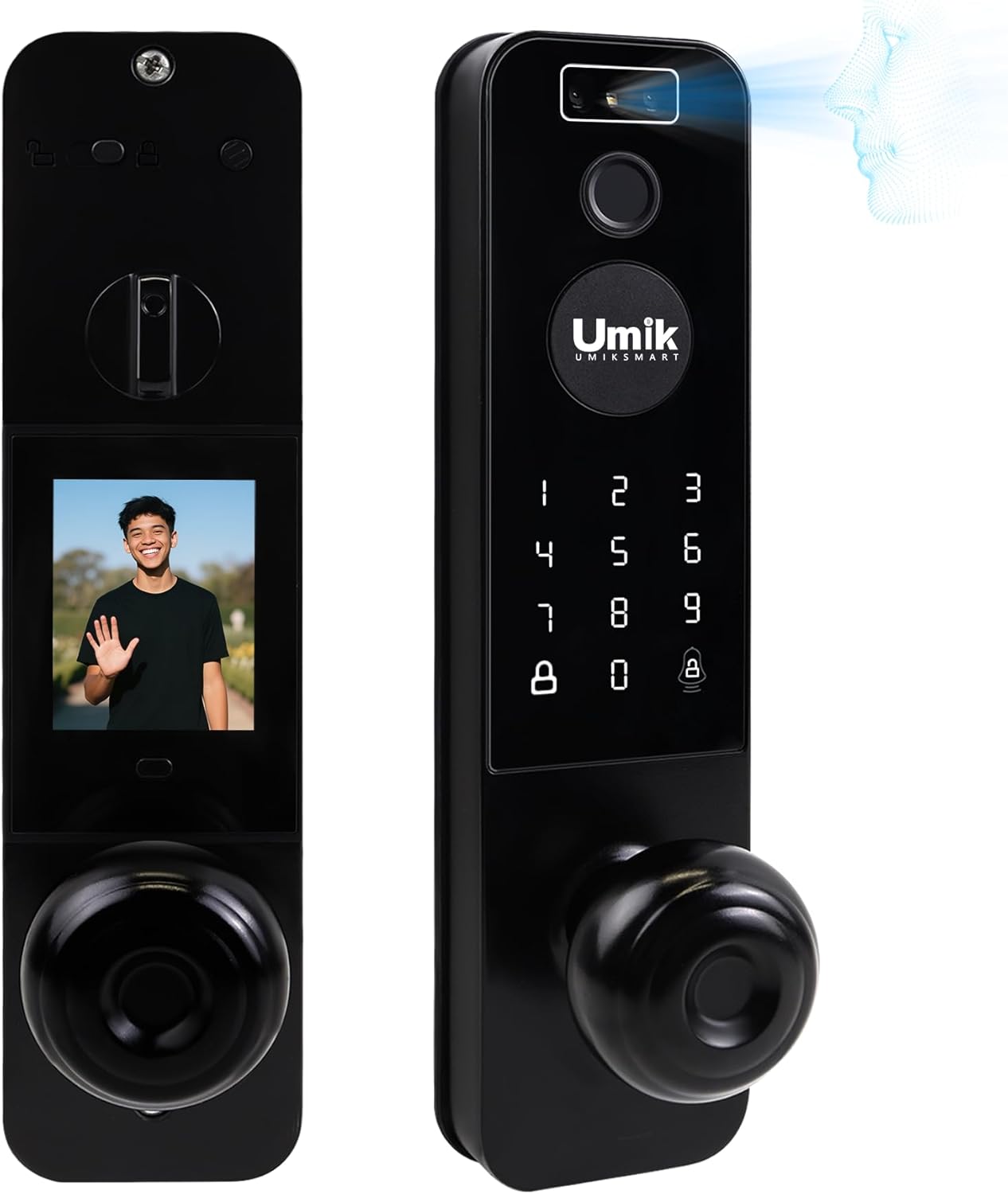
Image: Front and rear views of the UMIK UMIKSMART Smart Door Lock, showing the external keypad and camera, and the internal display and battery cover.
- Front Panel: Contains the 3D Face ID sensor, fingerprint reader, keypad, camera, and physical keyhole.
- Rear Panel: Features an indoor HD display screen, battery compartment, and manual lock/unlock knob.
- Doorbell Function: Integrated into the front panel, allowing visitors to ring the doorbell and communicate via the app.
Installation and Setup
1. Door Compatibility Check
Ensure your door meets the following specifications:
- Door Thickness: 1-3/8" to 2-1/8" (35mm to 50mm)
- Backset: 2-3/8" or 2-3/4" (60mm or 70mm)

Image: Door compatibility diagram illustrating required door thickness and backset measurements for installation.
2. Physical Installation Steps
Follow the step-by-step video guide for a quick and straightforward installation. No drilling is required for standard US doors.
- Install the mortise lock body into the door edge.
- Attach the front panel, ensuring the spindle passes through the mortise.
- Connect the cable from the front panel to the rear panel.
- Secure the rear panel to the door.
- Install batteries into the rear panel's battery compartment.
- Install the strike plate and strike box on the door frame.
Video: Step-by-step guide for installing the UMIK UMIKSMART Smart Door Lock. This video demonstrates the physical installation process on a standard door.
3. Initial Setup and App Pairing
Download the Tuya Smart app to manage your lock and access its full features.
- Download the "Tuya Smart" app from your smartphone's app store.
- Create an account or log in.
- Add the device by following the in-app instructions. Ensure your phone's Bluetooth is enabled and the lock is powered on.
- Once paired, you can configure settings, add users, and manage access.
Operating Instructions
Unlocking Methods (6-in-1)

Image: Visual representation of the six available unlocking methods for the smart door lock.
1. 3D Face ID Recognition
The advanced 3D binocular structured light camera provides fast, secure, and touch-free access, even in low light conditions due to its infrared fill light.
- Enrollment: Register up to 50 faces via the Tuya app or directly on the lock's interface.
- Unlocking: Stand in front of the lock, and the 3D Face ID system will recognize your face within 0.5 seconds to unlock.

Image: A user demonstrating the 3D Face Recognition feature for unlocking the smart door lock.
2. Fingerprint Unlock
The integrated fingerprint sensor allows for quick and secure access.
- Enrollment: Register up to 50 fingerprints through the Tuya app or the lock's menu.
- Unlocking: Place your registered finger on the sensor. The lock will recognize your fingerprint in 0.3 seconds and unlock in 1 second.

Image: A woman demonstrating the fingerprint unlock feature on the UMIK UMIKSMART Smart Door Lock.
3. Tuya App Control
Manage your lock remotely and access various smart features via the Tuya Smart app.
- Remote Unlock: Unlock your door from anywhere using the app, provided the lock is connected to Wi-Fi.
- Access Codes: Generate one-time, scheduled, or recurring access codes for guests, family, or service personnel.
- Access History: View a detailed log of all lock/unlock events, including method and user.
- Settings: Customize lock settings, add/remove users, and manage notifications.
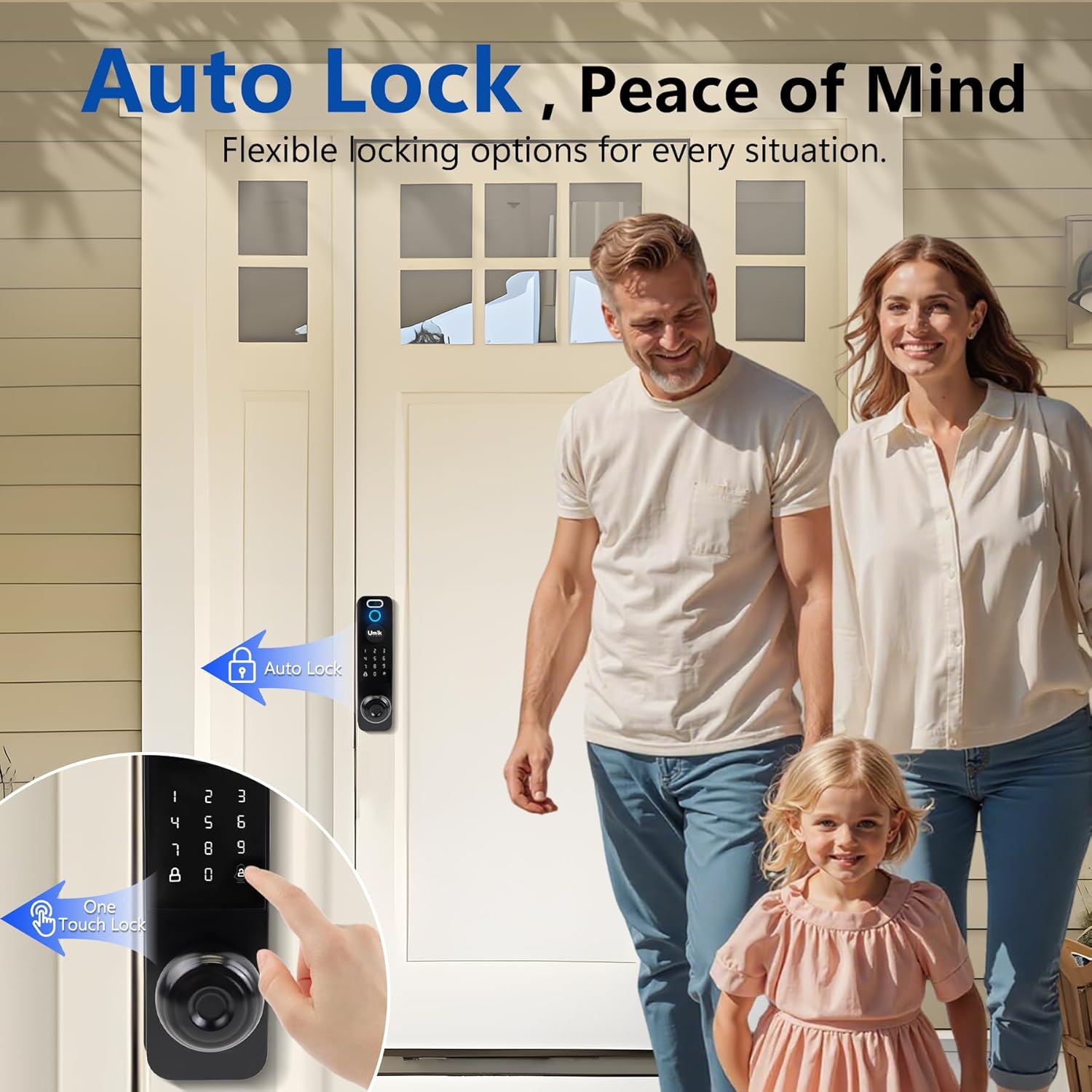
Image: A smartphone screen showing the Tuya app interface, demonstrating remote control capabilities for the smart lock.
Video: Demonstration of the Tuya app's remote control features, including viewing visitors and unlocking the door.
4. Password Entry
Use the keypad to enter a numerical password. Multiple password types are supported.
- Types: Permanent, temporary, and virtual passwords can be set via the app.
- Temporary Passwords: Ideal for one-time access for couriers, repairmen, or pet sitters.
- Virtual Password: Enter random digits before or after your actual password to prevent onlookers from guessing your code.
- Unlocking: Enter your password on the keypad, followed by the '#' key.

Image: A user interacting with the smart lock's keypad to enter a password for entry.
5. IC Card Unlock
The lock comes with two IC cards for convenient tap-to-unlock access.
- Enrollment: Register the IC cards through the Tuya app or the lock's menu.
- Unlocking: Simply touch the IC card to the designated area on the lock's screen to unlock.

Image: A hand demonstrating the use of an IC card to unlock the smart door lock by tapping it on the sensor area.
6. Physical Key Unlock
For emergency situations or as a backup, traditional physical keys are provided.
- Unlocking: Insert the physical key into the keyhole located on the front panel and turn to unlock.
Additional Features
Auto-Lock and One-Touch Lock
The lock offers flexible locking options for convenience and security.
- Auto-Lock: The lock can be configured to automatically lock after a set period (e.g., 5 seconds) once the door is closed.
- One-Touch Lock: Simply press the '#' key on the keypad to instantly lock the door from the outside.

Image: Illustration of the auto-lock feature as a family leaves, and a close-up showing the one-touch lock button on the keypad.
Video Doorbell and Indoor Display
The integrated camera and indoor display enhance communication and security.
- Doorbell Ring: When a visitor presses the doorbell button, you will receive a notification on your Tuya app.
- Live View: View live video feed of your doorstep via the app or the indoor HD display screen.
- Two-Way Audio: Communicate with visitors through the app.

Image: The indoor HD display screen of the smart lock showing a live view of a visitor at the door.
Maintenance
Battery Replacement
The lock is powered by 1 Lithium Ion battery (included). When the battery level is low, you will receive a notification via the app and an audible alert from the lock.
- Locate the battery compartment on the rear panel.
- Remove the battery cover.
- Replace the old battery with a new, fully charged Lithium Ion battery.
- Securely close the battery cover.
Note: In case of complete battery depletion, you can use a portable power bank via the emergency USB port or the physical key to gain entry.
Cleaning
To maintain the appearance and functionality of your lock:
- Wipe the lock surfaces with a soft, damp cloth.
- Do not use abrasive cleaners, solvents, or chemical sprays, as these can damage the finish and electronic components.
- Keep the fingerprint sensor and camera lens clean for optimal performance.
Troubleshooting
| Problem | Possible Cause | Solution |
|---|---|---|
| Lock does not respond / No power. | Batteries are dead or incorrectly installed. | Replace batteries. Ensure correct polarity. Use emergency power if needed. |
| Face ID / Fingerprint not recognized. | Sensor is dirty; poor enrollment; environmental factors (e.g., strong backlight). | Clean sensor. Re-enroll face/fingerprint. Adjust position relative to light. |
| Incorrect password lockout. | Password entered incorrectly more than 5 times. | The lock will be locked for 3 minutes. Wait for the lockout period to end before trying again. |
| App cannot connect to the lock. | Bluetooth/Wi-Fi is off; lock is out of range; app not updated. | Ensure Bluetooth/Wi-Fi is on. Move closer to the lock. Update the Tuya app. Re-pair if necessary. |
| Door does not lock/unlock smoothly. | Misalignment of lock components; obstruction in door frame. | Check alignment of mortise and strike plate. Clear any obstructions. |

Image: Illustration of the lock's security feature, where it locks for 3 minutes after more than 5 incorrect password attempts.
Specifications
| Feature | Detail |
|---|---|
| Brand | UMIK UMIKSMART |
| Model | B0FC61CZVW |
| Unlocking Methods | 3D Face ID, Fingerprint, Tuya App, Password, IC Card, Physical Key |
| Material | Aluminum |
| Color | Black |
| Dimensions (L x W x H) | 2.52 x 0.67 x 5.67 inches |
| Item Weight | 1.1 pounds (0.5 Kilograms) |
| Door Thickness Compatibility | 1-3/8" to 2-1/8" (35mm to 50mm) |
| Backset Compatibility | 2-3/8" or 2-3/4" (60mm or 70mm) |
| Power Source | 1 Lithium Ion battery (included) |
| Connectivity | Built-in Wi-Fi, Bluetooth |
| Special Features | Auto-Lock, Fingerprint, Fob Unlock, One-Touch Lock, Rechargeable, Video Doorbell |
Warranty and Support
Warranty Information
UMIK UMIKSMART products are designed for durability and reliability. For specific warranty terms and conditions, please refer to the warranty card included with your product or visit the official UMIK UMIKSMART website. Keep your purchase receipt as proof of purchase for warranty claims.
Customer Support
If you encounter any issues or have questions regarding your UMIK UMIKSMART 3D Face Recognition Smart Door Lock, please contact our customer support team.
- Online Support: Visit the UMIK UMIKSMART Store on Amazon for FAQs and product information.
- Email Support: Refer to the contact information provided in your product packaging.
- Phone Support: Refer to the contact information provided in your product packaging.
When contacting support, please have your product model number (B0FC61CZVW) and purchase date ready.