1. Introduction
This manual provides essential instructions for setting up, operating, and maintaining your QVEQ Q104 Smart Watch. The QVEQ Q104 is a versatile smart wearable designed to integrate fitness tracking with daily communication features, offering convenience and insight into your health and activity levels.
Key features include:
- Bluetooth Call and Message Notifications
- Heart Rate, Blood Pressure, and Sleep Tracking
- Pedometer and Multiple Sport Modes
- Integrated tools like Stopwatch, Calculator, and Timer
2. What's in the Box
Upon opening your QVEQ Q104 Smart Watch package, you should find the following items:
- QVEQ Q104 Smart Watch (with strap)
- Charging Cable (USB)
- User Manual
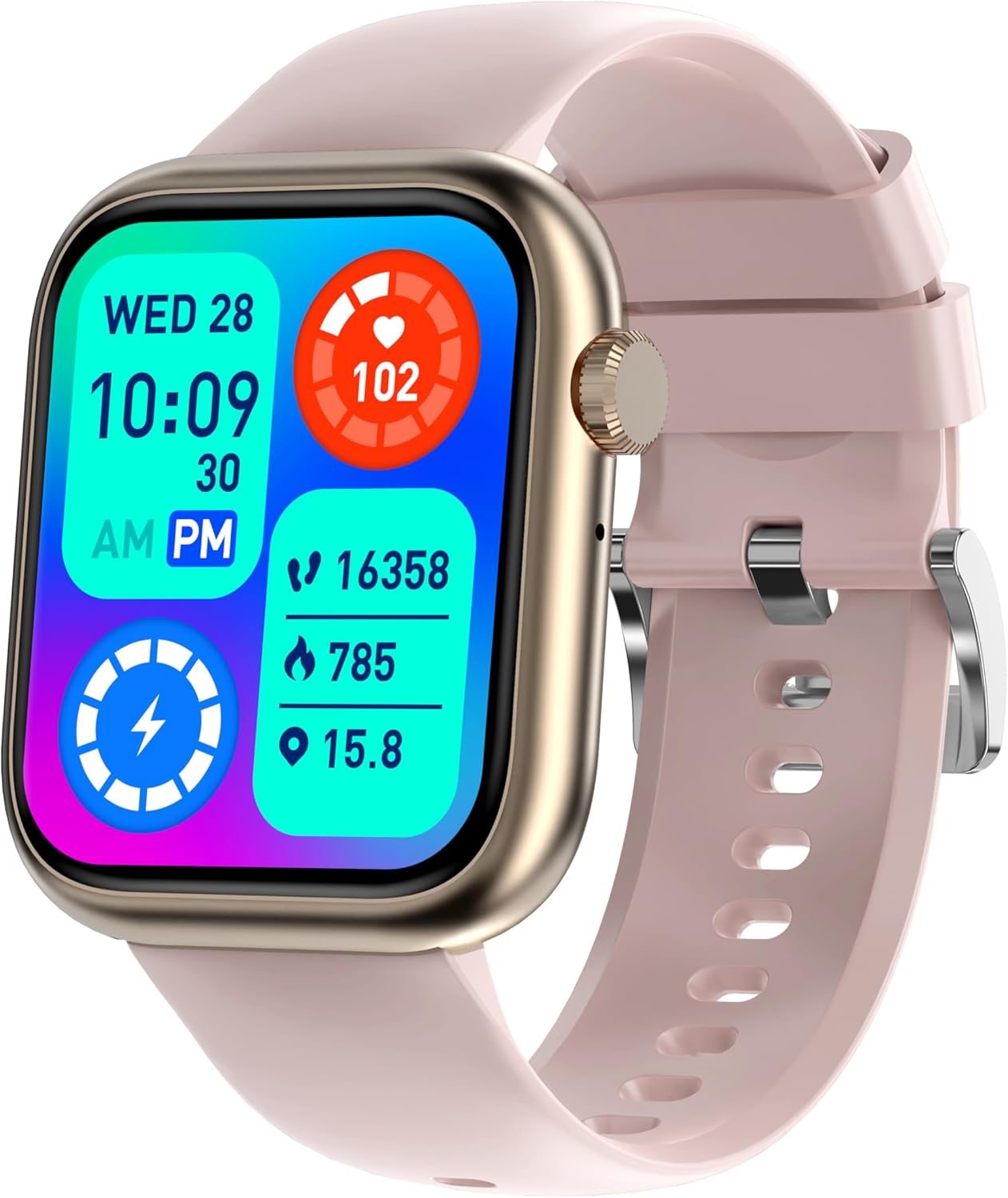
Image: QVEQ Q104 Smart Watch and its components.
3. Initial Setup
3.1 Charging the Smart Watch
Before initial use, ensure the smart watch is fully charged. Connect the provided charging cable to the charging port on the back of the watch and a compatible USB power source. A full charge typically takes a few hours.
3.2 App Installation and Pairing
To unlock the full functionality of your QVEQ Q104 Smart Watch, you need to install the companion application on your smartphone (Android or iOS). The QR code for downloading the app can typically be found on the product packaging or within the included user manual. Scan the QR code with your phone's camera to download and install the application.
- Scan the QR code on the watch packaging to download the official app.
- Install the app on your smartphone.
- Open the app and follow the on-screen instructions to create an account or log in.
- Enable Bluetooth on your smartphone.
- Within the app, search for your QVEQ Q104 Smart Watch and initiate the pairing process. Confirm the pairing request on both your phone and the watch.
4. Operating the Smart Watch
4.1 Basic Navigation
- Touch Screen: Swipe left, right, up, or down to navigate through menus and features. Tap to select an option.
- Side Button: Press the side button to return to the home screen or wake the device.
4.2 Communication Features
Once paired with your smartphone, the QVEQ Q104 allows for convenient communication directly from your wrist:
- Bluetooth Calls: Answer or make calls directly from the watch. Your contacts and recent call history will be accessible.
- Message Notifications: Receive notifications for text messages, emails, and social media alerts.
4.3 Health and Fitness Tracking
The QVEQ Q104 Smart Watch is equipped with sensors to monitor various health metrics and track your physical activity:
- Heart Rate Monitoring: Continuously track your heart rate throughout the day.
- Blood Pressure Monitoring: Measure your blood pressure (note: this is for reference only and not a medical device).
- Sleep Tracking: Monitor your sleep patterns, including deep sleep and light sleep duration.
- Pedometer: Count your steps, distance, and estimated calories burned.
- Sport Modes: Select from over 120 sport modes to track specific activities like running, cycling, and more.


Image: QVEQ Q104 Smart Watch tracking fitness and sleep.
4.4 Additional Features
The watch also includes several utility functions:
- Stopwatch: For timing activities.
- Pedometer: Tracks steps taken.
- Alarm Clock: Set alarms directly from your wrist.
- Calculator: Perform basic calculations.
- Timer: Set countdown timers.
- Weather: View current weather conditions and forecasts (requires app connection).
5. Features and Specifications
| Feature | Description/Specification |
|---|---|
| Model Number | Q104 |
| Product Dimensions | 10.94 x 2.83 x 0.69 inches |
| Item Weight | 3.52 ounces |
| Screen Size | 1.83 Inches |
| Operating System | Android & iOS compatible |
| Connectivity Technology | Bluetooth |
| Wireless Communication Standard | Bluetooth |
| Special Features | Bluetooth Call, Message Reminder, Heart Rate, Blood Pressure, Sleep Tracking, Pedometer, 120+ Sport Modes |
| Battery Capacity | 250 Milliamp Hours |
| Battery Type | Lithium Ion (1 AAAA battery included) |
| GPS | Via Smartphone |
| Shape | Rectangular |
6. Maintenance
6.1 Cleaning
Regularly clean your smart watch to ensure optimal performance and hygiene. Use a soft, lint-free cloth to wipe the screen and strap. For stubborn dirt, slightly dampen the cloth with water. Avoid using harsh chemicals or abrasive materials.
6.2 Water Resistance
The QVEQ Q104 Smart Watch is designed with IP68 water resistance, making it suitable for daily use and light water exposure such as hand washing or rain. It is not recommended for swimming, diving, or prolonged submersion in water.
6.3 Storage
When not in use for extended periods, store the watch in a cool, dry place away from direct sunlight and extreme temperatures. Ensure the battery has some charge to prevent deep discharge.
7. Troubleshooting
If you encounter issues with your QVEQ Q104 Smart Watch, try the following solutions:
- Watch not turning on: Ensure the watch is fully charged. Connect it to the charger for at least 30 minutes.
- Cannot pair with smartphone:
- Ensure Bluetooth is enabled on your phone.
- Make sure the watch is within range of your phone.
- Restart both your phone and the watch.
- Clear the app's cache or reinstall the app.
- Inaccurate health data: Ensure the watch is worn snugly on your wrist, not too tight or too loose. Clean the sensors regularly. Note that health data is for reference and not for medical diagnosis.
- Notifications not appearing: Check app permissions on your phone to ensure the smart watch app has access to notifications. Verify that notifications are enabled within the smart watch app settings.
- Short battery life: Reduce screen brightness, disable unnecessary features, and ensure background app usage is optimized on your phone.
8. Warranty and Support
For warranty information, product support, or any other inquiries, please refer to the warranty card included in your product packaging or visit the official QVEQ website. Keep your purchase receipt as proof of purchase for warranty claims.