
1. Introduction
This manual provides detailed instructions for the installation, operation, maintenance, and troubleshooting of your Jerqry Android 13 Car Stereo. Please read this manual thoroughly before using the product to ensure proper function and safety. This unit is designed for 2009-2012 Dodge Ram 1500, 2500, and 3500 models with manual AC systems.
2. Product Overview
2.1 Key Features
- Operating System: Android 13
- Processor: 8-Core
- Memory: 4GB RAM + 64GB ROM
- Display: 10-inch IPS Touch Screen, 1280*800 resolution, 2.5D HD
- Connectivity: Wireless CarPlay, Wireless Android Auto, Bluetooth 5.0, 5G WiFi, USB
- Audio: HiFi DSP, 36-band Equalizer (EQ), FM/AM Radio with RDS
- Navigation: Built-in GPS, supports online/offline maps
- Safety Features: Supports AHD720/AHD1080 rearview camera input
- Additional Functions: Steering Wheel Control (SWC), Voice Control, Split Screen Display, Phone Mirror Link
2.2 Included Components
The package includes the following items:

Image: Overview of included accessories such as reversing cable, GPS antenna, backup camera, microphone, original USB cable, USB cable, CAN BUS decoder, crowbar, power cable, and RCA cable.
- Main Head Unit
- GPS Antenna
- Rearview Camera
- Microphone
- Power Cable
- RCA Cable
- USB Cables (2)
- CAN BUS Decoder
- Installation Tools (e.g., crowbar)
- User Manual (this document)
3. Safety Information
- Professional Installation Recommended: Due to the complexity of car electrical systems, professional installation is highly recommended to prevent damage to the unit or your vehicle.
- Power Supply: Ensure the unit is connected to a 12V DC power supply with negative grounding.
- Wiring: Do not modify or cut the wiring harness. Incorrect wiring can cause damage or malfunction.
- Driving Safety: Do not operate the unit in a way that distracts you from driving. Always prioritize road safety.
- Temperature: Avoid exposing the unit to extreme temperatures or direct sunlight for prolonged periods.
4. Setup and Installation
4.1 Compatibility Check
This car stereo is specifically designed as a direct replacement for 2009, 2010, 2011, and 2012 Dodge Ram 1500, 2500, and 3500 models equipped with manual AC systems.
4.2 Installation Steps (General Guide)
- Preparation: Disconnect the vehicle's battery to prevent electrical shorts.
- Remove Old Unit: Carefully remove the existing factory radio and trim panels. Use the provided crowbar tool if necessary to avoid scratching surfaces.
- Connect Wiring: Connect the new unit's wiring harness to the vehicle's factory harness. Ensure all connections are secure. Connect the GPS antenna, rearview camera, and microphone cables.
- Test Functionality: Before fully reassembling, temporarily reconnect the battery and power on the unit to test basic functions like power, audio, and display.
- Secure Unit: Mount the new car stereo securely into the dashboard opening.
- Reassemble: Reinstall all trim panels and reconnect the battery.

Image: Comparison showing the factory radio setup (Before) and the Jerqry Android 13 Car Stereo installed in a Dodge Ram dashboard (After).
5. Operating Instructions
5.1 Power On/Off and Basic Interface
Press the power button to turn the unit on or off. The main interface provides access to various applications and settings. Navigate using the 10-inch IPS touchscreen.

Image: A visual representation of the 10-inch IPS touch screen, highlighting its 1280x800 resolution and vibrant color support.
5.2 Wireless CarPlay and Android Auto
Connect your smartphone wirelessly to access CarPlay or Android Auto. This allows for seamless integration of navigation, music, calls, and messages directly on the car stereo display.
- Ensure Bluetooth and Wi-Fi are enabled on your smartphone.
- On the car stereo, select the CarPlay or Android Auto icon.
- Follow the on-screen prompts to pair your device.

Image: Screenshots of the CarPlay and Android Auto interfaces, showing various app icons for navigation, music, and communication.
5.3 GPS Navigation
The unit features built-in GPS for navigation. You can use pre-installed offline maps or download online navigation apps via 5G WiFi. The system supports real-time traffic updates when connected to the internet.

Image: The GPS navigation screen showing a map with a highlighted route, distance, and estimated time of arrival.
5.4 Audio System (FM/AM Radio, DSP)
Access FM/AM radio stations. The Digital Signal Processing (DSP) feature enhances audio clarity, reduces noise, and allows for a 36-band equalizer adjustment to customize your sound experience.
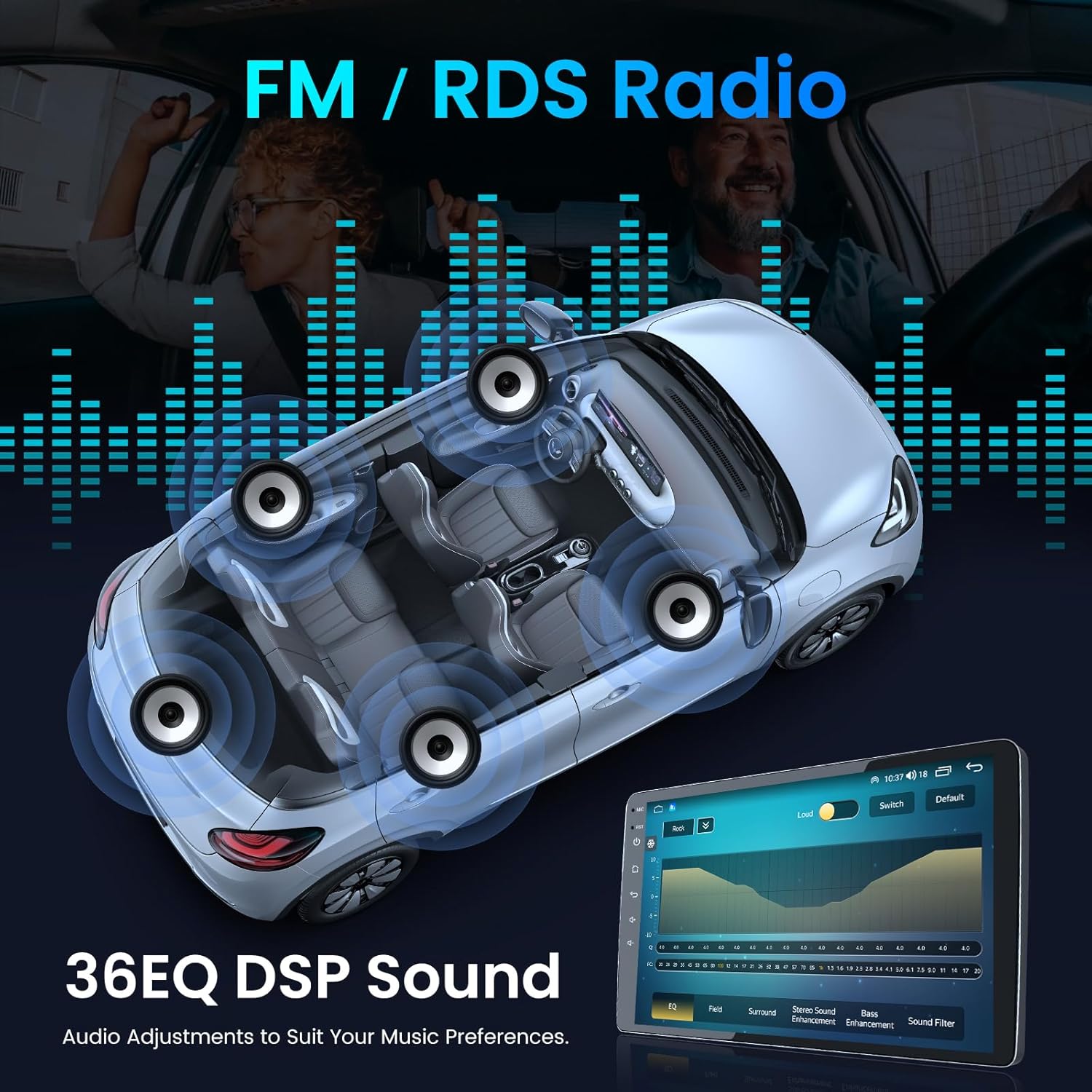
Image: The car stereo displaying the FM/RDS radio interface and a separate screen showing the 36-band graphic equalizer for audio customization.
5.5 Bluetooth 5.0
Pair your phone via Bluetooth 5.0 for hands-free calling and wireless music streaming. The unit supports automatic loading of your phonebook.
- Go to the Bluetooth settings on the car stereo.
- Enable Bluetooth on your phone and search for available devices.
- Select the car stereo from the list and confirm pairing.

Image: The car stereo screen showing an incoming call interface with contact name and duration, demonstrating Bluetooth hands-free functionality.
5.6 Voice Control
Utilize voice commands for hands-free operation of music, calls, and navigation. This feature enhances driving safety and convenience.
- Activate voice control by saying a wake word (e.g., "Hi Siri" or "Hi Google") or pressing the voice command button.
- Speak commands clearly, such as "Play music on Spotify," "Call John," or "Navigate to New York."

Image: A visual representation of the voice control feature, showing a microphone icon and examples of voice commands like "Hi Siri, Play music on spotify." and "Hi Google, Navigate New York."
5.7 Steering Wheel Control (SWC)
The unit supports steering wheel controls, allowing you to adjust volume, change tracks, and answer calls without taking your hands off the wheel. Configuration may be required in the settings menu.
5.8 Rearview Camera
The system supports AHD720/AHD1080 rearview cameras. When reversing, the screen automatically displays the rear view, providing clear vision and assisting with parking and safety.
5.9 Split Screen Display and Mirror Link
The split-screen function allows you to run two applications simultaneously, such as navigation and music. Phone Mirror Link enables you to synchronize your smartphone's screen content to the car stereo display, supporting both wireless and wired connections.

Image: The car stereo screen divided into two sections, displaying a navigation app on one side and a media player on the other, illustrating the split-screen functionality.

Image: A smartphone screen being mirrored onto the car stereo display, demonstrating the wireless and wired Phone Mirror Link capabilities.
5.10 5G WiFi Connectivity
The dual-band 5G WiFi provides faster internet speeds, a more stable connection, and a wider signal range, enabling you to download apps, stream content, and share videos.

Image: The car stereo displaying various app icons, indicating access to online content and services via 5G WiFi, with a graphic illustrating network speed.
6. Maintenance
- Cleaning: Use a soft, dry cloth to clean the screen and exterior. Avoid abrasive cleaners or solvents.
- Software Updates: Periodically check for software updates in the system settings to ensure optimal performance and access to new features.
- Avoid Liquids: Do not expose the unit to water or other liquids.
7. Troubleshooting
| Problem | Possible Cause | Solution |
|---|---|---|
| Unit does not power on | Loose power connection, blown fuse, vehicle battery issue. | Check power cables, inspect vehicle fuses, ensure battery is charged. |
| No sound | Volume too low, mute activated, speaker wiring issue, incorrect audio output settings. | Increase volume, check mute status, verify speaker connections, adjust audio settings. |
| GPS signal lost or inaccurate | GPS antenna obstruction, poor satellite reception, outdated map data. | Ensure GPS antenna has clear view of sky, move to an open area, update map software. |
| Bluetooth connection issues | Phone not in pairing mode, incorrect pairing code, interference. | Ensure phone Bluetooth is on and discoverable, re-pair device, restart both devices. |
| Android Auto map feature sometimes requires restart | Software glitch, temporary app issue. | Close and reopen the Android Auto application. Ensure the app and system software are updated. |
| Touchscreen unresponsive | Temporary software freeze, physical damage. | Restart the unit. If issue persists, contact customer support. |
8. Specifications
| Feature | Specification |
|---|---|
| Brand | Jerqry |
| Model Name | Dodge Ram Car Radio |
| Operating System | Android 13 |
| Processor | 8-Core |
| Memory Storage Capacity | 4GB RAM + 64GB ROM |
| Screen Size | 10 Inches |
| Display Type | IPS LCD |
| Resolution | 1280*800 Pixels |
| Connectivity Technology | Bluetooth 5.0, Wi-Fi (5G), USB, Wireless CarPlay, Wireless Android Auto |
| Supported Satellite Navigation System | GPS |
| Human-Interface Input | Touchscreen, Push Button |
| Vehicle Service Type | Car (Dodge Ram 1500/2500/3500 2009-2012) |
| Item Weight | 2.18 Kilograms |
| UPC | 750880901811 |

Image: A graphic illustrating the 8-Core processor, emphasizing its enhanced performance compared to 4-Core systems.
9. Warranty and Support
9.1 Warranty Information
Your Jerqry Car Stereo comes with a standard manufacturer's warranty. Please refer to the warranty card included in your package for specific terms and conditions, including coverage duration and claim procedures. Keep your proof of purchase for warranty validation.
9.2 Customer Support
For technical assistance, troubleshooting not covered in this manual, or warranty inquiries, please contact Jerqry customer support. You can typically find contact information on the product packaging, the official Jerqry website, or through your retailer.
When contacting support, please have your product model number (8 Core 4G RAM+64G ROM) and purchase details ready.