1. Introduction
This manual provides essential information for setting up, operating, and maintaining your Samsung QN50Q8FAAFXZA 50-inch QLED Q8F 4K Vision AI Smart TV. Please read it thoroughly to ensure proper use and to maximize your viewing experience.
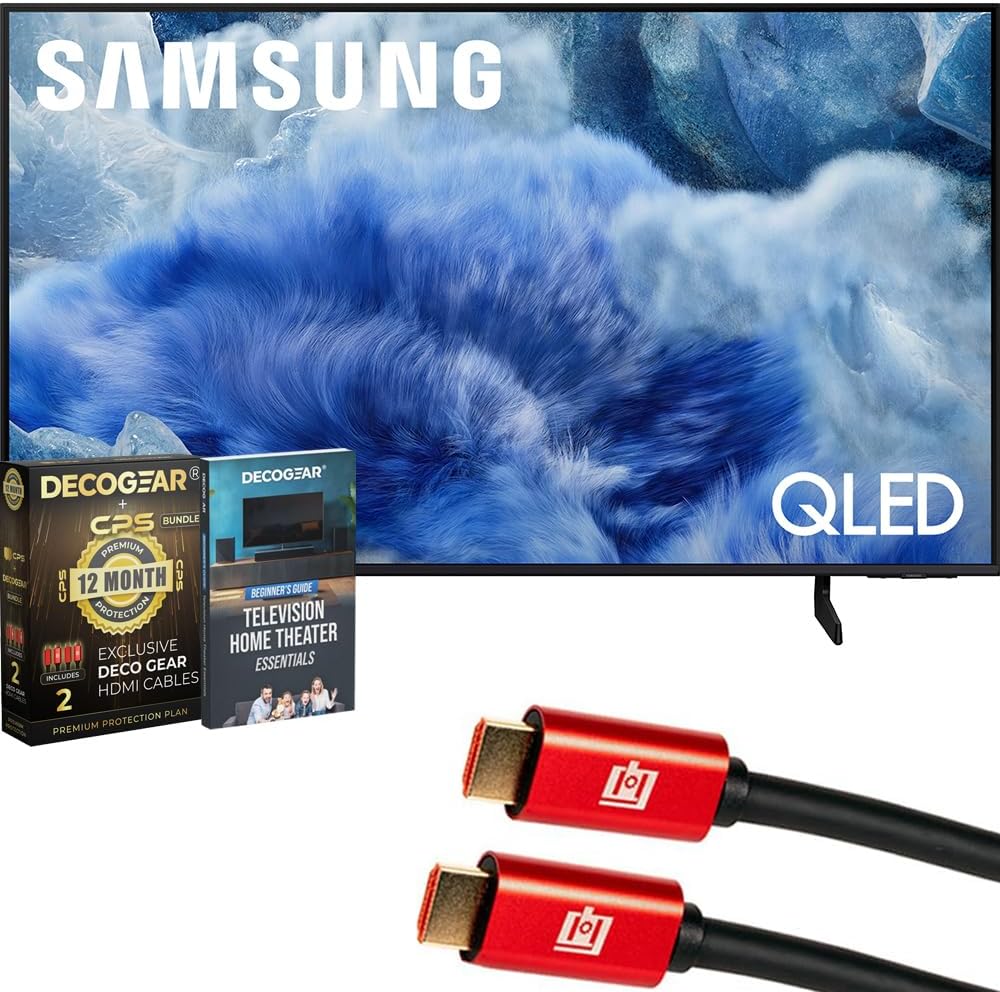
Image: The Samsung QN50Q8FAAFXZA 50-inch QLED Q8F 4K Vision AI Smart TV, shown with its stand and bundled accessories including HDMI cables and a guidebook.

Image: A close-up of the Samsung QLED TV screen displaying various technology logos such as 4K UHD, HDR+, Tizen, and Samsung Vision AI, highlighting its advanced features.
2. Safety Information
Observe the following safety precautions to prevent damage to your TV and ensure personal safety.
- Electrical Safety: Do not overload wall outlets. Use only the provided power cord. Ensure the power plug is fully inserted into the outlet.
- Placement: Place the TV on a stable, level surface or securely mount it to a wall. Ensure adequate ventilation around the TV to prevent overheating. Keep the TV away from direct sunlight, heat sources, and moisture.
- Cleaning: Disconnect the power cord before cleaning. Use a soft, dry cloth. Do not use liquid or aerosol cleaners.
- Handling: Handle the TV with care. Avoid impacts to the screen. Do not insert objects into the TV's openings.
3. What's in the Box
Verify that all components are present upon unpacking:
- Samsung Q8F 4K HDR Smart QLED TV
- SolarCell Remote Control
- Power Cable
- Limited 1-Year Manufacturer Protection documentation
- 2x Deco Gear 6FT Universal 4K HDMI 2.0 Cables
- Deco Gear Complete Home Theater Beginner's Guidebook

Image: The Deco Gear bundle box, indicating 12-month protection and the inclusion of two HDMI cables, which are part of the product package.
4. Setup
4.1 Unpacking
Carefully remove the TV and all accessories from the packaging. It is recommended to retain the packaging for future transport or service needs.
4.2 Stand Installation or Wall Mounting
If using the included stand, attach it securely according to the instructions provided in the separate stand assembly guide. If wall-mounting, ensure you use a compatible VESA mount and follow the mount manufacturer's instructions, ensuring the TV is securely fastened.

Image: A side profile view of the Samsung QLED TV, illustrating its slim design and the attached stand, which supports the display.
4.3 Connecting External Devices
Connect your external devices (e.g., cable box, Blu-ray player, gaming console) to the appropriate ports on the back of the TV.
- HDMI: Use HDMI cables for high-definition video and audio. The TV features multiple HDMI ports, including one with eARC for enhanced audio return channel functionality.
- USB: Connect USB storage devices for media playback or software updates.
- LAN: For a wired internet connection, connect an Ethernet cable to the LAN port.
- Antenna: Connect an antenna or cable TV signal to the ANT In port.

Image: A detailed view of the TV's back panel, showing the arrangement of various input ports including USB, HDMI (with eARC), LAN, and ANT In for connecting external devices.
4.4 Power Connection
After connecting all necessary devices, plug the power cable into the TV's power input and then into a wall outlet.
4.5 Initial Setup Wizard
Upon first power-on, the TV will guide you through an initial setup process. This includes selecting your language, connecting to a Wi-Fi network (or using a wired connection), scanning for channels, and agreeing to terms and conditions.
5. Operating
5.1 Remote Control
Your TV comes with a SolarCell Remote Control. Familiarize yourself with its buttons for power, volume, channel, navigation, and Smart Hub access.
5.2 Basic TV Functions
- Power On/Off: Press the power button on the remote.
- Volume Control: Use the volume buttons to adjust audio levels.
- Channel Selection: Use the channel buttons to change channels.
- Input Source: Access the input menu to switch between connected devices (HDMI 1, HDMI 2, etc.).
5.3 Smart Features and Vision AI
Your Samsung QLED TV integrates advanced smart features and Vision AI for an enhanced viewing experience.

Image: The Samsung QLED TV screen showcasing a vivid image, accompanied by the 'Samsung Vision AI' logo, indicating the TV's intelligent processing capabilities.
- Q4 AI Processor: This processor upscales content to stunning 4K quality, even from lower-resolution sources. It optimizes picture and audio quality based on content type, ensuring an improved viewing experience for movies, sports, and more.
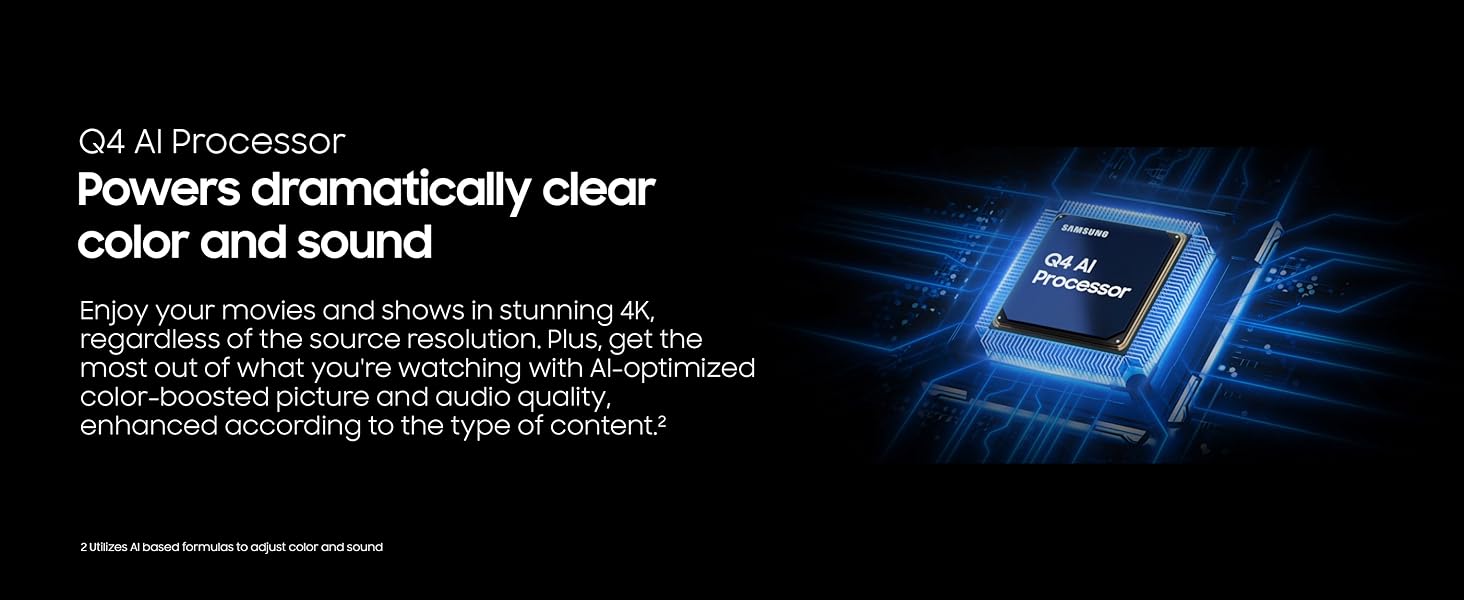
Image: A graphic representation of the Q4 AI Processor, highlighting its role in delivering dramatically clear color and sound by optimizing content.
- 100% Color Volume with Quantum Dot: Experience over a billion shades of color with remarkable precision. Quantum Dots ensure that colors remain vibrant and true, regardless of scene brightness.

Image: A vibrant scene featuring a person in a swimming pool, illustrating the wide color spectrum and precision achieved with 100% Color Volume and Quantum Dot technology.
- Motion Xcelerator 144Hz: Enjoy smooth visuals and minimal blur during fast-paced scenes, ideal for gaming and sports. This technology supports VRR games at up to 4K 144Hz.

Image: A dynamic image of a motorcycle racer on a dirt track, demonstrating the smooth motion and tear-free gaming experience provided by Motion Xcelerator 144Hz.
- AI Customization Mode: The AI processor automatically detects content and optimizes picture settings to match your preferences, whether you prefer bold colors for sports or a moodier picture for films.
- Samsung Knox Security: Your TV is secured with triple-layer protection. Samsung Knox defends against harmful apps and phishing sites, safeguarding sensitive data and connected IoT devices.

Image: A graphic showing a shield icon superimposed on a TV screen, representing Samsung Knox Security's triple-layer protection for personal data.
- Endless Free Content: Access over 2,700 free channels, including Samsung TV Plus premium channels and free streaming apps, without a subscription.
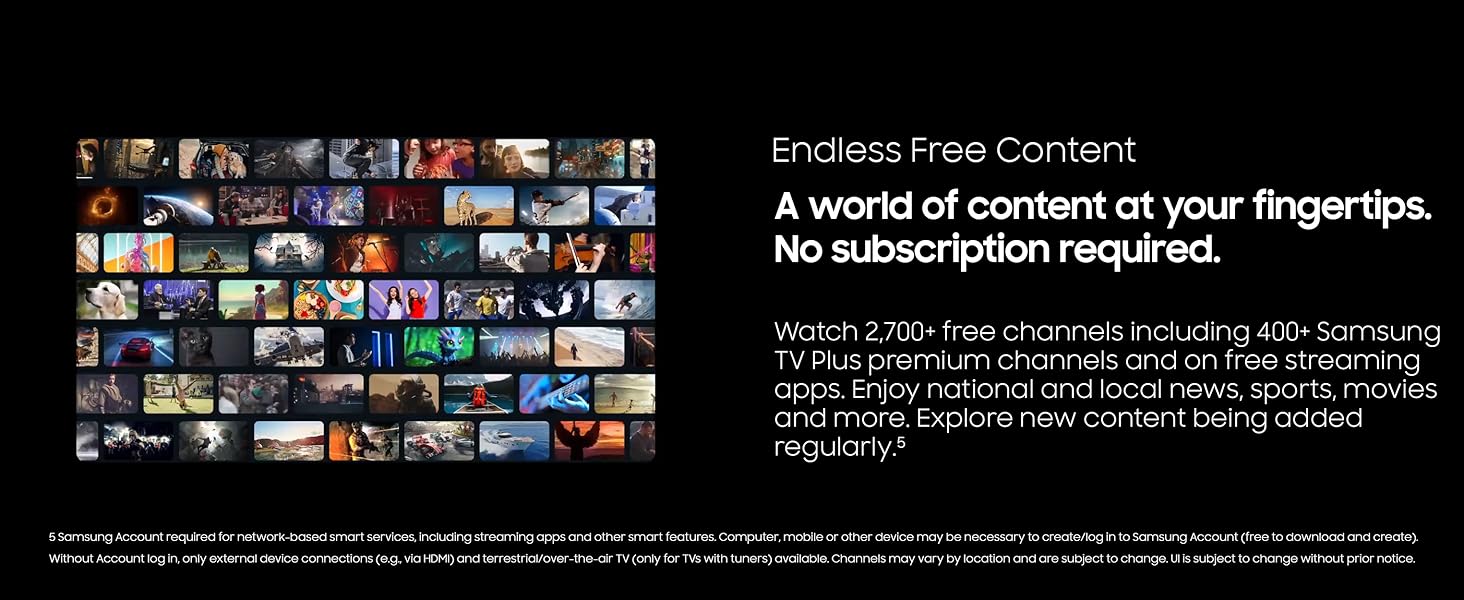
Image: A collage of diverse TV shows and movies, illustrating the vast array of endless free content available through the TV's smart features.
- Quantum HDR+: Experience a wide range of contrast for detailed, cinematic visuals. HDR+ dynamically analyzes each scene to deliver enhanced brightness and contrast.

Image: A split-screen comparison demonstrating the difference between SDR (Standard Dynamic Range) and Quantum HDR+, showcasing the significantly enhanced detail and contrast provided by HDR+.
- Color Booster Pro: AI analyzes each scene to enhance hues, providing a more vibrant and dynamic color experience.

Image: A side-by-side comparison of a scene with Color Booster Pro off and on, clearly demonstrating the AI-enhanced vibrant colors when the feature is active.
- Active Voice Amplifier and Adaptive Sound: Adaptive Sound optimizes audio scene-by-scene for balanced sound. Active Voice Amplifier boosts dialogue clarity, even in noisy environments.

Image: A visual representation of sound waves originating from a TV screen, depicting how Active Voice Amplifier and Adaptive Sound optimize audio and clarify dialogue.
6. Maintenance
6.1 Cleaning Your TV
- Screen: Gently wipe the screen with a soft, lint-free cloth. For stubborn marks, lightly dampen the cloth with distilled water. Avoid harsh chemicals.
- Body: Wipe the TV's frame and stand with a soft, dry cloth.
6.2 Software Updates
Regularly check for and install software updates to ensure optimal performance and access to the latest features. You can usually find this option in the TV's settings menu under 'Support' or 'Software Update'.
7. Troubleshooting
If you encounter issues with your TV, refer to the following common troubleshooting steps:
- No Power: Ensure the power cord is securely connected to both the TV and the wall outlet. Test the outlet with another device.
- No Picture: Check that the correct input source is selected. Verify all HDMI or other video cables are securely connected. Try restarting the TV and any connected devices.
- No Sound: Check the volume level and ensure the TV is not muted. Verify audio cables for external sound systems.
- Remote Control Not Working: Replace the batteries in the remote. Ensure there are no obstructions between the remote and the TV's sensor.
- Network Connection Issues: Restart your router and modem. Re-enter your Wi-Fi password in the TV's network settings. For wired connections, check the Ethernet cable.
If problems persist, consult the Samsung support website or contact customer service.
8. Specifications
| Feature | Specification |
|---|---|
| Brand Name | Samsung |
| Item Model Number | E1SAMQN50Q8F |
| Screen Size | 49.5 Inches (Visible screen diagonal: 50" / 126 cm) |
| Display Technology | QLED |
| Resolution | 4K |
| Refresh Rate | 60 Hz (Motion Xcelerator 144Hz for VRR gaming) |
| Aspect Ratio | 16:9 |
| Product Dimensions | 9.4"D x 44"W x 27.6"H (9.4 x 44 x 27.6 inches) |
| Item Weight | 32.1 pounds |
| Color Name | Black |
| On-mode Power Consumption | 105 watts |
| Special Features | 100% Color Volume with Quantum Dot, Endless Free Content, Eye Comfort Mode, Q4 AI Processor, Samsung Knox Security |
| Connectivity Technology | Bluetooth, Wi-Fi |
9. Warranty and Support
Your Samsung QN50Q8FAAFXZA QLED Smart TV is covered by a Limited 1-Year Manufacturer Protection. For detailed warranty terms and conditions, please refer to the documentation included with your product.
For technical support, product registration, or additional information, please visit the official Samsung support website or contact their customer service.


