
Welcome
Thank you for choosing the Westinghouse 50-inch 4K UHD Xumo Smart TV. This manual provides essential information for setting up, operating, and maintaining your television. Please read it thoroughly before use and retain it for future reference.

Image: The Westinghouse 50-inch 4K UHD Xumo Smart TV, showcasing its sleek design and key features.
Important Safety Information
Always follow basic safety precautions when using this television to reduce the risk of fire, electric shock, and injury. Keep this manual handy for reference.
- Do not expose the TV to rain or moisture.
- Do not block ventilation openings.
- Ensure proper grounding of the power cord.
- Unplug the TV during lightning storms or when unused for long periods.
- Refer all servicing to qualified service personnel.
What's Included
Verify that all components are present in the packaging:
- Westinghouse 50-inch Xumo Smart TV
- Voice Remote with 2 AAA Batteries
- Stand with Screws
- Quick Start Guide
- User Manual (this document)

Image: Visual representation of the TV's dimensions and the items included in the box, such as the remote, stand, and manuals.
Setup
1. Unpacking
Carefully remove the TV and all accessories from the packaging. It is recommended to retain the original packaging for transport or if servicing is required.
2. Attaching the Stand or Wall Mounting
Attaching the Stand:
- Place the TV face-down on a soft, clean surface to prevent screen damage.
- Align the stand bases with the screw holes on the bottom of the TV.
- Secure the stands using the provided screws.
Wall Mounting:
This TV supports VESA standard wall mounts (300mm x 300mm, M6x28mm 4PCS). Wall mount bracket is not included. Consult a professional for wall mounting installation to ensure safety and proper setup.

Image: Rear view of the television highlighting the VESA mounting holes for wall installation.
3. Connecting Peripherals
Your TV offers various connectivity options for external devices:
- HDMI (x3): Connect Blu-ray players, game consoles, cable boxes, or streaming devices. HDMI 2 supports eARC for enhanced audio return channel functionality.
- USB (x1): Connect USB storage devices for media playback.
- Mini AV: Connect older devices using composite video and stereo audio cables (adapter may be required).
- RF (Antenna): Connect an antenna for over-the-air broadcast channels.
- LAN: Connect an Ethernet cable for a wired internet connection.
- Headphone Output: Connect headphones for private listening.
- Optical Digital Audio: Connect to a soundbar or audio receiver for high-quality digital audio.

Image: Detailed view of the TV's input and output ports, including HDMI, USB, LAN, and audio connections.
4. Initial Power On and First-Time Setup
- Connect the power cord to the TV and a wall outlet.
- Press the Power button on the remote control or TV.
- Follow the on-screen instructions to select your language, connect to Wi-Fi, and complete the initial setup process for your Xumo Smart TV.
Operating Your TV
1. Remote Control Functions
The included voice remote allows for intuitive control of your TV. Insert the two AAA batteries as indicated.
- Power: Turns the TV on or off.
- Voice Command: Press and hold to activate voice search and commands.
- Navigation Pad: Use to move through menus and select options.
- Home: Returns to the Xumo TV home screen.
- Volume/Channel: Adjusts volume and changes channels.
- App Shortcuts: Dedicated buttons for popular streaming services.

Image: A couple utilizing the voice remote to quickly find desired content across various applications.
2. Smart TV Features (Xumo TV)
Your Westinghouse TV is powered by Xumo TV, offering a streamlined smart TV experience:
- Streaming Apps: Access popular services like Netflix, Prime Video, Disney+, Apple TV+, Hulu, HBO Max, ESPN+, and YouTube TV directly from the home screen.
- Xumo Play: Enjoy over 350 free live channels and 70,000+ on-demand movies and shows without subscriptions.
- Universal Search: Use the voice remote to search for content across all your installed apps by title, genre, actor, or keyword.

Image: A family enjoying content on the Xumo Smart TV, with icons for various streaming applications visible on the screen.
3. Picture and Sound Settings
Experience stunning visuals and immersive audio with advanced technologies:
- 4K UHD Resolution: Delivers four times the detail of Full HD for crystal-clear images.
- Dolby Vision & HDR10: Provides enhanced contrast, brightness, and a wider color gamut for a more lifelike viewing experience.
- Dolby Atmos: Creates a multi-dimensional sound experience, immersing you in the audio.
Adjust picture modes (Standard, Vivid, Movie, Game, Custom) and sound settings (Standard, Music, Movie, Speech, Custom) through the TV's settings menu to optimize your viewing and listening experience.

Image: The television screen displaying a highly detailed image of a moth, illustrating the 'Lifelike Clarity' of the 4K UHD display.
4. Connectivity
Your TV offers versatile connectivity options:
- Wi-Fi: Connect wirelessly to your home network for internet access and streaming.
- Bluetooth: Pair wireless headphones, soundbars, or speakers for a personalized audio experience.
- Apple AirPlay: Stream or mirror content directly from your iPhone, iPad, or Mac to the TV.
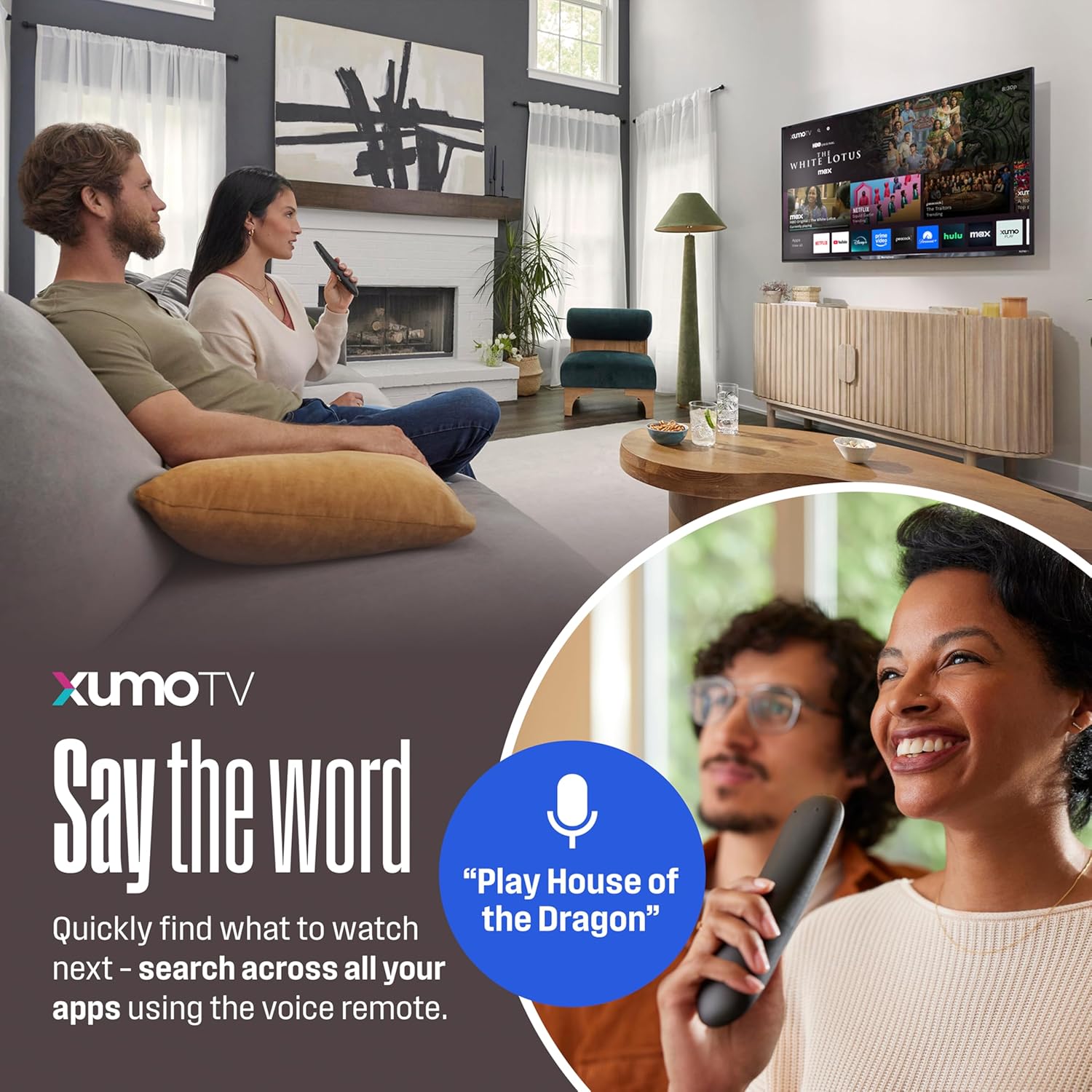
Image: A child watching television with wireless headphones, demonstrating the TV's Bluetooth and Apple AirPlay connectivity features.
Maintenance
Cleaning Your TV
- Always unplug the TV before cleaning.
- Use a soft, dry cloth to wipe the screen and cabinet.
- For stubborn marks, lightly dampen the cloth with water or a mild, non-abrasive screen cleaner.
- Never spray cleaner directly onto the screen.
Troubleshooting
If you encounter issues with your TV, refer to the following common solutions:
| Problem | Possible Solution |
|---|---|
| No power | Ensure the power cord is securely plugged into the TV and a working electrical outlet. Try a different outlet. |
| No picture, but sound is present | Check the input source. Ensure external devices are powered on and connected correctly. |
| No sound, but picture is present | Check the volume level and mute status. Verify audio cables are connected properly. Check TV audio output settings. |
| Remote control not working | Replace the batteries. Ensure there are no obstructions between the remote and the TV's IR sensor. |
| Wi-Fi connection issues | Restart your router and modem. Re-enter the Wi-Fi password. Ensure the TV is within range of your Wi-Fi network. |
| Smart TV apps not loading | Check your internet connection. Restart the TV. Clear app cache if available in settings. |
Specifications
| Feature | Detail |
|---|---|
| Brand | Westinghouse |
| Model Number | WX50UX4800 |
| Screen Size | 50 Inches |
| Display Technology | LED |
| Resolution | 4K UHD (3840 x 2160) |
| Refresh Rate | 60 Hz |
| Special Features | AirPlay 2, Dolby Atmos, Dolby Vision, HDR10, Voice Remote/Universal Search |
| Connectivity | Bluetooth, HDMI (x3, one with eARC), USB (x1), Mini AV, RF (Antenna), LAN, Optical Digital Audio, Headphone Output |
| Product Dimensions (with stand) | 43.7"W x 12.2"D x 27.4"H |
| Product Dimensions (without stand) | 43.7"W x 3.5"D x 25.3"H |
| Item Weight | 20.68 Pounds |
| On-mode Power Consumption | 150 watts |
| Estimated Yearly Energy Consumption | 166 kWh (based on 4 hours/day, 365 days/year) |

Image: The Energy Guide label for the Westinghouse WX50UX4800 television, detailing estimated yearly energy cost and consumption.
Warranty and Support
Warranty Information
Your Westinghouse TV comes with a limited warranty. Please refer to the warranty card included in your product packaging for specific terms, conditions, and duration. Keep your proof of purchase for warranty claims.
Customer Support
For technical assistance, troubleshooting beyond this manual, or warranty inquiries, please contact Westinghouse customer support. Contact information can typically be found on the Westinghouse website or in your product's quick start guide.
Online resources and FAQs may also be available on the official Westinghouse support page.


