
Introduction
The URPIZY AI Voice Recorder is a sophisticated digital recording device designed for professional and personal use. It integrates advanced artificial intelligence capabilities for real-time transcription, intelligent summarization, and multilingual translation. Featuring a robust recording system and secure data handling, this device is an all-in-one solution for meetings, interviews, and general voice recording needs.
Key features include:
- AI-powered Voice Hub for real-time transcription in 16 languages (offline/online) and text-to-speech recognition.
- AI summaries to extract important information from long texts.
- AI translation covering 130 languages with high accuracy.
- Bank-grade data protection with TLS/SSL encryption and private cloud storage.
- Professional recording system with 2 directional and 6 omnidirectional microphones for clear audio up to 15 meters.
- DSP+PCM noise cancellation to reduce environmental noise by up to 90%.
- Durable aircraft-grade aluminum body with a 5-inch touchscreen and 16 GB internal memory.
- 8 MP rear camera for synchronized photo tagging and photo translation.
- Compatibility with PC, smartphones, and tablets.
Device Overview
The URPIZY AI Voice Recorder is equipped with multiple microphones for superior audio capture and a clear display for easy interaction.
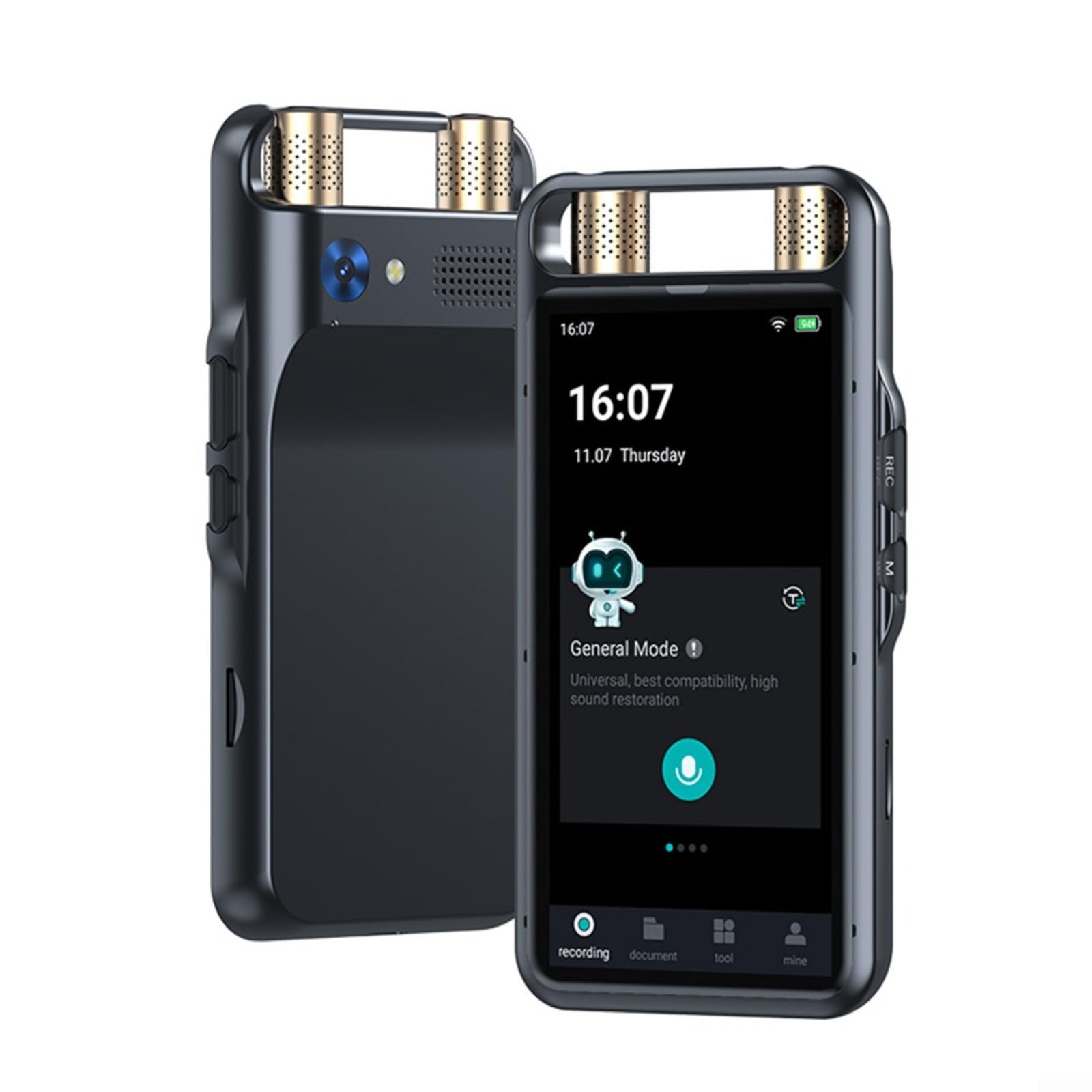
Image: The URPIZY AI Voice Recorder, highlighting its long-distance recording capability up to 15 meters, supported by 2 directional and 6 omnidirectional array microphones, and intelligent noise reduction algorithms.
Setup
1. Initial Charging
Before first use, fully charge the device using the provided USB cable and a compatible power adapter. A full charge provides approximately 8 hours of continuous recording or 14 days of standby time.
2. Powering On/Off
- To Power On: Press and hold the Power button located on the side of the device until the screen illuminates.
- To Power Off: Press and hold the Power button until a power-off prompt appears on the screen. Select 'Power Off' to shut down the device.
3. Initial Setup and Language Selection
Upon first power-on, the device will guide you through an initial setup process. This includes selecting your preferred language from the available options. The device supports multiple languages for its interface and transcription features.
4. Wi-Fi Connection
To utilize online features such as real-time online transcription, cloud storage, and online translation, connect the device to a Wi-Fi network:
- Go to Settings > Wi-Fi.
- Select your desired network and enter the password if prompted.
5. Account Setup for Cloud Services
For secure data storage and sharing, set up your dedicated private cloud account. This typically requires an email address and password for dual authentication, ensuring bank-grade data protection.
Operating Instructions
1. Recording Audio
The device offers four distinct recording modes to suit various situations:
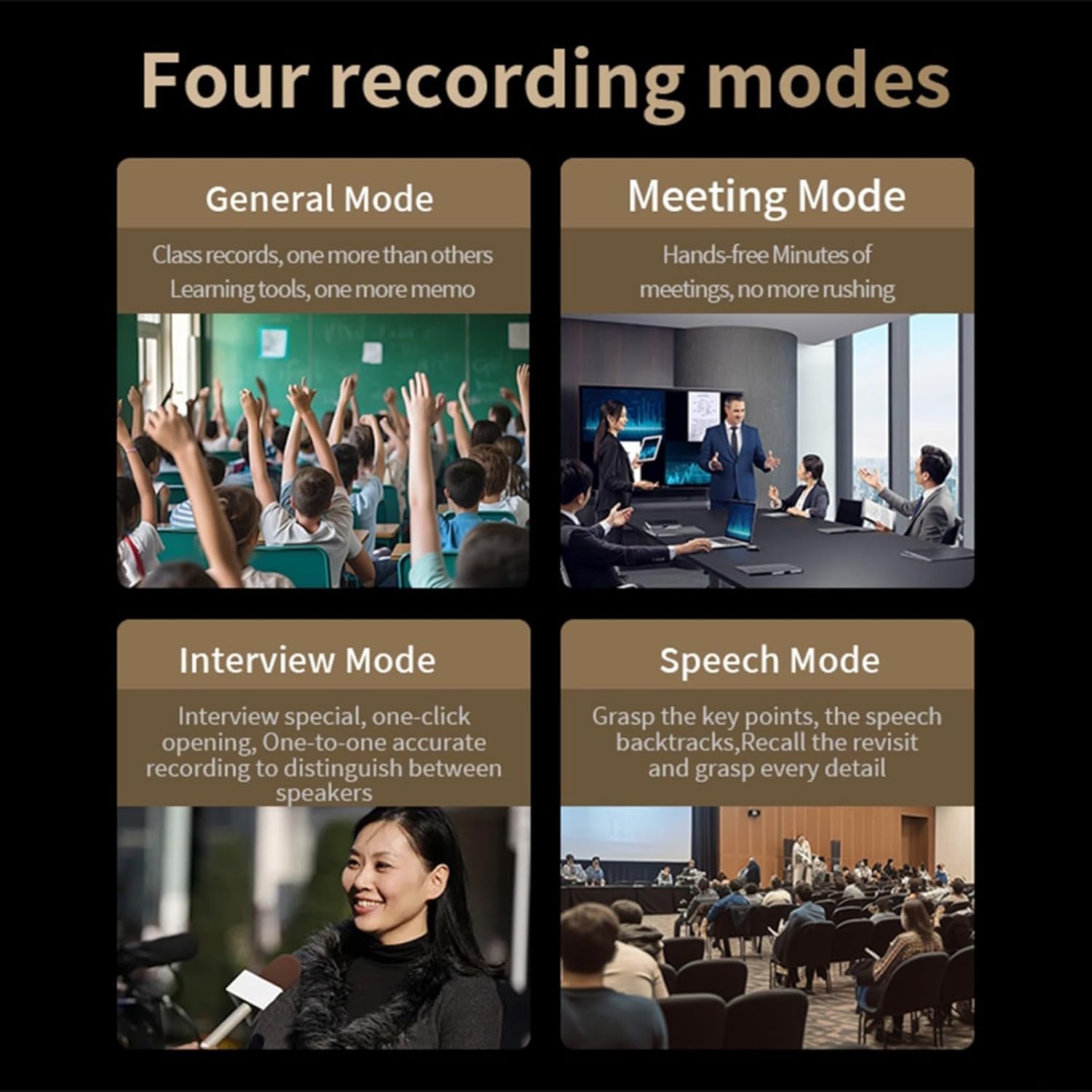
Image: Visual representation of the four recording modes: General Mode for class records and memos, Meeting Mode for hands-free meeting minutes, Interview Mode for distinguishing speakers, and Speech Mode for grasping key points and details.
- General Mode: Ideal for personal notes, lectures, or general audio capture.
- Meeting Mode: Optimized for group discussions, ensuring clear capture of multiple speakers.
- Interview Mode: Designed to accurately distinguish between different speakers during one-on-one interviews.
- Speech Mode: Focuses on capturing and emphasizing spoken content, useful for presentations or speeches.
To start a recording, select your desired mode from the main interface and press the 'Record' button. Press it again to stop the recording.
2. Real-time Transcription
The device can transcribe audio in real-time, supporting 16 languages both offline and online.

Image: The Intelligent Transcription feature in action, demonstrating its ability to automatically distinguish between speakers in a conversation, displaying their dialogue separately.
After a recording is complete, you can upload the audio file to obtain transcription results. The system intelligently distinguishes between speakers, providing a clear and organized transcript.
3. AI Summaries
Leverage AI to generate concise summaries of your transcribed audio files. This feature extracts important information, making it easier to review long discussions.

Image: The Smart Summaries function, illustrating how it converts recording files into text and uses an AI model to generate summaries and intelligent edits, highlighting keywords, time, place, and focus points.
To use, navigate to your transcribed file and select the 'Summarize' option. You can then share and upload these summaries to your cloud disk for further editing or collaboration.
4. Multilingual Translation
The device supports 134 online and 15 offline languages for translation, with AI translation covering 130 languages with high accuracy.

Image: The Multilingual Simultaneous Interpretation feature, demonstrating real-time translation between English and Chinese, highlighting the support for 15 offline and 134 online languages.
Access the translation feature from the main menu. Select your source and target languages to begin real-time or post-recording translation.
5. Photo Translation
The integrated 8 MP rear camera allows for optical character recognition (OCR) and translation of text from images. It supports 71 online and 12 offline languages.

Image: The Photo Translation capability, illustrating the use of the 8-megapixel rear camera to recognize text from images and translate it, supporting 12 offline and 71 online languages.
Open the camera application, capture an image of the text you wish to translate, and the device will process and display the translation.
6. Noise Cancellation
The device automatically employs DSP+PCM noise cancellation technology to filter out up to 90% of ambient noise, ensuring clear audio recordings even in noisy environments. This feature is active during all recording modes.
7. File Management and Sharing
Recorded audio files and their transcriptions/summaries can be managed directly on the device or through your connected cloud storage. You can classify files, rename them, and securely share them with team members for collaboration.
Maintenance
1. Cleaning
To maintain the device's appearance and functionality:
- Wipe the screen and body with a soft, dry, lint-free cloth.
- Avoid using abrasive cleaners, solvents, or aerosol sprays.
- Keep the microphone grilles free from dust and debris.
2. Software Updates
Periodically check for software updates to ensure optimal performance and access to the latest features. Connect the device to Wi-Fi and navigate to Settings > System Updates to check for and install available updates.
3. Battery Care
To prolong battery life:
- Avoid exposing the device to extreme temperatures.
- Do not allow the battery to fully discharge frequently.
- If storing the device for an extended period, charge it to about 50% before storage.
Troubleshooting
Device Not Powering On
- Ensure the device is sufficiently charged. Connect it to a power source and try again after a few minutes.
- Press and hold the Power button for at least 10-15 seconds to perform a forced restart.
Poor Recording Quality
- Ensure the microphone grilles are not obstructed.
- Check the recording environment for excessive background noise. While the device has noise cancellation, extreme noise can still affect quality.
- Verify that the correct recording mode is selected for your environment (e.g., Meeting Mode for group discussions).
Transcription/Translation Issues
- Ensure a stable Wi-Fi connection for online transcription and translation features.
- Verify that the correct source and target languages are selected.
- Speak clearly and at a moderate pace for optimal recognition.
Connectivity Problems (Wi-Fi, PC)
- For Wi-Fi, ensure the password is correct and the network is active. Try restarting your router.
- When connecting to a PC, ensure the USB cable is securely connected and the device is in the correct USB mode (e.g., file transfer).
Specifications
| Feature | Specification |
|---|---|
| Brand | URPIZY |
| Model Number | JC69DJ95230NPS6C1IIUPUM0D771 |
| Dimensions | 12 x 6 x 1 cm |
| Weight | 125 g |
| Internal Memory | 16 GB |
| Microphones | 2 Directional, 6 Omnidirectional |
| Display | 5-inch Touchscreen |
| Rear Camera | 8 MP |
| Battery Life (Recording) | Up to 8 hours continuous |
| Battery Life (Standby) | Up to 14 days |
| Processor | Octa-core |
| Transcription Languages | 16 (Offline/Online) |
| AI Translation Languages | 130 |
| Online Translation Languages | 134 |
| Offline Translation Languages | 15 |
| Photo Translation Languages (Online) | 71 |
| Photo Translation Languages (Offline) | 12 |
Warranty and Support
For warranty information, technical support, or service inquiries, please refer to the warranty card included with your product or visit the official URPIZY website. Keep your purchase receipt as proof of purchase.