
Model 1
Snap Cam Action Camera User Manual
Model: Snap Cam (Model 1)
Introduction
Welcome to the user manual for your Snap Cam Action Camera. This compact and versatile camera is designed for capturing high-quality video and photos during various activities, from outdoor sports to daily vlogging. Its hands-free magnetic mounting, 4K recording capabilities, and durable design make it an ideal companion for adventurers and content creators. Please read this manual thoroughly to understand the camera's features and ensure optimal performance.
What's in the Box
Upon unboxing your Snap Cam, please verify that all the following items are included:
- Snap Cam Action Camera (Black)
- Waterproof Case (IPX8 rated, for depths up to 30m)
- Magnetic Lanyard
- Mounting Adapters (7 types for various attachments)
- USB-C Charging Cable
- User Manual (this document)

Image: The Snap Cam camera shown alongside its various accessories, including mounting clips, a lanyard, and the waterproof housing. A person cycling is also depicted, illustrating potential use.
Product Overview
The Snap Cam is designed for simplicity and portability. It features a single operation button for ease of use and a compact, thumb-sized form factor.
Camera Components

Image: A white version of the Snap Cam camera highlighting its key features: 4K ultra HD video shooting, WiFi mobile phone interconnection, 170° wide angle shooting, and magnetic attraction.
- Lens: High-definition lens for capturing video and photos.
- Operation Button: Single button for power on/off and recording control.
- Indicator Light: Provides status feedback (e.g., recording, charging).
- USB-C Port: For charging and data transfer.
- Microphone: Built-in for audio recording.
Mounting Options
The Snap Cam offers versatile mounting solutions for various scenarios:
- Portable Back Clip: Allows attachment to clothing, bags, or other surfaces.
- 360° Rotation: The clip design enables full rotation for optimal camera angles.
- Built-in Magnetic Suction: For quick and secure attachment to metallic surfaces.
- Magnetic Lanyard: Wear the camera around your neck for convenient POV recording.
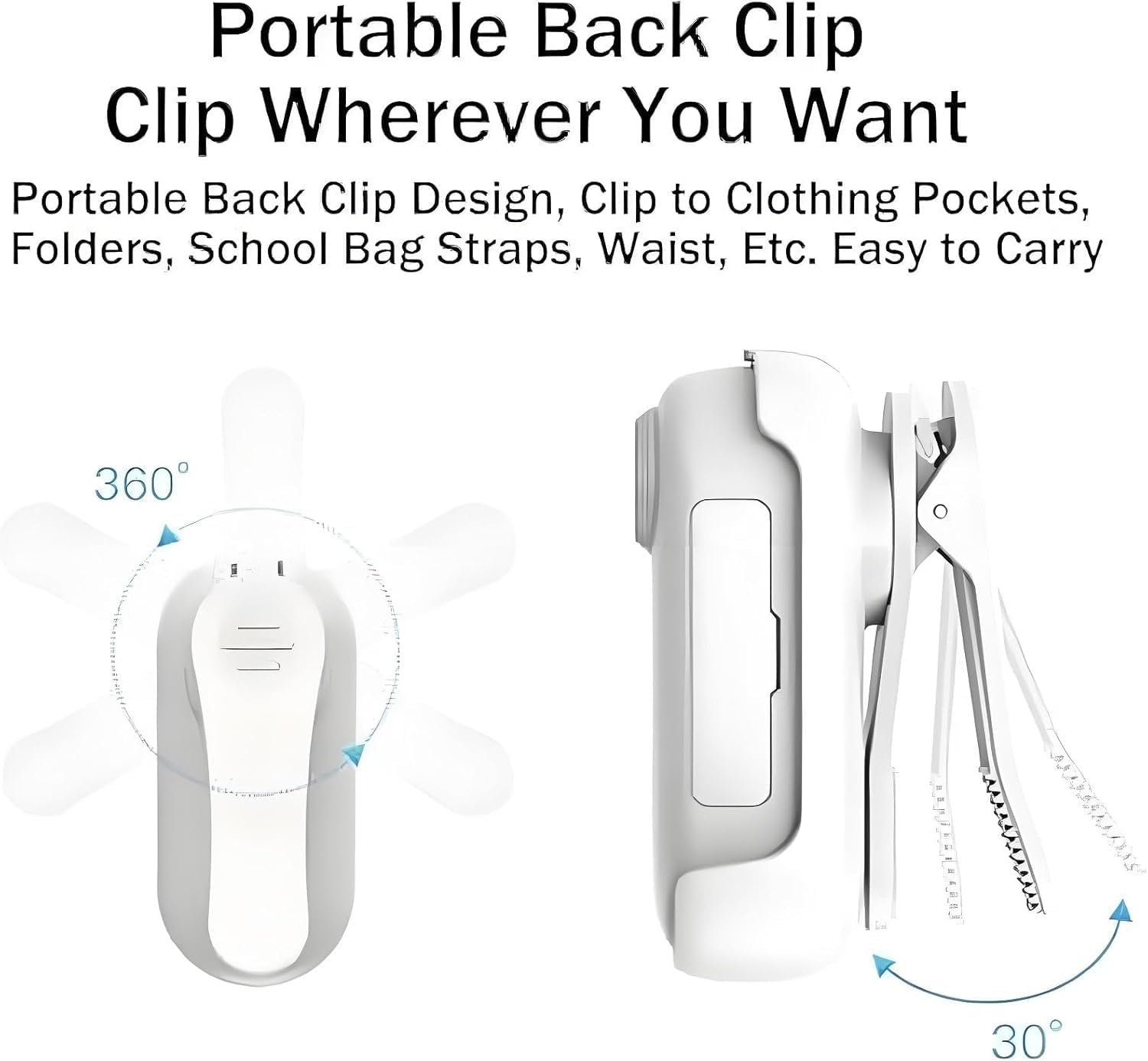
Image: A diagram illustrating the 360-degree rotation capability of the camera's back clip, allowing for flexible positioning.
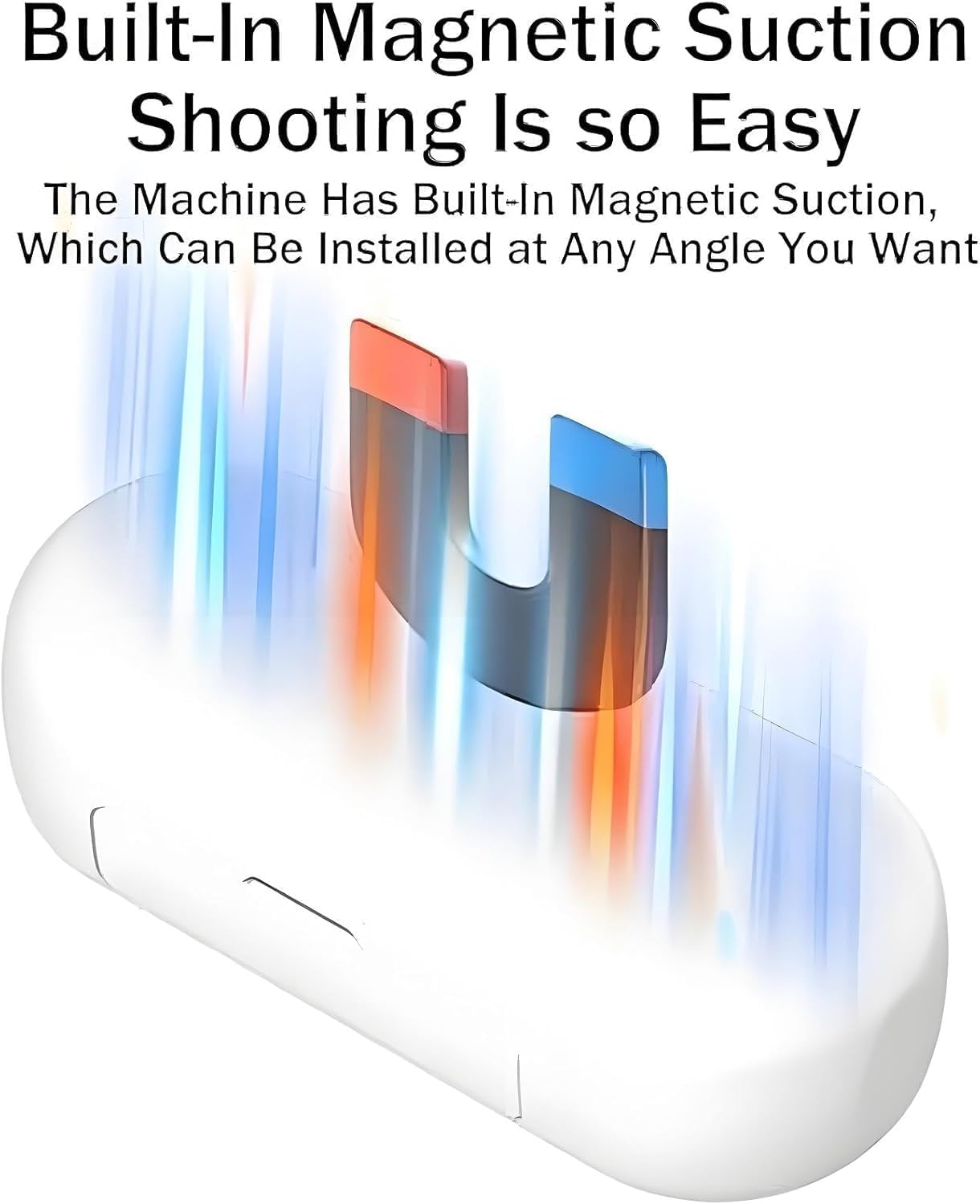
Image: An illustration demonstrating the built-in magnetic suction feature of the camera, allowing it to be easily attached to magnetic surfaces.

Image: A woman wearing the Snap Cam camera around her neck using the magnetic lanyard, highlighting its hands-free portability.
Setup
1. Charging the Camera
Before first use, fully charge the Snap Cam. Connect the provided USB-C cable to the camera's USB-C port and the other end to a 5V/2A power adapter (not included) or a computer USB port. The indicator light will show charging status. A full charge takes approximately 120 minutes. The camera supports recording while charging.

Image: The Snap Cam camera shown connected via a USB-C cable to a power source, illustrating its ability to record while charging.
2. Inserting a MicroSD Card
The Snap Cam requires a MicroSD card (not included) for storing recordings. Locate the MicroSD card slot on the camera. Gently insert the card with the gold contacts facing down until it clicks into place. The camera supports MicroSD cards up to 256GB.
3. Initial Mounting
Choose your preferred mounting method. For hands-free recording, attach the camera using the magnetic lanyard or utilize the back clip with one of the 7 included adapters to secure it to helmets, handlebars, or clothing. Ensure the camera is firmly attached before beginning your activity.
Operating Instructions
1. Powering On/Off
To power on the camera, press and hold the operation button for a few seconds until the indicator light illuminates. To power off, press and hold the button again until the indicator light turns off.
2. Recording Video
Once powered on, a short press of the operation button will start video recording. The indicator light will change to indicate recording is in progress. Press the button again to stop recording. The camera supports 4K and 1080P video resolutions at 30 frames per second.

Image: A visual comparison demonstrating the clarity and detail of 4K high-definition recording compared to lower resolutions like 2K, 1080p, and 720p.
3. Connecting to Mobile App (Wi-Fi)
The Snap Cam features built-in Wi-Fi for seamless connection to your mobile device. Download the dedicated app (refer to packaging or quick start guide for app name/QR code). Follow the app's instructions to connect to the camera's Wi-Fi network. Once connected, you can view live footage, download recordings, and share content directly from your phone.

Image: The Snap Cam camera emitting a Wi-Fi signal, next to a smartphone displaying a gallery of captured videos and photos, illustrating the one-click download and sharing feature.
4. Using the Waterproof Case
For underwater activities or protection in wet conditions, place the Snap Cam inside the included IPX8-rated waterproof case. Ensure the case is properly sealed before submersion. The case allows the camera to be used safely up to a depth of 30 meters.

Image: The Snap Cam camera enclosed in its waterproof case, submerged underwater, demonstrating its suitability for diving, fishing, and other water-based activities.
Maintenance
- Cleaning: Use a soft, dry cloth to clean the camera body. For the lens, use a specialized lens cleaning cloth and solution. Avoid abrasive materials or harsh chemicals.
- Waterproof Case: After use in saltwater, rinse the waterproof case with fresh water and allow it to air dry. Ensure no sand or debris is trapped in the seals.
- Storage: Store the camera in a cool, dry place away from direct sunlight and extreme temperatures. Remove the MicroSD card if storing for extended periods.
Troubleshooting
- Camera not powering on:
- Ensure the battery is charged. Connect to a power source and check the charging indicator.
- Press and hold the operation button for a longer duration (5-7 seconds).
- Recording issues (e.g., not recording, corrupted files):
- Check if a MicroSD card is inserted correctly and has sufficient free space.
- Ensure the MicroSD card is formatted correctly (FAT32 or exFAT).
- Try using a different, high-speed MicroSD card.
- Recharge the camera fully.
- Wi-Fi connectivity problems:
- Ensure the camera's Wi-Fi is enabled.
- Restart both the camera and your mobile device.
- Ensure you are within the camera's Wi-Fi range.
- Check if the correct mobile app version is installed.
- Poor video quality:
- Ensure the lens is clean and free of smudges.
- Check lighting conditions; optimal lighting yields better results.
- Verify the recording resolution setting if adjustable via the app.
Specifications
| Feature | Detail |
|---|---|
| Product Name | Go Snap Camera |
| Color | Black (also available in White) |
| Material | PVC |
| Product Dimensions | 64.5 x 28 x 20 mm (2.6 x 1.1 x 0.8 in) |
| Item Weight | 35g (approx. 1.23 oz) |
| Charging Time | 120 minutes |
| Interface Type | Type-C |
| Charging Voltage | 5V/2A |
| Video Resolution | 1080P/4K |
| Frame Rate | 30 fps |
| Video Format | MP4 |
| Maximum Supported Storage | Up to 256GB (Micro SD) |
| Battery Capacity | 800mAh (approx. 2.5+ hours recording) |
| Waterproof Rating | IPX8 (30m with case) |
| Storage Temperature | -10 to 60 Degrees Celsius |
| Connectivity | Built-in Wi-Fi |
| Special Features | Hands-free magnetic mounting, 360° rotating clip, One-button operation, Record while charging |
Warranty and Support
Your Snap Cam Action Camera is designed for durability and performance. For any questions, technical assistance, or warranty inquiries, please refer to the contact information provided with your purchase or visit the official brand website. Please retain your proof of purchase for warranty claims.
Related Documents - Model 1
 |
Video-Codec-Test & Actioncam-Reviews: Canon, DJI, Crosstour Umfassende Analyse von Video-Codecs für Canon Legria HF R506 und MAGIX Video deluxe, ergänzt durch detaillierte Praxistests und Nutzererfahrungen mit Crosstour Action Camera CT9900, DJI Osmo Action 4, DJI Pocket 2 und DJI Osmo Pocket 3. |
 |
CS06 Wearable Camera User Manual Instruction manual for the CS06 wearable camera, detailing its features, operation, charging, troubleshooting, and specifications. Includes guidance on video recording, photography, sound recording, file management, and settings. |
 |
Feiyu Pocket 2S User Manual and Specifications User manual for the Feiyu Pocket 2S portable HD gimbal camera, covering setup, operation, app connectivity, maintenance, and detailed specifications. Learn to capture high-quality video and photos with advanced stabilization. |
 |
Lanos X-Bike Assembly Manual and User Guide Detailed assembly instructions, safety guidelines, usage tips, and warranty information for the Lanos X-Bike home exercise bike. Learn to set up and operate your Lanos X-Bike for an effective workout. |
 |
DJI Osmo Pocket 3 FAQ: Features, Accessories, and Usage Guide Frequently asked questions about the DJI Osmo Pocket 3 vlogging camera, covering its features, differences from previous models, accessories, connectivity, and usage with apps like DJI Mimo and LightCut. |
 |
DB-1 Pro Helmet Cam: FAQ and Condensation Notice Find answers to common questions about the DB-1 Pro Helmet Cam, including connectivity, power issues, and live view problems. Learn about condensation management for your waterproof camera. |