
1. Introduction
This manual provides detailed instructions for the installation, operation, and maintenance of your WEIAV 12.3-inch Carplay Screen. This device is designed to upgrade the infotainment system in compatible Mercedes-Benz C-Class W205 vehicles, enhancing functionality with Android features while retaining the original car system.
Important Compatibility Note: This Carplay screen is specifically designed for Mercedes-Benz C-Class W205 S205 models manufactured between 2015 and 2018, equipped with the NTG 5.0 system. It is not compatible with other NTG systems or vehicle models.

Image 1.1: The WEIAV 12.3-inch Carplay Screen integrated into a Mercedes-Benz C-Class W205 dashboard, displaying its advanced user interface.
2. Package Contents
Please verify that all items listed below are included in your package:
- 1 x WEIAV 12.3" Carplay Screen
- 1 x Power Cable
- 1 x USB Cable
- 1 x GPS Antenna
- 1 x AUX Cable
- 1 x Installation Guide (This document)

Image 2.1: Overview of the WEIAV 12.3-inch Carplay Screen and its accompanying cables and antennas, including the main screen unit, power cable, USB cable, GPS antenna, and LVDS conversion cable.
3. Product Specifications
| Feature | Specification |
|---|---|
| Display Size | 12.3 Inches |
| Resolution | 1920 x 720 HD |
| Operating System | Android 13 |
| RAM | 8GB |
| ROM (Storage) | 128GB SSD |
| Processor | 8-core CPU |
| Connectivity | Wireless (Wi-Fi 2.4G/5G, Bluetooth 5.0) |
| Special Features | Touchscreen, Built-in DSP, 3 UI Themes, GPS Navigation, Wireless Apple CarPlay, Wireless Android Auto, 4K Video Playback |
| Audio Output Mode | Stereo |
| Compatibility | Mercedes-Benz C-Class W205 S205 (2015-2018) with NTG 5.0 System |
4. Setup and Installation
Installation of the WEIAV Carplay Screen requires careful attention to detail. It involves removing parts of the car dashboard to connect the necessary wiring. It is recommended that installation be performed by a qualified professional if you are not comfortable with automotive electronics.
4.1 Pre-Installation Checklist
- Confirm your vehicle is a Mercedes-Benz C-Class W205 (2015-2018) with the NTG 5.0 system. Incompatibility with other systems may lead to malfunction.
- Ensure the vehicle's battery is disconnected before beginning installation to prevent electrical damage.
- Gather all necessary tools for dashboard removal and wiring connections.
4.2 Installation Steps Overview
- Carefully remove the existing factory screen and relevant dashboard components.
- Connect the provided power cable, USB cable, GPS antenna, and AUX cable to the new Carplay screen and the vehicle's wiring harness. Ensure all connections are secure.
- Integrate the new screen into the dashboard opening.
- Reconnect the vehicle's battery and test the system.
- Reassemble the dashboard components.
Note: Most installation issues arise from incorrect cable connections or settings. If you encounter any difficulties during installation, please contact our customer support for assistance.

Image 4.1: Visual comparison showing the original Mercedes-Benz C-Class W205 dashboard display versus the upgraded 12.3-inch Carplay screen.
5. Operating Instructions
The WEIAV Carplay Screen operates on an Android 13 system, offering a wide range of features and a user-friendly touchscreen interface.
5.1 Basic Navigation and UI
The system features a responsive touchscreen. Swipe left or right to navigate between different home screens and access various applications. The main interface provides quick access to essential functions like Navigation, Music, Bluetooth, and Dashboard. You can customize the layout and choose from three different UI themes.

Image 5.1: Examples of the various user interface displays available on the WEIAV Carplay Screen, showcasing different app layouts and settings.
5.2 Original System Integration
The Carplay screen retains all original car functions, including the factory radio, CD player, Bluetooth, amplifier system, and backup camera display. When operating in the OEM system mode, the controls and options remain identical to your vehicle's original setup.
5.3 Wireless Apple CarPlay and Android Auto
Connect your smartphone wirelessly to access Apple CarPlay or Android Auto. This allows you to use your phone's navigation apps, make calls, send messages, and play music directly through the car's display. The system supports multiple languages.

Image 5.2: The WEIAV Carplay Screen demonstrating wireless Apple CarPlay and Android Auto functionality, showing phone integration.
5.4 Bluetooth Connectivity
Utilize Bluetooth 5.0 for hands-free calling and wireless audio streaming. Pair your phone to the device to manage calls and play music safely while driving.
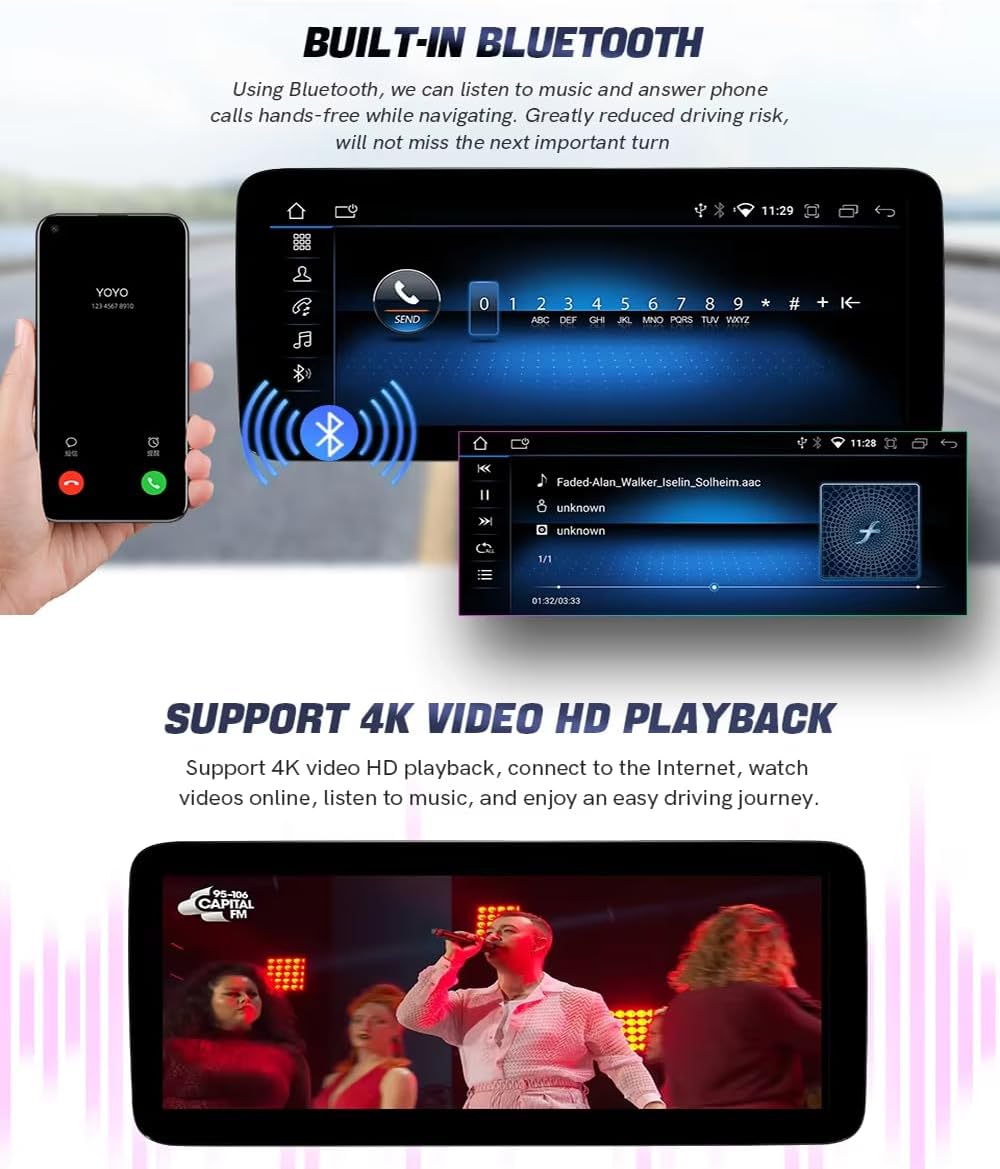
Image 5.3: The Carplay screen displaying Bluetooth features for hands-free calls and music playback.
5.5 GPS Navigation
The unit includes a built-in GPS antenna and supports various navigation applications. Connect to Wi-Fi to access real-time traffic conditions and ensure accurate positioning.
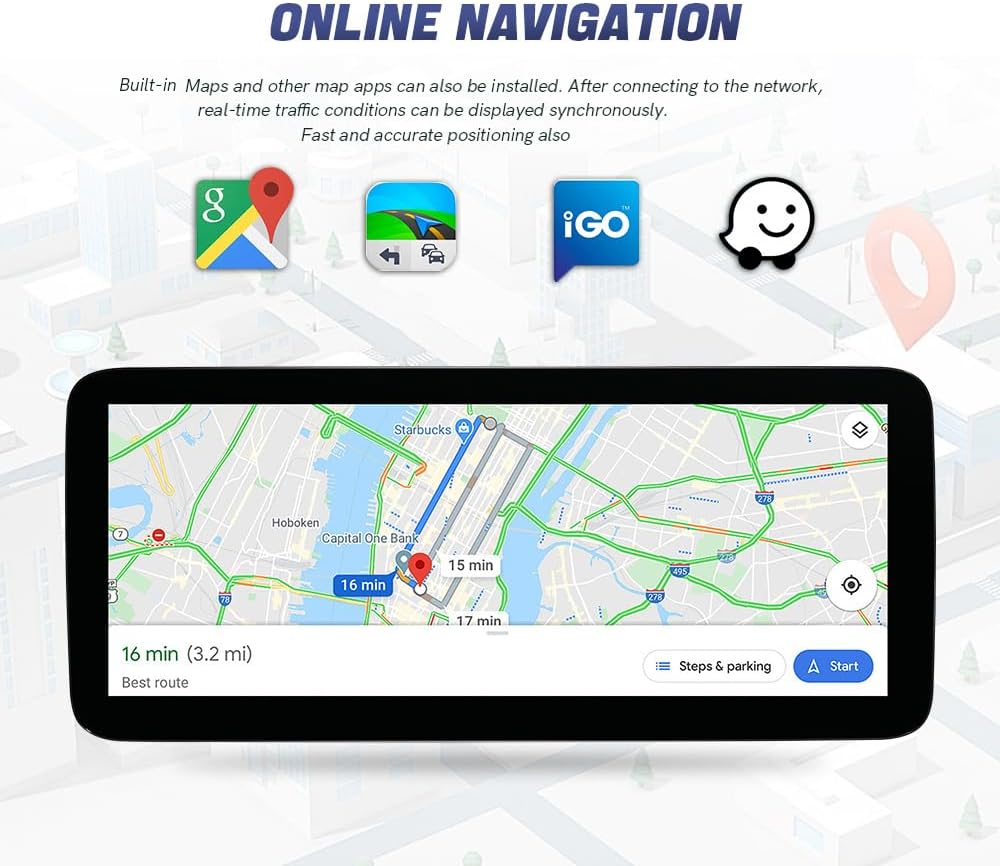
Image 5.4: The Carplay screen showing its online navigation capabilities with a map display and common navigation app icons.
5.6 DSP Sound Adjustment
The integrated Digital Sound Processor (DSP) allows for professional sound adjustment. Access settings for Equalizer, Loudness, Filter, Smart Bass, Balance, and Delay to customize your audio experience.
5.7 Media Playback
The system supports 4K video HD playback. You can connect via USB to play your favorite music or videos, or stream content after connecting to the internet via Wi-Fi.
5.8 Product Feature Overview Video
Video 5.1: A detailed video showcasing the features and user interface of the WEIAV 12.3-inch Carplay Screen, including its physical design, processing speed, main menu, DSP sound adjustments, application access, and connectivity options.
6. Maintenance
To ensure the longevity and optimal performance of your Carplay screen, follow these maintenance guidelines:
- Cleaning: Use a soft, lint-free cloth to gently wipe the screen. For stubborn smudges, slightly dampen the cloth with water or a screen-safe cleaner. Avoid harsh chemicals or abrasive materials.
- Temperature: Avoid exposing the device to extreme temperatures, both hot and cold, for extended periods.
- Software Updates: Periodically check for software updates to ensure you have the latest features and performance enhancements.
7. Troubleshooting
If you encounter issues with your WEIAV Carplay Screen, please review the following common problems and solutions:
- No Power/Screen Blank: Check all power cable connections. Ensure the vehicle's battery is properly connected and charged.
- No Sound: Verify audio cable connections. Check volume settings on both the Carplay screen and your vehicle's original audio system. Ensure the correct audio input is selected.
- CarPlay/Android Auto Not Connecting: Ensure Bluetooth and Wi-Fi are enabled on your smartphone and the Carplay screen. Try restarting both devices.
- GPS Signal Issues: Ensure the GPS antenna is properly installed and has a clear view of the sky.
Many problems can be resolved by verifying cable connections and system settings. If you are unable to resolve an issue, please contact our customer support for further assistance.
8. Warranty and Support
For warranty information or technical support, please refer to the contact details provided with your purchase or reach out to the seller directly. Our support team is available to assist with installation queries, troubleshooting, and any other product-related concerns.