
Introduction
This manual provides detailed instructions for the setup, operation, maintenance, and troubleshooting of your EVICIV 15.6" 1080P Portable Monitor. Please read this manual thoroughly before using the product to ensure proper functionality and to maximize your user experience.
Product Features
- Universal Compatibility & VESA: Equipped with USB-C/Type-C and Mini HDMI ports, this portable monitor connects with laptops, smartphones, and gaming consoles. It includes a VESA interface (75x75@M4) for mounting options.
- Integrated Convenience: Features a built-in stand for adjustable viewing angles and integrated speakers for audio output, eliminating the need for external audio devices.
- Ultra-Slim & Portable: Weighing approximately 0.6 kilograms (1.46 pounds), this 15.6-inch monitor has an ultra-slim profile designed for portability.
- 15.6-inch IPS Display: Provides a 1920x1080 FHD resolution IPS panel with a 178° viewing angle, offering consistent colors and visuals without distortion.
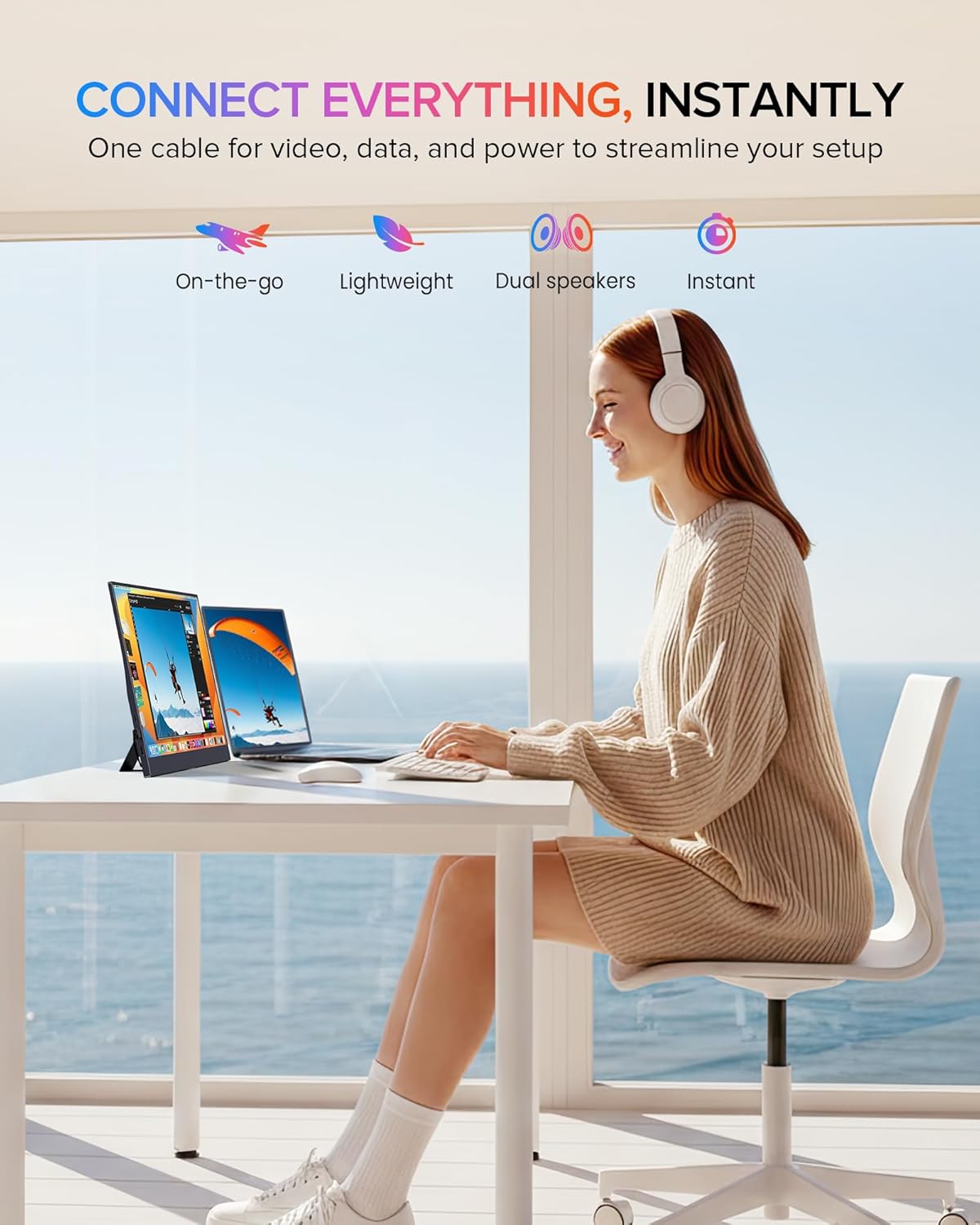
Experience vibrant and accurate colors with the monitor's 125% sRGB wider gamut, 350 Nits brightness, and 2000:1 contrast ratio, ensuring a true-to-life visual experience.
Package Contents
Verify that all items are present in the package:
- EVICIV 15.6" Portable Monitor
- USB-C to USB-C Cable
- Mini HDMI to HDMI Cable
- USB-A to USB-C Power Cable
- Power Adapter
- User Manual
Setup Instructions
Connecting to Devices

The monitor is equipped with full-featured USB-C ports and a Mini HDMI port, allowing plug-and-play connectivity with a wide range of devices including Android phones, tablets, laptops, MacBooks, Nintendo Switch, PS4/PS5, and PCs.
USB-C Connection (Full-featured USB-C)
For devices with a full-featured USB-C port (supporting DisplayPort Alternate Mode and power delivery), a single USB-C to USB-C cable can transmit video, audio, and power. Connect one end of the USB-C cable to your device's USB-C port and the other end to one of the monitor's USB-C ports.
Mini HDMI Connection
For devices with an HDMI output, use the Mini HDMI to HDMI cable to connect your device to the monitor's Mini HDMI port. When using HDMI, the monitor requires external power. Connect the USB-A to USB-C power cable to the monitor's USB-C power input and plug the USB-A end into a power adapter or a powered USB port.
Powering the Monitor
The monitor can be powered via a full-featured USB-C connection from a compatible device or by using the provided USB-A to USB-C power cable and power adapter. Ensure the monitor receives adequate power for stable operation.
Using the Integrated Stand and VESA Mounting

Featuring an ultra-thin design and a flexible kickstand, the monitor can be adjusted from 0-70 degrees. It also includes VESA mounting holes (75x75@M4) for alternative setups.
Integrated Stand
The monitor features a flexible kickstand on the back. Gently pull out the stand and adjust it to your desired viewing angle, ranging from 0 to 70 degrees.
VESA Mounting
For alternative mounting solutions, the monitor is equipped with VESA mounting holes (75x75@M4). This allows for attachment to compatible desk arms or wall mounts (mounting hardware sold separately).
Operating the Monitor
On-Screen Display (OSD) Menu
The monitor's settings can be adjusted using the OSD menu. The control buttons are typically located on the side of the monitor. Use the 'Pulley Button/Menu' to access the OSD and navigate through options. The 'Return/Power' button can be used to exit menus or power the monitor on/off.
Display Modes

The monitor supports various display configurations including Duplicate Mode, Extend Mode, and Vertical Mode, adapting to your workflow needs.
Depending on your connected device and operating system, you can configure the monitor to operate in different display modes:
- Duplicate Mode: Displays the same content as your primary screen.
- Extend Mode: Extends your desktop workspace across both screens.
- Vertical Mode: Allows the monitor to be used in a portrait orientation, often useful for coding or document viewing.
Audio Output
The monitor includes built-in stereo speakers for audio playback. Additionally, a 3.5mm audio jack is available for connecting external headphones or speakers.

The EVICIV portable monitor seamlessly integrates into various setups, offering an extended display for enhanced productivity or entertainment.
Maintenance
Cleaning the Monitor
To clean the monitor screen, gently wipe it with a soft, lint-free cloth. For stubborn marks, dampen the cloth slightly with water or a non-abrasive screen cleaner. Avoid using harsh chemicals, alcohol, or ammonia-based cleaners, as these can damage the screen surface. Ensure the monitor is powered off and unplugged before cleaning.
To clean the monitor casing, use a soft, dry cloth. Do not spray cleaning liquids directly onto the monitor.
Troubleshooting
If you encounter issues with your monitor, refer to the following common troubleshooting steps:
- No Signal / Black Screen:
- Ensure all cables (USB-C, Mini HDMI) are securely connected to both the monitor and the source device.
- Verify that the source device is powered on and outputting a signal.
- If using HDMI, confirm the monitor is receiving external power.
- Try connecting the monitor to a different device or using different cables to rule out cable or source issues.
- No Power:
- Check if the power adapter is properly connected to a working power outlet and the monitor.
- If powering via USB-C, ensure the source device's USB-C port supports power delivery and is providing sufficient power.
- Press the power button on the monitor to ensure it is turned on.
- Poor Display Quality:
- Adjust the display settings via the OSD menu. Consider changing the screen setting to 'Movie' mode for improved display quality.
- Ensure the display resolution on your source device is set to 1920x1080 (FHD).
- Check for any physical damage to the screen or cables.
- No Audio:
- Verify that the volume on both the monitor and the source device is not muted and is turned up.
- Ensure the correct audio output device is selected in your source device's sound settings.
- If using external headphones/speakers, ensure they are properly connected to the 3.5mm audio jack.
Technical Specifications
| Feature | Specification |
|---|---|
| Brand | EVICIV |
| Screen Size | 15.6 Inches |
| Resolution | FHD 1080p (1920 x 1080) |
| Aspect Ratio | 16:9 |
| Response Time | 1 Millisecond |
| Display Type | IPS LCD |
| Viewing Angle | 178 Degrees |
| Item Weight | 0.6 Kilograms |
| Voltage | 5 Volts |
| Total HDMI Ports | 1 (Mini HDMI) |
| Total USB Ports | 2 (USB Type-C) |
| Connectivity Technology | USB-C, Mini HDMI |
| Hardware Connectivity | 3.5mm Audio, USB Type C, Mini HDMI |
Warranty and Customer Support
EVICIV is committed to providing comprehensive customer care. This product includes a 2-year support period. For any inquiries or assistance, please contact EVICIV customer support. We aim to address all inquiries efficiently, typically within an 8-hour timeframe.
Please refer to the contact information provided with your product packaging or visit the official EVICIV website for support details.


