
1. Introduction
This manual provides detailed instructions for the setup, operation, maintenance, and troubleshooting of your Raemond Android 15 Tablet K30. Please read this manual thoroughly to ensure proper use and to maximize your device's performance and longevity.

Image 1.1: Raemond Android 15 Tablet K30 with its accessories.
2. What's in the Box
Upon opening your Raemond Android 15 Tablet K30 package, you should find the following items:
- Raemond Tablet K30
- Bluetooth Keyboard
- Bluetooth Mouse
- Protective Case
- Stylus
- Charger
- USB-C Cable
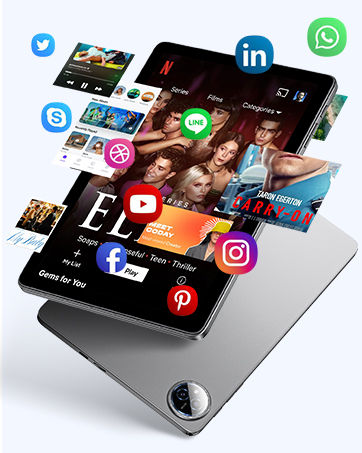
Image 2.1: All items included in the Raemond Tablet K30 package.
3. Tablet Overview
3.1. Display
- Size: 10.1-inch IPS display.
- Resolution: 1280x800 pixels, providing clear visuals.
- Technology: IPS Incell fully laminated display for richer colors and wider viewing angles.
- Eye Protection: Features blue light filtering to reduce eye fatigue.
- Widevine L1 Support: Enables high-definition streaming content.

Image 3.1: Key features of the Raemond K30 tablet, including display size and resolution.

Image 3.2: Eye-Caring Mode and Dark Mode for reduced eye strain.
3.2. Performance
- Operating System: Android 15, offering enhanced privacy and security features.
- Processor: 2.0 GHz Octa-core CPU (Unisoc), designed for efficient multitasking.
- RAM: 18GB (6GB physical + 12GB virtual) for smooth application performance.
- Internal Storage (ROM): 128GB.
- Expandable Storage: Supports up to 1TB via microSD card (not included).

Image 3.3: Octa-core Unisoc processor details.
3.3. Cameras
- Rear Camera: 8MP for capturing photos and videos.
- Front Camera: 5MP for video calls and selfies.
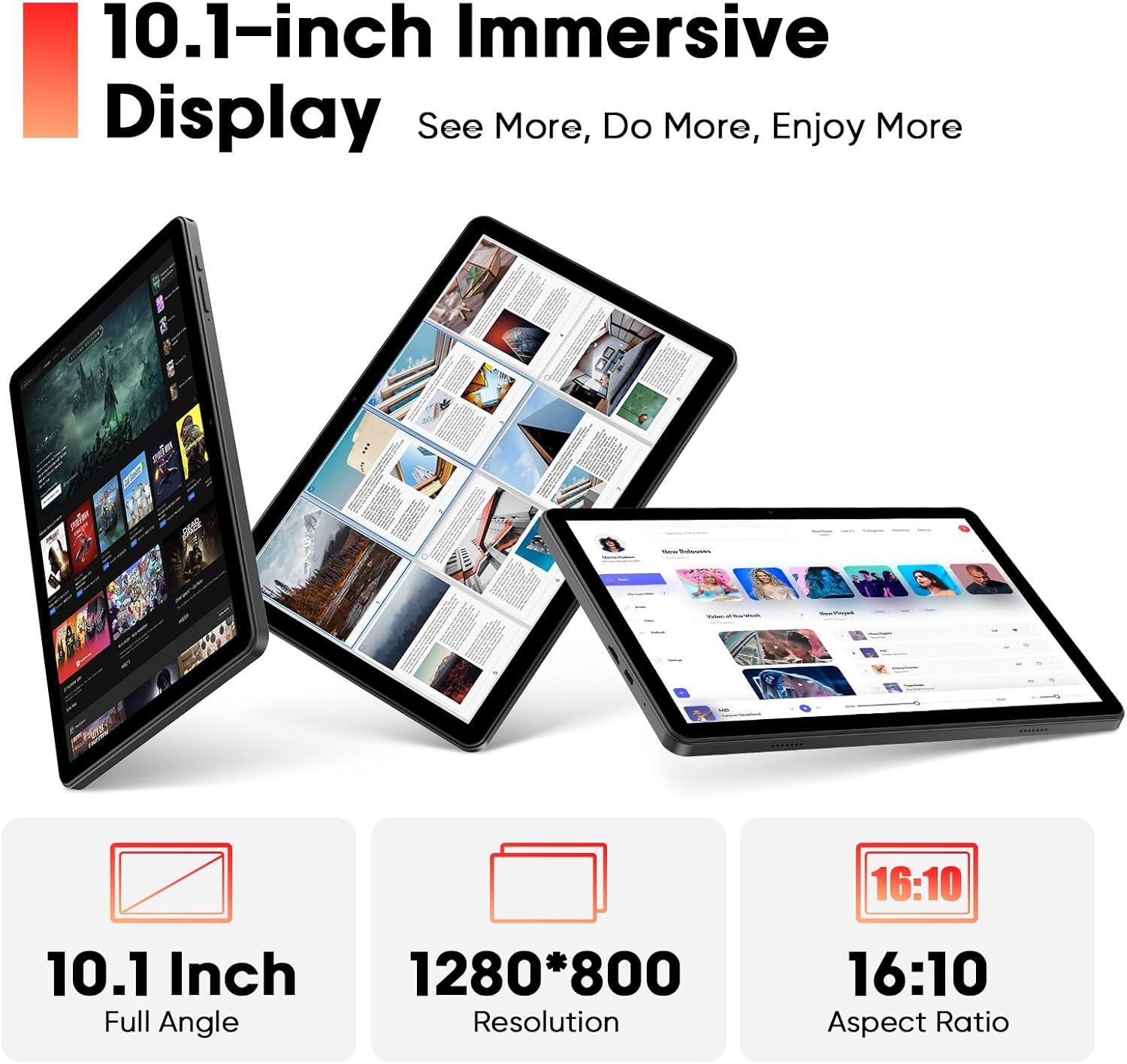
Image 3.4: Front and Rear Camera specifications.
3.4. Audio
- Speakers: Dual stereo-enhanced speakers for clear audio output.

Image 3.5: Stereo-enhanced dual speakers for immersive sound.
3.5. Connectivity
- Wi-Fi: Wi-Fi 6 (802.11ax) for high-speed and stable wireless connections.
- Bluetooth: Bluetooth 5.4 for connecting peripherals like keyboards, mice, and headphones.
- Ports: USB-C for charging and data transfer, 3.5mm headphone jack.
- GPS: Integrated GPS for navigation and location services.

Image 3.6: Wi-Fi 6 and Bluetooth 5.4 for robust wireless connections.
3.6. Battery
- Capacity: 6000mAh high-capacity battery.
- Life: Designed for long battery life, reducing the need for frequent charging.

Image 3.7: Tablet charging, highlighting the 6000mAh battery.
4. Setup Guide
4.1. Initial Power On and Basic Settings
- Press and hold the power button located on the side of the tablet until the screen lights up.
- Follow the on-screen prompts to select your language (e.g., English (United States)) and configure initial settings.
- Connect to a Wi-Fi network when prompted to enable internet access.
4.2. Connecting Keyboard and Mouse (Bluetooth Pairing)
To enhance your tablet experience, you can connect the included Bluetooth keyboard and mouse:
- Ensure the keyboard and mouse are charged and powered on.
- On your tablet, navigate to Settings > Connected devices > Bluetooth.
- Turn on Bluetooth. The tablet will scan for available devices.
- Select the keyboard (e.g., "Bluetooth Keyboard") and mouse (e.g., "BT5.2 Mouse") from the list of available devices to pair them. Confirm pairing when prompted.
Video 4.1: This video demonstrates the unboxing, initial power-on, and Bluetooth pairing process for the keyboard and mouse with the Raemond K30 tablet.

Image 4.1: Tablet connected to the Bluetooth keyboard.
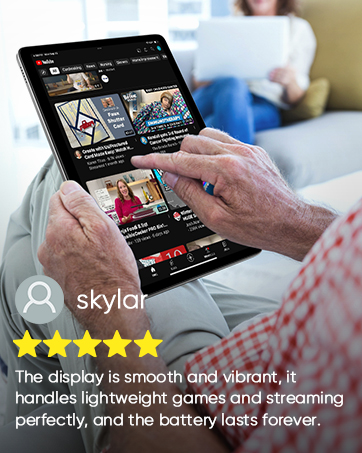
Image 4.2: Tablet connected to the Bluetooth mouse.
5. Operating Instructions
5.1. Android 15 Features
Your Raemond K30 tablet runs on Android 15, offering a range of features designed for improved user experience, privacy, and security:
- Enhanced App Permissions: Granular control over what data apps can access.
- Privacy Dashboard: Monitor and manage app access to your device's sensors and data.
- Parental Controls: Tools to manage screen time and content access for children.
- Taskbar: Convenient multitasking and quick access to frequently used apps.
- Parallel View: Optimized landscape experience for certain applications.
Image 5.1: Overview of Android 15 features on the tablet.
5.2. Split Screen with App Pairing
Android 15 allows you to use two applications simultaneously in split-screen mode. You can also pair apps for quick access to frequently used combinations.
Video 5.2: Demonstration of the Split Screen with App Pairing feature on the tablet.
5.3. Three-Pointer Screenshot
Quickly capture a screenshot by using the three-pointer gesture. This feature can be enabled in the tablet's settings under Gestures.
Video 5.3: How to use the Three-Pointer Screenshot gesture.
5.4. Security and Privacy Settings
Manage your device's security and privacy options through the Settings menu. This includes setting screen locks, managing app permissions, and reviewing privacy controls.
Video 5.4: Navigating Security and Privacy Settings on the tablet.
5.5. Using the Stylus
The included stylus can be used for precise navigation, drawing, and handwriting input on the tablet screen. It is particularly useful for tasks requiring fine motor control or for signing documents.
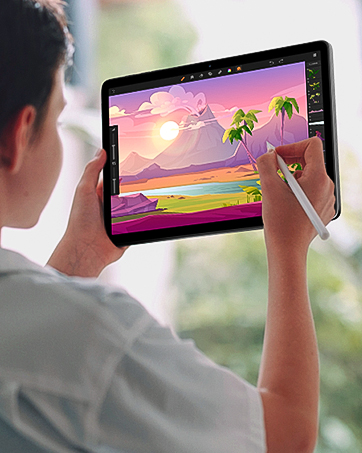
Image 5.2: Using the stylus for precise input.
5.6. Productivity Applications
The tablet supports various productivity applications, including WPS Office (Word, Excel, PowerPoint), making it suitable for work and study tasks.

Image 5.3: Tablet displaying various productivity applications.
6. Maintenance and Care
- Cleaning: Use a soft, lint-free cloth to clean the screen and body. Avoid harsh chemicals.
- Battery Care: To prolong battery life, avoid extreme temperatures and do not let the battery fully discharge frequently.
- Software Updates: Regularly check for and install system updates to ensure optimal performance and security. Navigate to Settings > System > System updates.
- Storage Management: Periodically clear unnecessary files and apps to maintain performance.
7. Troubleshooting
7.1. Common Issues and Solutions
- Tablet not turning on: Ensure the battery is charged. Connect the charger and wait a few minutes before attempting to power on again.
- Slow performance: Close unused applications, clear cache, or restart the tablet. Consider expanding storage with a microSD card if internal storage is full.
- Wi-Fi/Bluetooth connectivity issues: Toggle Wi-Fi/Bluetooth off and on. Restart the tablet and your router/Bluetooth device. Ensure you are within range.
- Screen unresponsive: Restart the tablet by holding the power button. If the issue persists, a factory reset might be necessary (backup data first).
8. Specifications
| Feature | Specification |
|---|---|
| Model Name | K30 |
| Operating System | Android 15 |
| Screen Size | 10.1 Inches |
| Screen Resolution | 1280 x 800 pixels (IPS) |
| Processor | 2.0 GHz Octa-core (Unisoc) |
| RAM | 18GB (6GB + 12GB virtual) |
| Internal Storage (ROM) | 128GB |
| Expandable Storage | Up to 1TB via microSD card |
| Rear Camera | 8MP |
| Front Camera | 5MP |
| Battery Capacity | 6000mAh |
| Wireless Type | Wi-Fi 6 (802.11ax) |
| Bluetooth | Bluetooth 5.4 |
| Ports | USB-C, 3.5mm Headphone Jack |
| GPS | Yes |
| Item Weight | 1.19 pounds |
| Product Dimensions | 9.65 x 6.34 x 0.31 inches |
9. Warranty and Support
- Warranty: The Raemond Android Tablet K30 comes with a 2-year limited warranty.
- Customer Service: 24/7 customer service support is available for technical issues or setup questions. Please refer to the product packaging or the official Raemond website for contact details.
