
1. Introduction
The Hoxe Air Tracker Tag F2 is a Bluetooth item finder designed to help you locate your personal belongings using the Apple Find My network. This device is compatible exclusively with iOS devices, allowing you to track items such as keys, luggage, and bags with ease.

Image: Hoxe Air Tracker Tag F2 features overview.
2. Package Contents
Verify that all items are present in your package:
- 4 x Hoxe Air Tracker Tags
- 4 x Lanyards
- 1 x Triangular Lid Opener
- 1 x User Manual

Image: Package contents of the Hoxe Air Tracker Tag F2.
3. Setup
3.1 Initial Activation and Pairing
Follow these steps to activate your Hoxe Air Tracker Tag F2 and pair it with your iOS device:
- Press the Power Button: Press the power button on the device to turn it on.
- Open Find My App: On your iOS device, open the pre-installed Find My app.
- Add Item: Navigate to the 'Items' tab, tap 'Add Item', then select 'Other Supported Item'.
- Connect: The app will search for nearby devices. Select 'F2' from the list and tap 'Connect'.
- Name Your Item: Follow the on-screen prompts to name your item and assign an emoji for easy identification.

Image: Step-by-step guide for pairing the Hoxe Air Tracker Tag F2.
4. Operating Instructions
4.1 Finding Nearby Items
When your Hoxe Air Tracker Tag F2 is within Bluetooth range (up to 200 feet/60 meters), you can use the Find My app to locate it. Tap 'Play Sound' in the app, and the built-in speaker (90-100 dB) on the tag will emit a loud sound to help you pinpoint its location.
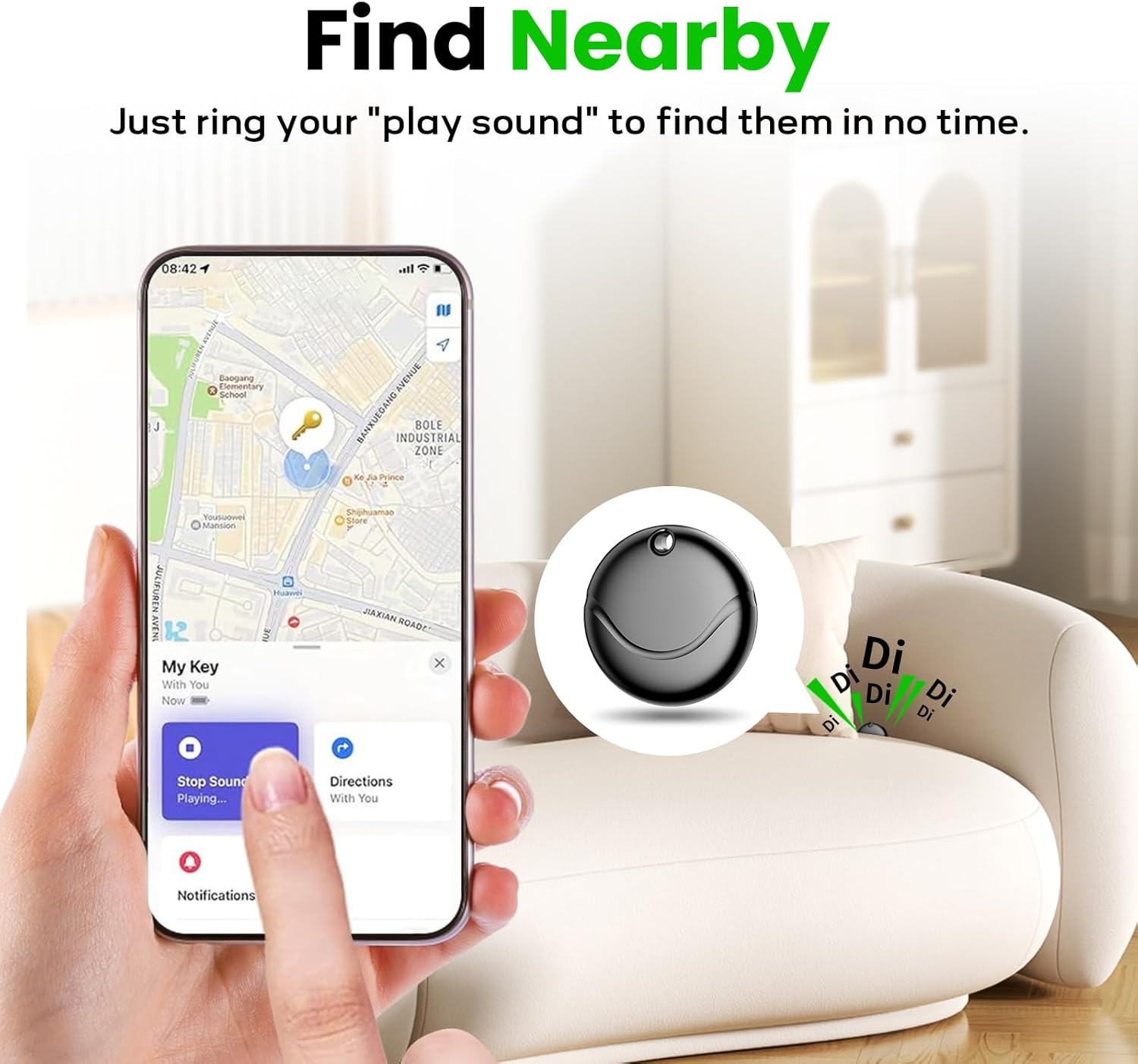
Image: Using the 'Play Sound' feature to find a nearby item.
4.2 Far Away Tracking
The Hoxe Air Tracker Tag F2 leverages the Apple Find My network for long-distance tracking. Even if your item is out of Bluetooth range, you can view its real-time location on a map within the Find My app. The navigation feature will guide you closer to the tag's location.
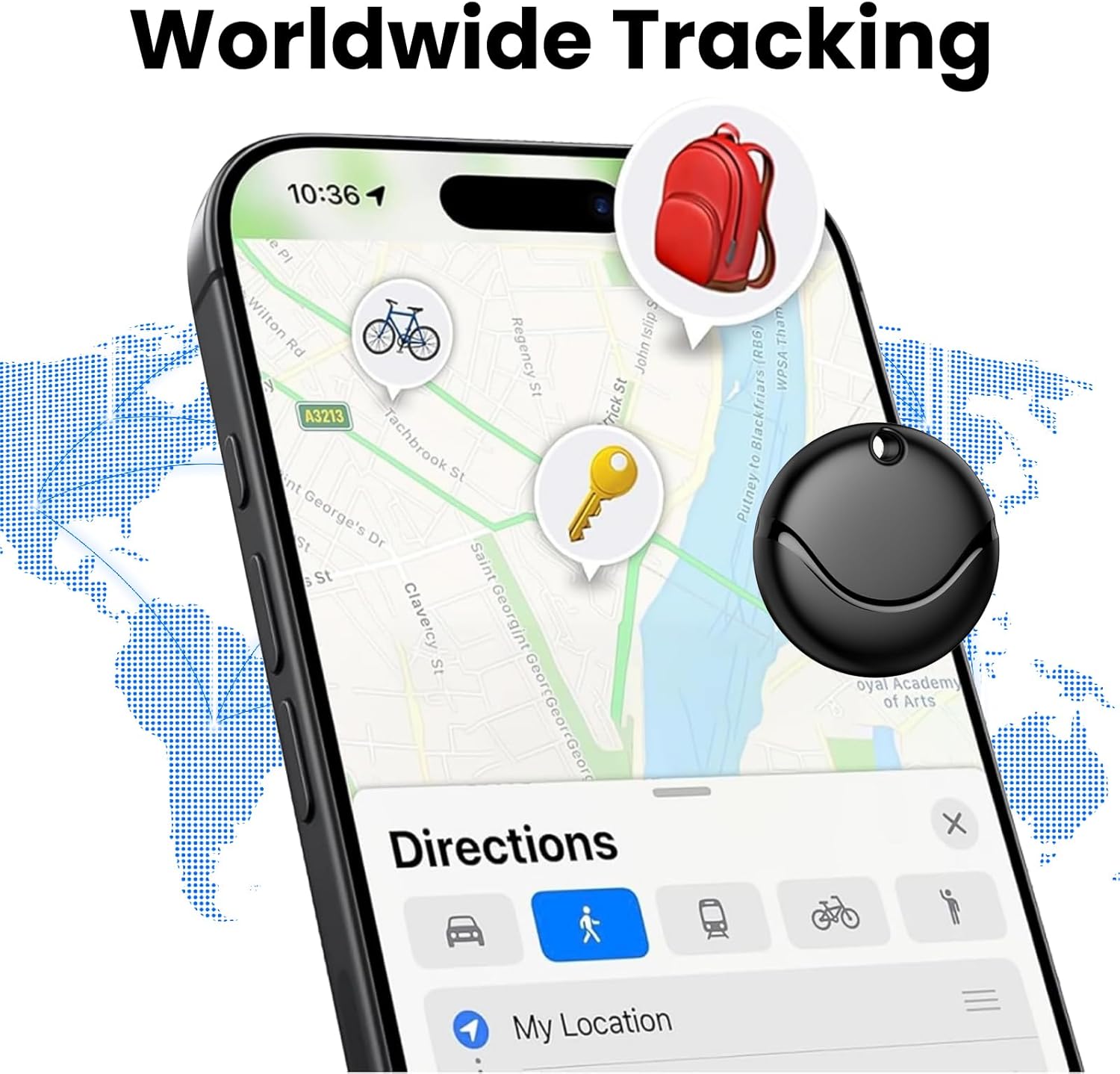
Image: Worldwide tracking functionality via the Find My app.
4.3 Left-Behind Remind
If an item with your tracker tag is left behind and the Bluetooth connection to your iOS device is disconnected, the Find My app will immediately send you a notification that the item is missing. This feature operates at no additional cost.
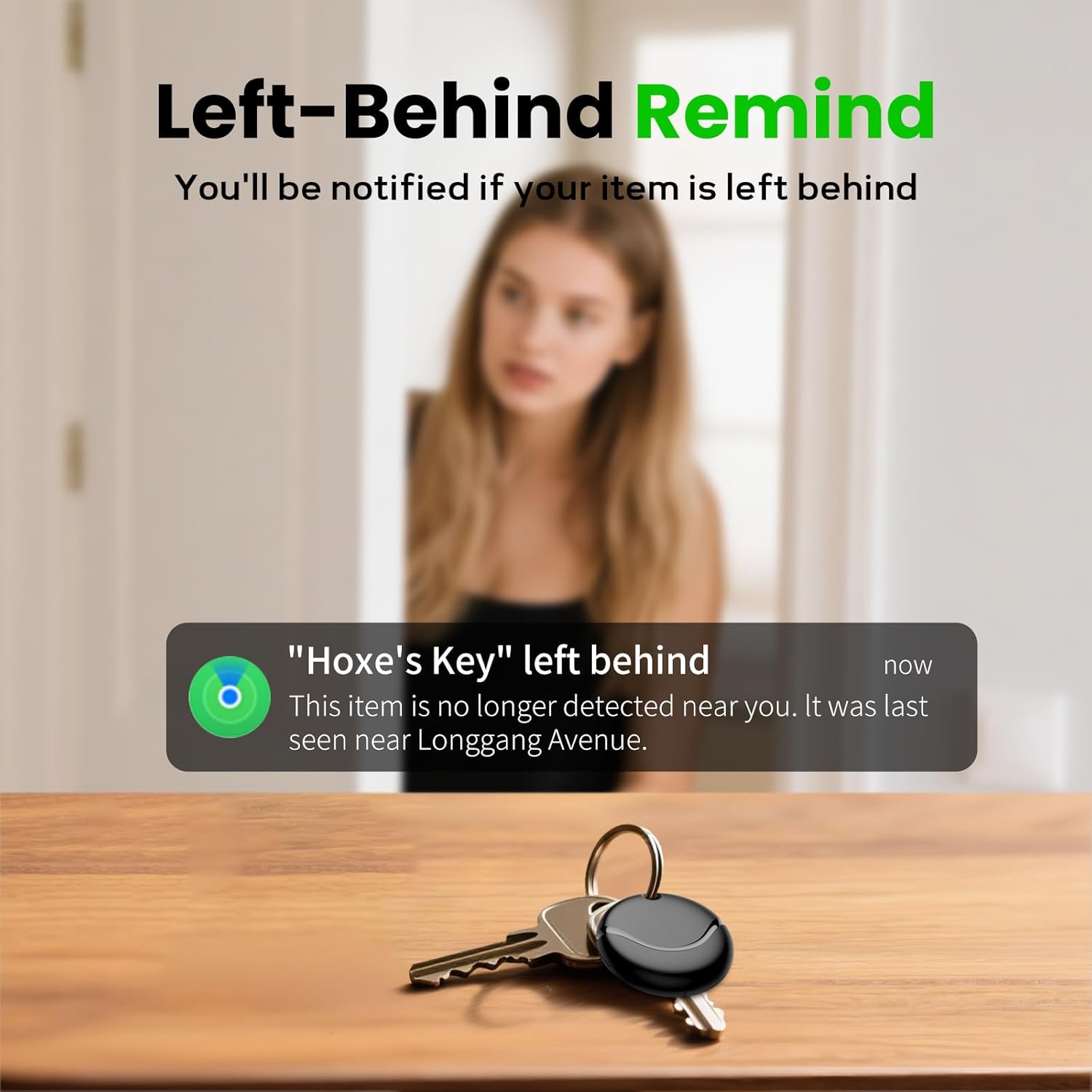
Image: Left-Behind Remind notification on an iPhone.
4.4 Lost Mode
Activate 'Lost Mode' in the Find My app. If you preset a lost mode and retain your contact information, the key finder allows nearby Apple devices to access your contact information and remotely provide you with the location of the localizer. This ensures that if someone finds your lost tag, they can securely access your contact information to return it.

Image: Activating Lost Mode for the Hoxe Air Tracker Tag F2.
4.5 Siri Integration
If your item is nearby, you can ask Siri for assistance in finding the item tag. Simply say, "Hey Siri, where are my keys?" (or the name you assigned to your tag), and Siri will prompt the tag to play a sound.

Image: Using Siri to locate your Hoxe Air Tracker Tag F2.
4.6 Share Your Items
The Hoxe Air Tracker Tag F2 supports item sharing, allowing friends or family to view the location of your items. This feature requires iOS 17, iPadOS 17, or macOS 14 or later.

Image: Sharing item location with others.
4.7 Versatile Use Cases
The compact and lightweight design of the Hoxe Air Tracker Tag F2 makes it suitable for tracking various essentials:
- Keys: Attach to your key ring to prevent misplacement.
- Wallet/Bags: Slip into your wallet or attach to your handbag or backpack.
- Luggage: Secure to suitcases for easy tracking during travel.
- Camera: Attach to camera straps for added security.
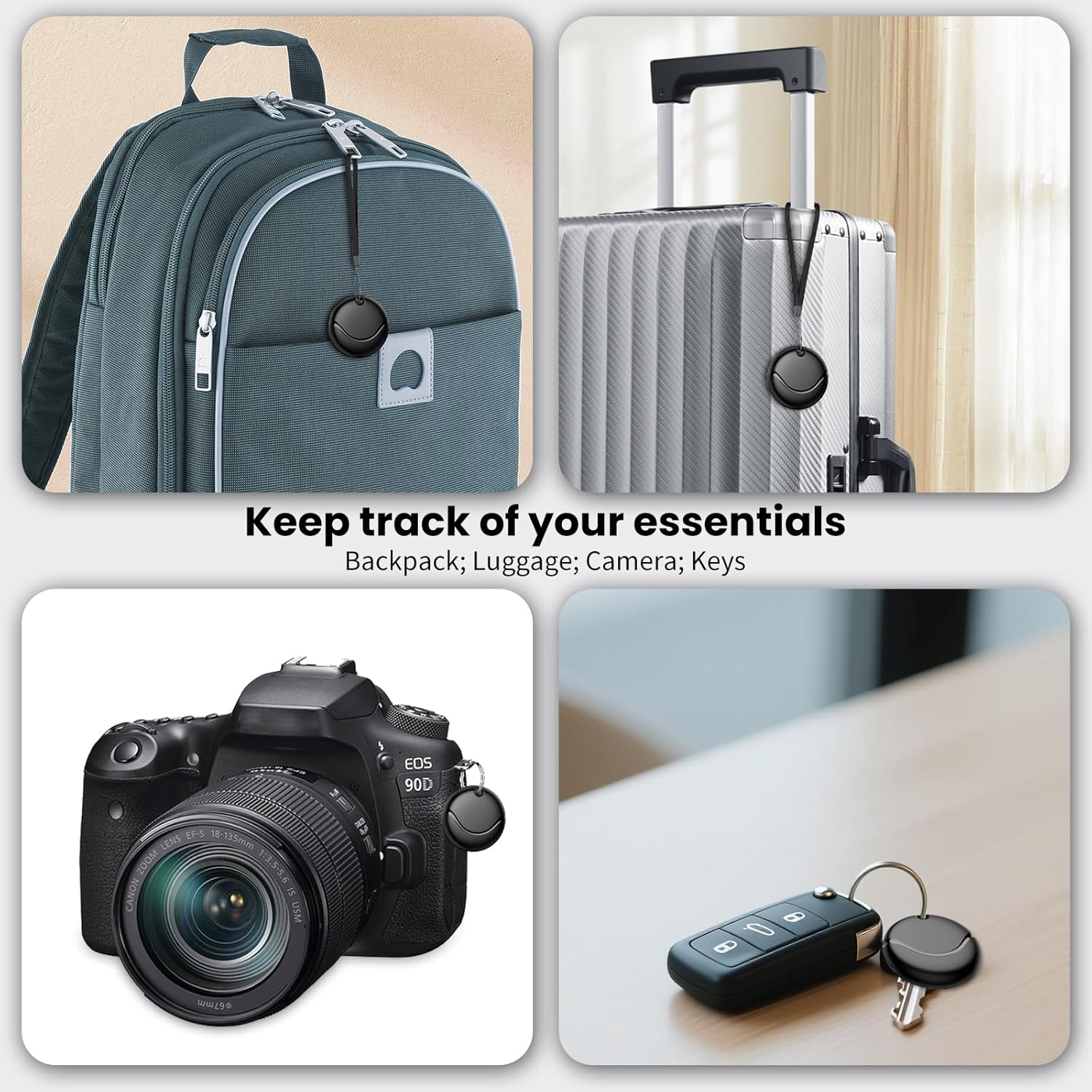
Image: Examples of how to use the Hoxe Air Tracker Tag F2 with various items.
5. Maintenance
5.1 Battery Replacement
The Hoxe Air Tracker Tag F2 is powered by a replaceable CR2032 coin cell battery, which typically lasts up to 2 years. The Find My app will notify you when the battery level is low. To replace the battery:
- Open the Tag: Use the provided triangular lid opener to carefully pry open the battery cover.
- Replace Battery: Remove the old CR2032 battery and insert a new one, ensuring correct polarity.
- Close Cover: Press the battery cover firmly back into place until it clicks securely.
The unique cover design helps prevent accidental opening by children.

Image: Battery replacement instructions for the Hoxe Air Tracker Tag F2.
5.2 Water Resistance
The Hoxe Air Tracker Tag F2 is IP67 waterproof, meaning it is protected from dust and can withstand immersion in water up to 1 meter for up to 30 minutes. This ensures durability against splashes and everyday exposure to moisture.
6. Troubleshooting
If you encounter issues with your Hoxe Air Tracker Tag F2, consider the following:
- Tracker Not Connecting: Ensure Bluetooth is enabled on your iOS device. Check if the tracker's battery is depleted and replace it if necessary.
- Inaccurate Location: Verify that the Find My app has location permissions enabled on your iOS device. Ensure your device has an active internet connection for optimal network participation.
- No Sound from Tracker: Confirm the tracker is within Bluetooth range. Check battery level.
- Lost Mode Issues: Ensure you have correctly entered your contact information when activating Lost Mode.
For further assistance, refer to the detailed instruction manual included in your package or contact customer support.
7. Specifications
| Feature | Specification |
|---|---|
| Model | F2 |
| Dimensions | 1.26 x 1.26 x 0.35 inches (32 x 32 x 9 mm) |
| Weight | 0.868 ounces (24.6 grams) |
| Battery Type | CR2032 Coin Cell |
| Battery Life | Up to 2 years |
| Water Resistance | IP67 |
| Bluetooth Range | Up to 200 feet / 60 meters |
| Speaker Loudness | 90-100 dB |
| Compatibility | Apple Find My (iOS Only) |

Image: Hoxe Air Tracker Tag F2 specifications overview.
8. Warranty and Support
Hoxe provides a 2-year warranty for the Air Tracker Tag F2. For any questions, technical support, or warranty claims, please consult the instruction manual enclosed within the packaging for contact information or visit the official Hoxe website. Our dedicated after-sales service team is available to provide support.

Image: Key features including 2-year battery life and IP67 waterproof rating.
9. Safety Information
Please read and follow these safety guidelines:
- Choking Hazard: The device contains small parts (e.g., battery) that can be a choking hazard. Keep out of reach of small children.
- Battery Safety: Only use CR2032 batteries. Do not attempt to recharge non-rechargeable batteries. Dispose of used batteries according to local regulations.
- Disassembly: Do not attempt to disassemble the device beyond battery replacement. Unauthorized modifications may void the warranty and pose safety risks.
- Operating Temperature: Avoid exposing the device to extreme temperatures.
10. Product Video
Watch this video for a demonstration of the Hoxe Air Tracker Tag F2 in use:
Video: Demonstration of the Hoxe Air Tracker Tag F2's features and ease of use.


