
MINGFENG TCL NxtPaper 11 Plus 11.5 inch (9469x)
Instruction Manual
MINGFENG Protective Case for TCL NxtPaper 11 Plus 11.5 inch (9469x) Tablet
1. Product Overview
This protective case is designed to safeguard your TCL NxtPaper 11 Plus 11.5 inch (9469x) tablet. It features a folding stand, an integrated pencil holder, and a wrist strap for enhanced usability and protection.

Image 1.1: The MINGFENG Protective Case with a TCL NxtPaper 11 Plus tablet, displayed in a viewing stand configuration.
2. Setup and Installation
Follow these steps to correctly install your tablet into the protective case:
- Prepare the Case: Open the case fully to reveal the inner frame designed to hold the tablet.
- Insert the Tablet: Carefully align your TCL NxtPaper 11 Plus 11.5 inch tablet with the frame. Gently press the tablet into the frame, ensuring all edges are securely seated. The flexible frame is designed to hold the tablet firmly while allowing access to all ports and buttons.
- Verify Fit: Ensure the tablet is flush with the case frame and that all cutouts for cameras, ports, and buttons are correctly aligned and accessible.

Image 2.1: Illustration of a tablet being carefully placed into the protective case's internal frame.
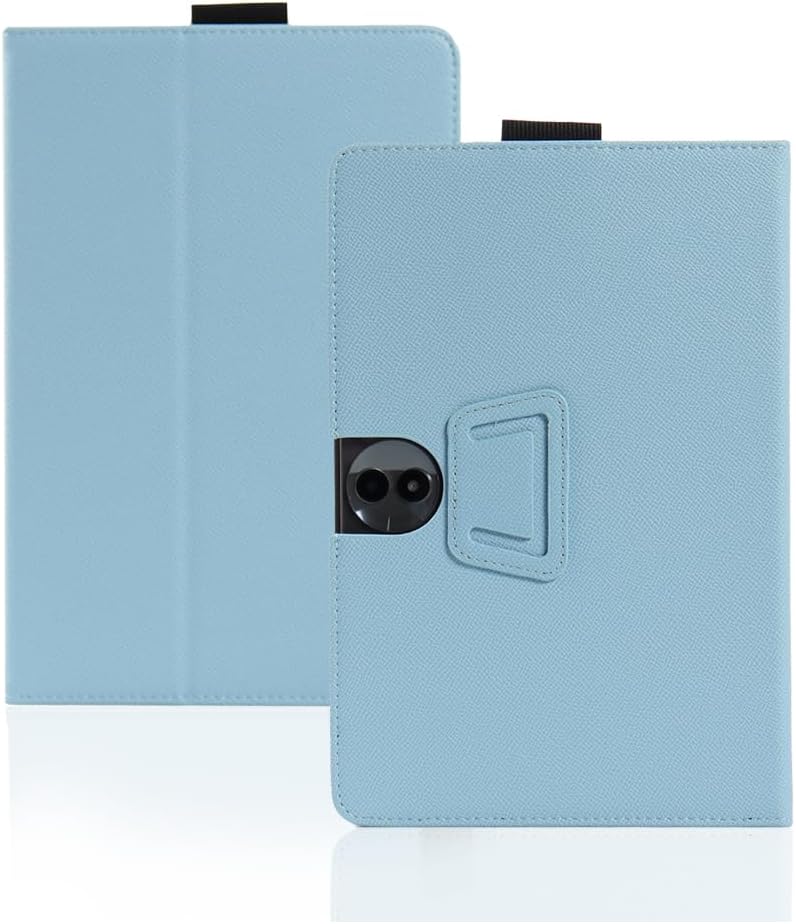
Image 2.2: Rear view of the case with the tablet installed, highlighting the precise cutout for the tablet's camera module.
3. Operating Instructions
3.1. Folding Stand Function
The case features a multi-angle folding stand for comfortable viewing or typing. To activate the stand:
- Open the Cover: Fold the front cover completely backward.
- Form the Stand: Utilize the integrated grooves or folds in the cover to create a triangular support structure. The magnetic closure helps secure the stand in position.
- Adjust Angle: Position the tablet in one of the available grooves to achieve your desired viewing or typing angle.
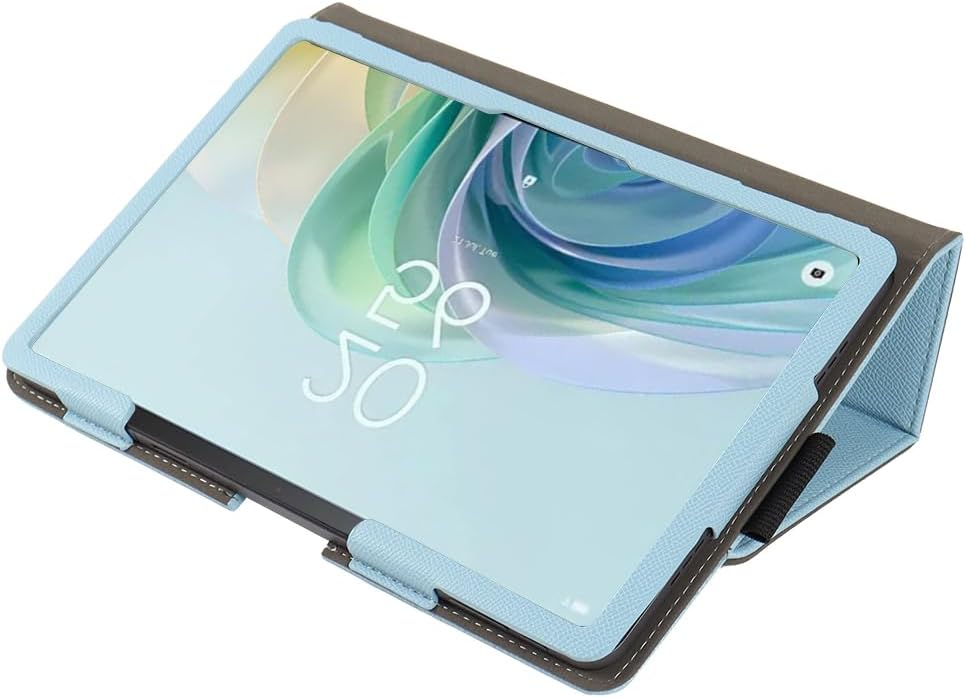
Image 3.1: The case configured as a stand, providing an elevated viewing angle for the tablet.

Image 3.2: A side profile view demonstrating the stability of the case when used as a tablet stand.
3.2. Pencil Holder
An elastic loop is integrated into the case to securely hold a stylus or digital pen. Insert your pen into this loop when not in use to prevent loss.
3.3. Wrist Strap
The case includes a wrist strap for added security and ease of carrying. Slide your hand through the strap to maintain a firm grip on your tablet, reducing the risk of accidental drops.

Image 3.3: The rear of the case, illustrating the integrated wrist strap for secure handling.
4. Maintenance
To ensure the longevity and appearance of your protective case, follow these maintenance guidelines:
- Cleaning: Wipe the exterior of the case with a soft, damp cloth. For stubborn stains, a mild soap solution can be used, followed by wiping with a clean, damp cloth and then drying thoroughly.
- Avoid Harsh Chemicals: Do not use abrasive cleaners, solvents, or harsh chemicals, as these can damage the material.
- Storage: Store the case in a cool, dry place away from direct sunlight and extreme temperatures when not in use.
5. Troubleshooting
- Issue: The case partially covers the tablet screen or ports.
Solution: Ensure the tablet is correctly seated within the case's frame. Gently adjust the tablet's position until all screen edges are clear and all ports and buttons are accessible. The flexible frame allows for minor adjustments.
- Issue: Difficulty charging the tablet when a stylus is in the pencil holder.
Solution: If the pencil holder is located near the charging port, temporarily remove the stylus from the holder before connecting the charging cable. This ensures unobstructed access to the charging port.

Image 5.1: Detail of the charging port area, showing a charging cable connected to the tablet while in the case.
- Issue: Stand does not hold position securely.
Solution: Ensure the folding stand is correctly formed into a stable triangular shape and that the tablet is placed firmly into one of the designated grooves. The magnetic elements should assist in maintaining the stand's position.
6. Specifications
| Brand | MINGFENG |
| Compatible Devices | TCL NxtPaper 11 Plus 11.5 inch, TCL Tab11 Plus (9469x) |
| Form Factor | Case |
| Material | High-quality PU leather |
| Special Features | Folding Stand, Pencil Holder, Wrist Strap |
| Item Weight | 8.4 ounces |
| Package Dimensions | 11.42 x 9.17 x 1.06 inches |
| Color | Blue (for this specific variant) |
| Included Components | Case x 1 |
7. Warranty Information
Specific warranty details for this product are not provided in the available information. Please refer to the retailer's return policy or contact the seller directly for warranty inquiries.
8. Support
For further assistance or questions regarding your MINGFENG Protective Case, please contact the seller through the platform where the purchase was made. Ensure you have your order details available for faster service.
Ask a question about this manual
Ask about setup, troubleshooting, compatibility, parts, safety, or missing instructions. Manuals+ will review the question and use this page’s manual context to help answer it.