
1. Product Overview
The TP-LINK SG2210P is a high-performance 10-port Gigabit Smart Switch designed for robust network expansion. It features 8 Power over Ethernet Plus (PoE+) ports and 2 SFP uplink ports, making it suitable for various environments including business, hospitality, and surveillance.
This switch efficiently powers devices such as IP cameras, wireless access points, and VoIP phones with a total PoE power budget of up to 62W. The SG2210P integrates seamlessly into the Omada Software Defined Networking (SDN) platform, offering centralized cloud management, VLAN support, advanced Quality of Service (QoS), and robust Layer 2+ features for scalable and secure network solutions.
Key Features:
- 10 Gigabit ports: 8 PoE+ (802.3af/at) ports and 2 SFP uplink ports.
- 62W PoE power budget for powering multiple compatible devices.
- Omada SDN integration for centralized cloud and local management.
- Advanced Layer 2+ features including VLANs, QoS, IGMP Snooping, and Static Routing.
- User-friendly web interface and Omada app support for easy configuration.
- Reliable performance for IP surveillance, wireless networks, and VoIP applications.
- Fanless design ensures silent operation.
2. Package Contents
Verify the following items are included in your package:
- TP-LINK SG2210P Smart Switch
- Power Adapter/Cord
- Installation Tools (e.g., rackmount kit, rubber feet)
- Quick Installation Guide
If any item is missing or damaged, please contact your vendor or TP-LINK support.
3. Hardware Overview
3.1 Front Panel
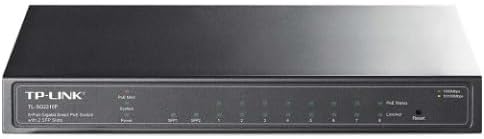
Figure 1: Front Panel of SG2210P Switch
The front panel of the SG2210P switch features various indicators and ports for operation and status monitoring. From left to right, you will find the TP-LINK branding and model number. Status LEDs include PoE Max, System, and Power indicators. Following these are 8 Gigabit Ethernet ports (1-8) with PoE+ capability, each with its own Link/Act and PoE Status LED. On the far right, there are two SFP uplink ports, a Link/Act LED for these ports, and a Reset button.
LED Indicators:
- PoE Max: Indicates the total PoE power consumption status.
- System: Indicates the system status (e.g., blinking for normal operation).
- Power: Indicates if the device is powered on.
- Link/Act (Ports 1-8, SFP): Indicates a network connection and data activity on the respective port.
- PoE Status (Ports 1-8): Indicates PoE power delivery status for each port.
Ports and Buttons:
- 1-8 (RJ45): 10/100/1000 Mbps Ethernet ports with 802.3af/at PoE+ support.
- SFP (Uplink): Two Gigabit SFP ports for fiber optic connections.
- Reset Button: Used to restore the switch to factory default settings. Press and hold for approximately 5-10 seconds while the device is powered on.
3.2 Rear Panel
The rear panel typically contains the power input connector and a grounding terminal. Ensure the power adapter is securely connected and, if required, connect the grounding terminal to a protective ground.
4. Setup and Installation
4.1 Physical Installation
- Placement: Place the switch on a stable, flat surface or mount it in a standard 19-inch rack using the provided installation tools. Ensure adequate ventilation around the device.
- Power Connection: Connect the power adapter to the switch's power input and then to a power outlet.
- Grounding: If a grounding terminal is present, connect it to a protective ground to prevent electrical damage.
4.2 Network Connections
- Connect Devices: Connect your network devices (e.g., computers, servers, NVRs) to the RJ45 ports (1-8) using standard Ethernet cables.
- PoE Devices: For PoE-compatible devices (IP cameras, access points), connect them to ports 1-8. The switch will automatically detect and provide power.
- Uplink Connection: Use the SFP ports for fiber optic connections to other switches or network devices, or use a standard RJ45 port for a copper uplink to your router or main network.
4.3 Initial Configuration
The SG2210P can be managed via its web-based graphical user interface (GUI) or through the Omada SDN platform.
- Web GUI Access:
- Connect a computer directly to one of the switch's RJ45 ports.
- Configure your computer's IP address to be in the same subnet as the switch's default IP address (refer to the Quick Installation Guide for default IP).
- Open a web browser and enter the switch's default IP address.
- Log in using the default username and password (refer to the Quick Installation Guide).
- Omada SDN Integration: For centralized management, integrate the switch into your existing Omada SDN network. Refer to the Omada SDN Controller documentation for detailed instructions on device adoption.
5. Operating the Switch
Once installed and configured, the SG2210P operates as a smart switch, providing advanced network functionalities.
5.1 Basic Operation
- Data Forwarding: The switch automatically forwards data packets between connected devices at Gigabit speeds.
- PoE Power: For PoE-enabled devices, the switch automatically detects and supplies power according to 802.3af/at standards. Monitor the PoE Status LEDs for each port.
5.2 Advanced Features
The SG2210P offers a range of Layer 2+ features configurable via the web GUI or Omada SDN Controller:
- VLANs (Virtual Local Area Networks): Segment your network for improved security and performance.
- QoS (Quality of Service): Prioritize network traffic for critical applications like VoIP and video streaming.
- IGMP Snooping: Optimize multicast traffic delivery, essential for IPTV and surveillance systems.
- Static Routing: Configure basic routing capabilities within your network.
- Link Aggregation: Combine multiple ports for increased bandwidth and redundancy.
- Security Features: Access Control Lists (ACL), Port Security, Storm Control, and more.
Refer to the comprehensive user manual available on the TP-LINK website for detailed configuration instructions on these advanced features.
6. Maintenance
6.1 Firmware Updates
Regularly check the TP-LINK support website for the latest firmware updates. Firmware updates can provide new features, performance improvements, and security enhancements. Follow the instructions provided with the firmware download carefully.
6.2 System Backup and Restore
It is recommended to back up your switch's configuration settings before performing major changes or firmware updates. This allows you to restore the previous configuration if needed.
6.3 Physical Care
- Keep the switch in a cool, dry environment, away from direct sunlight and heat sources.
- Ensure proper ventilation and keep vents clear of obstructions.
- Clean the exterior of the device with a soft, dry cloth. Do not use liquid cleaners.
7. Troubleshooting
This section addresses common issues you might encounter with the SG2210P switch.
7.1 No Power
- Ensure the power cord is securely connected to both the switch and the power outlet.
- Verify the power outlet is functional by plugging in another device.
- Check the Power LED on the front panel. If it's off, contact support.
7.2 No Link/Activity on a Port
- Check the Ethernet cable connection at both ends. Try a different cable.
- Ensure the connected device is powered on and functioning correctly.
- Verify the Link/Act LED for the specific port. If it's off, there's no physical link.
- For SFP ports, ensure the SFP module is correctly inserted and compatible.
7.3 PoE Device Not Receiving Power
- Ensure the connected device is PoE-compatible (802.3af/at).
- Check the PoE Status LED for the port. If it's off or blinking abnormally, there might be an issue.
- Verify the total PoE power budget (62W). If too many high-power devices are connected, some might not receive power.
- Try connecting the PoE device to a different PoE port.
7.4 Cannot Access Web Management Interface
- Ensure your computer's IP address is in the same subnet as the switch's IP address.
- Verify the switch's IP address. If you changed it and forgot, you might need to reset the switch to factory defaults.
- Clear your browser's cache or try a different browser.
- Temporarily disable any firewall or antivirus software on your computer.
For further assistance, refer to the full user manual or contact TP-LINK technical support.
8. Specifications
| Model | SG2210P |
| Ports | 8x 10/100/1000 Mbps RJ45 PoE+ Ports, 2x Gigabit SFP Ports |
| PoE Standard | 802.3af/at compliant |
| PoE Power Budget | 62W |
| Switching Capacity | 20 Gbps (Full Duplex) |
| Forwarding Rate | 14.88 Mpps |
| MAC Address Table | 8K |
| Jumbo Frame | 9 KB |
| Dimensions (W x D x H) | (Refer to product datasheet for exact dimensions) |
| Operating Temperature | (Refer to product datasheet) |
| Storage Temperature | (Refer to product datasheet) |
| Operating Humidity | (Refer to product datasheet) |
| Certifications | CE, FCC, RoHS |
Note: Specifications are subject to change without notice. For the most up-to-date information, please visit the official TP-LINK website.
9. Warranty and Support
TP-LINK provides a limited warranty for this product. The specific terms and conditions of the warranty may vary by region. Please refer to the warranty card included with your product or visit the official TP-LINK website for detailed warranty information.
Technical Support:
For technical assistance, firmware updates, and additional resources, please visit the TP-LINK support website:
You can also find FAQs, troubleshooting guides, and contact information for customer service on the support portal.


