
Noaheye T-CQ4011S-W43J
Noaheye Solar Security Camera User Manual
Model: T-CQ4011S-W43J
Introduction
Thank you for choosing the Noaheye Solar Security Camera. This wireless outdoor camera system provides advanced surveillance with 2K HD resolution, 360° PTZ capabilities, color night vision, and AI human detection. Powered by a solar panel and built-in rechargeable battery, it offers a truly wire-free and sustainable security solution for your home or business. This manual will guide you through the setup, operation, and maintenance of your new security camera system.

Image: Two Noaheye solar security cameras with a smartphone displaying the live view and 5G/2.4G WiFi indicators, highlighting the dual-band WiFi capability and 2K Ultra HD resolution.
What's in the Box
Please check the package contents to ensure all items are present:
- 2 x Wireless WiFi PTZ Camera (built-in battery)
- 2 x Solar Panel
- 2 x Bolt Kit (for mounting)
- 2 x User Manual
Setup Guide
1. Initial Charging & Power
Before initial use, ensure the camera's built-in battery is fully charged. While the solar panel provides continuous power, a full initial charge ensures optimal performance. Connect the camera to a standard 5V USB power adapter (not included) using a compatible cable.
2. App Download & Account Creation
Download the EseeCloud app from your smartphone's app store (iOS App Store or Google Play Store). Follow the on-screen instructions to create a new account and log in.
3. Connecting to Wi-Fi
The Noaheye camera supports both 2.4GHz and 5GHz Wi-Fi networks for flexible connectivity. Open the EseeCloud app, select 'Add Device', and follow the in-app prompts to connect your camera to your home Wi-Fi network via Bluetooth pairing. Ensure your phone is close to the camera during this process.
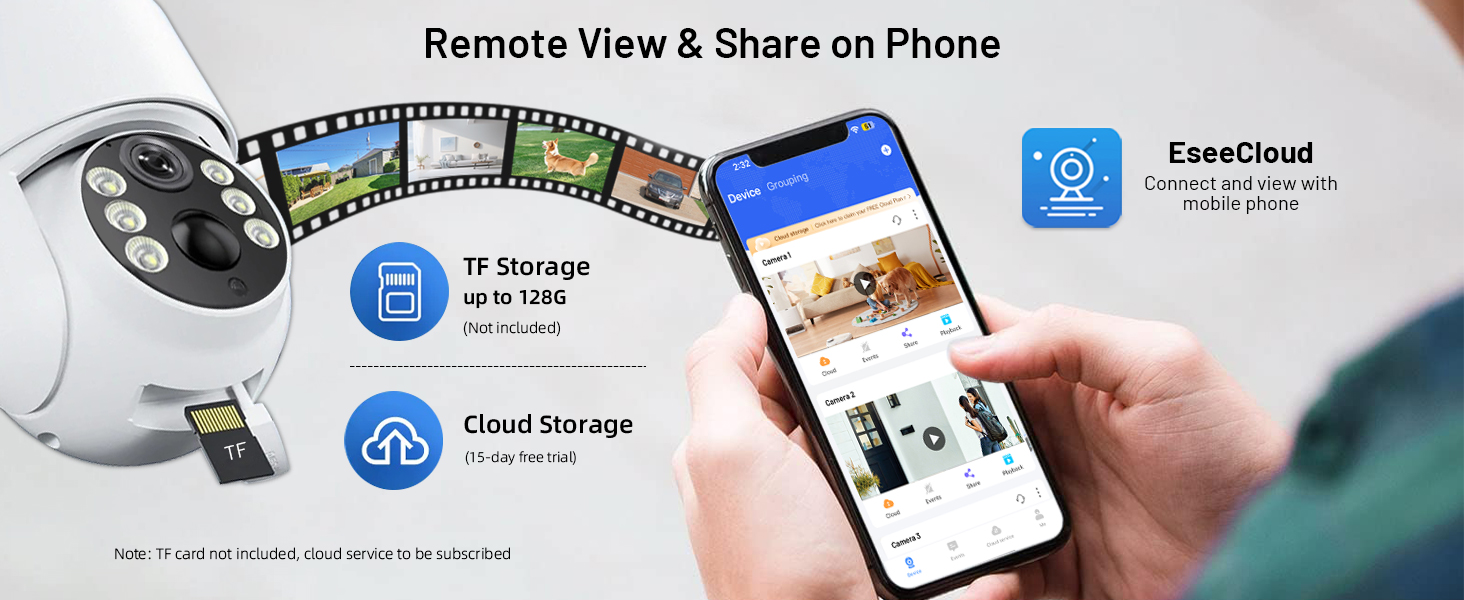
Image: A visual guide illustrating the three main setup steps: downloading the EseeCloud app, connecting the camera to Wi-Fi via Bluetooth, and physically installing the camera and solar panel.
4. Mounting the Camera and Solar Panel
Choose a suitable outdoor location for installation, ideally where the solar panel receives direct sunlight for at least 60 minutes daily. Use the provided bolt kit to securely wall-mount the camera and solar panel. The camera supports wall/ceiling mount. Ensure the solar panel cable is securely connected to the camera.

Image: A person on a ladder installing the Noaheye solar security camera and its accompanying solar panel onto the exterior wall of a house, demonstrating the ease of DIY installation.

Image: A Noaheye solar security camera mounted on a wall, connected to its solar panel, emphasizing its true wireless and 365-day solar battery-powered operation. The image also highlights 2.4GHz/5GHz WiFi support and the benefit of 60 minutes of direct sunlight for all-day monitoring.
Operating Instructions
1. Live View and Remote Access
Once connected, you can access the live feed of your camera from anywhere using the EseeCloud app on your smartphone. Simply open the app and select the desired camera to view its real-time video stream.

Image: A smartphone displaying the EseeCloud app, showing remote viewing and sharing capabilities. The image also highlights the camera's TF card slot for local storage and the option for cloud storage.
2. Pan, Tilt, and Digital Zoom Control
The camera features 270° pan and 90° tilt rotation, allowing you to adjust the viewing angle remotely through the EseeCloud app. Use the directional controls within the app to move the camera lens. The camera also supports 4X digital zoom to focus on specific areas.

Image: A smartphone displaying the EseeCloud app with pan and tilt controls, illustrating the camera's 270° pan and 90° tilt rotation capabilities for comprehensive area coverage.
3. Two-Way Audio
Utilize the built-in microphone and speaker for two-way communication. Tap the microphone icon in the app to speak through the camera, and listen to audio from the camera's surroundings.

Image: A Noaheye security camera mounted on a house, demonstrating its two-way talk feature with speech bubbles showing a conversation between a person at the door and the camera user.
4. PIR AI Motion Detection & Alerts
The camera is equipped with a sensitive PIR AI motion sensor for accurate human detection. When motion is detected, the camera can trigger an audible siren alarm, activate a spotlight, and send instant push notifications to your phone. You can customize motion detection zones within the app to reduce false alarms.

Image: A Noaheye security camera detecting an intruder at night, illustrating its smart PIR detection capabilities with multiple alarm modes including spotlight, siren, and instant phone push alerts.
5. Color Night Vision
The camera provides 2K full HD resolution with superior day and night vision. With its spotlight, it can capture vivid and accurate color images even in low-light conditions, enhancing visibility and identification at night.

Image: A Noaheye security camera with its spotlight activated, demonstrating 2K HD color night vision capabilities, with a smartphone showing the clear night view.
6. Storage Options
The camera supports local storage via a Micro SD card (up to 128GB, not included) without requiring a subscription. Additionally, cloud storage is available (subscription required) for secure backup and access to your recordings.
7. Alexa Integration
The Noaheye solar camera works with Amazon Alexa, allowing for convenient voice control and integration into your smart home ecosystem.
Maintenance
To ensure optimal performance and longevity of your Noaheye Solar Security Camera, follow these maintenance guidelines:
- Solar Panel Cleaning: Periodically wipe the solar panel surface with a soft, damp cloth to remove dust, dirt, or debris that may obstruct sunlight and reduce charging efficiency.
- Lens Cleaning: Gently clean the camera lens with a microfiber cloth to ensure clear image quality. Avoid abrasive materials that could scratch the lens.
- Weather Resistance: The camera is IP65 weatherproof, designed to operate in temperatures from -4°F to 130°F. While it is resistant to rain and dust, avoid submerging it in water or exposing it to extreme conditions beyond its rating.
- Battery Health: The built-in 8000mA battery is designed for long life. Ensure the solar panel is positioned to receive adequate sunlight to maintain battery charge.

Image: A Noaheye solar security camera and its solar panel with water droplets, illustrating its IP65 weather resistance and ability to provide 24/7 surveillance even in cloudy or rainy conditions.
Troubleshooting
If you encounter issues with your Noaheye Solar Security Camera, refer to the following common problems and solutions:
| Problem | Possible Cause / Solution |
|---|---|
| Camera not connecting to Wi-Fi | Ensure your Wi-Fi network is 2.4GHz or 5GHz. Check Wi-Fi password. Move camera closer to router. Restart camera and router. |
| Battery not charging / Low battery | Ensure solar panel is clean and receiving direct sunlight. Check solar panel cable connection. Charge camera with a USB adapter if needed. |
| No motion detection alerts | Check PIR sensor settings in the app. Ensure motion detection is enabled. Adjust sensitivity. Verify notification settings on your phone. |
| Poor image quality | Clean the camera lens. Check Wi-Fi signal strength. Ensure there are no obstructions in the camera's view. |
| Two-way audio not working | Check microphone and speaker permissions for the EseeCloud app on your phone. Ensure volume is up on both ends. |
Specifications
| Feature | Detail |
|---|---|
| Model Number | T-CQ4011S-W43J |
| Indoor/Outdoor Usage | Outdoor |
| Power Source | Solar Powered |
| Connectivity Technology | Wireless (Bluetooth, Wi-Fi 2.4GHz & 5GHz) |
| Video Capture Resolution | 2K HD (4 MP Effective Video Resolution) |
| Viewing Angle | 355 Degrees (Pan), 90 Degrees (Tilt) |
| Night Vision Range | 50 Feet (Color Night Vision) |
| Battery Capacity | 8000mA (built-in) |
| Solar Panel Wattage | 4.2W |
| Storage | Micro SD (up to 128GB), Cloud Storage (subscription) |
| Weather Resistance | IP65 |
| Operating Temperature | -4°F to 130°F |
| Dimensions (L x W x H) | 5.51 x 4.33 x 4.72 inches |
| Item Weight | 2 Pounds |
| Controller Type | Amazon Alexa, App, Voice |
Warranty and Support
Noaheye provides professional customer service for support. If you have any questions, concerns, or require assistance with your product, please do not hesitate to contact our support team. Refer to the product packaging or the EseeCloud app for specific contact information.
For the latest information, FAQs, and software updates, please visit the official Noaheye website or the EseeCloud app's support section.