
Bobuluo 9-inch Double Din Car Stereo (2GB RAM + 32GB ROM)
Bobuluo 9-inch Double Din Car Stereo Radio Instruction Manual
Model: 9-inch Double Din Car Stereo (2GB RAM + 32GB ROM) | Brand: Bobuluo
Introduction
This manual provides comprehensive instructions for the Bobuluo 9-inch Double Din Car Stereo Radio. Designed for 1994-2002 Dodge Ram 1500, 2500, and 3500 models, this head unit offers advanced features including Wireless CarPlay, Android Auto, WiFi, GPS navigation, Bluetooth, and FM radio. Please read this manual thoroughly before installation and operation to ensure proper use and to maximize your driving experience.
What's in the Box
Verify that all components are present before beginning installation.
- 1 x Car MP5 Player
- 2 x USB Cable
- 1 x RCA Cable
- 1 x GPS Antenna
- 1 x Backup Camera
- 1 x Microphone
- 1 x Power Cable
- 1 x Radio Antenna
- 1 x Instruction Manual

Setup and Installation
Professional installation is recommended for this car stereo. Ensure the vehicle's power is disconnected before starting installation.
Wiring Diagram
Refer to the detailed wiring diagram for correct connections of power, speakers, and accessories.

Vehicle Compatibility
This car radio is compatible with 1994-2002 Dodge Ram 1500, 2500, and 3500 models, and Jeep Wrangler TJ 1997-2002. Ensure your vehicle's dashboard matches the provided images for proper fitment.

Operating Instructions
Wireless CarPlay and Android Auto
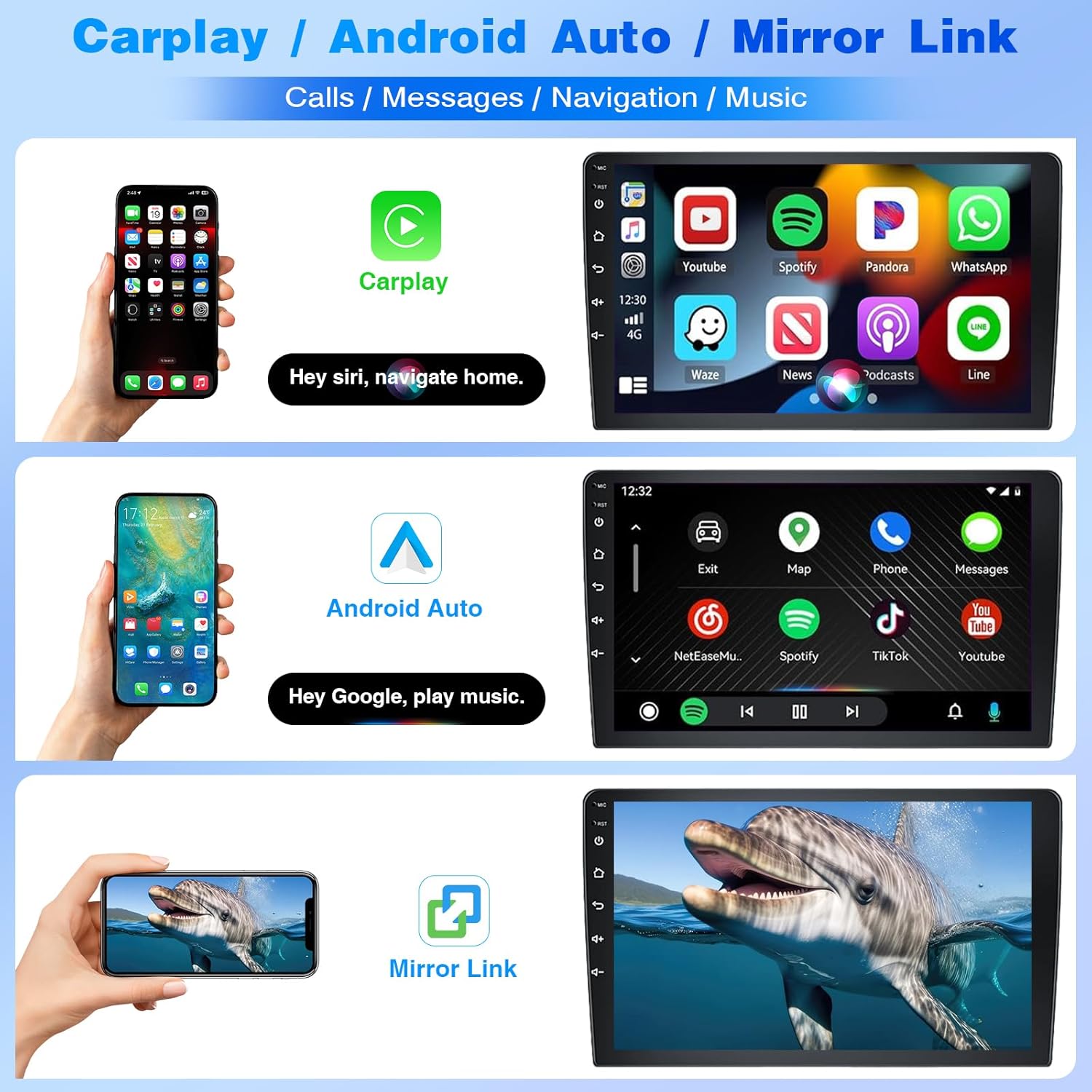
The head unit supports both Wireless CarPlay for iOS devices and Android Auto for Android devices. Connect your smartphone via Bluetooth and Wi-Fi to mirror your phone's interface on the stereo screen. This allows access to navigation, music, calls, and other compatible apps using voice commands (Siri or Google Assistant).
GPS Navigation and WiFi Connectivity
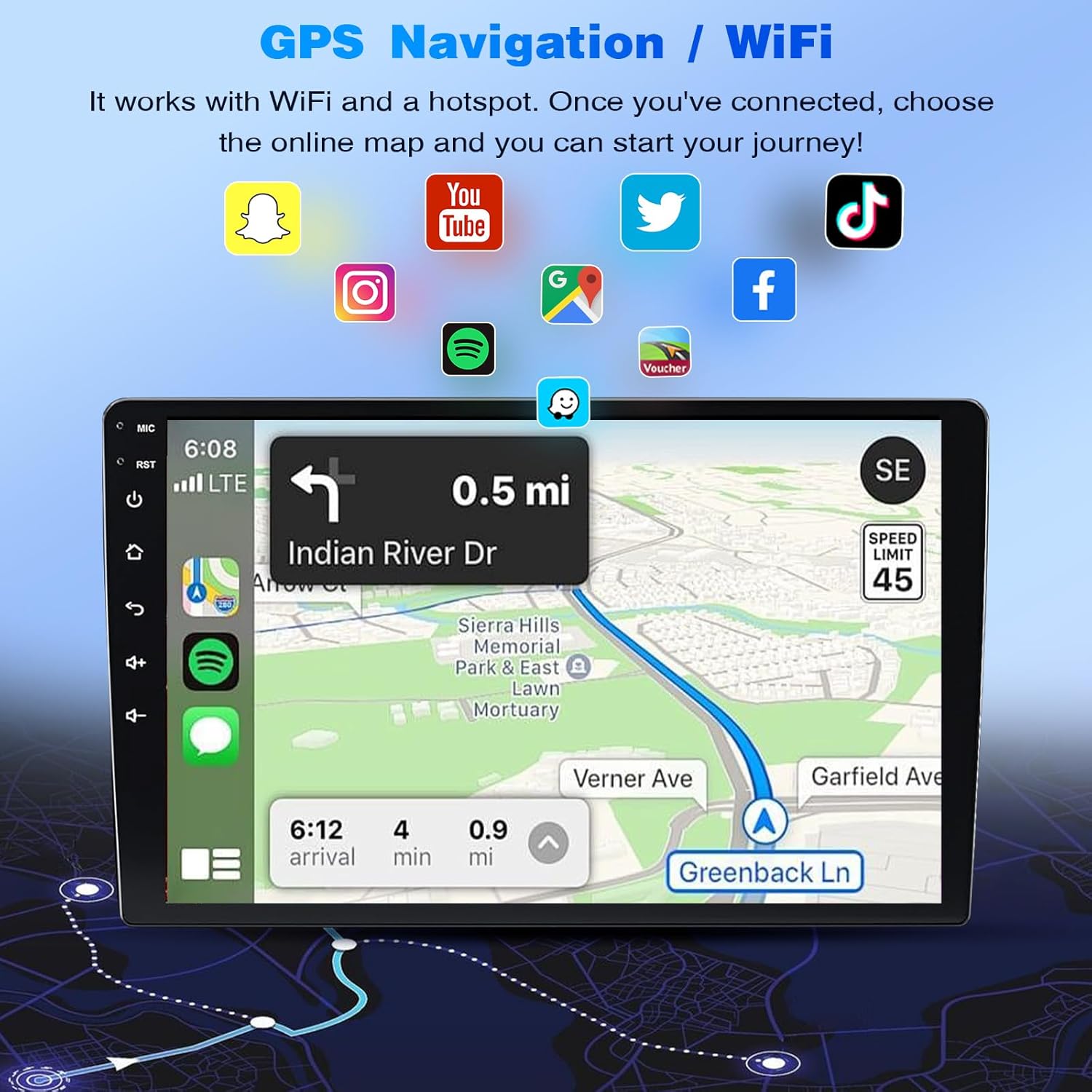
The unit features dual navigation support for both offline and online maps. Connect to a Wi-Fi network or use your phone's hotspot to access online maps and other internet-dependent applications directly on the stereo screen.
Bluetooth and FM Radio
Utilize the built-in Bluetooth for hands-free calling and audio streaming. The integrated FM radio allows you to tune into your favorite stations. The unit includes a built-in microphone and supports an external microphone for clear communication.

Steering Wheel Control and Backup Camera
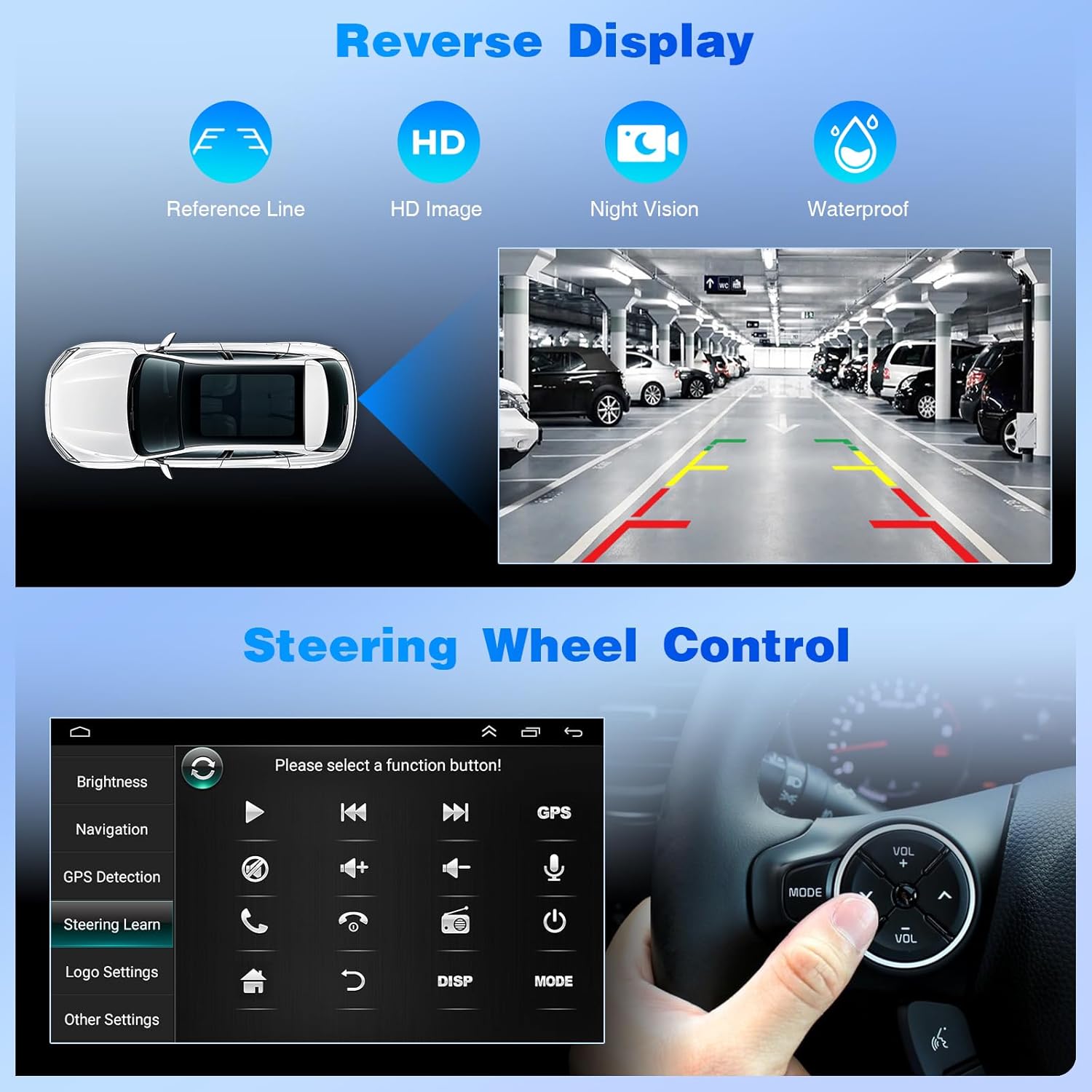
The car stereo supports existing steering wheel controls for convenient operation. A backup camera is included, providing a 170° wide-angle view with IP68 waterproofing and night vision for enhanced safety during parking maneuvers.
Split Screen Functionality
Utilize the split-screen feature to run two applications simultaneously, such as navigation and music, or video and navigation, enhancing multitasking capabilities.

Specifications
| Brand | Bobuluo |
| Vehicle Service Type | Truck |
| Screen Size | 9 Inches |
| Special Features | Bluetooth, Touchscreen, Wireless CarPlay, Android Auto, WiFi, GPS |
| Connectivity Technology | Bluetooth, USB, Wi-Fi |
| Map Type | North America (Offline and Online support) |
| Mounting Type | Dashboard Mount |
| Operating System | Android 13, iOS (via CarPlay) |
| Memory Storage Capacity | 32 GB (2GB RAM) |
| Display Type | IPS Touch Screen (1024*600 resolution) |
| Included Components | Car MP5 Player, 2x USB Cable, RCA Cable, GPS Antenna, Backup Camera, Microphone, Power Cable, Radio Antenna, Instruction Manual |

Troubleshooting
This section provides general guidance for common issues. For specific problems, refer to the detailed troubleshooting section in the included instruction manual or contact customer support.
- No Power: Check all power connections and fuses. Ensure the vehicle's ignition is on.
- No Sound: Verify speaker connections. Check volume levels on both the stereo and connected devices. Ensure the mute function is not active.
- Bluetooth Connection Issues: Ensure Bluetooth is enabled on both the stereo and your phone. Delete previous pairings and attempt to reconnect. If issues persist, restart both devices.
- CarPlay/Android Auto Not Connecting: Ensure your phone is compatible. Verify Bluetooth and Wi-Fi connections. If manual Wi-Fi connection is required, ensure the vehicle's history record is deleted before attempting ZLINK connection.
- GPS Signal Loss: Ensure the GPS antenna is properly installed and has a clear view of the sky.
- Touchscreen Unresponsive: Try restarting the unit. If the issue persists, a factory reset might be necessary (note: this will erase settings).
Warranty and Support
For warranty information, please refer to the specific terms and conditions provided with your product packaging. For technical support or inquiries regarding product compatibility, installation, or operation, please contact Bobuluo customer service through the Amazon platform. Provide your car model and a photo of your car's center console for faster assistance.
