
Mingdaln G25fense
Mingdaln G25fense Smart Watch User Manual
Model: G25fense
Introduction
Thank you for choosing the Mingdaln G25fense Smart Watch. This device is designed to enhance your daily life with features such as fitness tracking, call management, and message notifications. This manual provides detailed instructions to help you set up, operate, and maintain your smart watch for optimal performance.
What's in the Box
Please check the contents of your package. If any items are missing or damaged, please contact customer support.
- Mingdaln G25fense Smart Watch (Pink)
- Charging Cable
- User Manual
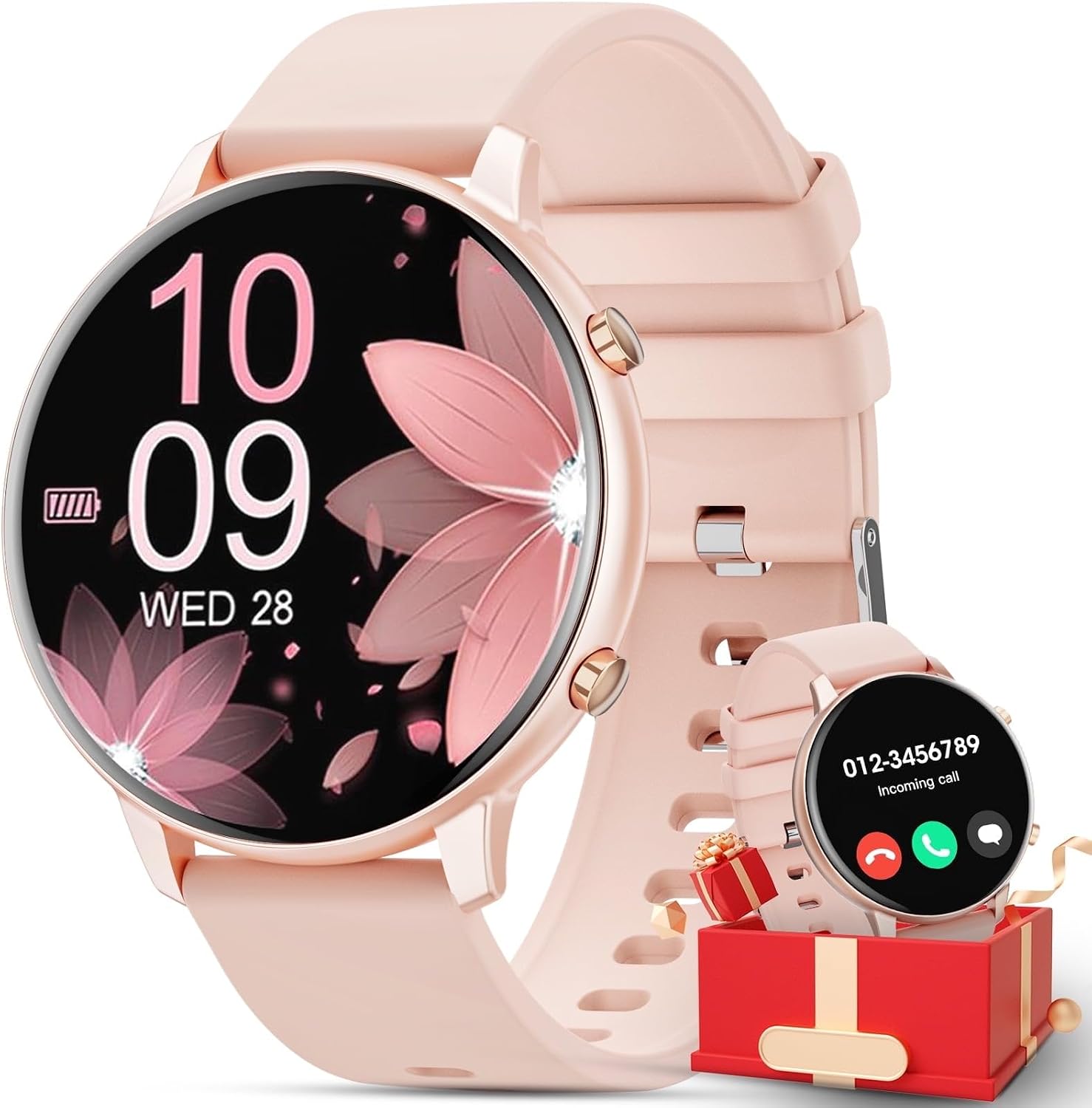
Image: The Mingdaln G25fense Smart Watch, showcasing its 1.39-inch display with a digital clock (10:09), date (WED 28), and battery indicator. The watch features a pink strap and rose gold accents. A smaller depiction shows the watch receiving an incoming call, presented in a red gift box, highlighting its communication features.
Setup
1. Charging the Smart Watch
Before first use, fully charge your smart watch. Connect the charging cable to the charging port on the back of the watch and plug the USB end into a standard USB power adapter (not included) or a computer's USB port. The watch display will indicate charging status.
- Charging Time: Approximately 2 hours for a full charge.
- Battery Life: Varies based on usage.
2. App Installation and Pairing
To unlock the full functionality of your Mingdaln G25fense Smart Watch, you need to install the companion application on your smartphone (Android or iPhone).
- Download the App: Scan the QR code provided in the quick start guide (if applicable) or search for the official "Mingdaln Smart" app (or similar) in the Apple App Store or Google Play Store.
- Create Account: Open the app and follow the on-screen instructions to create an account or log in.
- Enable Bluetooth: Ensure Bluetooth is enabled on your smartphone.
- Pair Device: In the app, navigate to "Add Device" or "Pair Device." Select "G25fense" from the list of available devices. Confirm the pairing request on both your phone and the smart watch.
- Grant Permissions: Allow necessary permissions (e.g., notifications, location, contacts) for the app to function correctly.
Operating Instructions
Basic Navigation
- Touchscreen: Swipe left/right, up/down to navigate through menus and features. Tap to select an item.
- Side Button(s): Typically, a short press returns to the previous screen or watch face. A long press may power on/off or access a quick menu. Refer to the watch's on-screen prompts for specific button functions.
Call and Message Functions
Once paired with your smartphone, the G25fense Smart Watch allows you to manage calls and view messages directly from your wrist.
- Answer/Make Calls: When an incoming call is received, the watch will display the caller ID. You can answer or reject calls directly from the watch. To make a call, use the dialer function within the watch's menu or access your contacts.
- Message Notifications: Receive notifications for SMS messages, social media apps, and other alerts configured in the companion app. Swipe down from the watch face to view recent notifications.
Fitness Tracking
The smart watch includes various sensors to monitor your physical activity.
- Step Counter: Tracks your daily steps, distance, and calories burned.
- Heart Rate Monitor: Provides real-time heart rate readings.
- Sleep Monitor: Analyzes your sleep patterns (deep sleep, light sleep, wake-up times).
- Multi-Sport Modes: Select specific activity modes (e.g., running, walking, cycling) for more accurate tracking during workouts.
All fitness data is synchronized with the companion app for detailed analysis and historical tracking.
Maintenance
Cleaning Your Smart Watch
- Wipe the watch screen and strap regularly with a soft, damp, lint-free cloth.
- Avoid using harsh chemicals, abrasive cleaners, or solvents, as these can damage the watch's finish.
- Ensure the charging contacts are clean and dry before charging to prevent corrosion.
Care and Storage
- Avoid exposing the watch to extreme temperatures, direct sunlight for prolonged periods, or high humidity.
- While the watch may be water-resistant, avoid prolonged submersion or use in hot water (e.g., showers, saunas) unless explicitly stated in the product specifications.
- Store the watch in a cool, dry place when not in use.
Troubleshooting
| Problem | Solution |
|---|---|
| Watch does not power on. | Ensure the watch is fully charged. Connect it to the charger for at least 30 minutes. |
| Unable to pair with smartphone. |
|
| Notifications are not received. |
|
| Inaccurate fitness data. | Ensure the watch is worn snugly on your wrist, about one finger's width above the wrist bone. Calibrate settings in the companion app if available. |
Specifications
| Feature | Detail |
|---|---|
| Model Number | G25fense |
| Display Size | 1.39 inch |
| Operating System | Wear OS 1.1 |
| Special Features | Activity Tracker, Call/Message Reminder, Heart Rate Monitor, Sleep Monitor |
| GPS | No GPS |
| Compatible Devices | Smartphones (Android, iPhone) |
| Color | Pink |
| UPC | 605556942028 |
Warranty and Support
The Mingdaln G25fense Smart Watch comes with a standard manufacturer's warranty. Please refer to the warranty card included in your package or visit the official Mingdaln website for detailed warranty terms and conditions.
For technical support, troubleshooting assistance, or any inquiries regarding your product, please contact Mingdaln customer service through their official website or the contact information provided in your product documentation.
Ask a question about this manual
Ask about setup, troubleshooting, compatibility, parts, safety, or missing instructions. Manuals+ will review the question and use this page’s manual context to help answer it.