1. Introduction
This manual provides detailed instructions for the safe and effective use of your TIDRADIO TD-M2 Global 4G LTE PoC Walkie Talkie. The TD-M2 is designed for long-distance communication using 4G LTE networks, offering features such as APP-managed groups, auto-recording, and clear audio. Please read this manual thoroughly before operating the device.
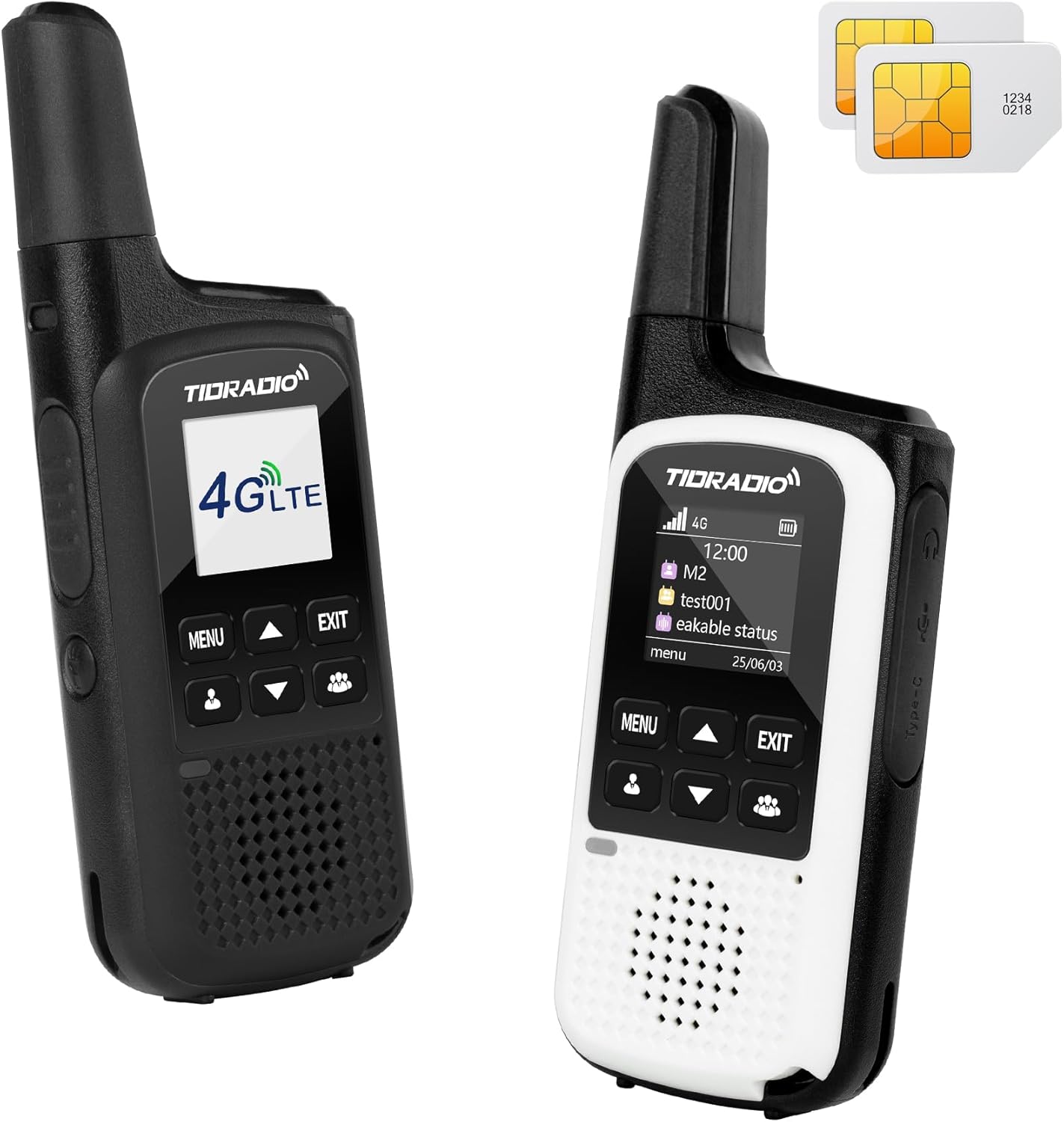
Image: TIDRADIO TD-M2 Global 4G LTE PoC Walkie Talkie.
2. Package Contents
Verify that all items listed below are included in your package:
- 2 x TIDRADIO TD-M2 PoC Radios
- 2 x SIM Cards
- 2 x Type-C Headphones
- 1 x Instruction Manual
- 2 x Charging Adapters
- 2 x Type-C Data Cables
- 2 x 2000mAh 18650 Batteries (pre-installed or separate)
- 2 x Backsplints
- 2 x Slings

Image: Illustration of the TIDRADIO TD-M2 walkie talkie and its included accessories.
3. Product Overview
Familiarize yourself with the various parts and controls of your TD-M2 walkie talkie.

Image: Detailed diagram of the TIDRADIO TD-M2 walkie talkie highlighting its antenna, LED light, PTT button, SIM card slot, headset/USB charging port, menu/exit buttons, and microphone.
- Antenna: For signal transmission and reception.
- LED Light: Provides illumination.
- PTT Button (Push-to-Talk): Press and hold to transmit voice.
- SIM Card Slot: Insert the provided SIM card here.
- Headset/USB Charging Port (Type-C): Connect headphones or the charging cable.
- Menu Button: Access device settings and options.
- Exit Button: Return to the previous screen or end a call.
- Up/Down Buttons: Navigate menus, adjust volume, or select options.
- Microphone: For voice input during calls.
- Speaker: For audio output.
4. Setup Guide
Follow these steps to set up your TIDRADIO TD-M2 walkie talkie for first-time use.
4.1. Insert the SIM Card
- Locate the SIM card slot on the side of the walkie talkie.
- Carefully insert the provided SIM card with the chip facing upwards.
- Push the SIM card forward until you feel a slight rebound, indicating correct insertion.
- Continue pushing until you hear a click, securing the SIM card in place.
Video: Demonstrates how to insert the SIM card into the TD-M2 walkie talkie (0:09-0:20 in video). This video is provided by TIDRADIO Direct.
4.2. Download the ODmaster APP
The ODmaster APP is essential for managing your TD-M2 radio, including group creation and device binding. Download it using the QR codes below or from your device's app store.

Scan for Android
Scan for iOS
Image: QR codes for downloading the ODmaster APP for Android and iOS devices.
4.3. Register an Account
- Open the ODmaster APP.
- Select the "Register" option.
- You can choose to register using your phone number or email address.
- Follow the on-screen prompts to complete the registration process. No additional verification is required for email registration (0:24-0:30 in video).
4.4. Add Friends and Create Groups
To communicate with others, you need to add them as friends and create communication groups within the ODmaster APP.
- In the APP, navigate to the "Friends" section.
- Use the search function to find friends by their username.
- Send a friend request and wait for their acceptance (0:30-0:37 in video).
- Once friends are added, go to the "Groups" section.
- Click on "Create Group," enter a group name, and invite your friends to join (0:37-0:52 in video).

Image: Screenshot of the ODmaster APP interface showing various management functions.
4.5. Bind Your TD-M2 Radio
After setting up your account and groups, bind your physical TD-M2 radio to your ODmaster account.
- Power on your TD-M2 radio.
- In the ODmaster APP, go to the "Devices" section.
- Select "M2" from the list of available devices.
- The APP will prompt you to scan a QR code. Use your phone's camera to scan the QR code displayed on your TD-M2 radio's screen.
- Confirm the binding in the APP (0:52-1:02 in video).
- Finally, add the groups you created to the bound walkie talkie through the APP to enable communication (1:02-1:08 in video).
5. Operating Instructions
5.1. Power On/Off
- To Power On: Press and hold the Power/Exit button until the screen illuminates.
- To Power Off: Press and hold the Power/Exit button until a power-off prompt appears, then confirm.
5.2. Making Calls
The TD-M2 supports full calls (all members in a group), single calls, and group calls.
- Full Call (Group Call):
- On the radio, use the navigation buttons to select the desired group.
- Press and hold the PTT button to transmit your voice to all members in the selected group. Release to listen (1:08-1:17 in video).
- Single Call:
- Press the "Member" button (usually indicated by a person icon).
- Use the navigation buttons to select the specific contact you wish to call.
- Short press the PTT button to confirm the selection, then press and hold to speak (1:17-1:31 in video).
- Group Call (Multiple Members):
- Similar to a single call, press the "Member" button.
- Select multiple contacts from your list.
- Short press the PTT button to confirm, then press and hold to speak to the selected members simultaneously (1:31-1:42 in video).
Video: Demonstrates how to make full, single, and group calls using the TD-M2 walkie talkie (1:08-1:42 in video). This video is provided by TIDRADIO Direct.
5.3. Volume Adjustment
Use the Up/Down navigation buttons to adjust the speaker volume during a call or in standby mode.
5.4. Flashlight Function
The TD-M2 is equipped with a high-brightness LED light.
- To Turn On/Off: Locate the dedicated flashlight button (usually below the PTT button) and press it.

Image: The TD-M2 walkie talkie demonstrating its high-brightness LED flashlight function.
6. Key Features
- Global Coverage: Utilizes 4G LTE for nationwide and cross-country communication in supported regions (e.g., United States, Mexico, Canada). Ideal for both outdoor and indoor environments.

Image: Map illustrating the national coverage capability of the TD-M2 walkie talkie.
- ODmaster APP Management: Full control over group creation, device binding, and call content playback directly from the application.
Image: Screenshots of the ODmaster APP interface showing various management functions.
- Auto Recording Feature: Call content is automatically recorded within the ODmaster APP, ensuring important information is saved. Encrypted conversations provide enhanced security.

Image: Visual representation of the ODmaster APP's call recording and encryption features.
- Clear Audio: Features an AI sound-optimizing algorithm to reduce noise and restore voice clarity, delivered through a 3W high-definition speaker.

Image: Diagram illustrating the AI noise reduction technology in the TD-M2 walkie talkie.
- Long-lasting Battery: Equipped with a 2000mAh 18650 battery, providing up to 15 hours of continuous use and 4 days of standby time. Supports fast charging via Type-C interface.

Image: Infographic detailing the 2000mAh battery, 2.5-hour fast charging, Type-C charging, and higher safety performance of the TD-M2.
- OTA Updates: Offers long-term update service to upgrade walkie-talkies directly, enhancing stability and reliability.

Image: Illustration of the OTA (Over-The-Air) update process for the TD-M2, emphasizing easy upgrades, stability, and reliability.
7. Maintenance
- Cleaning: Use a soft, damp cloth to clean the radio's exterior. Do not use harsh chemicals or abrasive cleaners.
- Battery Care:
- Charge the battery fully before first use.
- Avoid overcharging or completely draining the battery to prolong its lifespan.
- If storing the radio for an extended period, charge the battery to about 50% and remove it from the device.
- Storage: Store the radio in a cool, dry place away from direct sunlight and extreme temperatures.
- Water Resistance: The TD-M2 is not water resistant. Avoid exposure to water or high humidity.
8. Troubleshooting
| Problem | Possible Cause | Solution |
|---|---|---|
| Cannot register an account or activate the device. | Network issues, incorrect registration details, or temporary server problems. | Ensure a stable internet connection. Double-check registration information. If issues persist, contact customer support immediately. |
| No signal or poor communication quality. | Operating in an area with weak cellular network coverage. | All PoC radios rely on cellular networks. Use the device in areas with good signal strength. |
| Cannot make global calls. | Not in the same group or contact list, or SIM card limitations. | Ensure all parties are in the same group or on each other's contact list. Note that the complimentary SIM card may not support international calls; contact support for global call options. |
| SIM card not recognized or device malfunction. | Incorrect SIM card type or faulty insertion. | Do NOT use a mobile phone SIM card. Only use the provided SIM card or a compatible PoC radio SIM. Ensure the SIM card is inserted correctly as per Section 4.1. If issues persist, contact support. |
If you encounter any issues not covered here, please contact TIDRADIO customer support.
9. Specifications
| Feature | Detail |
|---|---|
| Model Number | TD-M2 |
| Item Weight | 1.3 pounds |
| Package Dimensions | 9 x 7 x 3 inches |
| Batteries | 2 Lithium Polymer batteries required (included) |
| Number of Channels | 1 (PoC channel) |
| Special Features | APP Manage Groups, Unlimited Range |
| Talking Range Maximum | 9999 Miles (Network dependent) |
| Water Resistance Level | Not Water Resistant |
| Included Components | 2 x GSM SIM Card, 2 x Type-C Headphones, 2 x Charging Adapters, 2 x Type-C Data Cables |
| Compatible Devices | TD-M15, G100, M13, Other PoC walkie talkies using ODmaster platform |
| Battery Life | 15 hours continuous use, 4 days standby |
10. Warranty & Support
TIDRADIO products are designed for reliability and performance. For specific warranty information, please refer to the warranty card included in your package or visit the official TIDRADIO website.
Customer Support:
- If you encounter any issues or have questions, please contact TIDRADIO customer support via Amazon or email.
- For data plan renewals after the initial 12-month free period, you can renew directly on the ODmaster APP for $9.99 per year.


