
Introduction
Thank you for choosing the WIKICO Mini Camera Keychain HJD02. This compact and versatile device is designed for capturing high-quality 4K video and 48MP photos. Its portable design makes it ideal for various recording needs. Please read this manual carefully to ensure proper use and optimal performance of your camera.
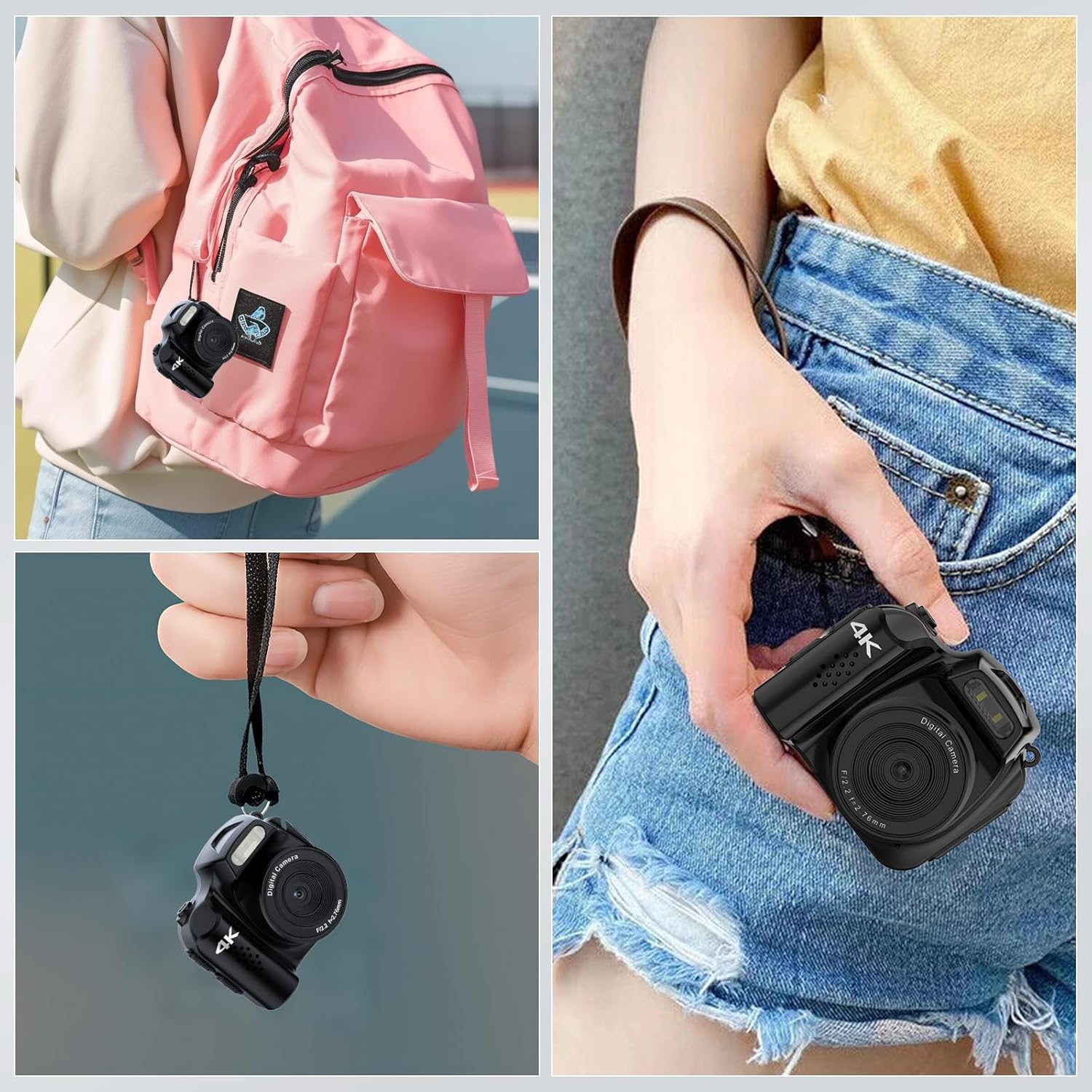
The WIKICO Mini Camera Keychain HJD02 is designed for portability, easily attaching to a backpack or fitting into a pocket.
Product Overview
Familiarize yourself with the components and controls of your WIKICO Mini Camera Keychain HJD02.
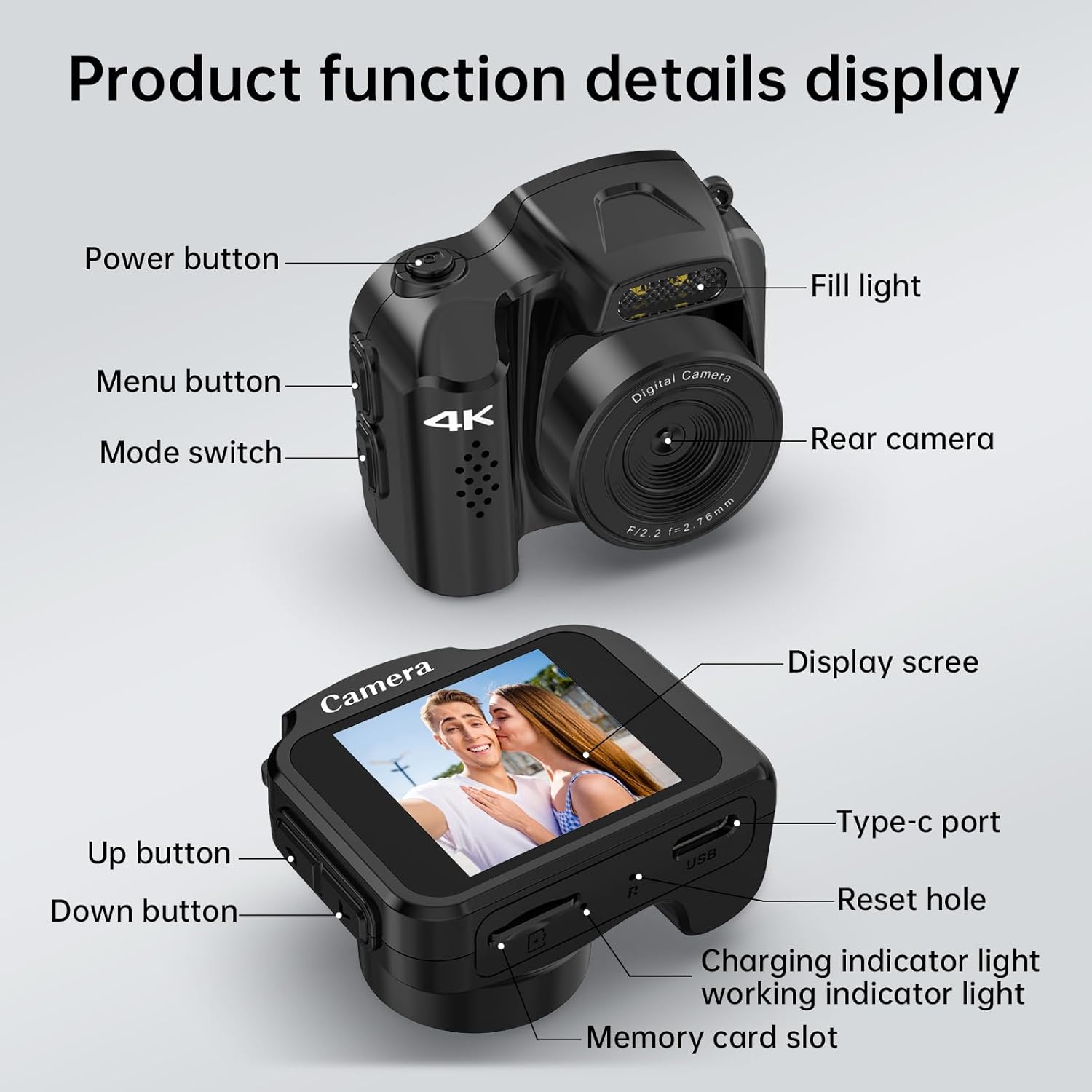
Detailed view of the camera's buttons, ports, and features.
- Power Button: Turns the camera on/off.
- Menu Button: Accesses camera settings.
- Mode Switch: Toggles between video and photo modes.
- Fill Light: Provides additional illumination in low-light conditions.
- Rear Camera: Main lens for capturing images and videos.
- Display Screen: Shows live view, settings, and playback.
- Type-C Port: For charging and data transfer.
- Reset Hole: For factory reset if needed.
- Charging Indicator Light: Indicates charging status.
- Working Indicator Light: Shows camera's operational status.
- Up Button: Navigation/selection in menus.
- Down Button: Navigation/selection in menus.
- Memory Card Slot: For inserting a Micro SD card.
Setup
- Insert Micro SD Card: Locate the memory card slot and gently insert the provided 32GB Micro SD card (or another compatible card, up to 128GB, Class 10 or higher recommended) until it clicks into place. Ensure the camera is powered off before inserting or removing the card.
- Charge the Camera: Connect the camera to a power source using the provided USB Type-C cable. The charging indicator light will illuminate. A full charge takes approximately 90 minutes.
- Power On/Off: Press and hold the Power Button for a few seconds to turn the camera on or off.
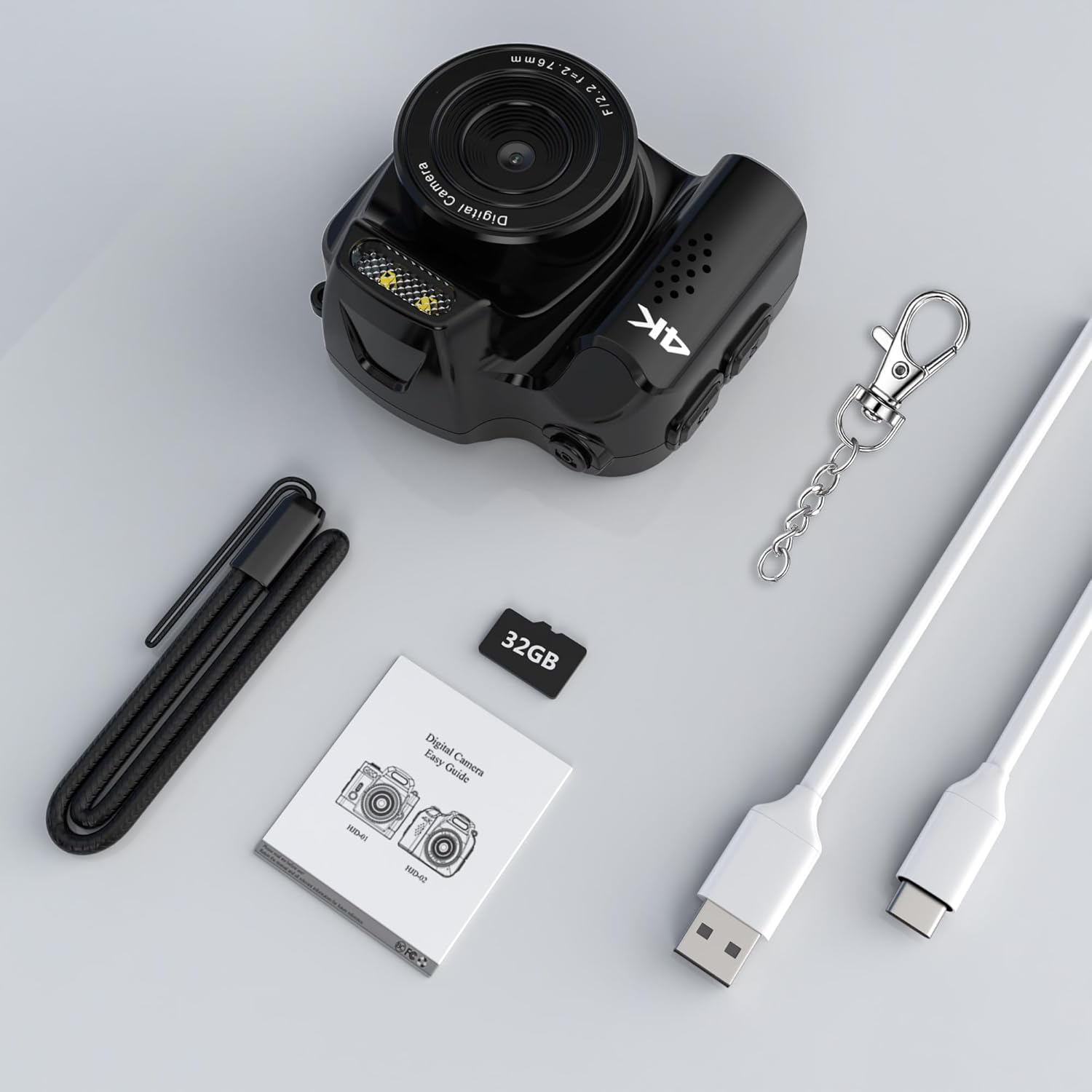
The camera comes with essential accessories, including a 32GB Micro SD card, USB-C cable, and keychain.
Operating Instructions
1. Video Recording
- Ensure the Mode Switch is set to video mode.
- Press the Power Button (or a dedicated record button if available, otherwise the power button often doubles as start/stop) once to start recording. The working indicator light will flash.
- Press the button again to stop recording. The working indicator light will stop flashing.
- The camera supports 4K video recording at 30 frames per second.

The camera captures high-definition video and photos.
2. Photo Capture
- Ensure the Mode Switch is set to photo mode.
- Frame your shot using the display screen.
- Press the Power Button (or a dedicated shutter button) once to take a photo. The working indicator light will flash briefly.
- The camera captures photos with an effective still resolution of 48MP.
3. Using the Fill Light
- To activate the built-in fill light, locate the dedicated button or menu option (refer to the display screen for menu navigation using Up/Down buttons).
- Press the button or select the option to toggle the fill light ON or OFF.
- The fill light helps improve image quality in low-light environments.

The built-in fill light enhances visibility in dark environments.
4. Applying Filters
- Access the camera's menu using the Menu Button.
- Navigate to the filter options using the Up/Down Buttons.
- Select from 19 available filter functions (e.g., B/W, Negative, Antique, Red, Green, Blue) to apply different visual effects to your photos.
- Confirm your selection to apply the filter.
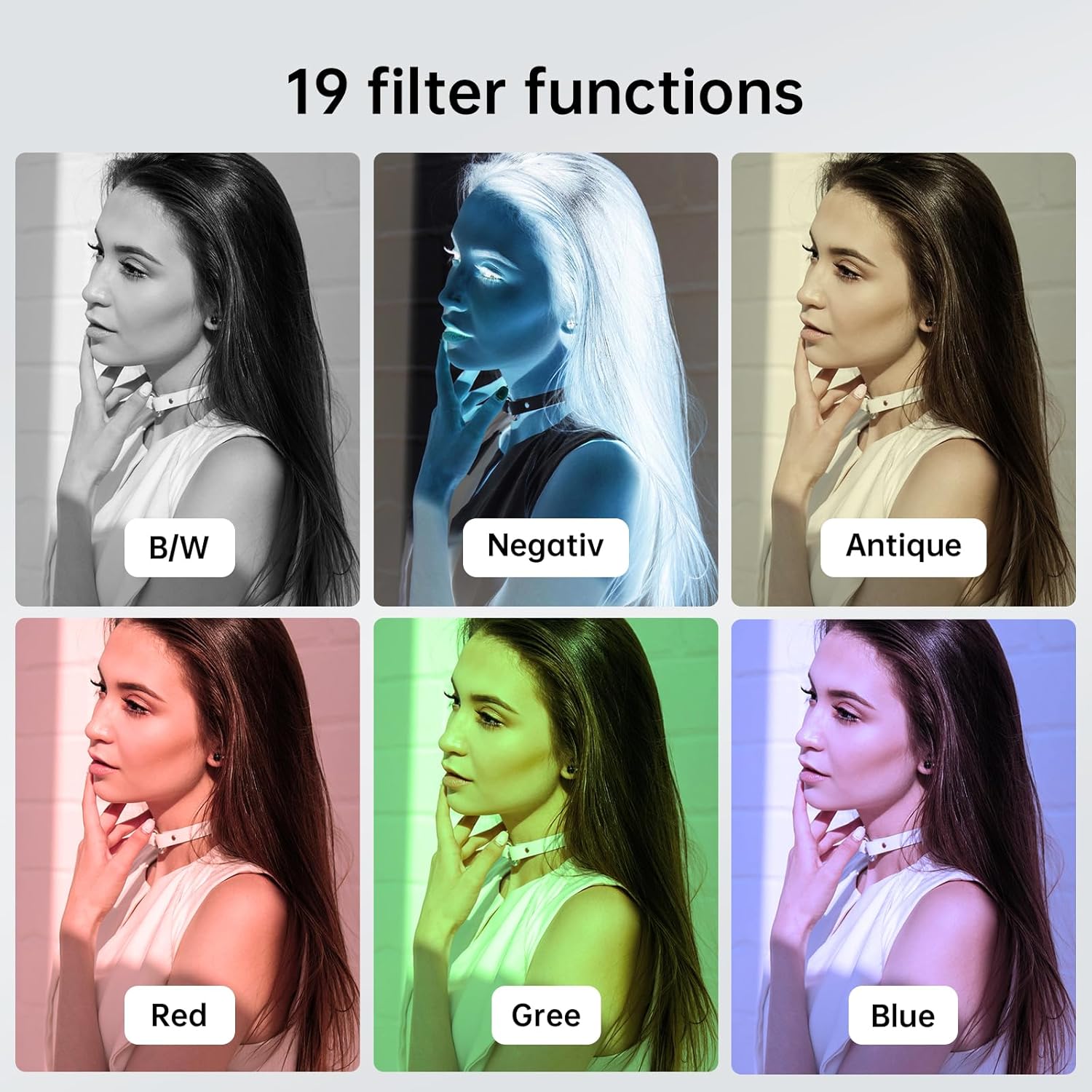
Explore various creative filters to enhance your photos.
5. Connecting to a Computer
- With the camera powered on, connect it to your computer using the USB Type-C cable.
- The camera should appear as a removable disk drive on your computer.
- You can then access and transfer your recorded videos and photos.
Charging and Battery Life
- Charging Time: Approximately 90 minutes for a full charge.
- Video Recording Duration: Up to 40 minutes of continuous video recording on a full charge.
- Photo Capacity: Approximately 4000 photos can be taken on a full charge.
- Always use the provided USB Type-C cable for charging to ensure compatibility and safety.

The camera offers a long-lasting battery for extended use.
Maintenance
- Cleaning: Use a soft, dry cloth to clean the camera body. For the lens, use a specialized lens cleaning cloth and solution. Avoid harsh chemicals.
- Storage: Store the camera in a cool, dry place away from direct sunlight and extreme temperatures.
- Battery Care: For optimal battery life, avoid fully discharging the battery frequently. Charge it regularly, even if not in use for extended periods.
- Firmware Updates: Check the manufacturer's website periodically for any available firmware updates to ensure your camera has the latest features and performance improvements.
Troubleshooting
| Problem | Possible Cause | Solution |
|---|---|---|
| Camera does not power on. | Low battery; faulty power button. | Charge the camera fully. Ensure the power button is pressed correctly. |
| Cannot record video/take photos. | No Micro SD card; card full; card error; incorrect mode. | Insert a Micro SD card. Delete old files or replace the card. Format the card (this will erase all data). Ensure the camera is in the correct mode (video/photo). |
| Poor image/video quality. | Dirty lens; low light; incorrect settings. | Clean the lens. Use the built-in fill light or record in better-lit conditions. Check resolution settings in the menu. |
| Camera freezes or becomes unresponsive. | Software glitch; corrupted memory card. | Use a thin object to press the Reset Hole. If the issue persists, try formatting or replacing the Micro SD card. |
| Computer does not recognize the camera. | Faulty USB cable; driver issue; camera not in data transfer mode. | Try a different USB Type-C cable. Ensure the camera is powered on when connected. Check your computer's device manager for driver issues. |
Specifications
| Feature | Detail |
|---|---|
| Brand | WIKICO |
| Model Name | HJD02 |
| Effective Still Resolution | 48 MP |
| Maximum Webcam Image Resolution | 12 MP |
| Video Resolution | 4K (30fps) |
| Photo Sensor Technology | CMOS |
| Photo Sensor Size | 1/1.2-inch |
| Optical Zoom | 1x |
| Form Factor | Ultracompact |
| Special Features | Compact, Built-in Fill Light, 19 Filter Functions |
| Color | Black |
| Package Dimensions | 8.08 x 7.06 x 5.28 cm |
| Item Weight | 27.22 g |
Warranty and Support
For warranty information and technical support, please refer to the documentation included with your purchase or contact the seller directly. Keep your proof of purchase for any warranty claims.