
1. Introduction
This manual provides detailed instructions for the installation, operation, and maintenance of your Wisoqu PRIME H410M K Motherboard. This M-ATX motherboard is designed to support 10th generation Intel Core and Celeron series 14nm CPUs with an LGA 1200 socket. It features two DDR4 memory slots, PCI Express 3.0, Gigabit Ethernet, and 7.1 channel audio. Please read this manual thoroughly before proceeding with installation.
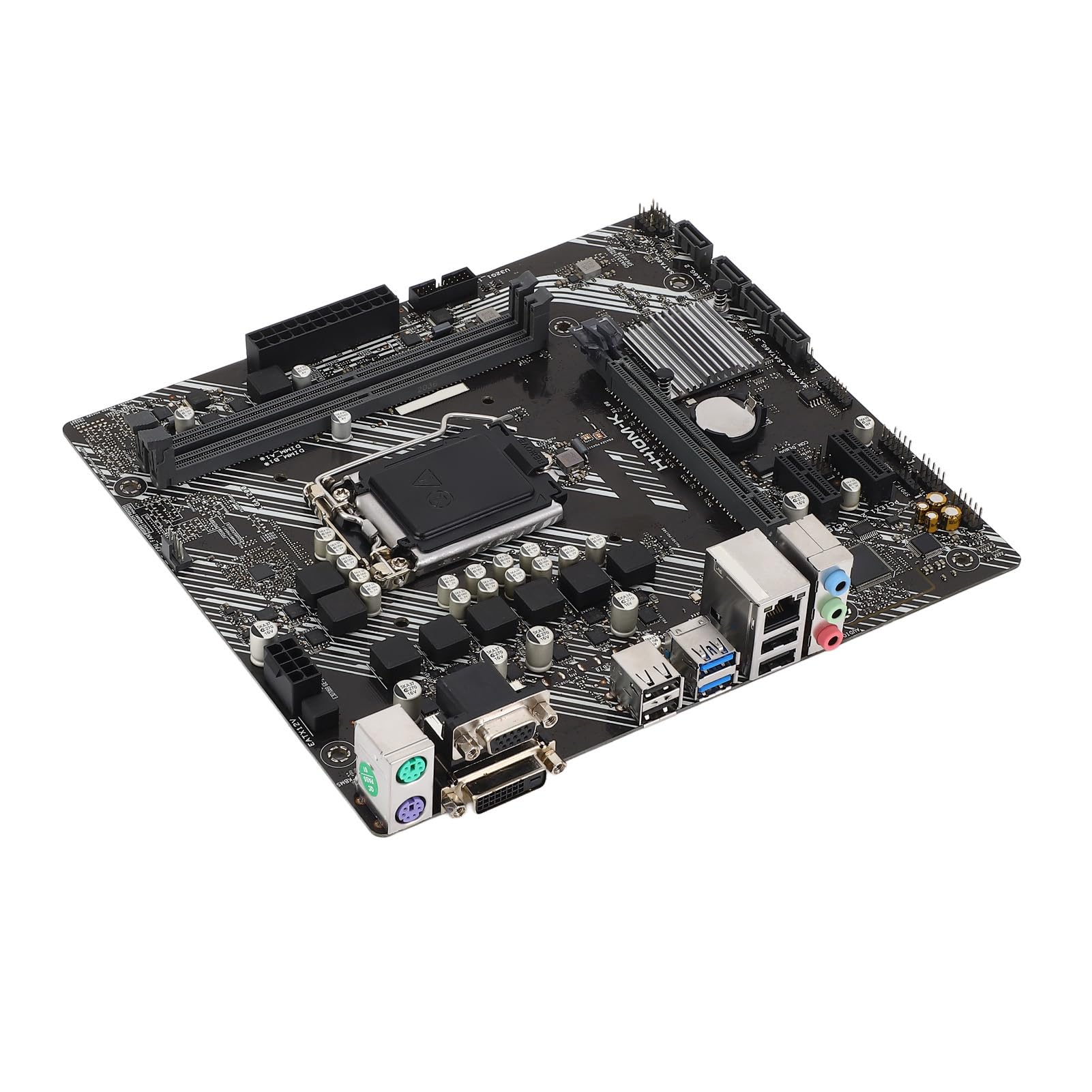
Figure 1: Overview of the Wisoqu PRIME H410M K Motherboard.
2. Setup and Installation
Follow these steps to properly install your motherboard and its components.
2.1. CPU Installation
- Prepare the Socket: Gently lift the load lever on the LGA 1200 CPU socket.
- Align the CPU: Carefully align your 10th generation Intel Core or Celeron CPU with the socket, ensuring the triangular mark on the CPU matches the mark on the socket. Do not force the CPU into place.
- Secure the CPU: Lower the CPU into the socket. Close the load plate and push down the load lever until it clicks into place.

Figure 2: Top-down view highlighting the CPU socket area.
2.2. RAM (Memory) Installation
- Open Retention Clips: Push open the retention clips at both ends of the DDR4 memory slots.
- Align Memory Module: Align the notch on the DDR4 memory module with the key in the memory slot.
- Insert Memory: Press down firmly on both ends of the memory module until the retention clips snap into place. The motherboard supports dual-channel DDR4 memory up to 64GB across two slots.
2.3. Storage Device Connection
Connect your SATA III storage devices (HDDs/SSDs) to the available SATA 6Gb/s ports.
- The motherboard provides 4 x Serial Advanced Technology Attachment III (SATA 6Gb/s) interfaces.
- Use SATA data cables to connect your storage devices to these ports.
- Ensure power cables from your power supply are connected to your storage devices.

Figure 3: Detailed view of SATA ports and PCI Express slots.
2.4. Expansion Card Installation
The motherboard features PCI Express 3.0 slots for expansion cards:
- 1 x PCI Express x16 slot (for graphics cards)
- 2 x PCI Express x1 slots (for other expansion cards like network or sound cards)
- Open Retention Clip: For the PCIe x16 slot, open the retention clip at the end of the slot.
- Insert Card: Align your expansion card with the slot and press down firmly until it is fully seated and the retention clip (if applicable) locks into place.
- Secure Card: Secure the card to your PC case with a screw.
2.5. Power Connections
Connect the power supply unit (PSU) cables to the motherboard:
- 24-pin ATX Power Connector: Connect the main 24-pin power cable from your PSU to the corresponding connector on the motherboard.
- 8-pin ATX 12V Power Connector: Connect the 8-pin CPU power cable from your PSU to the connector near the CPU socket.
2.6. Front Panel and Rear I/O Connections
Connect your case's front panel connectors (power button, reset button, USB ports, audio jacks) to the appropriate headers on the motherboard. Refer to your PC case manual for specific pin assignments.

Figure 4: Rear I/O panel with various ports.
The rear I/O panel includes:
- 2 x USB 3.2 Gen1 ports
- 4 x USB 2.0 ports
- 1 x DVI-D port
- 1 x VGA port
- 1 x RJ45 Gigabit Ethernet port
- 3 x Audio jacks (for 7.1 channel sound)
- 1 x PS/2 Mouse port
- 1 x PS/2 Keyboard port
- 1 x COM port
3. Operating Instructions
3.1. Initial Boot-Up
- After assembling all components, connect your monitor, keyboard, and mouse.
- Connect the power cord to your PSU and turn on the power switch on the PSU.
- Press the power button on your PC case. The system should power on and display the BIOS/UEFI screen or boot into your operating system.
3.2. BIOS/UEFI Setup
To enter the BIOS/UEFI setup utility, press the DEL or F2 key repeatedly during the initial boot-up sequence. From the BIOS/UEFI, you can configure system settings, boot order, and monitor hardware status.
3.3. Driver Installation
After installing your operating system, install the necessary drivers for optimal performance. Drivers for the H410 chipset, Realtek ALC887 audio, and Realtek RTL8111H Gigabit Ethernet can typically be found on the manufacturer's website or included with your operating system installation media.
4. Maintenance
Regular maintenance helps ensure the longevity and stable operation of your motherboard.
- Dust Cleaning: Periodically clean dust from the motherboard and other components using compressed air. Ensure the system is powered off and unplugged before cleaning.
- BIOS Updates: Check the manufacturer's website for BIOS/UEFI updates. Updates can improve compatibility, stability, and performance. Follow the provided instructions carefully when updating the BIOS.
- CMOS Battery: The motherboard includes a built-in 240mAh CR2032 battery. If you experience issues with system time or BIOS settings resetting, the CMOS battery may need replacement. This should be performed by a qualified technician.
5. Troubleshooting
This section addresses common issues you might encounter.
- No Power/No Boot:
- Ensure all power cables (24-pin ATX, 8-pin CPU) are securely connected.
- Verify the PSU is switched on and functioning correctly.
- Check front panel power button connection to the motherboard.
- No Display:
- Confirm the monitor is connected to the correct video output (motherboard DVI/VGA or discrete graphics card).
- Reseat the graphics card (if installed) and memory modules.
- Test with a different monitor or video cable.
- No Network Connection:
- Ensure the Ethernet cable is securely connected to the RJ45 port.
- Verify that the Realtek RTL8111H Gigabit network adapter drivers are installed.
- Check network settings in your operating system.
- No Audio:
- Confirm speakers/headphones are connected to the correct audio jacks.
- Verify that the Realtek ALC887 audio drivers are installed.
- Check audio settings in your operating system.
If issues persist, consult the manufacturer's support resources or a qualified technician.
6. Specifications
| Feature | Specification |
|---|---|
| Motherboard Model | PRIME H410M K |
| Chipset | Intel H410 |
| CPU Socket | LGA 1200 |
| Supported CPUs | 10th Gen Intel Core, Celeron series 14nm CPU |
| Memory Slots | 2 x DDR4 DIMM |
| Max. Memory Capacity | 64GB (Dual Channel) |
| Memory Frequencies | 2933 / 2800 / 2666 / 2400 / 2133MHz |
| PCIe Slots | 1 x PCI E X16 (3.0), 2 x PCI E X1 (3.0) |
| Storage Interfaces | 4 x SATA III 6Gb/s |
| USB Ports (Rear) | 2 x USB 3.2 Gen1, 4 x USB 2.0 |
| USB Ports (Front Headers) | 2 x USB 3.2 Gen1, 2 x USB 2.0 |
| Video Outputs | 1 x DVI, 1 x VGA |
| Audio Chip | Realtek ALC887 7.1 Channel HD Audio |
| LAN Chip | Realtek RTL8111H Gigabit Ethernet |
| Power Connectors | 1 x 24-pin ATX, 1 x 8-pin ATX 12V |
| Form Factor | M-ATX |
| CMOS Battery | Built-in 240mAh CR2032 |
7. Warranty and Support
7.1. Warranty Information
For specific warranty terms and conditions, please refer to the documentation provided with your purchase or contact the seller directly. Warranty coverage typically applies to manufacturing defects under normal use.
7.2. Technical Support
If you encounter issues that cannot be resolved using the troubleshooting guide, please contact Wisoqu customer support or the retailer from whom you purchased the product. Have your product model (PRIME H410M K) and purchase information ready when seeking support.