
Introduction
This manual provides essential instructions for setting up, operating, maintaining, and troubleshooting your AQVIN AQ80 Gaming Tower Desktop PC. Please read this guide thoroughly before using your new computer to ensure proper function and longevity. The AQVIN AQ80 is a high-performance gaming desktop featuring an Intel Core i7 processor, NVIDIA GeForce RTX 4060 8GB graphics, 32GB DDR4 RAM, and a 2TB NVME SSD, running on Windows 11 Pro.

Image: The AQVIN AQ80 Gaming Tower Desktop PC, showcasing its design and RGB lighting. This image provides a general overview of the product's aesthetic.
Setup
1. Unpacking
- Carefully remove the PC tower and all accessories from the packaging.
- Retain all packaging materials for future transport or warranty claims.
- Verify that all components listed in the packing list are present.
2. Connecting Peripherals
Connect your monitor, keyboard, mouse, and other peripherals to the appropriate ports on the back and front of the PC tower.
- Monitor: Connect your monitor using an HDMI cable to the dedicated graphics card port.
- Keyboard and Mouse: Connect to any available USB ports.
- Audio: Connect speakers or headphones to the 3.5mm audio jack.
- Network: For wired internet, connect an Ethernet cable to the LAN port. For wireless internet, ensure the Wi-Fi antenna (if provided) is connected or that the internal Wi-Fi is enabled.

Image: Top panel of the AQVIN AQ80 PC, highlighting various connectivity options including USB 3.0, USB 2.0, and a 3.5mm audio jack, along with power, restart, and RGB control buttons.
3. Power Connection
- Connect the power cable to the power supply unit (PSU) at the back of the PC.
- Plug the other end of the power cable into a grounded electrical outlet.
4. Initial Power-On and Windows Setup
- Press the power button located on the PC tower.
- The system will boot into Windows 11 Pro. Follow the on-screen instructions to complete the initial setup, including language, region, network connection, and user account creation.
- Ensure your Wi-Fi is connected during setup for updates and account synchronization.
Operating Instructions
1. Power On/Off and Restart
- Power On: Press the power button on the top panel of the PC.
- Shut Down: Click the Start button in Windows, then select Power > Shut down.
- Restart: Click the Start button in Windows, then select Power > Restart.
- Force Shut Down: If the system is unresponsive, press and hold the power button for 5-10 seconds until the PC turns off. Use this only as a last resort.
2. RGB Lighting Control
The AQVIN AQ80 features customizable RGB lighting for the case fans and internal components. Use the dedicated RGB control button on the top panel to cycle through various lighting effects and colors. Additional software may be available for more advanced customization.
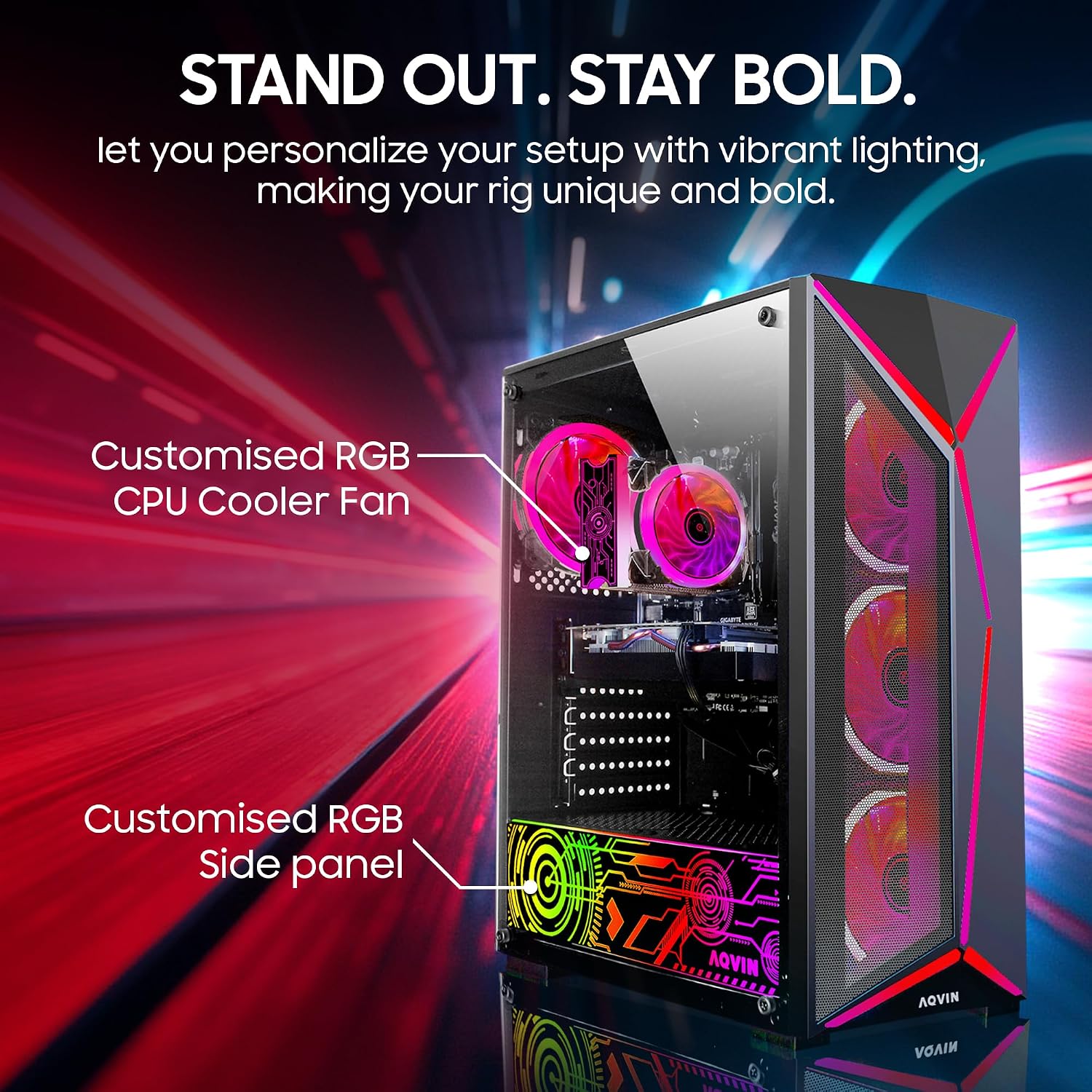
Image: The interior of the AQVIN AQ80 PC, showcasing customized RGB lighting on the CPU cooler fan and the side panel, visible through the tempered glass.

Image: An AQVIN RGB Gaming Keyboard, highlighting the RGB light on/off key for controlling the keyboard's backlighting.

Image: An AQVIN RGB Gaming Mouse, indicating the Left Click, Right Click, Scroll Key, and DPI adjustment button for precise control.
3. System Performance
The AQVIN AQ80 is designed for high-performance tasks, including gaming and content creation. Ensure your drivers are up to date for optimal performance. Windows 11 Pro provides a robust environment for various applications.

Image: The AQVIN AQ80 Gaming PC positioned in a dynamic gaming scene, illustrating its capability for high-intensity competitive games.
Maintenance
1. Cleaning
- Exterior: Use a soft, damp cloth to clean the exterior surfaces. Avoid abrasive cleaners.
- Dust: Periodically clean dust from the PC's vents and fans using compressed air. Ensure the PC is powered off and unplugged before cleaning. Dust accumulation can hinder cooling performance.
2. Software Updates
- Windows Updates: Regularly check for and install Windows updates to ensure system stability and security. Go to Settings > Windows Update.
- Driver Updates: Keep your graphics card drivers (NVIDIA GeForce) and other component drivers updated for optimal performance and compatibility. Visit the manufacturer's websites for the latest drivers.
3. System Backups
Regularly back up your important data to an external drive or cloud storage to prevent data loss.
Troubleshooting
| Problem | Possible Cause | Solution |
|---|---|---|
| PC does not power on | Power cable not connected, power supply switch off, faulty power outlet. | Check power cable connections. Ensure PSU switch is ON. Try a different power outlet. |
| No display on monitor | Monitor cable loose, monitor off, incorrect input source, graphics card issue. | Ensure monitor cable is securely connected to the graphics card. Check monitor power and input source. |
| System is slow or unresponsive | Too many applications running, outdated drivers, malware, insufficient storage. | Close unnecessary applications. Update drivers. Run a malware scan. Check available storage on the NVME SSD. |
| RGB lighting not working | RGB control button not pressed, software issue. | Press the RGB control button on the top panel. Check for any dedicated RGB control software. |
If you encounter issues not listed here or require further assistance, please contact AQVIN customer support.
Specifications
| Feature | Detail |
|---|---|
| Model | AQ80 |
| Processor | Intel Core i7-8700 CPU (up to 4.60 GHz) |
| Graphics Card | NVIDIA GeForce RTX 4060 8GB (Dedicated) |
| RAM | 32GB DDR4 SDRAM |
| Storage | 2TB NVME SSD |
| Operating System | Windows 11 Pro |
| Connectivity | HDMI, Wi-Fi, USB 3.0, USB 2.0, 3.5mm Audio Jack |
| Cooling Method | Air |
| Personal Computer Design Type | Computer Tower |
| Manufacturer | AQVIN |
| Country of Origin | USA |
Warranty and Support
Warranty Information
The AQVIN AQ80 Gaming Tower Desktop PC comes with a 1-year product warranty. Additionally, a 30-day money-back guarantee is provided from the date of purchase. Please retain your proof of purchase for warranty claims.
Customer Support
For technical assistance, troubleshooting, or warranty inquiries, please contact AQVIN customer support. We offer lifetime free consultation for our products.
- Manufacturer: AQVIN
- Contact Information: Refer to your purchase documentation or the official AQVIN website for the most current contact details.