
Introduction
The Logitech MX Vertical Wireless Mouse is an advanced ergonomic mouse designed to enhance comfort and performance. Its unique 57-degree vertical angle promotes a natural handshake position, aiming to reduce wrist pressure and forearm strain often associated with prolonged computer use. This manual provides essential information for setting up, operating, maintaining, and troubleshooting your MX Vertical mouse.

Image: A hand comfortably gripping the Logitech MX Vertical mouse, demonstrating the ergonomic design that reduces muscle strain.

Image: This image highlights the rigorous testing and ergonomist approval behind the MX Vertical's design, ensuring optimal comfort and reduced strain.
What's in the Box
Before you begin, please ensure all components are present:
- Logitech MX Vertical Advanced Ergonomic Mouse
- USB-C Charging Cable
- Logitech Unifying Receiver (USB-A)
- Quick Start Guide (physical or digital)
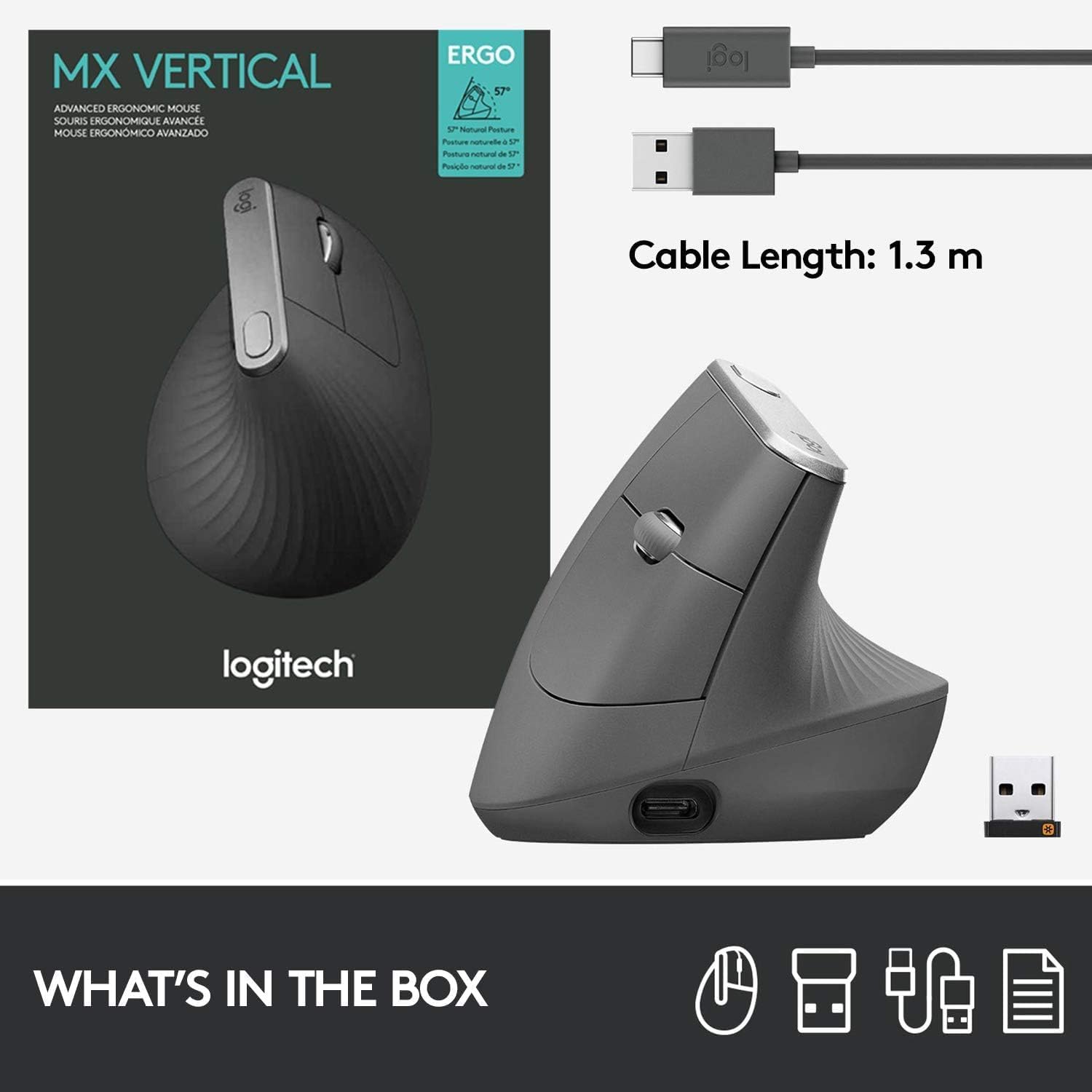
Image: A visual representation of the items included in the MX Vertical packaging: the mouse, a USB-C charging cable, and the Logitech Unifying receiver.
Setup
1. Charging the Mouse
Before first use, it is recommended to fully charge your MX Vertical mouse. Connect the included USB-C cable to the charging port on the front of the mouse and the other end to a USB power source (e.g., computer USB port, USB wall adapter). A full charge can last up to four months, and a one-minute quick charge provides three hours of use.
2. Connecting to Your Device
The MX Vertical offers three connection options:
- Logitech Unifying Receiver: Insert the USB-A Unifying receiver into an available USB port on your computer. The mouse should connect automatically.
- Bluetooth: Turn on Bluetooth on your computer or device. Press the Easy-Switch button on the bottom of the mouse to select an available channel (1, 2, or 3). Press and hold the Easy-Switch button for three seconds until the LED indicator blinks rapidly. Select 'MX Vertical' from your device's Bluetooth settings to pair.
- USB-C Cable: You can also use the mouse while it is connected via the USB-C charging cable.

Image: The MX Vertical mouse alongside its USB-A Unifying receiver, illustrating one of the primary connection methods.
3. Installing Logitech Options Software (Recommended)
For full customization of buttons, cursor speed, and Flow features, download and install the Logitech Options software from the official Logitech website. This software allows you to personalize your mouse experience across multiple devices and operating systems.
Operating Instructions
Mouse Features Overview

Image: A detailed diagram labeling the key components of the MX Vertical mouse for easy identification and understanding of its functions.
- Premium Scroll Wheel: For smooth and precise scrolling.
- Island Keys: Programmable buttons for various functions.
- USB-C Fast Recharging Port: For charging the mouse.
- Cursor Speed Switch: Instantly adjust DPI speed and accuracy.
- Customizable Shortcuts: Buttons that can be programmed via Logitech Options.
- Natural Grip: The ergonomic shape designed for comfort.
- Textured Thumb Area: Provides a comfortable resting place for the thumb.
- High Precision Sensor: 4000 DPI sensor for accurate tracking.
Cursor Speed Adjustment
The MX Vertical features a 4000 DPI high-precision sensor. Use the cursor speed switch button (labeled 4 in the diagram) to toggle between different DPI settings, allowing you to adjust cursor speed and accuracy to your preference. This can reduce hand movement by up to 4 times compared to a standard 1000 DPI mouse.

Image: This image demonstrates how the high-precision sensor of the MX Vertical mouse minimizes hand movement, contributing to reduced muscle fatigue.
Easy-Switch Between Devices
The MX Vertical mouse can be paired with up to three different devices. Use the Easy-Switch button on the bottom of the mouse to seamlessly switch between connected computers or devices. The corresponding LED indicator (1, 2, or 3) will light up to show which device is currently active.

Image: The bottom of the MX Vertical mouse, highlighting the Easy-Switch feature that allows users to quickly switch between up to three paired devices.
Maintenance
Cleaning
To clean your MX Vertical mouse, use a soft, damp, lint-free cloth. Avoid using abrasive cleaners, solvents, or aerosol sprays directly on the mouse. Ensure no moisture enters any openings.
Battery Care
The mouse is powered by a rechargeable Lithium Polymer battery. For optimal battery life, avoid exposing the mouse to extreme temperatures. Recharge the mouse when the battery indicator light turns red or when prompted by the Logitech Options software.
Troubleshooting
Connectivity Issues
- No connection via Unifying Receiver: Ensure the receiver is fully inserted into a working USB port. Try a different USB port or computer.
- No connection via Bluetooth: Ensure Bluetooth is enabled on your device. Re-pair the mouse by holding the Easy-Switch button until the LED blinks rapidly, then select 'MX Vertical' in your device's Bluetooth settings.
- Interference: Move the mouse closer to the receiver or Bluetooth device. Avoid using the mouse near other wireless devices that may cause interference.
Cursor Erratic or Unresponsive
- Clean the sensor: Ensure the optical sensor on the bottom of the mouse is clean and free of debris.
- Surface: Use the mouse on a suitable surface. Highly reflective or uneven surfaces may affect tracking.
- Battery level: Check the battery level. A low battery can affect performance. Recharge the mouse if necessary.
Mouse Not Charging
- Check cable and port: Ensure the USB-C cable is securely connected to both the mouse and the power source. Try a different USB-C cable or USB port.
- Power source: Ensure the USB power source is active and providing power.
Specifications
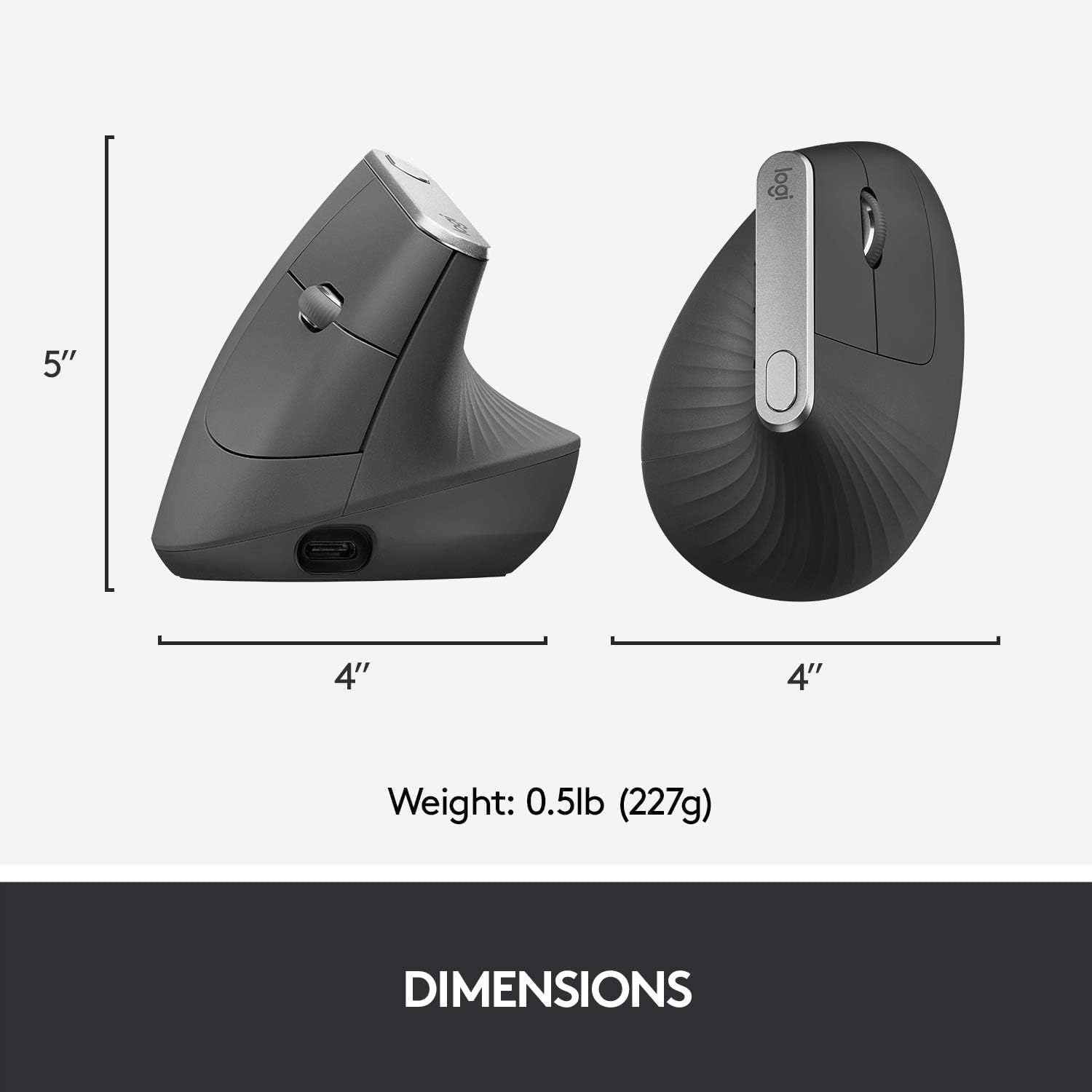
Image: A visual representation of the physical dimensions and weight of the MX Vertical mouse.
| Feature | Detail |
|---|---|
| Model Name | MX Vertical Advanced Ergonomic Mouse |
| Model Number | 910-005447 |
| Brand | Logitech |
| Connectivity Technology | USB (Unifying Receiver), Bluetooth Low Energy |
| Movement Detection Technology | Optical |
| Mouse Maximum Sensitivity | 4000 DPI |
| Buttons | 4 (Programmable) |
| Hand Orientation | Right |
| Compatible Devices | Personal Computer (Laptop, PC) |
| Operating System Compatibility | Windows 10, 11 or later, macOS 10.15 or later, iPadOS 13.4 or later, Chrome OS, Linux, Android |
| Battery Type | 1 Lithium Polymer battery (included) |
| Battery Average Life | Up to 4 months on a full charge |
| Wireless Range | 10 meters (33 feet) |
| Item Weight | 0.29 Pounds (approx. 132g) |
| Item Dimensions (L x W) | 4.72"L x 0.91"W (approx. 120mm L x 23mm W) |
Warranty and Support
Warranty Information
The Logitech MX Vertical Wireless Mouse comes with a manufacturer's warranty. For specific details regarding the warranty period and coverage, please refer to the warranty documentation included with your product or contact Logitech customer service. Warranty claims can be requested from customer service.
Customer Support
For further assistance, technical support, or to download the latest software and drivers, please visit the official Logitech support website. You can find FAQs, troubleshooting guides, and contact information for customer service there.


