
Jingelsye Jingelsye 10.2-inch Car Stereo
Jingelsye 10.2-inch Car Stereo for Toyota Highlander (2008-2013) - User Manual
1. Introduction
This manual provides instructions for the installation, operation, and maintenance of the Jingelsye 10.2-inch Car Stereo system designed for Toyota Highlander models from 2008 to 2013. Please read this manual thoroughly before installation and use to ensure proper function and safety.
2. Vehicle Compatibility
This car stereo system is compatible with Toyota Highlander vehicles manufactured between 2008 and 2013. It is crucial to verify the shape of your vehicle's center console and dashboard to ensure proper fitment before proceeding with installation.

Image: Installation rendering for Toyota Highlander (2008-2012) showing the new stereo unit and examples of compatible original dashboards. Ensure your dashboard matches one of the 'Suitable' examples.
3. Package Contents
Verify that all components are present in the package:
- Jingelsye 10.2-inch Car Stereo Head Unit
- Toyota Highlander specific wiring harnesses
- Dash kit for seamless integration
- 1080P AHD Backup Camera
- External Microphone
- GPS Antenna
- USB Cables
4. Setup and Installation
Installation of the car stereo requires careful attention to wiring and vehicle disassembly. If you are not experienced with car electronics installation, it is recommended to seek professional assistance.
4.1 Pre-Installation Steps
- Disconnect Battery: Before starting, disconnect the negative terminal of your vehicle's battery to prevent electrical shorts.
- Remove Original Radio: Carefully remove the existing car radio and trim panels from your Toyota Highlander. Refer to your vehicle's service manual for specific instructions.
- Inspect Wiring: Familiarize yourself with the vehicle's wiring harness and the provided Jingelsye wiring harnesses.
4.2 Connecting the Unit
- Connect Wiring Harnesses: Connect the provided vehicle-specific wiring harnesses to the car stereo unit and your vehicle's existing wiring. Ensure all connections are secure.
- Connect GPS Antenna: Attach the GPS antenna and route it to a location with a clear view of the sky, typically on the dashboard.
- Connect USB Cables: Connect the USB cables for external devices or wired CarPlay/Android Auto.
- Connect Backup Camera: Install the backup camera at the rear of the vehicle and route its cable to the head unit. Connect the camera's power and video signal cables as per the wiring diagram.
- Connect External Microphone: Plug in the external microphone for improved call quality and position it appropriately.
4.3 Post-Installation
- Test Functionality: Before fully reassembling the dashboard, reconnect the vehicle battery and power on the unit. Test all functions: radio, audio, touchscreen, CarPlay/Android Auto, GPS, and backup camera.
- Secure Unit: Once all functions are verified, secure the Jingelsye head unit into the dashboard using the provided dash kit and mounting hardware.
- Reassemble Dashboard: Carefully reassemble all trim panels and components removed during the installation process.

Image: Visual comparison of the Toyota Highlander dashboard before and after the installation of the Jingelsye 10.2-inch car stereo.
5. Operating Instructions
5.1 Power On/Off and Basic Interface
Press the power button to turn the unit on or off. The system operates on Android 13 and features a responsive 10.2-inch 1280 x 800 IPS capacitive touchscreen display.

Image: Features of the 1280x800 IPS touchscreen, including resolution, size, video playback, and viewing angles.
5.2 Wireless CarPlay and Android Auto
The system supports both wireless and wired Apple CarPlay and Android Auto. This allows integration with your smartphone for navigation, music, calls, and voice control (Siri or Google Assistant).
- Connection: Connect wirelessly via 5GHz WiFi or via USB cable.
- Functions: Access phone applications, make hands-free calls, play music, and use map navigation directly from the stereo display.
- Phone Mirroring: Supports screen mirroring for both iOS and Android devices, allowing your phone's display to be shown on the stereo screen.
Image: Overview of 5G CarPlay, 5G Android Auto, and Mirror Link connection methods and capabilities.
5.3 GPS Navigation
The system includes a navigation system that provides real-time route planning and instructions. It supports online browsing and allows for downloading free maps for offline use, which is beneficial in areas with weak signal.

Image: GPS Navigation interface displaying a map and route, with various app icons for navigation and entertainment.
5.4 5G WiFi Connectivity
Connect the unit to the internet via 5G WiFi to download applications, update maps, and browse the web. This feature enables access to various online entertainment options.
Image: Demonstration of 5G WiFi connection for streaming and app downloads, showing various app icons.
5.5 Bluetooth 5.4
The upgraded Bluetooth 5.4 module supports hands-free calling, wireless music streaming, and automatic synchronization of contacts and schedules. The system includes a built-in microphone and a free external microphone for clear communication.
5.6 FM/RDS Radio
Access your favorite radio stations using the integrated FM/RDS radio tuner. The RDS (Radio Data System) feature provides additional information such as station name and song title where available.

Image: FM/RDS Radio interface with frequency display and preset options.
5.7 Audio Equalization (EQ)
The car stereo incorporates digital signal processing (DSP) with customizable built-in 32 equalization settings. This allows for fine-tuning the audio output to suit personal preferences.
Image: Built-in EQ32 Setting interface for audio customization.
5.8 Steering Wheel Control (SWC)
The head unit supports integration with your vehicle's existing steering wheel controls. This enables convenient operation of functions such as music/channel switching, volume adjustment, and answering calls without taking your hands off the wheel.

Image: Steering Wheel Control (SWC) icons indicating supported functions.
5.9 Backup Camera
The system includes a 1080P AHD backup camera for reverse assistance. Key features include:
- Image Quality: AHD 1080P high-definition.
- Night Vision: Enhanced visibility in low-light conditions.
- Wide Angle: Ultra-wide 170° viewing angle.
- Durability: IP68 waterproof rating.
- Automatic Switch: Automatically displays the rear view image when the vehicle is in reverse gear.
Image: 1080P Rear Camera display with parking guidelines and feature highlights.
6. Maintenance
- Screen Cleaning: Use a soft, lint-free cloth to clean the touchscreen. Avoid abrasive cleaners or solvents that may damage the display.
- Software Updates: Periodically check for available software updates to ensure optimal performance and access to new features. Updates can typically be downloaded via WiFi.
- General Care: Keep the unit free from excessive dust and moisture. Avoid exposing it to extreme temperatures.
7. Troubleshooting
If you encounter issues with your Jingelsye car stereo, refer to the following common problems and solutions:
- Unit Does Not Power On:
Solution: Check the power connections to the unit and ensure the vehicle's fuse for the radio is intact. Verify the battery is properly connected. - CarPlay/Android Auto Disconnects Randomly:
Solution: Ensure a stable 5GHz WiFi connection for wireless operation. For wired connections, check the USB cable and port for damage. Try restarting both the stereo and your smartphone. Ensure your phone's operating system and the stereo's software are up to date. - Steering Wheel Controls Not Working:
Solution: Verify that the SWC wiring is correctly connected during installation. Access the stereo's settings menu to configure or recalibrate the steering wheel controls. - Poor Phone Connection / Bluetooth Glitches:
Solution: Ensure your phone is properly paired via Bluetooth. Check for interference from other devices. Try unpairing and re-pairing the device. Ensure the external microphone is securely connected. - Backup Camera Displays "No Signal" or Black Screen:
Solution: Check all connections for the backup camera, including power and video signal cables. Ensure the camera is receiving power when the vehicle is in reverse. Verify camera settings in the stereo's menu. - GPS Navigation Issues:
Solution: Ensure the GPS antenna is properly connected and positioned with a clear view of the sky. If using offline maps, ensure they are downloaded and updated. For online navigation, verify 5G WiFi connectivity.
If these steps do not resolve the issue, please contact Jingelsye customer support.
8. Specifications
- Model Name: Jingelsye 10.2-inch Wireless CarPlay & Android Auto GPS Navigation System
- Screen Size: 10.2 Inches
- Display Resolution: 1280 x 800P
- Display Type: IPS Capacitive Touchscreen
- Operating System: Android 13
- CPU: 4-core
- RAM: 4GB
- ROM (Internal Storage): 64GB
- Connectivity: Bluetooth 5.4, 5G WiFi
- Navigation: GPS (Supports online/offline maps)
- Audio Features: Built-in 32 EQ settings, FM/RDS Radio, Stereo Audio Output
- Included Media: 1080P AHD Backup Camera (with night vision, 170° wide angle, IP68 waterproof)
- Control Method: Touchscreen, Steering Wheel Control (SWC)
- Compatible Devices: Smartphone (iOS/Android for CarPlay/Android Auto)
- Product Dimensions: 22.86 x 22.86 x 12.7 cm
- Item Weight: 907.18 g
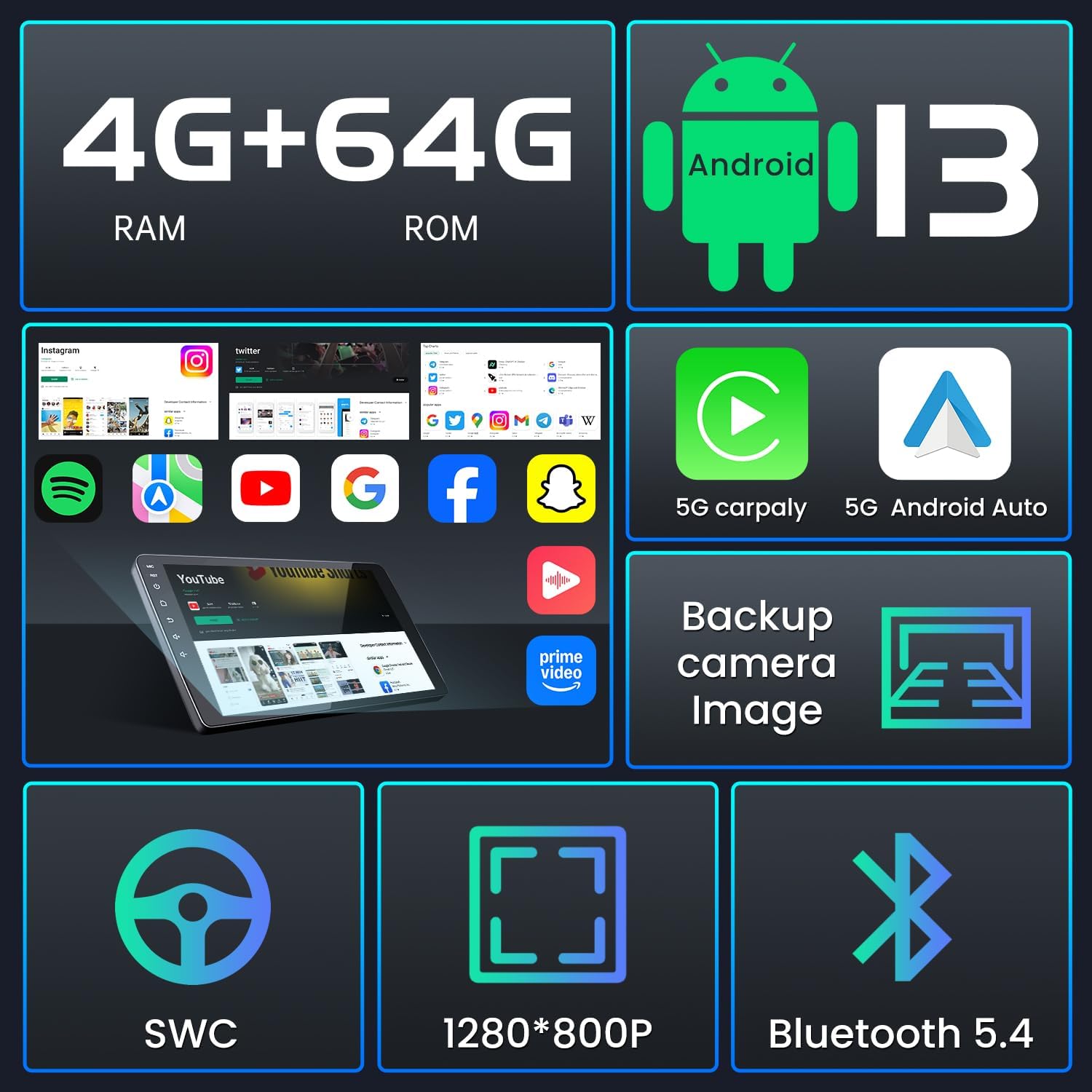
Image: Visual summary of the car stereo's core specifications and features.
9. Warranty and Support
Jingelsye provides comprehensive customer support for this product:
- After-Sales Support: Lifetime after-sales support is offered for the product.
- Online Service: 24/7 online pre-sale and after-sales service is available for inquiries and assistance.
For technical assistance, warranty claims, or any other support needs, please contact Jingelsye customer service through their official channels.
Ask a question about this manual
Ask about setup, troubleshooting, compatibility, parts, safety, or missing instructions. Manuals+ will review the question and use this page’s manual context to help answer it.