
1. Product Overview
This manual provides detailed instructions for the Jufodrca 7-inch HD Touchscreen Car Stereo. This unit is designed to upgrade your vehicle's infotainment system with modern features such as wireless CarPlay, Android Auto, 5G WiFi, GPS navigation, Bluetooth 5.4, a 32-band equalizer, FM/RDS radio, and includes a 1080P backup camera. It operates on Android 13 with 4GB RAM and 64GB ROM for smooth performance.
1.1 Applicable Models and Years
This car radio is compatible with the following vehicle models and years:
- Jeep Wrangler/Unlimited: 2007-2017
- Jeep Compass/Patriot: 2009-2016
- Jeep Grand Cherokee: 2005-2011
- Jeep Liberty: 2008-2011
- Jeep Commander: 2008-2011
- Town&Country: 2007-2010
- Dodge Grand Caravan: 2011-2014
- Dodge Charger: 2008-2010

Figure 1: Jufodrca Car Stereo installed in a Jeep Wrangler dashboard, illustrating the visual upgrade from a standard radio to the new touchscreen unit.
2. Setup and Installation
The Jufodrca car stereo features a plug-and-play design for simplified installation. The package includes all necessary wiring harnesses and accessories.
2.1 Included Components
Verify that all components are present in the package:

Figure 2: Complete wiring harness and accessories included with the Jufodrca car stereo.
- Reversing Cable
- GPS Antenna
- Backup Camera
- Microphone
- 6-pin USB Cable
- 4-pin USB Cable
- CAN BUS Decoder
- Crowbar (for trim removal)
- Power Cable
- RCA Cable
2.2 Basic Installation Steps
- Disconnect Battery: Before starting, disconnect the vehicle's negative battery terminal.
- Remove Old Radio: Carefully remove the existing factory radio using appropriate tools, such as the included crowbar, to avoid damaging the dashboard trim.
- Connect Wiring: Connect the provided wiring harnesses to the vehicle's existing wiring. The plug-and-play design ensures correct connections.
- Install GPS Antenna: Mount the GPS antenna in a location with a clear view of the sky, typically on the dashboard or under the windshield.
- Install Backup Camera: Install the 1080P backup camera at the rear of the vehicle and route the reversing cable to the head unit.
- Secure New Stereo: Mount the Jufodrca car stereo into the dashboard opening.
- Reconnect Battery: Reconnect the vehicle's negative battery terminal.
- Test Functionality: Power on the unit and test all functions, including audio, touchscreen, GPS, Bluetooth, and backup camera.
3. Operating Instructions
3.1 Initial Setup and Connectivity
3.1.1 Wi-Fi Connection
To access online features, connect the unit to a 5G Wi-Fi network:
- Go to Settings on the main menu.
- Select Network & Internet, then Wi-Fi.
- Turn on Wi-Fi and select your desired network.
- Enter the password if prompted.

Figure 3: Dual-Band WiFi support for stable internet connection and access to online applications.
3.1.2 Bluetooth 5.4 Pairing
Pair your mobile device via Bluetooth for hands-free calls and audio streaming:
- Go to Settings, then Connected devices, and select Bluetooth.
- Ensure Bluetooth is enabled on both the car stereo and your mobile device.
- Search for available devices on your mobile phone and select the car stereo's Bluetooth name (e.g., "Jufodrca Car Stereo").
- Confirm the pairing code on both devices.

Figure 4: Bluetooth 5.4 technology provides a more stable and efficient wireless connection.
3.2 CarPlay and Android Auto
The unit supports wireless Apple CarPlay and Android Auto for seamless smartphone integration.
- Ensure your phone's Wi-Fi and Bluetooth are enabled.
- On the car stereo, open the ZLINK application.
- For iPhone, tap Use CarPlay when prompted. Ensure Location is enabled.
- For Android, connect via Bluetooth first, then follow the prompts for Android Auto.

Figure 5: Wireless CarPlay and Android Auto for voice control and live navigation.
Video 1: Demonstration of CarPlay connection, online map usage, 5G WiFi functionality, and steering wheel controls on the Jufodrca car stereo.
3.3 GPS Navigation
The unit supports GPS navigation with pre-installed maps for North America. You can also use navigation apps via CarPlay or Android Auto.

Figure 6: GPS Navigation provides real-time route planning and offline map access.
3.4 Audio Control (32-band EQ & FM/RDS)
Customize your audio experience with the built-in 32-band equalizer and enjoy clear FM radio reception with RDS.
- Equalizer: Access the EQ settings from the main menu to adjust bass, mids, and highs.
- FM/RDS Radio: Tune into FM stations. RDS (Radio Data System) displays station information where available.

Figure 7: 32-band EQ and FM RDS Audio for a customized listening experience.
3.5 Steering Wheel Controls (SWC)
The unit supports existing steering wheel controls, allowing you to manage audio and calls without taking your hands off the wheel.

Figure 8: Steering Wheel Control integration for reduced distractions.
3.6 Mirror Link and Split Screen
Mirror Link allows you to project your phone's screen onto the car stereo. The split-screen function enables viewing two applications simultaneously.
- Mirror Link: Connect your phone via Wi-Fi or USB to mirror its display.
- Split Screen: Drag an app icon to one side of the screen to activate split-screen mode, then select another app for the other side.

Figure 9: Wireless HD Mirror Link for projecting smartphone content.

Figure 10: Split Screen Display for multitasking and maximized view of content.
3.7 Backup Camera
The included 1080P backup camera automatically displays the rearview when the vehicle is shifted into reverse.

Figure 11: 1080P Backup Camera with automatic display and obstacle warning.
4. Maintenance
To ensure the longevity and optimal performance of your Jufodrca car stereo, follow these maintenance guidelines:
- Screen Cleaning: Use a soft, lint-free cloth to gently wipe the touchscreen. Avoid abrasive cleaners or solvents.
- Software Updates: Periodically check for and install software updates to ensure the system runs efficiently and has the latest features.
- Avoid Extreme Temperatures: Do not expose the unit to prolonged direct sunlight or extreme cold, as this can affect performance and lifespan.
- Cable Management: Ensure all cables are securely connected and not pinched or damaged.
5. Troubleshooting
This section addresses common issues and their solutions. For further assistance, please contact customer support.

Figure 12: Common setup issues and their solutions.
- What is the factory password?
A. Please enter 1617 or 1234.
- The reverse camera view is mirrored. How do I fix it?
A. Go to CarSetting > General Settings > General and switch Reverse Mirror ON/OFF to adjust the image direction.
- Why is the original factory backup camera blurry?
A. The OEM camera uses a CVBS (360P) signal, which has lower quality than our screen that supports AHD (1080P). For optimal visual clarity, use the camera included with our unit.
- How can I remove the parking guidelines on the rear-view screen?
A. Go to CarSetting > System Settings > Factory Setting (enter 1617) > Backcar Setting, then disable Backcar Assist Line.
- I connected the yellow plug but have no reverse image. What should I do?
A. Shift to Reverse, press and hold the display to open the format menu.
- If using the factory camera, choose CVBS-NTSC.
- If using our included camera, select AHD1080P-25Hz.
- How do I connect Wireless CarPlay via Zlink?
A.
- Enable Wi-Fi and Bluetooth on your phone.
- On the radio, open the Bluetooth Phone app and locate the Bluetooth device. PIN: 0000.
- Pair your phone with the radio via Bluetooth.
- On iPhone, tap Use CarPlay when prompted. Ensure Location is enabled.
- Open the ZLINK app — CarPlay / Android Auto will launch automatically.
- How do I enable screen mirroring via Zlink?
A.
- iPhone: Use Wireless Mirroring in Zlink → enable hotspot → Screen Mirroring → choose J-diar.
- Android: Pair Bluetooth → install Zlink app → connect via USB → select USB Connection.
6. Specifications
| Feature | Detail |
|---|---|
| Brand | Jufodrca |
| Model | 4G RAM 64G ROM 7 Inch |
| Operating System | Android 13 |
| CPU | 1.8GHz (4-Core) |
| RAM | 4GB |
| ROM | 64GB |
| Screen Size | 7 Inches |
| Display Resolution | 1024*600 HD |
| Touch Screen Type | Capacitive |
| Connectivity | Bluetooth 5.4, 5G Wi-Fi, USB |
| Special Features | Wireless CarPlay, Android Auto, GPS Navigation (North America maps), FM/32EQ RDS Radio, Mirror Link, SWC, Split Screen, 1080P Rear View Camera |
| Audio Output Mode | Stereo |
| Product Dimensions | 9.49"L x 4.02"W x 11.73"H |
| Item Weight | 1.36 Kilograms |

Figure 13: Core specifications of the Jufodrca car stereo.
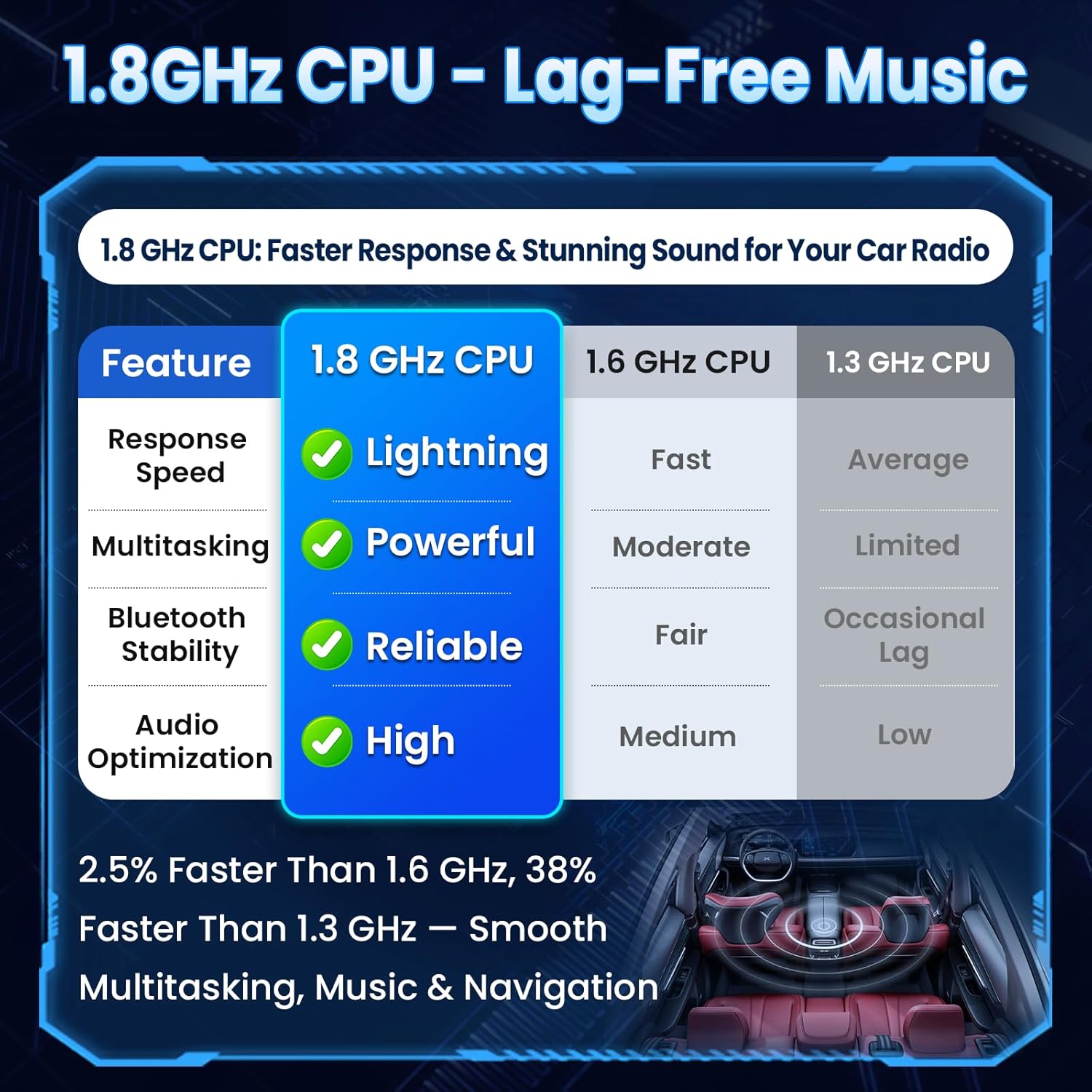
Figure 14: 1.8GHz CPU performance comparison for lag-free operation.

Figure 15: 7-inch IPS HD Touch Screen with 1024*600 resolution for clear visibility.
7. Warranty and Support
Jufodrca provides a lifetime after-sales service for this product. Our professional support team, with over 20 years of experience, is available to assist with any inquiries or issues you may encounter.
For support, please refer to the contact information provided with your purchase or visit the official Jufodrca website.