
Introduction
This manual provides essential instructions for the setup, operation, maintenance, and troubleshooting of your Anmite 23.8 Inch Portable Monitor. Please read this manual thoroughly before using the product to ensure proper functionality and longevity.
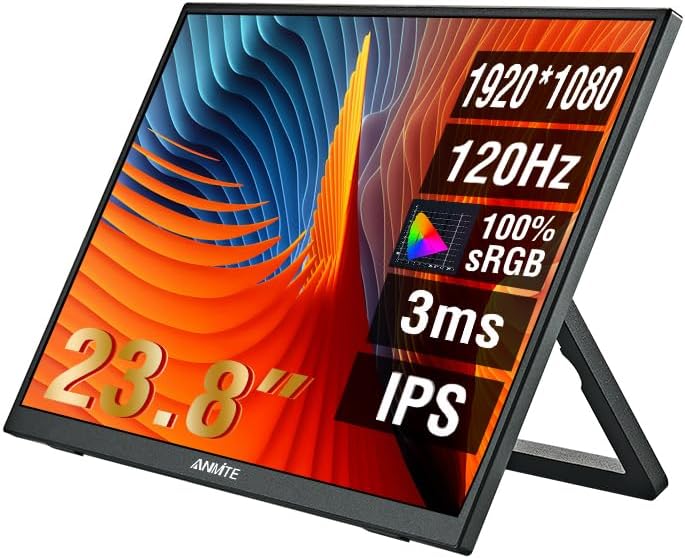
Image: Front view of the Anmite 23.8 Inch Portable Monitor, highlighting its key display features.
Package Contents
Verify that all items are present in the package:
- Anmite 23.8 Inch Portable Monitor
- USB-C to USB-C Cable
- Mini HDMI to HDMI Cable
- Power Adapter
- User Manual (this document)
Setup
Connecting the Monitor
The Anmite portable monitor supports connectivity via Type-C (USB-C) and Mini HDMI ports. Ensure your device supports video output over the chosen port.
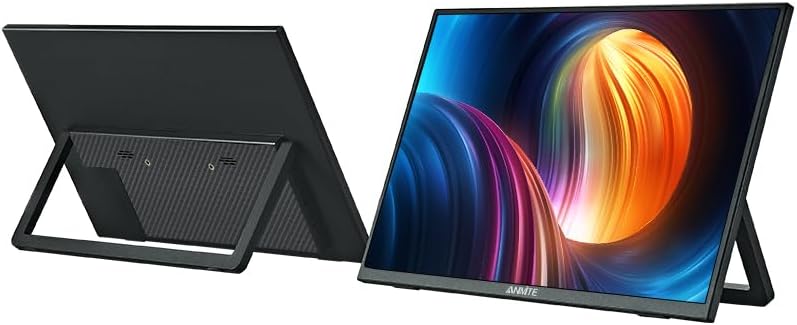
Image: Rear view of the Anmite portable monitor, illustrating the integrated stand and port locations.
- Power Connection: Connect the provided power adapter to the monitor's power input port and then to a power outlet.
- USB-C Connection (for compatible devices): If your laptop, phone, or other device supports video output and power delivery over a single USB-C port, connect one end of the USB-C to USB-C cable to your device and the other end to the monitor's full-featured USB-C port. This connection can provide both video signal and power to the monitor.
- HDMI Connection (for laptops, gaming consoles): Connect one end of the Mini HDMI to HDMI cable to the monitor's Mini HDMI port and the other end to your device's HDMI output port. If using HDMI, ensure the monitor is also powered via the power adapter or a separate USB-C power source.
- Audio Output: The monitor has built-in speakers. For external audio, connect 3.5mm headphones or speakers to the monitor's audio output jack.
Initial Power On
After connecting the necessary cables, press the power button on the monitor. The monitor should automatically detect the input signal. If not, you may need to manually select the input source via the On-Screen Display (OSD) menu.
Operating
On-Screen Display (OSD) Menu
The OSD menu allows you to adjust various display settings. Typically, buttons on the side or back of the monitor are used to navigate the menu.
- Menu Button: Press to open the OSD menu.
- Up/Down Buttons: Navigate through menu options.
- Enter/Select Button: Confirm a selection or enter a sub-menu.
- Exit Button: Exit the current menu or OSD.
Common Settings
- Brightness/Contrast: Adjust the display's luminance and contrast levels.
- Volume: Control the audio output level from the built-in speakers or headphone jack.
- Input Source: Manually select between USB-C and HDMI inputs if auto-detection fails.
- Color Settings: Fine-tune color temperature, hue, and saturation.
- Aspect Ratio: Adjust the display's aspect ratio (e.g., 16:9, 4:3).
- Refresh Rate: Ensure your device is configured to output at 120Hz for optimal performance.
Maintenance
Cleaning the Monitor
To maintain optimal display quality, clean the monitor regularly.
- Always power off and unplug the monitor before cleaning.
- Use a soft, lint-free cloth slightly dampened with water or a non-abrasive screen cleaner.
- Do not spray cleaner directly onto the screen. Apply it to the cloth first.
- Avoid using alcohol, ammonia, or abrasive cleaners, as these can damage the screen surface.
Storage
When not in use for extended periods, store the monitor in a cool, dry place, preferably in its original packaging or a protective sleeve to prevent dust and scratches.
Troubleshooting
If you encounter issues with your monitor, refer to the following common problems and solutions:
| Problem | Possible Solution |
|---|---|
| No power / Monitor does not turn on | Ensure the power adapter is securely connected to both the monitor and a working power outlet. Try a different outlet. |
| No signal / Blank screen | Check that the video cable (USB-C or HDMI) is securely connected to both the monitor and your device. Verify your device is outputting a signal. Use the OSD menu to manually select the correct input source. |
| Flickering or distorted image | Check cable connections. Ensure your device's display settings (resolution, refresh rate) are compatible with the monitor (FHD 1080P, 120Hz). Try a different cable. |
| No sound from speakers | Increase the volume via the OSD menu or your connected device. Ensure the audio output is routed to the monitor. Check if headphones are plugged in. |
| Monitor randomly turns off | Ensure stable power supply. Check for overheating (though unlikely for a monitor). |
If the problem persists after trying these solutions, please contact customer support.
Specifications
Detailed technical specifications for the Anmite 23.8 Inch Portable Monitor:
| Feature | Specification |
|---|---|
| Brand | Anmite |
| Model | 23.8 Inch Portable Monitor (ASIN: B0FBG52K2K) |
| Screen Size | 23.8 Inches |
| Resolution | FHD 1080p (1920 x 1080) |
| Refresh Rate | 120Hz |
| Panel Type | IPS |
| Aspect Ratio | 16:9 |
| Screen Surface | Matte |
| Connectivity | 1x USB-C (Full-featured), 1x Mini HDMI, 1x 3.5mm Audio Out |
| Audio | Built-in Speakers |
| Dimensions (approx.) | 53.8cm (21.18in) W x 32cm (12.6in) H x 1.3cm (0.51in) D (excluding stand) |
| Net Weight (approx.) | 2.2kg (77.6oz) |

Image: Detailed dimensions of the Anmite 23.8 Inch Portable Monitor.
Warranty and Support
For warranty information, please refer to the documentation provided at the time of purchase or contact your retailer. For technical support or further assistance, please visit the official Anmite website or contact their customer service department.
Anmite Official Store: https://www.amazon.com/stores/Anmite/page/AA26DD50-6EDF-44BA-B22D-A61716CFF2F4


