1. Introduction
Welcome to the RK ROYAL KLUDGE M100 Wireless Mechanical Keyboard user manual. This keyboard features a smart display, dual knobs, tri-mode connectivity (Bluetooth 5.0, 2.4GHz, USB-C), a gasket mount structure, RGB backlighting, and 100% hot-swappable cream switches. Designed for enhanced gameplay and efficient everyday use, the M100 offers a refined typing experience with its MDA keycap profile and long-lasting 8000mAh battery.
2. What's in the Box
- 1 x RKM100 Keyboard
- 1 x USB Cable
- 1 x 2-in-1 Keycap & Switch Puller
- 4 x Replacement Switches
- 1 x Replacement Keycap
3. Product Overview
The RK ROYAL KLUDGE M100 is engineered for performance and customization. Below are its key features:
3.1. Key Features
- Pre-lubed Cream Switches & MDA Profile: Enjoy smooth linear travel with factory-lubricated cream switches and an ergonomic MDA keycap profile for improved accuracy and reduced typing fatigue.
- Smart Display for Real-Time Monitoring: A built-in screen provides instant visual feedback on battery level, connection mode, system status, and indicators.
- Tri-Mode Connection & Dual Knobs: Seamlessly switch between Bluetooth 5.0, 2.4GHz wireless, and USB-C wired modes. The left knob controls connection modes, while the right knob manages volume/mute.
- Gasket Mount Structure: Features extended silicone padding, PCB single-key slotting, and 5-layer sound-dampening for a deeply 'thocky' sound and consistent tactile responsiveness.
- RGB Backlight & Programmable Software: Customize vibrant RGB backlighting with 16.8 million colors, key functions, and macros via RK custom software (Windows only).
- Large Capacity & 100% Hot Swappable: Powered by an 8000mAh battery for up to 400 hours of use. The hot-swappable PCB supports both 3-pin and 5-pin switches for easy customization.
3.2. Product Visuals


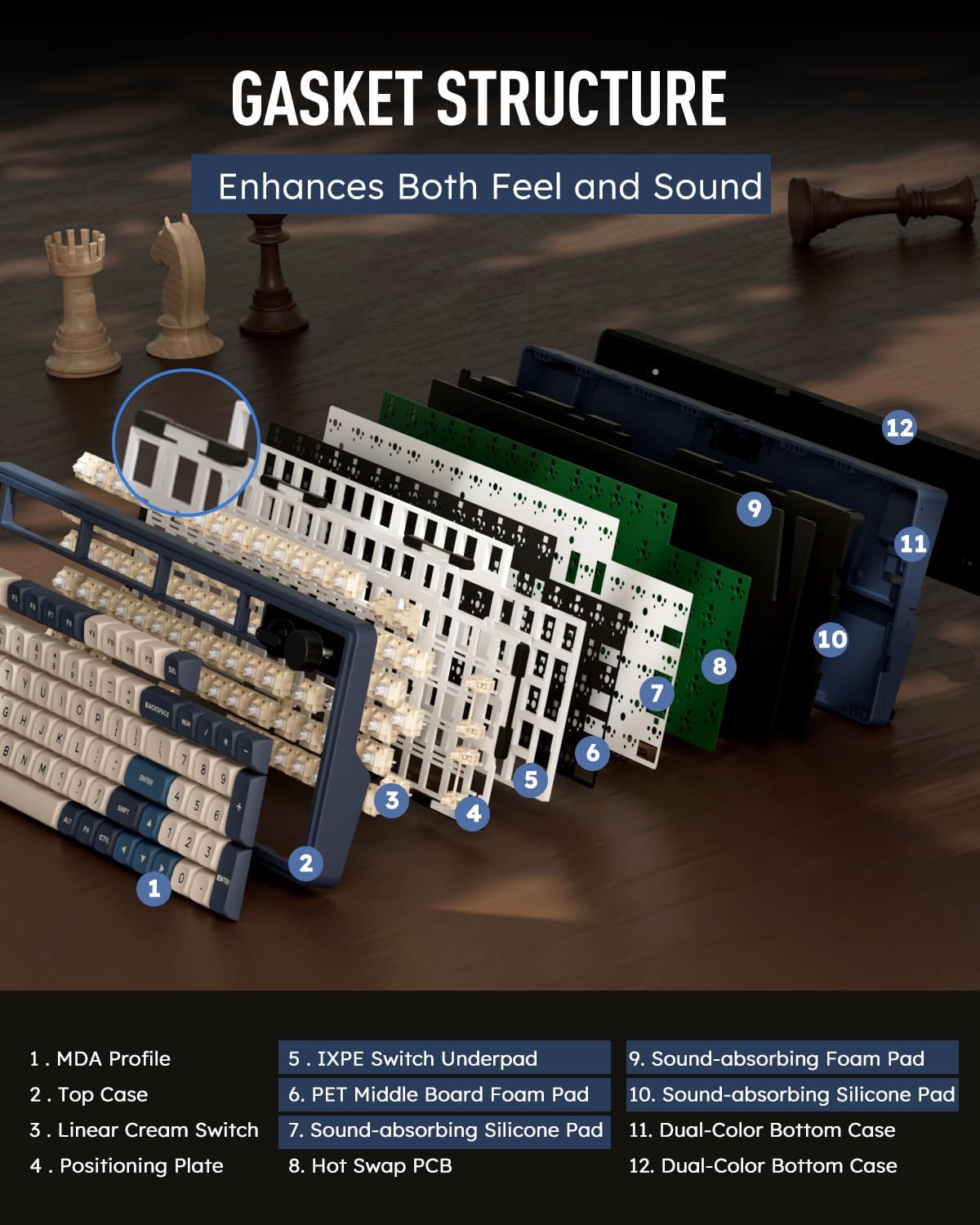


3.3. Product Video
Video 1: An overview of the RK ROYAL KLUDGE M100 Wireless Mechanical Keyboard, demonstrating its features and design.
4. Setup
4.1. Initial Charging
Before first use, it is recommended to fully charge the keyboard using the provided USB-C cable. Connect the USB-C end to the keyboard's port (located on the top edge) and the USB-A end to a power source (e.g., computer USB port, wall adapter).
4.2. Connection Modes
The RK M100 supports three connection modes:
- 2.4GHz Wireless: Turn the left knob to the '2.4G' position. Insert the 2.4GHz USB dongle (stored magnetically in the keyboard's base) into your device's USB port. The keyboard should connect automatically.
- Bluetooth 5.0: Turn the left knob to 'BT1', 'BT2', or 'BT3' to select a Bluetooth channel. The smart display will show the selected channel. On your device (computer, tablet, smartphone), search for Bluetooth devices and select 'RK M100' to pair.
- USB-C Wired: Turn the left knob to the 'OFF(Wired)' position. Connect the keyboard to your device using the provided USB-C cable. The keyboard will function as a wired device and charge simultaneously.
5. Operating Instructions
5.1. Dual Knobs Functionality
- Left Knob (Connection Mode Switch): Rotate this knob to select between 'OFF(Wired)', '2.4G', 'BT1', 'BT2', and 'BT3' modes.
- Right Knob (Volume Control): Rotate clockwise to increase volume, counter-clockwise to decrease volume. Press the knob to mute/unmute audio.
5.2. Smart Display
The integrated smart display provides real-time information:
- Battery level percentage
- Current connection mode (2.4G, BT1/2/3, Wired)
- System status (WIN/MAC)
- Charging indicator
5.3. RGB Backlight Control
Customize your keyboard's lighting effects:
- Brightness Adjustment: Press FN + Up Arrow to increase brightness; FN + Down Arrow to decrease brightness.
- Effect Mode Change: Press FN + Period (.) to cycle through different RGB lighting effects.
- Speed Adjustment: Press FN + Left Arrow to decrease effect speed; FN + Right Arrow to increase effect speed.
5.4. System Switching (Mac/Windows)
The keyboard supports both Windows and Mac operating systems:
- Switch to Mac Mode: Press FN + S.
- Switch to Windows Mode: Press FN + A.
5.5. Factory Reset
To restore the keyboard to its factory settings, press and hold FN + Spacebar for 3 seconds.
6. Maintenance
6.1. Cleaning
To clean your keyboard, gently wipe the keycaps and chassis with a soft, damp cloth. Avoid using harsh chemicals or abrasive materials. For deeper cleaning, you may remove keycaps using the provided keycap puller.
6.2. Hot-Swappable Switches
The RK M100 features hot-swappable switches, allowing for easy replacement or customization without soldering. Use the provided 2-in-1 keycap & switch puller:
- Use the keycap puller to gently remove the desired keycap.
- Use the switch puller to carefully grip the switch from its top and bottom clips, then pull upwards to remove it.
- Align the pins of the new switch with the holes on the PCB and gently push down until it clicks into place. Ensure pins are straight to avoid bending.
- Reattach the keycap.
7. Troubleshooting
- Keyboard not responding: Ensure the keyboard is charged and turned on. Check the connection mode (2.4GHz, Bluetooth, or wired) matches your device. Try reconnecting or re-pairing.
- Bluetooth connection issues: Ensure your device's Bluetooth is enabled. Try forgetting the device on your computer/phone and re-pairing. Ensure the keyboard is in a discoverable Bluetooth mode (BT1, BT2, or BT3).
- 2.4GHz dongle not working: Ensure the dongle is securely plugged into a USB port and the keyboard is set to 2.4G mode. Try a different USB port.
- RGB backlight not working: Check brightness settings using FN + Up/Down Arrow. Ensure the backlight is not turned off.
- Keys not registering: If a specific key is not working, try replacing its switch using the hot-swappable feature.
8. Specifications
| Feature | Detail |
|---|---|
| Model Number | RKM100 |
| Connectivity Technology | Bluetooth 5.0, 2.4GHz RF, USB-C |
| Keyboard Description | Gaming, Mechanical |
| Special Features | Backlit, Hot-Swappable, Smart Screen, Volume Roller |
| Keyboard Backlighting | RGB (16.8 million colors) |
| Switch Type | Pre-lubed Cream Switches (Linear) |
| Keycap Profile | MDA Profile |
| Battery Capacity | 8000mAh |
| Battery Life | Up to 60 hours (with RGB), up to 400 hours (lights off) |
| Compatible Devices | Gaming Console, Laptop, PC |
| Product Dimensions | 15.09"L x 5.47"W x 1.82"H |
| Item Weight | 2.9 pounds |
9. Warranty & Support
For warranty information and technical support, please refer to the official RK ROYAL KLUDGE website or contact their customer service directly. Keep your purchase receipt for warranty claims.


