
VECHTEL VECHTEL Car Radio for Suzuki SX4 (2006-2013)
VECHTEL Car Radio Instruction Manual for Suzuki SX4 (2006-2013)
Model: VECHTEL Car Radio for Suzuki SX4 (2006-2013)
1. Introduction
Thank you for choosing the VECHTEL Car Radio for your Suzuki SX4 (2006-2013). This advanced car stereo system features a 9-inch IPS touchscreen, Android 13 operating system, wireless CarPlay, Android Auto, GPS navigation, Bluetooth 5.0, and Wi-Fi connectivity. This manual provides essential information for installation, operation, and maintenance to ensure optimal performance and user satisfaction.

Image 1.1: VECHTEL Car Radio unit with accessories including a microphone and rear camera.
2. Package Contents
Please verify that all items listed below are included in your package:
- 1x Car Radio Unit
- 1x Power Cable
- 1x GPS Antenna
- 1x Rear Camera
- 1x Built-in Cable for Rear Camera
- 1x RCA Cable
- 2x USB Cables
- 1x External Microphone
- 1x Installation Tool Kit
3. Setup and Installation
Professional installation is recommended. Ensure the vehicle's power is disconnected before beginning installation. This unit is designed for Suzuki SX4 models from 2006 to 2013.
3.1. Pre-Installation Check
- Confirm compatibility with your vehicle's make, model, and year.
- Inspect all components for any damage.
3.2. Installation Steps (General)
- Carefully remove the original car radio unit from the dashboard.
- Connect the provided power cable, GPS antenna, and other necessary cables to the new VECHTEL car radio. Ensure all connections are secure.
- If installing the rear camera, route the camera cable to the rear of the vehicle and connect it to the appropriate input on the car radio.
- Mount the new car radio into the dashboard opening.
- Reconnect the vehicle's power and test the unit's functionality.

Image 3.1: Comparison of the Suzuki SX4 dashboard before and after installing the VECHTEL Car Radio.
4. Operating Instructions
4.1. Basic Operation
- Power On/Off: Press and hold the power button on the unit or use the vehicle's ignition.
- Touchscreen: Navigate the interface by tapping, swiping, and pinching on the 9-inch IPS display.
- Volume Control: Adjust volume using the physical buttons or on-screen controls.
4.2. Wireless CarPlay and Android Auto
Connect your smartphone wirelessly or via USB to access CarPlay or Android Auto features directly on the car radio screen. This allows for navigation, music, calls, and messages through a familiar interface.
- Ensure Bluetooth and Wi-Fi are enabled on your smartphone.
- On the car radio, select the CarPlay or Android Auto application.
- Follow the on-screen prompts to pair your device.
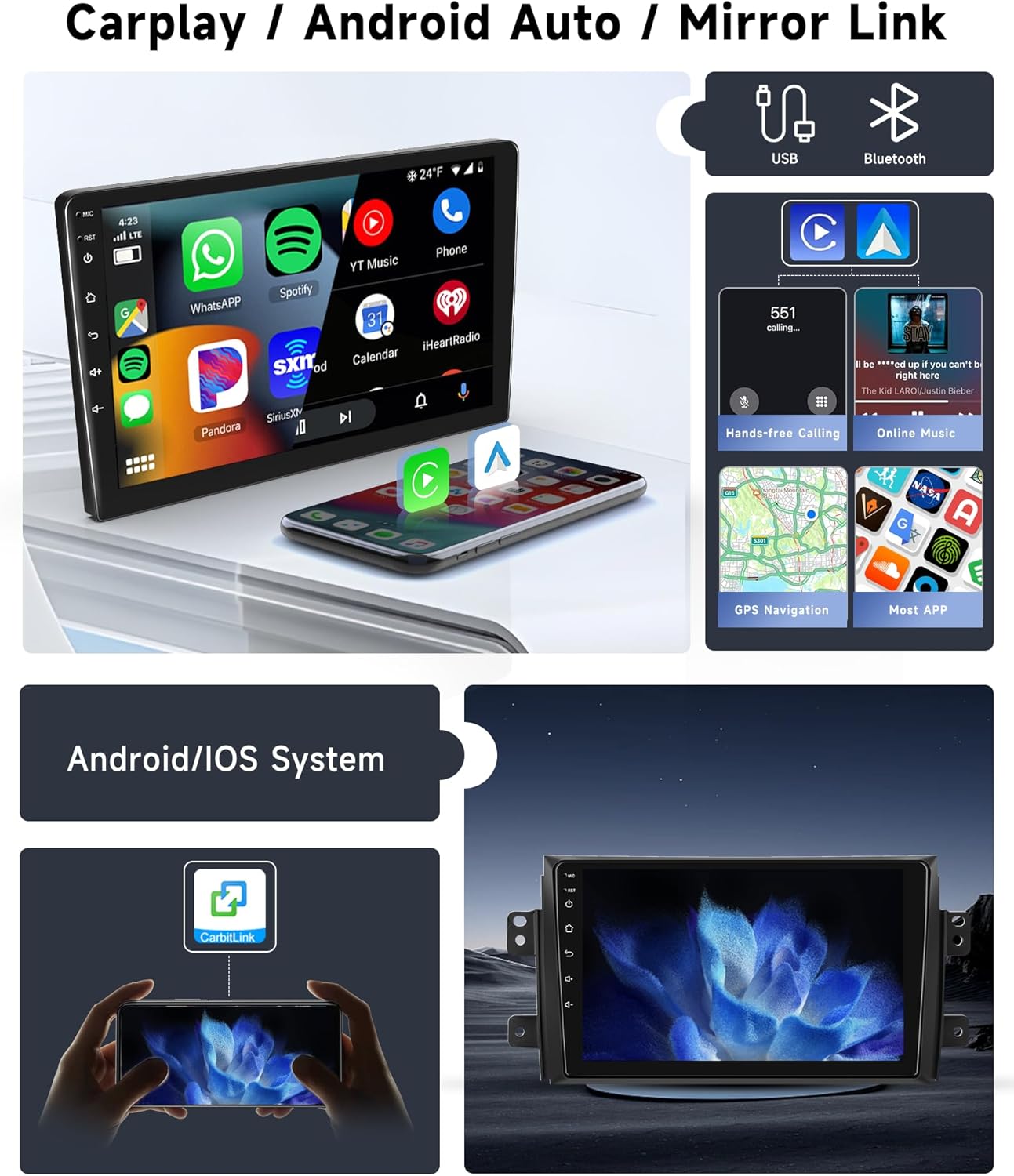
Image 4.1: Overview of CarPlay, Android Auto, and Mirror Link functionalities.
4.3. GPS Navigation
The unit supports both online and offline navigation. Ensure the GPS antenna is properly installed for accurate positioning.
- Access navigation applications from the main menu.
- Download offline maps for areas with limited network coverage.

Image 4.2: GPS navigation displaying online and offline map options, alongside Wi-Fi connectivity for app downloads.
4.4. Bluetooth 5.0
Connect your smartphone via Bluetooth for hands-free calling, music streaming, and wireless file transfer.
- Go to the Bluetooth settings on the car radio.
- Enable Bluetooth on your phone and search for the car radio (e.g., "VECHTEL Car Radio").
- Pair the devices using the provided PIN if prompted.
4.5. FM/RDS Radio
Tune into your favorite radio stations with the integrated FM/RDS tuner.
- Select the Radio application from the main menu.
- Use the scan function to find available stations or manually tune to a frequency.
4.6. Steering Wheel Control (SWC)
If your vehicle supports it, connect the steering wheel control wires to the car radio to operate functions like volume, track change, and calls directly from your steering wheel.

Image 4.3: Visual representation of Bluetooth 5.0, FM/RDS radio interface, steering wheel control integration, and the rear camera display.
4.7. Rear Camera
The included rear camera provides a clear view when reversing, automatically displaying on the screen when the vehicle is in reverse gear.
5. Specifications
| Feature | Specification |
|---|---|
| System | Android 13, 8-Core Processor |
| Memory | 6GB RAM + 128GB ROM |
| Screen Size | 9 Inches |
| Screen Resolution | 1280 x 720 IPS HD |
| Radio Chip | 8035 |
| Output Power | 4 x 45W |
| Bluetooth Version | 5.0 |
| Operating Temperature | -20 ℃ to 75 ℃ |
| Steering Wheel Control | Supported |
| Video Output | Supported |
| Audio Formats | APE/FLAC/WAV/MP3/WMA, etc. |
| Video Formats | MKV/RMVB/AVI/MP4/MDV, etc. |
| Image Formats | PNG/JPEG/JPG/GIF/WBMP/BNP, etc. |
| Connectivity | Bluetooth, USB, Wi-Fi |
| Special Features | 8-Core, Wireless Android Auto, Wireless CarPlay, Touchscreen |

Image 5.1: Details of the IPS HD screen, highlighting its wide viewing angle, resolution, and touch capabilities.

Image 5.2: Illustration of the high-performance 8-core processor and memory configuration (6GB RAM + 128GB ROM).
6. Maintenance
6.1. Cleaning the Screen
Use a soft, lint-free cloth to gently wipe the touchscreen. For stubborn smudges, slightly dampen the cloth with water or a screen-cleaning solution. Avoid harsh chemicals or abrasive materials.
6.2. Software Updates
Periodically check for software updates to ensure optimal performance and access to the latest features. Updates can typically be found through the system settings or the manufacturer's website.
7. Troubleshooting
If you encounter issues, refer to the following common solutions:
- No Power: Check all power cable connections. Ensure the vehicle's ignition is on.
- No Sound: Verify speaker connections, check volume levels, and ensure the mute function is not active.
- GPS Signal Loss: Ensure the GPS antenna is securely connected and has a clear view of the sky.
- Bluetooth Pairing Issues: Ensure Bluetooth is enabled on both devices and that the car radio is in pairing mode. Try restarting both devices.
- Touchscreen Unresponsive: Perform a soft reset of the unit (refer to the device settings for reset options).
- Factory Settings Password: The default factory settings password is 1234. Use this with caution as it can reset critical system configurations.
For complex issues or compatibility concerns (e.g., incompatible wiring or fit), please contact VECHTEL customer support directly. Provide your car's model year and a photo of the central console for assistance.
8. Warranty and Support
For warranty information, please refer to the documentation provided at the time of purchase or contact your retailer. For technical support, product inquiries, or assistance with installation, please reach out to VECHTEL customer service through the platform where the product was purchased.
Ask a question about this manual
Ask about setup, troubleshooting, compatibility, parts, safety, or missing instructions. Manuals+ will review the question and use this page’s manual context to help answer it.