
QUANTRON QWR-4G01
QUANTRON QWR-4G01 4G LTE Wireless Router User Manual
Model: QWR-4G01
1. Introduction
This user manual provides comprehensive instructions for the installation, operation, and maintenance of your QUANTRON QWR-4G01 4G LTE Wireless Router. Please read this manual carefully before using the device to ensure proper setup and optimal performance. Keep this manual for future reference.
2. Package Contents
Verify that all items listed below are present in your product package:
- QUANTRON QWR-4G01 Router
- Power Adapter
- LAN Cable
- User Manual (this document)
3. Product Overview
The QUANTRON QWR-4G01 is a high-speed 4G LTE wireless router designed to provide reliable internet connectivity. It features a 300 Mbps data transfer rate and four external antennas for enhanced signal coverage. This router supports both 4G and 5G networks, offering versatile compatibility for various network environments.
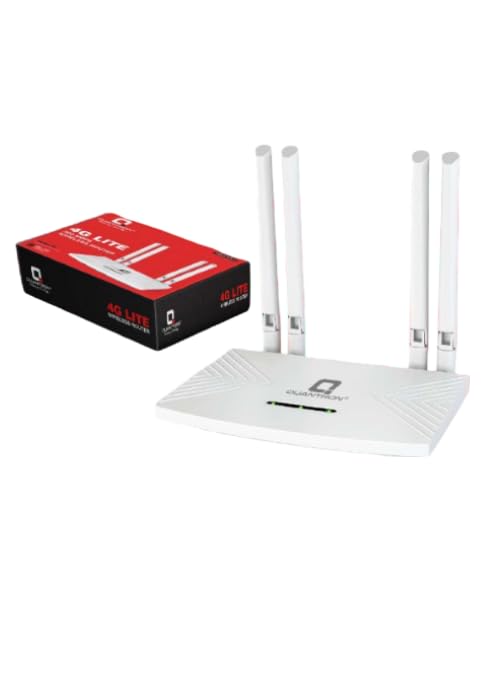
Figure 3.1: QUANTRON QWR-4G01 Router and its retail packaging.
Key Features:
- High-Speed Connectivity: Up to 300 Mbps 4G LTE wireless.
- Enhanced Signal: Four high-gain external antennas.
- Network Compatibility: Supports 4G and 5G networks.
- Status Indicators: WAN status LED and Internal status LED.
- Functionality: Reset button, USB support, and SIM lock support.
- Power Options: Dual power input (DC 12V/1A or 5V/2A).
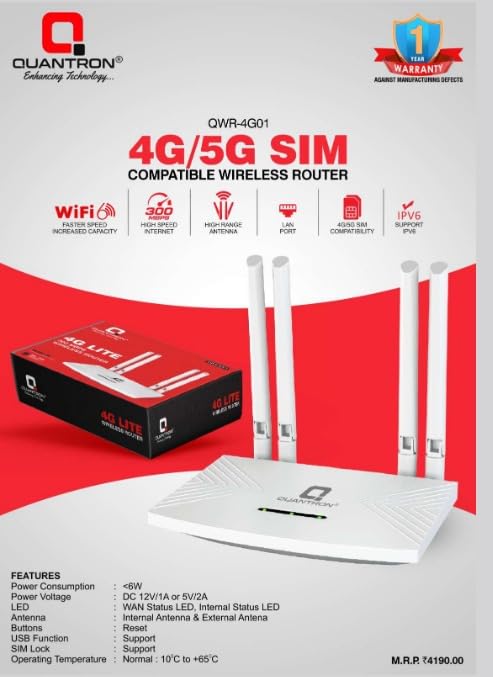
Figure 3.2: Front view of the QUANTRON QWR-4G01 Router highlighting key features.
4. Setup Guide
4.1 Physical Installation
- Attach Antennas: Carefully screw the four external antennas onto the corresponding connectors on the back of the router. Ensure they are securely fastened but do not overtighten.
- Insert SIM Card: Locate the SIM card slot, usually on the side or bottom of the router. Insert your activated 4G/5G SIM card into the slot with the metal contacts facing down and the notched corner oriented correctly. Push until it clicks into place.
- Connect Power: Connect the provided power adapter to the router's power input port and then plug the adapter into a standard electrical outlet. The router will power on automatically.
- (Optional) Connect LAN Devices: If you have wired devices (e.g., desktop computer, gaming console), connect one end of the provided LAN cable to an Ethernet port on the router and the other end to your device's Ethernet port.
4.2 Initial Configuration
After physical installation, configure the router for internet access:
- Connect to Wi-Fi: On your computer or smartphone, search for available Wi-Fi networks. Connect to the network named "QUANTRON_XXXX" (where XXXX are the last four digits of the router's MAC address or a default name). The default Wi-Fi password is typically printed on a sticker on the bottom of the router.
- Access Web Interface: Open a web browser (e.g., Chrome, Firefox) and enter the router's default IP address in the address bar. Common default IP addresses are 192.168.1.1 or 192.168.0.1. Refer to the sticker on your router for the exact IP address and default login credentials (username and password).
- Login: Enter the default username and password when prompted. It is highly recommended to change these default credentials immediately after your first login for security purposes.
- Configure Internet Settings: Navigate to the WAN or Internet settings section. The router should automatically detect the 4G/5G network settings from your SIM card. If not, you may need to manually enter the APN (Access Point Name) provided by your mobile network operator.
- Customize Wi-Fi Settings: Go to the Wireless or Wi-Fi settings to change the Wi-Fi network name (SSID) and password to something memorable and secure. Save your changes.
5. Operating Instructions
5.1 LED Indicators
The router features several LED indicators to show its status:
- WAN Status LED: Indicates the status of the internet connection (e.g., solid green for connected, blinking for data activity, red for no connection).
- Internal Status LED: Indicates the operational status of the router's internal system (e.g., solid green for normal operation, blinking during boot-up or error).
- Wi-Fi LED: Indicates Wi-Fi network activity.
- LAN LED(s): Indicates activity on the wired LAN ports.
5.2 Reset Functionality
A reset button is located on the router. This button serves two primary functions:
- Soft Reset (Reboot): Press and hold the reset button for approximately 3-5 seconds. The router will restart without losing its configuration settings.
- Factory Reset: To restore the router to its factory default settings, press and hold the reset button for more than 10 seconds while the router is powered on. All custom configurations, including Wi-Fi name and password, will be erased. The router will then reboot.
5.3 USB Functionality
The router includes a USB port. This port can be used for various functions, such as connecting a USB storage device for network-attached storage (NAS) capabilities, allowing users on the network to access shared files. Refer to the router's web interface for specific USB configuration options.
5.4 SIM Lock Support
The QUANTRON QWR-4G01 supports SIM lock functionality, which can restrict the router to operate only with a specific SIM card or network. This feature enhances security and can be configured through the router's web management interface.
6. Maintenance
- Cleaning: Use a soft, dry cloth to clean the router. Do not use liquid or aerosol cleaners.
- Placement: Place the router in a central location, away from obstructions, large metal objects, and other electronic devices that may cause interference. Ensure adequate ventilation.
- Firmware Updates: Periodically check the manufacturer's website for firmware updates. Keeping your router's firmware up-to-date ensures optimal performance, security, and access to new features.
- Operating Environment: Ensure the router operates within its specified temperature range of -10°C to +65°C. Avoid extreme temperatures and humidity.
7. Troubleshooting
If you encounter issues with your router, refer to the following common problems and solutions:
| Problem | Possible Cause | Solution |
|---|---|---|
| No Internet Access | SIM card not inserted correctly, no active data plan, incorrect APN settings, WAN LED is red. |
|
| Weak Wi-Fi Signal or Slow Speed | Router placement, interference, outdated firmware. |
|
| Cannot Access Web Interface | Incorrect IP address, network connection issue, browser cache. |
|
| Forgot Wi-Fi Password or Login Credentials | Lost or forgotten credentials. |
|
8. Specifications
| Feature | Detail |
|---|---|
| Brand | QUANTRON |
| Model | QWR-4G01 |
| Data Transfer Rate | 300 Megabits Per Second |
| Wireless Type | 802.11n |
| Connector Type | 5G, LTE, Wi-Fi |
| Number of Ports | 2 (LAN) |
| Antennas | 4 External Antennas |
| Power Consumption | <5W |
| Power Options | DC 12V/1A or 5V/2A |
| Operating Temperature | -10°C to +65°C |
| Product Dimensions | 15 x 10 x 3.5 cm |
| Item Weight | 460 g |
| Special Features | 4G LTE Compatible, External Antenna, Reset Button, SIM Lock Support, USB Support |
| Compatible Devices | Desktop Computers, Laptops, Smartphone, Tablet |
| Operating System Compatibility | Linux, Mac OS, Windows |
9. Warranty and Support
9.1 Warranty Information
This product typically comes with a manufacturer's warranty against manufacturing defects. Please refer to the warranty card included in your package or the product listing for specific terms and conditions. A 10-day replacement policy may also be applicable as per retailer terms.
9.2 Technical Support
For technical assistance, troubleshooting beyond this manual, or warranty claims, please contact QUANTRON customer support. Contact details can usually be found on the product packaging, the official QUANTRON website, or the retailer's support page.
When contacting support, please have your product model (QWR-4G01) and purchase details ready.
Related Documents - QWR-4G01
 |
Nokia FastMile 4G Receiver Product Overview and Management Guide Comprehensive guide to managing the Nokia FastMile 4G Receiver, covering web UI, wireless app management, specifications, and standards certification. |
 |
VEVOR Furnace Blower Motor User Manual - YU370-4G01, YU200-4G01 User manual and technical specifications for VEVOR Furnace Blower Motors, models YU370-4G01 and YU200-4G01. Includes safety warnings, connection instructions, and troubleshooting tips. |
 |
Gustavsberg Wall Hung WC Installation Guide - Model GB1921100298/1 Comprehensive installation instructions for Gustavsberg wall-hung WC models, featuring step-by-step guidance, technical dimensions, and care advice. Includes model GB1921100298/1. |
 |
UBC CHILLPRO 5500 Glycol Chiller - Specifications, Dimensions, and Parts Comprehensive technical details for the UBC CHILLPRO 5500 Glycol Chiller, including dimensions, detailed specifications, wiring diagram explanation, and a complete parts list. Features contact information for UBC Distribution USA and UBC COOL Canada. |
 |
RAUCH MDS & UKS Fertilizer Spreaders: Precision Application for Modern Agriculture Discover the RAUCH MDS and UKS series of precision fertilizer spreaders, engineered for efficiency, accuracy, and versatility in modern farming. Featuring advanced technology, diverse models, and specialized application capabilities for optimal crop nutrition. |
 |
QRS PEMF System: Science, Benefits, and Applications for Health and Performance Explore the Quantron Resonance System (QRS), a leading Pulsed Electromagnetic Field (PEMF) device. Learn about its science-based approach to cell vitality, metabolism, recovery, and overall health, supported by extensive research and international patents. |
Ask a question about this manual
Ask about setup, troubleshooting, compatibility, parts, safety, or missing instructions. Manuals+ will review the question and use this page’s manual context to help answer it.