
ICONLINK P13
ICONLINK 11-inch Android Tablet P13 User Manual
Model: P13 | Brand: ICONLINK
1. Introduction
Welcome to your new ICONLINK P13 Android Tablet. This manual provides comprehensive instructions for setting up, operating, maintaining, and troubleshooting your device. Please read this manual carefully to ensure optimal performance and longevity of your tablet.
2. Package Contents
Verify that all items are present in your package:
- 1 x ICONLINK 11-inch Android Tablet P13
- 1 x Keyboard
- 1 x Mouse
- 1 x Stylus
- 1 x Foldable Protective Cover
- 1 x USB Charger
- 1 x Type-C Cable
- 1 x User Manual (this document)

Image: The ICONLINK P13 tablet displayed with its included accessories: a keyboard, mouse, stylus, and protective case.
3. Product Overview
3.1. Physical Components
The ICONLINK P13 tablet features a sleek design with essential ports and buttons for user interaction.
- Display: 11-inch IPS HD Incell screen.
- Rear Camera: 8 Megapixels, located on the back.
- Front Camera: 5 Megapixels, for video calls and selfies.
- USB Type-C Port: For charging and data transfer.
- Power Button: To turn the device on/off and wake/sleep.
- Volume Buttons: To adjust audio levels.
- Micro SD Card Slot: For expandable storage.
- Speakers: Integrated for audio output.

Image: Rear view of the ICONLINK P13 tablet, highlighting the circular camera module.

Image: The 11-inch IPS HD screen of the ICONLINK P13 tablet, displaying its 1280x800 resolution and eye protection features.
4. Setup
4.1. Charging the Tablet
Before first use, fully charge your tablet. Connect the provided Type-C cable to the tablet's charging port and the USB charger to a power outlet. The 7000mAh battery provides approximately 10 hours of average use.
Video: A demonstration of the ICONLINK P13 tablet's charging process and battery status display.
4.2. Power On/Off
- To Power On: Press and hold the Power button until the screen lights up.
- To Power Off: Press and hold the Power button, then select "Power off" from the options on the screen.
- To Sleep/Wake: Briefly press the Power button.
4.3. Initial Setup (Android 14)
Upon first power-on, follow the on-screen prompts to complete the initial setup:
- Select your language and region.
- Connect to a Wi-Fi network (see section 4.5).
- Sign in with your Google account or create a new one. The tablet is Google GMS certified, allowing full access to the Google Play Store.
- Set up screen lock and other security features.
- Review and accept terms and conditions.
4.4. Connecting Accessories (Keyboard, Mouse, Stylus)
The included keyboard and mouse connect via Bluetooth. The stylus is typically passive or may require a simple pairing process if active.
- Enable Bluetooth on your tablet via Settings > Connected devices > Bluetooth.
- Put the keyboard/mouse into pairing mode (refer to their individual manuals if needed).
- Select the accessory from the list of available devices on your tablet to pair.
- The foldable protective cover is designed to hold the tablet and keyboard.

Image: The ICONLINK P13 tablet set up with its external keyboard, mouse, and stylus, demonstrating its 2-in-1 functionality.
Video: A vertical format video showcasing the 11-inch tablet PC along with its keyboard, cover, pen (stylus), and mouse accessories.
4.5. Wi-Fi Connection
To access the internet, connect your tablet to a Wi-Fi network:
- Go to Settings > Network & internet > Wi-Fi.
- Toggle Wi-Fi ON.
- Select your desired network from the list.
- Enter the password if prompted and tap "Connect". The tablet supports 5G WiFi6 for faster connectivity.
5. Operating Instructions
5.1. Basic Navigation
The Android 14 operating system uses intuitive touch gestures:
- Tap: Select an item or open an app.
- Swipe: Scroll through pages or lists.
- Pinch: Zoom in or out on images and web pages.
- Long Press: Access contextual menus or move icons.
5.2. Storage Management
Your tablet comes with 64GB of internal storage and 18GB (6GB physical + 12GB virtual) RAM. You can expand storage up to 1TB using a Micro SD card.
- Inserting a Micro SD Card: Locate the card slot on the side of the tablet and gently insert the card until it clicks into place.
- Managing Storage: Go to Settings > Storage to view usage and manage files.
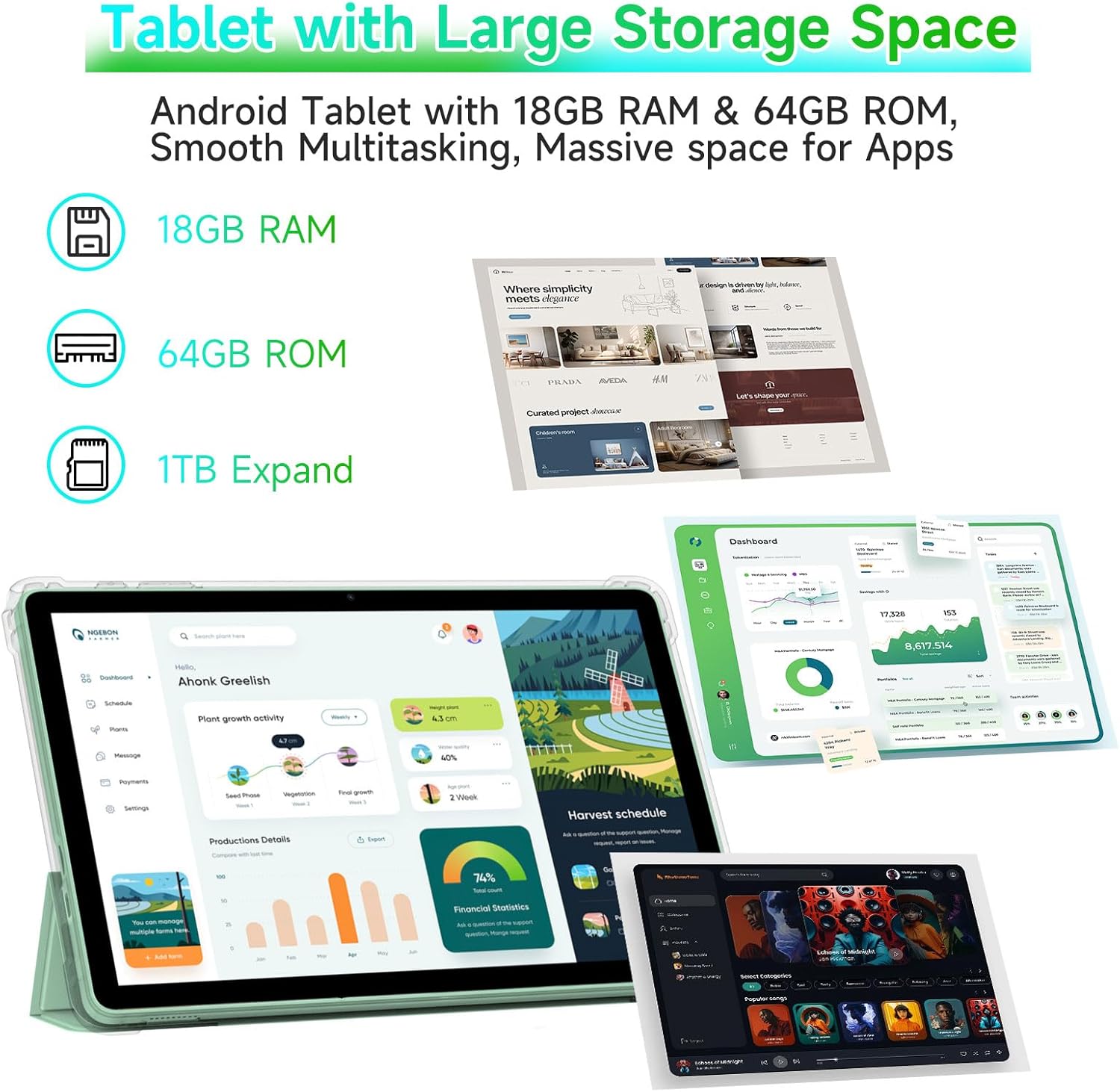
Image: The ICONLINK P13 tablet screen displaying information about its 18GB RAM, 64GB ROM, and 1TB expandable storage capabilities.
5.3. Display Features
The 11-inch 1280*800 IPS HD Incell display offers clear visuals and wide viewing angles. It also supports Widevine L1 for high-quality streaming of copyrighted content from services like Prime Video.
- Eye Protection: The display effectively filters harmful blue light to reduce eye strain.
- Wireless Projection: Connect your tablet to a larger TV or display wirelessly for an enhanced viewing experience.
5.4. Camera Usage
Capture photos and videos using the built-in cameras:
- Open the Camera app from your home screen or app drawer.
- Switch between the 8MP rear camera and 5MP front camera as needed.
- Tap the shutter button to take a photo or record a video.

Image: The ICONLINK P13 tablet highlighting its 5MP front HD camera and 8MP rear HD camera for clear image recording.
5.5. 2-in-1 Functionality
Transform your tablet into a laptop-like device using the included keyboard, mouse, and stylus for productivity tasks.
- Attach the tablet to the foldable protective cover, which often has a stand function.
- Connect the Bluetooth keyboard and mouse as described in section 4.4.
- Use the stylus for precise input, drawing, or note-taking.
Video: A demonstration of the ICONLINK P13 tablet's performance during gameplay, showcasing its capabilities for entertainment.
6. Maintenance
6.1. Cleaning
- Use a soft, lint-free cloth to clean the screen and body of the tablet.
- Avoid using harsh chemicals or abrasive materials.
- For stubborn smudges, lightly dampen the cloth with water or a screen cleaner.
6.2. Software Updates
Regularly check for and install software updates to ensure your tablet has the latest features, security patches, and performance improvements. Go to Settings > System > System update.
7. Troubleshooting
If you encounter issues with your ICONLINK P13 tablet, refer to the following common solutions:
| Problem | Solution |
|---|---|
| Tablet does not turn on. | Ensure the tablet is charged. Connect it to the charger for at least 30 minutes, then try powering on again. |
| Wi-Fi connection issues. | Check if Wi-Fi is enabled. Restart your router and the tablet. Ensure you have entered the correct Wi-Fi password. |
| Accessories (keyboard/mouse) not connecting. | Ensure Bluetooth is enabled on the tablet and the accessories are in pairing mode. Recharge or replace batteries in the accessories if applicable. |
| Slow performance. | Close unused applications. Clear cache regularly. Consider performing a factory reset if issues persist (backup data first). |
| Screen unresponsive. | Restart the tablet. If unresponsive, force restart by holding the power button for an extended period (e.g., 10-15 seconds). |
8. Specifications
| Feature | Detail |
|---|---|
| Brand | ICONLINK |
| Model Name | P13 |
| Operating System | Android 14 (GMS Certified) |
| Screen Size | 11 Inches |
| Screen Resolution | 1280*800 Pixels (IPS HD Incell, Widevine L1) |
| Processor | 2.0 GHz Octa-core (MediaTek MT6765 / Helio P35) |
| RAM | 18GB (6GB physical + 12GB virtual) |
| Internal Storage | 64 GB |
| Expandable Storage | Up to 1TB via Micro SD Card |
| Rear Camera | 8 MP |
| Front Camera | 5 MP |
| Wireless Connectivity | 5G WiFi6, Bluetooth 5.0 |
| Battery Capacity | 7000mAh |
| Average Battery Life | 10 Hours |
| Dimensions (LxWxH) | 11 x 6.6 x 0.31 inches |
| Item Weight | 1.09 pounds |
9. Warranty and Support
For warranty information, technical support, or service inquiries, please refer to the contact information provided with your purchase documentation or visit the official ICONLINK website. Keep your proof of purchase for warranty claims.