
1. Product Overview
The MEETION MT-C4130 is a wireless keyboard and mouse combo designed for enhanced productivity and comfort. It features a full-sized keyboard with a built-in wrist rest and a mouse with adjustable DPI settings, connecting via a 2.4G wireless USB receiver. This combo is compatible with various operating systems, including Windows and Mac.

2. Package Contents
Please verify that all items are present in your package:
- 1 x Wireless Keyboard
- 1 x Wireless Mouse
- 1 x USB-A Receiver
- 1 x USB-C Adapter
- 1 x User Manual
Note: AA batteries for the keyboard and mouse are not included and must be purchased separately.

3. Setup Instructions
3.1 Battery Installation
- For the Mouse: Open the battery compartment cover located on the underside of the mouse. Insert one (1) AA battery, ensuring correct polarity (+/-). Close the cover.
- For the Keyboard: Open the battery compartment cover on the underside of the keyboard. Insert one (1) AA battery, ensuring correct polarity (+/-). Close the cover.

3.2 Connecting the USB Receiver
- Locate the USB-A receiver. It is typically stored in a dedicated slot next to the mouse within the product packaging.
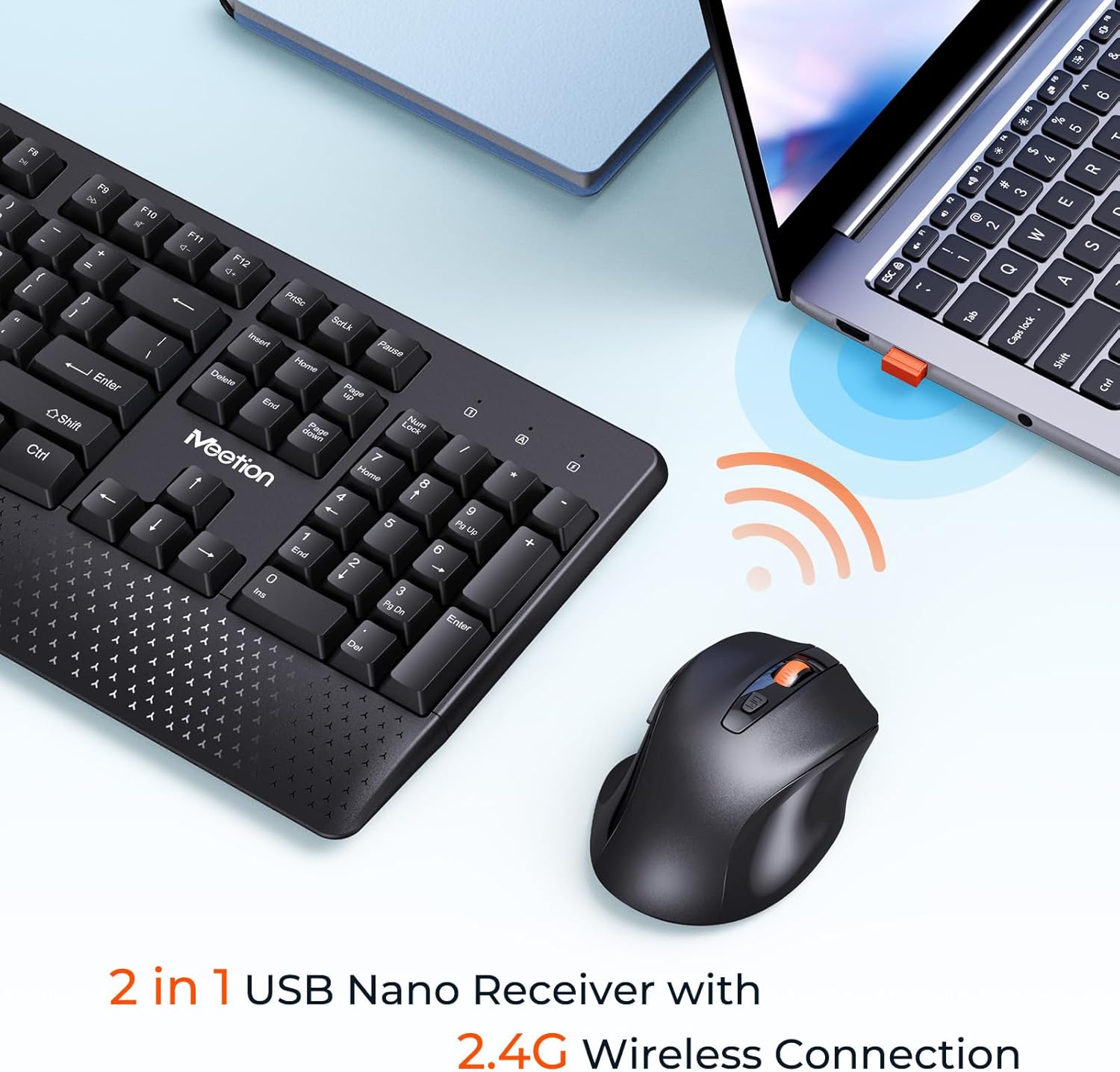
- Plug the USB-A receiver into an available USB-A port on your computer or laptop.
- If your device only has USB-C ports, use the provided USB-C adapter. Plug the USB-A receiver into the USB-C adapter, then plug the adapter into your device's USB-C port.
- The keyboard and mouse should automatically connect to your device. No additional drivers are typically required.

3.3 Powering On/Off
- Mouse: The mouse has an ON/OFF switch located on its underside. Slide the switch to the "ON" position to power on and "OFF" to power off.
- Keyboard: The keyboard does not have a physical ON/OFF switch. It automatically enters a hibernation mode when not in use to conserve battery power.
4. Operating Instructions
4.1 Keyboard Functions
- Full-Size Layout: The keyboard features a standard full-size layout, including a numeric keypad for efficient data entry.
- Integrated Wrist Rest: An ergonomic wrist rest is integrated into the keyboard design to provide comfort during extended typing sessions.
- Multimedia Keys: Access various multimedia and system functions using the Fn key in combination with the F-keys (F1-F12). Refer to the diagram below for specific functions.

4.2 Mouse Functions
- Adjustable DPI: The mouse offers three adjustable DPI settings: 800, 1200, and 1600. Press the DPI button located behind the scroll wheel to cycle through these settings and adjust cursor sensitivity.
- Buttons: The mouse includes left and right click buttons, a scroll wheel, and forward/backward buttons on the side for navigation.
- Silent Clicks: The mouse is designed for quiet operation, minimizing click noise.


5. Maintenance
- Keep the keyboard and mouse clean by wiping them with a soft, dry cloth.
- Avoid exposing the devices to excessive moisture or extreme temperatures.
- When not in use for extended periods, turn off the mouse to conserve battery life. The keyboard will automatically hibernate.
- Replace batteries promptly when performance degrades.
6. Troubleshooting
6.1 Connection Issues
- No Response: Ensure batteries are correctly installed and have sufficient charge. Turn the mouse ON.
- Receiver Not Detected: Try plugging the USB receiver into a different USB port on your computer. If using the USB-C adapter, ensure it is securely connected to both the receiver and the computer.
- Interference: Move the keyboard and mouse closer to the USB receiver. Avoid placing large metal objects between the devices and the receiver.
6.2 Mouse Lag or Inconsistent Movement
- Wake-up Delay: The mouse enters a sleep mode after a period of inactivity. Click any mouse button to wake it up.
- Surface Issues: Ensure you are using the mouse on a suitable surface. Highly reflective or uneven surfaces can affect tracking.
- Battery Level: Low battery can cause erratic behavior. Replace the mouse battery.
6.3 Keyboard Not Typing
- Battery Level: Replace the keyboard battery.
- Connection: Verify the USB receiver is properly connected to your computer.
- Hibernation: The keyboard automatically hibernates. Press any key to wake it up.
7. Specifications
| Feature | Specification |
|---|---|
| Connectivity Technology | 2.4G Wireless (USB Receiver) |
| Keyboard Type | Full-Size with Numeric Keypad and Wrist Rest |
| Mouse DPI Settings | 800 / 1200 / 1600 DPI (Adjustable) |
| Keyboard Battery | 1 x AA Battery (not included) |
| Mouse Battery | 1 x AA Battery (not included) |
| Compatible Devices | Laptop, Personal Computer (Windows, Mac) |
| Keyboard Dimensions | 17.44 x 7.3 x 1.1 inches (443 x 185 x 28 mm) |
| Mouse Dimensions | 4.3 x 2.8 x 1.6 inches (110 x 72 x 40 mm) |
| Item Weight | 2.05 pounds (approximate for combo) |
| Manufacturer | Meetion Direct |

8. Warranty and Support
For warranty information and technical support, please refer to the documentation included with your product or contact Meetion Direct customer service. Keep your purchase receipt for warranty claims.