1. Introduction
The Generic RHT20 is an environmental test equipment designed for accurately measuring and logging humidity and temperature data. This datalogger features an integrated LCD for real-time display of readings and provides reliable data collection for various applications. This manual provides essential information for the proper setup, operation, maintenance, and troubleshooting of your RHT20 device.
2. Safety Information
- Read all instructions carefully before operating the device.
- Do not expose the device to extreme temperatures, direct sunlight, or high humidity.
- Avoid dropping or subjecting the device to severe impact.
- Do not attempt to open or modify the device. Refer all servicing to qualified personnel.
- Dispose of batteries according to local regulations.
3. Package Contents
Verify that all items are present and in good condition upon unpacking:
- RHT20 Humidity & Temperature Datalogger Unit
- User Manual
- USB Cable (for data transfer and power, if applicable)
- Software CD (if applicable)
4. Device Overview
Familiarize yourself with the components of your RHT20 datalogger:
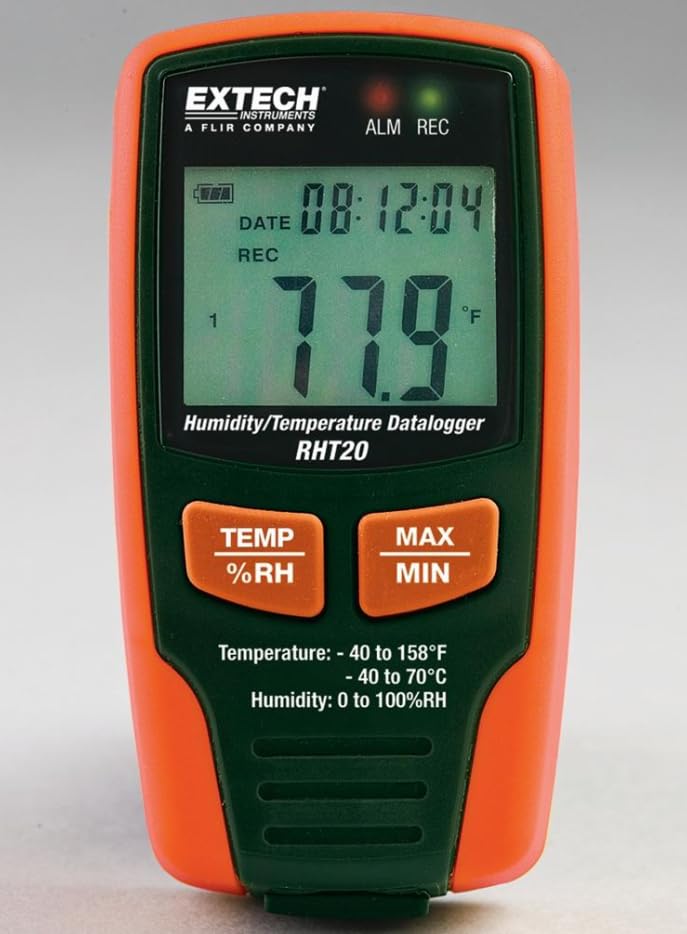
Figure 1: Front view of the RHT20 Datalogger. This image displays the device's main body, featuring a prominent LCD screen for displaying real-time humidity and temperature readings, along with control buttons located below the screen.
4.1. Components
- LCD Display: Shows current temperature, humidity, battery status, and logging indicators.
- MODE Button: Cycles through display modes or menu options.
- SET Button: Enters settings menu or confirms selections.
- START/STOP Button: Initiates or terminates data logging.
- USB Port: For connecting to a computer for data download and configuration.
- Sensor: Integrated humidity and temperature sensor (typically located at the top or side).
- Battery Compartment: Located at the rear of the device.
5. Setup
5.1. Battery Installation
- Locate the battery compartment cover on the back of the RHT20.
- Slide or unscrew the cover to open it.
- Insert the required batteries (e.g., AAA batteries) observing the correct polarity (+/-) as indicated inside the compartment.
- Replace the battery compartment cover securely.
5.2. Powering On/Off
- To Power On: Press and hold the START/STOP button for approximately 3 seconds until the LCD illuminates.
- To Power Off: Press and hold the START/STOP button for approximately 3 seconds until the LCD turns off.
5.3. Software Installation (Optional)
If your application requires advanced configuration or data analysis, install the provided software (if applicable) on your computer by following the on-screen instructions from the installation CD or downloaded file.
6. Operating Instructions
6.1. Basic Measurement
Upon powering on, the RHT20 will immediately display the current ambient temperature and humidity readings on the LCD. Ensure the device is placed in the environment you wish to monitor.
6.2. Configuring Settings
To adjust settings such as logging interval, alarm thresholds, or time/date:
- Press and hold the SET button to enter the settings menu.
- Use the MODE button to navigate through different parameters.
- Use the SET button to select a parameter and adjust its value.
- Press MODE to confirm the value and move to the next setting, or press START/STOP to exit the settings menu.
6.3. Starting Data Logging
To begin recording data:
- Ensure the device is powered on and configured as desired.
- Press the START/STOP button briefly. A logging indicator (e.g., a blinking REC icon) will appear on the LCD, confirming that data logging has started.
6.4. Stopping Data Logging
To cease recording data:
- Press the START/STOP button briefly. The logging indicator will disappear from the LCD, indicating that data logging has stopped.
6.5. Data Download
To retrieve logged data:
- Connect the RHT20 to your computer using the provided USB cable.
- Launch the RHT20 software (if applicable).
- Follow the software's instructions to download and analyze the recorded data.
7. Maintenance
7.1. Cleaning
- Wipe the device with a soft, dry cloth.
- Do not use abrasive cleaners, solvents, or harsh chemicals.
- Ensure no liquid enters the sensor area or USB port.
7.2. Storage
- When not in use for extended periods, remove the batteries to prevent leakage.
- Store the device in a cool, dry place, away from direct sunlight and extreme temperatures.
8. Troubleshooting
- Device does not power on: Check battery installation and ensure batteries are fresh.
- Incorrect readings: Ensure the sensor is clean and unobstructed. Allow the device to stabilize in the environment for a few minutes.
- Data not logging: Verify that logging was initiated correctly (check for the logging indicator on the LCD). Ensure sufficient memory is available.
- Cannot connect to computer: Check USB cable connection. Ensure software drivers are installed correctly. Try a different USB port.
9. Specifications
| Specification | Value |
|---|---|
| Brand | Generic |
| Model | RHT20 |
| Item Weight | 7 Pounds (approx. 3.17 kg) |
| Manufacturer | Extech |
| ASIN | B0FB7Y8MPX |
| Date First Available | May 29, 2025 |
10. Warranty and Support
For warranty information, technical support, or service inquiries, please refer to the documentation provided with your purchase or contact the manufacturer directly. Keep your proof of purchase for warranty claims.


