
1. Introduction
Welcome to the Playtastic GS5 Pro Classic TV Video Game Console. This console is designed to provide an immersive gaming experience with a vast library of pre-loaded games and support for various simulators. This manual will guide you through the setup, operation, and maintenance of your new gaming system, ensuring you get the most out of your device.
2. Package Contents
Please verify that all items listed below are included in your package. If any items are missing or damaged, please contact customer support.

Image 2.1: All components included in the Playtastic GS5 Pro Classic TV Video Game Console package.
- GS5 Pro Console Unit (x1)
- 2.4G Wireless Game Controllers (x2)
- USB Receiver for Wireless Controllers (x1)
- HDMI Cable (x1)
- Power Adapter/Cable (x1)
- Detachable Base (x1)
- User Manual (this document)
3. Setup Instructions
Follow these steps to set up your GS5 Pro console for the first time.
- Connect to TV: Insert one end of the provided HDMI cable into the HDMI OUT port on the back of the GS5 Pro console and the other end into an available HDMI input on your television.
- Connect Power: Plug the power adapter into the DC IN port on the console and then into a standard electrical outlet.
- Attach Detachable Base (Optional): If you prefer to stand the console vertically, attach the detachable base to the bottom of the console. Ensure it clicks securely into place.
- Insert USB Receiver: Plug the 2.4G USB receiver into an available USB port on the console. This receiver enables communication with the wireless controllers.
- Power On: Press the power button on the console. The power indicator light will illuminate.
- Select TV Input: On your television, select the correct HDMI input source that corresponds to where you connected the console.
- Pair Controllers: The wireless controllers should automatically pair with the console once the USB receiver is connected and the console is powered on. If not, ensure the controllers have batteries and press any button to activate them.
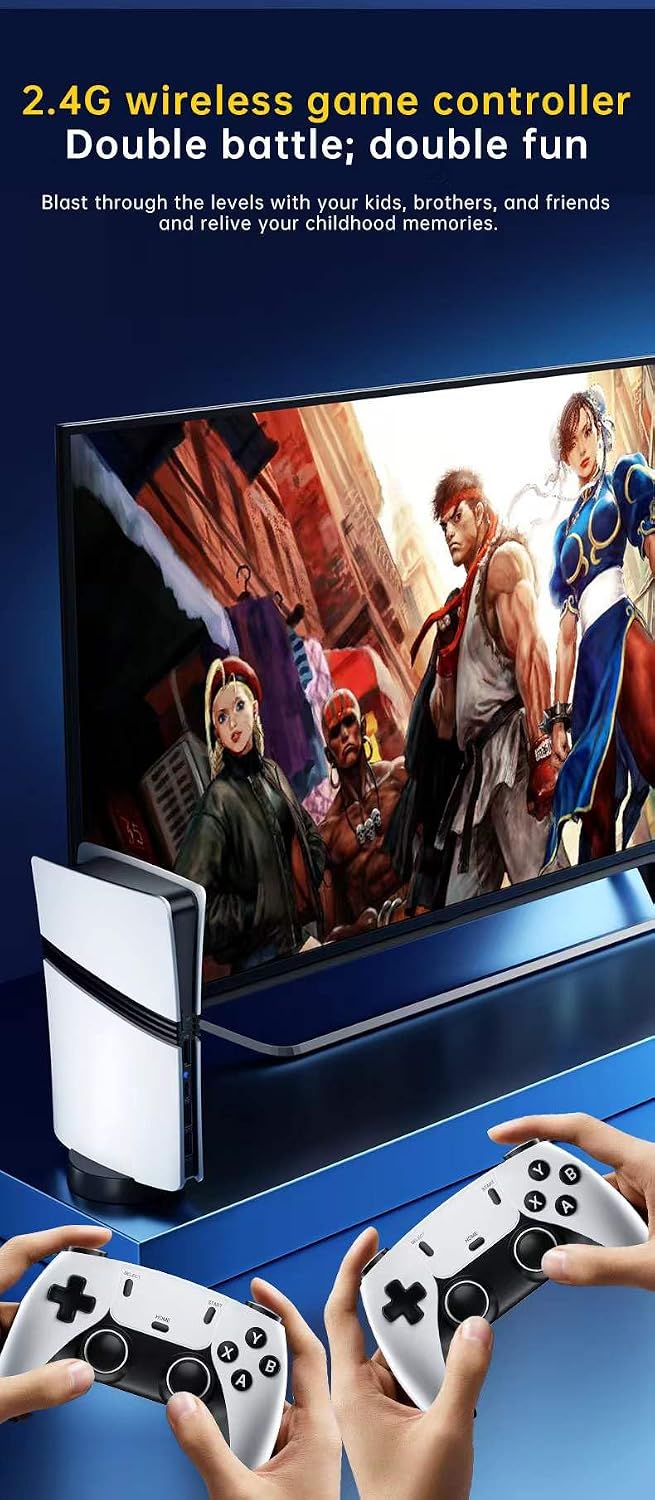
Image 3.1: GS5 Pro console connected and ready for gameplay.
4. Operating Instructions
Once your console is set up, you can begin exploring its features and games.
4.1. Navigating the Interface
- Use the directional pad (D-pad) or left analog stick on your controller to move through menu options.
- Press the A button (or equivalent action button) to select an option or confirm an action.
- Press the B button (or equivalent back button) to go back to the previous menu or cancel an action.
4.2. Selecting and Playing Games
The GS5 Pro console comes with an extensive built-in game library and supports 53 simulators.
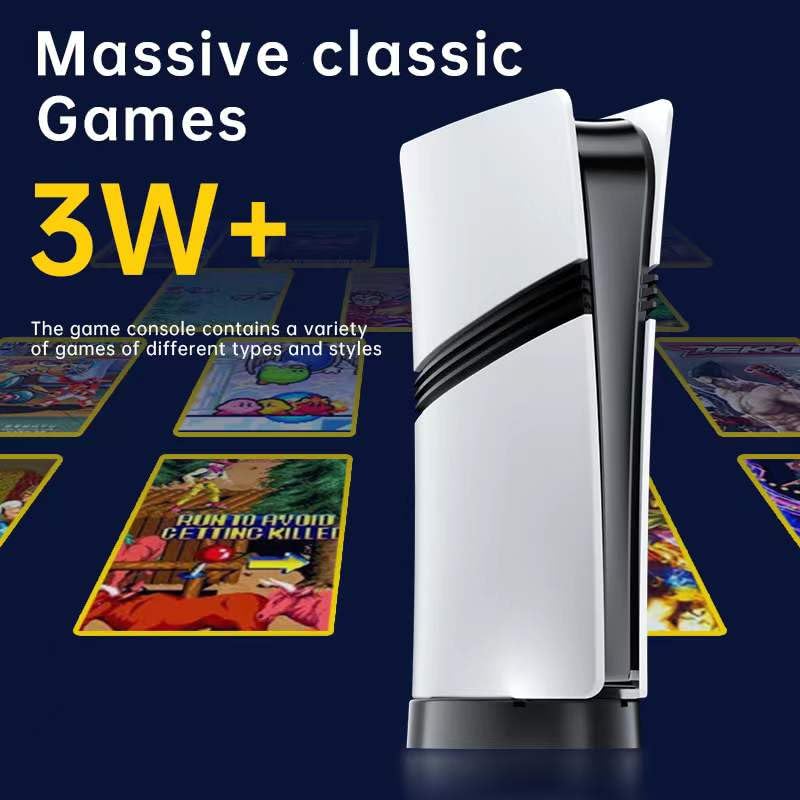
Image 4.1: Game selection screen on the GS5 Pro console.
- From the main menu, navigate to the 'Games' or 'Simulators' section.
- Browse through the available game categories or simulator lists.
- Select your desired game or simulator using the A button.
- Follow any on-screen prompts to start the game.
- To exit a game, refer to the in-game menu or press a designated 'Menu' or 'Home' button on your controller (if available) to return to the console's main interface.
4.3. Multiplayer Gaming
The console supports two-player gaming with the included wireless controllers.
- Ensure both controllers are powered on and paired with the console.
- Select a game that supports multiplayer mode.
- Follow the in-game instructions to activate the second player.
5. Maintenance
Proper care and maintenance will extend the life of your GS5 Pro console.
- Cleaning: Use a soft, dry cloth to clean the console and controllers. Do not use liquid cleaners or abrasive materials.
- Storage: Store the console in a cool, dry place away from direct sunlight and extreme temperatures.
- Ventilation: Ensure the console's ventilation openings are not blocked during operation to prevent overheating.
- Controller Batteries: If your controllers use replaceable batteries, remove them if the console will not be used for an extended period to prevent leakage.
6. Troubleshooting
If you encounter issues with your GS5 Pro console, refer to the following common problems and solutions.
| Problem | Possible Cause | Solution |
|---|---|---|
| Console does not power on. | Power cable not connected properly. No power from outlet. | Ensure power cable is securely connected to the console and the wall outlet. Test the outlet with another device. |
| No display on TV. | Incorrect HDMI input selected. HDMI cable loose or faulty. | Verify the TV is on the correct HDMI input. Check HDMI cable connections. Try a different HDMI cable or TV port. |
| Controllers not responding. | USB receiver not connected. Controller batteries low or dead. Controllers not paired. | Ensure USB receiver is plugged into the console. Replace controller batteries. Power cycle the console and controllers to re-pair. |
| Game freezes or lags. | Software glitch. Console overheating. | Restart the console. Ensure proper ventilation around the console. |
7. Specifications
Key technical specifications for the Playtastic GS5 Pro Classic TV Video Game Console:
- Model Number: GS5 PRO
- Product Dimensions: 20 x 15 x 6 cm
- Item Weight: 500 g
- Output: 1080p (HDMI)
- Game Library: Approximately 30,000 pre-loaded games
- Simulators: 53 supported emulators
- Connectivity: 2.4G Wireless (for controllers), HDMI, USB
- Manufacturer: Playtastic
- Language: English
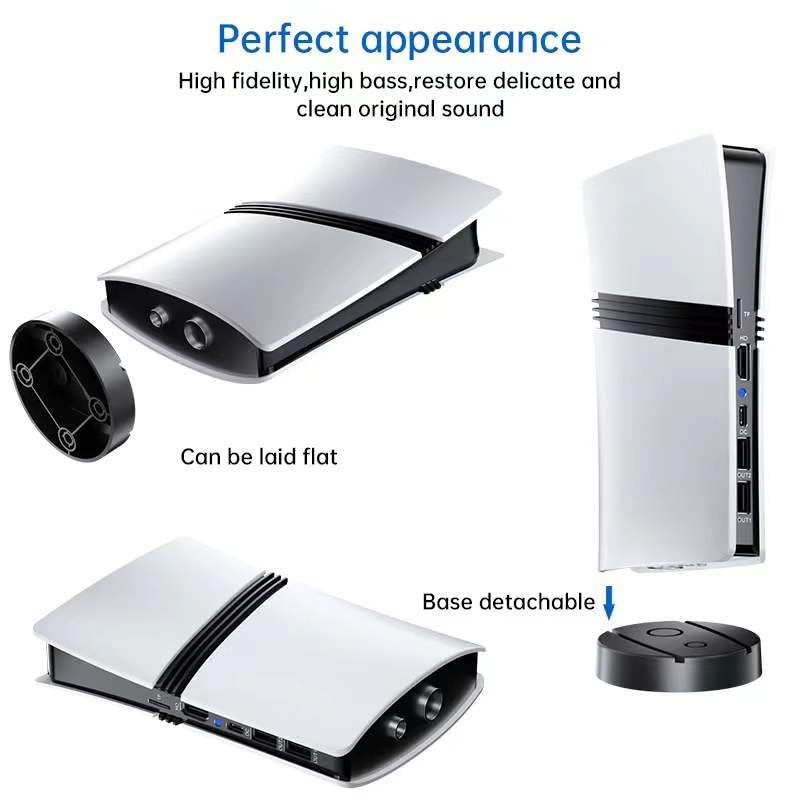
Image 7.1: GS5 Pro console design and port layout.
8. Warranty Information
Your Playtastic GS5 Pro Classic TV Video Game Console typically includes a 10-day replacement policy from the date of purchase. For specific details regarding warranty coverage, terms, and conditions, please refer to your purchase documentation or contact the retailer where the product was acquired. Extended warranty options may also be available through third-party providers.
9. Support
For further assistance, technical support, or inquiries not covered in this manual, please contact Playtastic customer service or visit the official Playtastic website. Keep your purchase receipt and model number (GS5 PRO) handy when contacting support.
Manufacturer: Playtastic
Website: Playtastic Store on Amazon.in