
1. Introduction
This manual provides instructions for the FRONTECH Wireless Mouse MS-0057. This mouse features dual wireless connectivity (Bluetooth 5.0 and 2.4 GHz), a rechargeable battery, adjustable DPI settings up to 1600, and a backlit effect. It is designed for compatibility with laptops, MacBooks, and PCs, offering a comfortable and efficient user experience.
2. Package Contents
- FRONTECH Wireless Mouse MS-0057
- USB Receiver (stored inside the mouse)
- USB to Type-C Charging Cable
- User Manual (this document)

Image: The FRONTECH Wireless Mouse MS-0057, showcasing its RGB lighting and indicating 2.4GHz and Bluetooth connectivity.
3. Setup
3.1. 2.4 GHz Wireless Connection
- Locate the USB receiver stored in the compartment at the bottom of the mouse.
- Insert the USB receiver into an available USB port on your computer.
- Slide the power switch on the bottom of the mouse to the "2.4G" position.
- The mouse will automatically connect to your computer.

Image: A visual guide illustrating the connection process for both 2.4GHz wireless mode and Bluetooth mode. For 2.4GHz, insert the USB receiver and switch the mouse to 2.4G mode.
3.2. Bluetooth Connection
- Slide the power switch on the bottom of the mouse to the "BT" position.
- On your computer or device, open Bluetooth settings.
- Search for new devices and select "FRONTECH MS-0057" (or similar name) from the list to pair.
- Once paired, the mouse is ready for use.
Image: A visual guide illustrating the connection process for both 2.4GHz wireless mode and Bluetooth mode. For Bluetooth, switch the mouse to BT mode and find the device in your Bluetooth settings.
4. Operation
4.1. DPI Adjustment
The mouse features adjustable DPI settings to control cursor sensitivity. Press the DPI button (usually located behind the scroll wheel) to cycle through available DPI levels (e.g., 800, 1200, 1600 DPI). Select the sensitivity that best suits your task.

Image: The FRONTECH Wireless Mouse with a graphic indicating adjustable DPI settings up to 1600, allowing users to fine-tune cursor speed.
4.2. Charging the Mouse
The mouse is equipped with a 400mAh rechargeable battery. When the battery is low, connect the provided USB to Type-C charging cable to the mouse's Type-C port and to a USB power source (e.g., computer USB port, USB wall adapter). The LED indicator will show charging status and turn off when fully charged.

Image: The FRONTECH Wireless Mouse being charged via its Type-C port, highlighting its 400mAh rechargeable battery.
4.3. Backlight Effects
The mouse features dynamic rainbow lighting. The backlight automatically activates when the mouse is in use. There is no specific control for the backlight; it operates as a visual indicator and aesthetic feature.

Image: The FRONTECH Wireless Mouse displaying its vibrant rainbow lighting along its edges and highlighting its four buttons.
4.4. Ergonomic Design and Wireless Range
The mouse is designed for comfort during extended use. Its ergonomic shape provides a natural grip. Enjoy a wireless operating range of up to 10 meters (33 feet), providing flexibility in your workspace.

Image: A hand comfortably gripping the FRONTECH Wireless Mouse, demonstrating its ergonomic design for comfortable use.
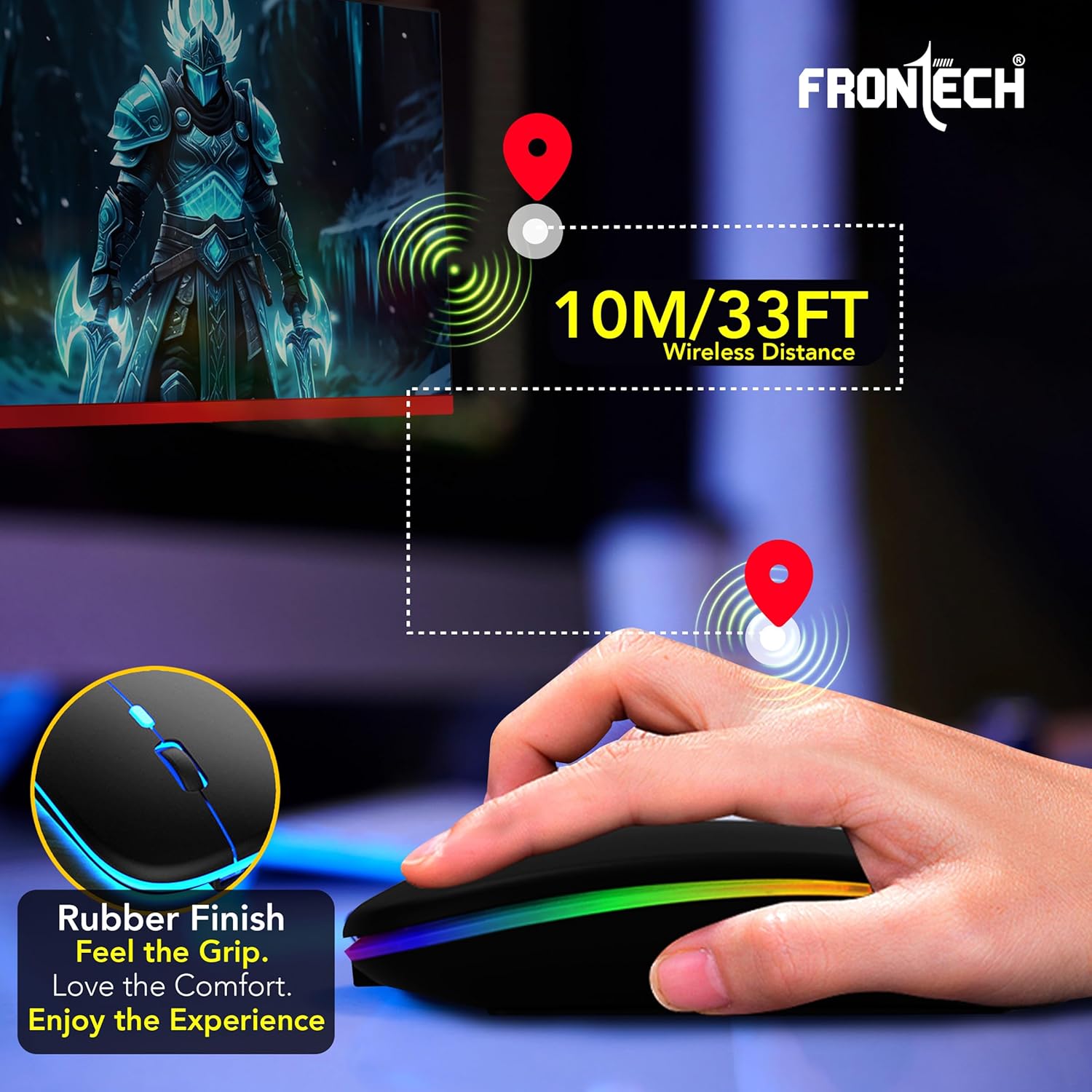
Image: The FRONTECH Wireless Mouse with an overlay indicating a wireless operating distance of 10 meters (33 feet).
5. Maintenance
- Cleaning: Use a soft, dry cloth to clean the mouse. Avoid using harsh chemicals or abrasive materials.
- Battery Care: To prolong battery life, avoid fully discharging the mouse frequently. Charge it when the low battery indicator appears.
- Storage: Store the mouse in a cool, dry place when not in use for extended periods.
6. Troubleshooting
| Problem | Solution |
|---|---|
| Mouse not connecting via 2.4 GHz | Ensure the USB receiver is securely plugged into a working USB port. Check if the mouse power switch is set to "2.4G". Try a different USB port. |
| Mouse not connecting via Bluetooth | Ensure the mouse power switch is set to "BT". Make sure Bluetooth is enabled on your device and the mouse is in pairing mode (usually indicated by a blinking LED). Remove previous pairings and try to pair again. |
| Mouse cursor is erratic or unresponsive | Check the battery level and charge the mouse if necessary. Ensure the mouse is on a clean, non-reflective surface. Adjust DPI settings. |
| Backlight not working | The backlight activates when the mouse is in use. If it's not lighting up, ensure the mouse is powered on and has sufficient battery charge. |
| Mouse not charging | Verify the charging cable is properly connected to both the mouse and the power source. Try a different USB port or charging adapter. |
7. Specifications
| Feature | Detail |
|---|---|
| Brand | FRONTECH |
| Model Name | MS-0057 |
| Colour | Black |
| Connectivity Technology | Wireless (Bluetooth 5.0 & 2.4 GHz) |
| Movement Detection Technology | Optical |
| Button Quantity | 4 (Left, Right, Scroll Wheel/Middle, DPI) |
| Compatible Devices | Laptop, Mac, Personal Computer |
| Operating System | Windows, macOS |
| Battery Type | Rechargeable (400mAh) |
| Battery Average Life | Up to 12 Months (depending on usage) |
| Wireless Range | 10 meters (33 feet) |
| Mouse Maximum Sensitivity | 1600 Dots per Inch (DPI) |
| Theme | Rainbow (Backlit Effect) |
| Item Weight | 150 Grams |
| Item Dimensions (L x W) | 11.3L x 4.2W Centimeters |
| Country of Origin | China |
8. Warranty and Support
The FRONTECH Wireless Mouse MS-0057 comes with a 1-Year Warranty from the date of purchase. For warranty claims or technical support, please contact FRONTECH customer service. Keep your purchase receipt as proof of purchase.
Manufacturer Contact Information: Frontech Private Limited
9. Product Overview Video
Video: An unboxing and overview of the FRONTECH Wireless Mouse MS-0057, demonstrating its sleek design, dual connectivity, charging cable, and backlit effects. This video provides a visual guide to the product's features and initial setup components.


